
Learn how to connect your Android phone or tablet to the internet using an Ethernet cable for a faster, more stable connection. I’ll show you the steps to set up wired internet on your Android device.
Amazon links
As an Amazon Associate I earn from qualifying purchases:
- Phone Cases
- Mobile Tripods
- Usb-c charger
- Usb-c cable
- Docking stations
- Wireless car chargers
- Wireless charger stand
- SIM card removal tool
- SIM card holder
Quick Steps and Scenarios Overview
| What You Need to Do | Quick Jump |
|---|---|
| Why Use Ethernet on Android? | Jump to Step 1 |
| What You'll Need | Jump to Step 2 |
| How to Set Up Ethernet Connection | Jump to Step 3 |
| Ethernet Adapter Recommendations | Jump to Step 4 |
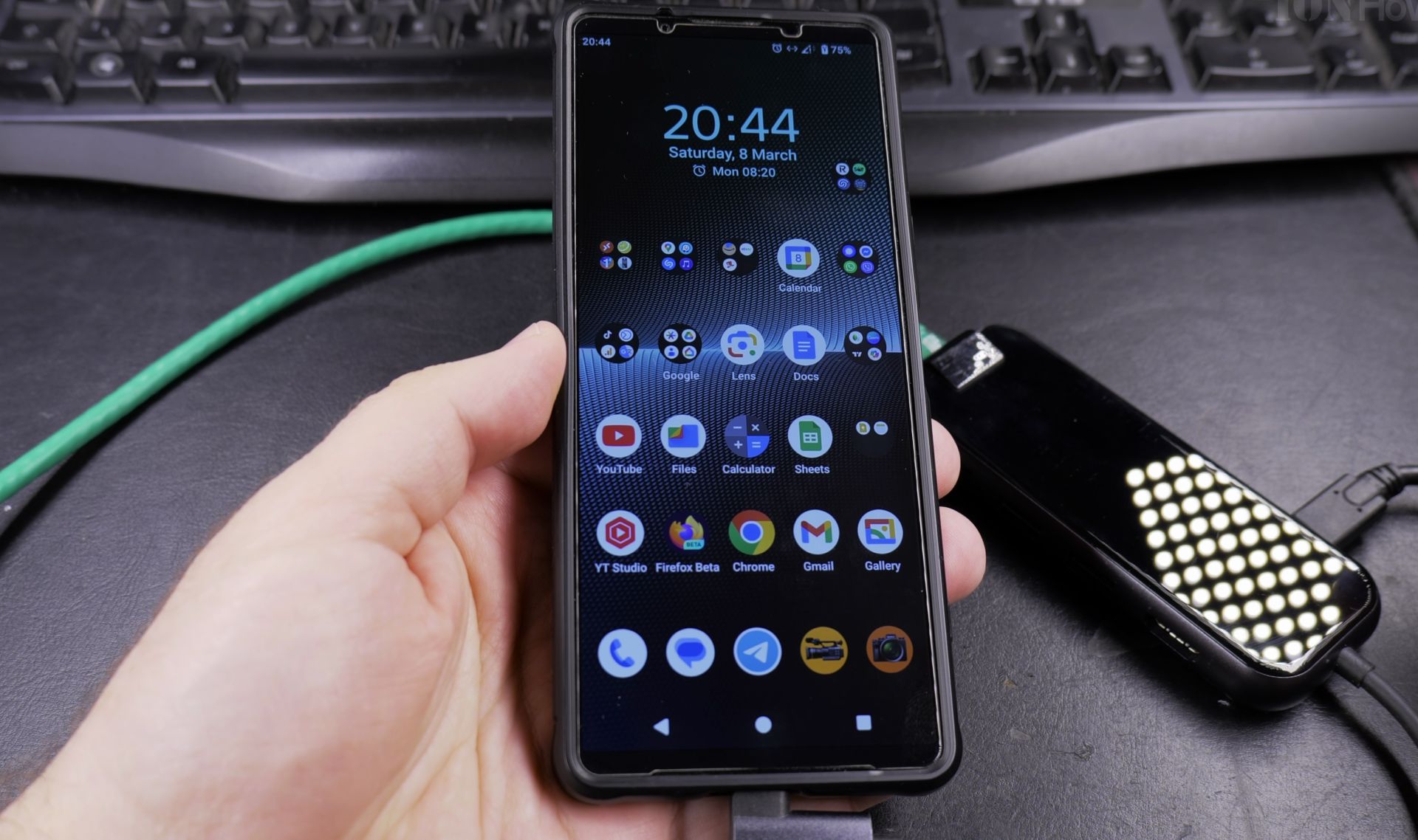
Demonstrated on Sony Xperia 1V running Android 15
Why Use Ethernet on Android?
A wired connection offers:
- Faster, more consistent speeds
- Lower latency for gaming and video calls
- Better reliability than Wi-Fi
- No wireless interference
- Ideal for streaming, large downloads, and important work
What You’ll Need
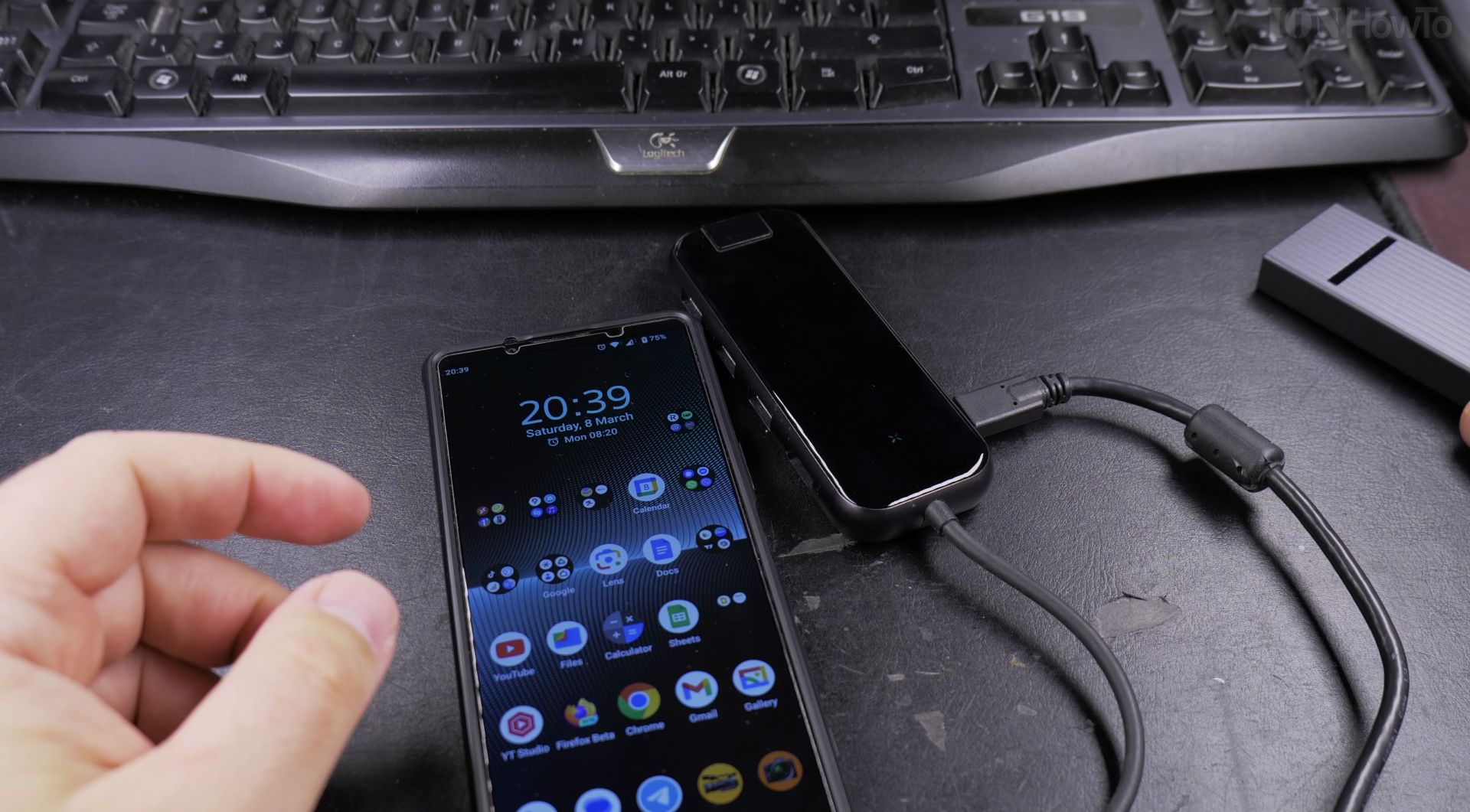
- Android device with USB-C port (most modern devices)
- USB-C hub with Ethernet port (USB 3.0 or better recommended)
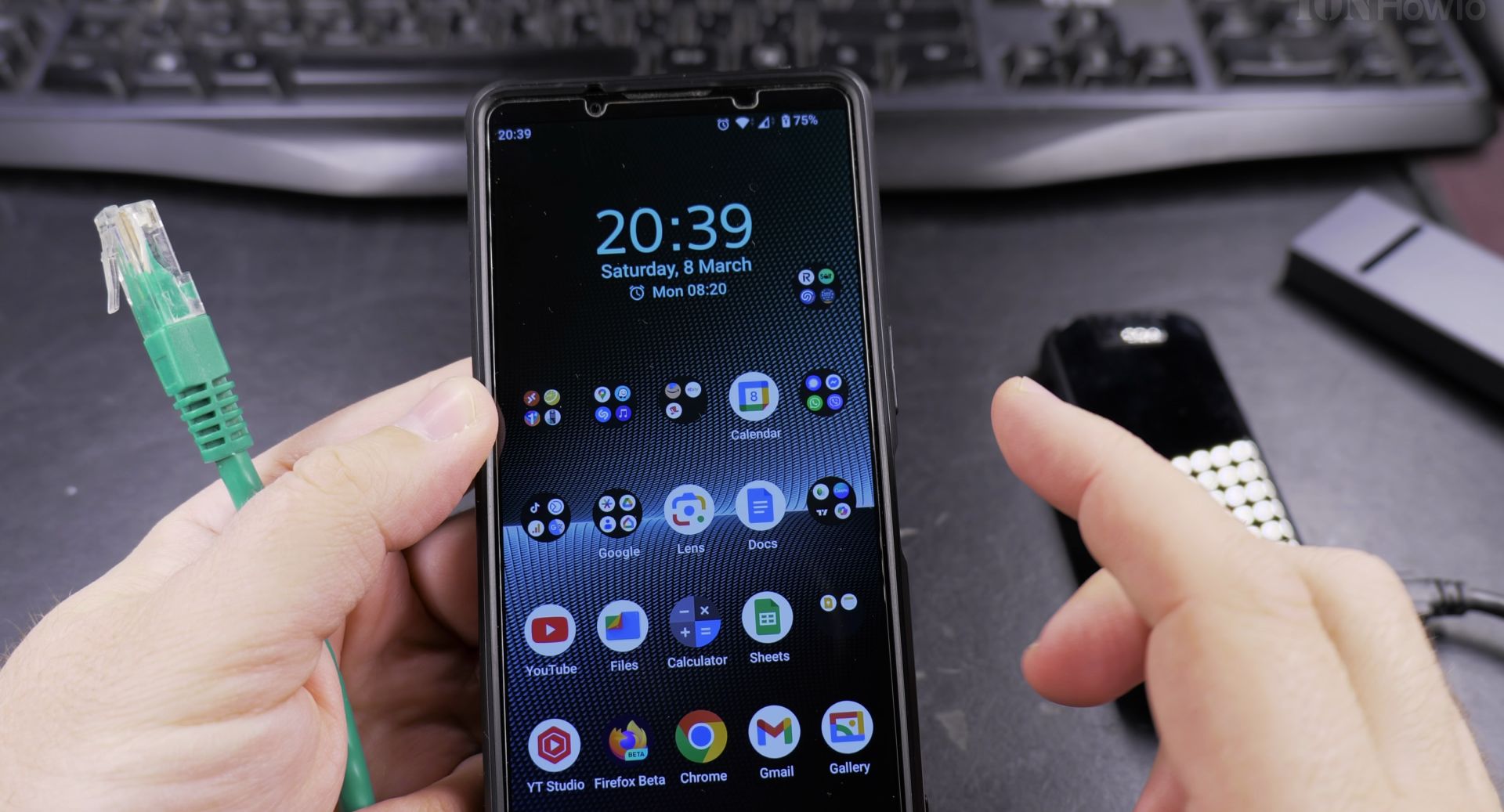
- Ethernet cable (Cat 5e or Cat 6 recommended)
- Network connection (router/switch with at least 1Gbps ports)
How to Set Up Ethernet Connection
Step 1: Connect Your Hardware
- Plug the Ethernet cable into your router/switch
- Connect the other end to your USB-C hub’s Ethernet port
- Connect the hub to your Android device’s USB-C port
Step 2: Enable Ethernet on Android
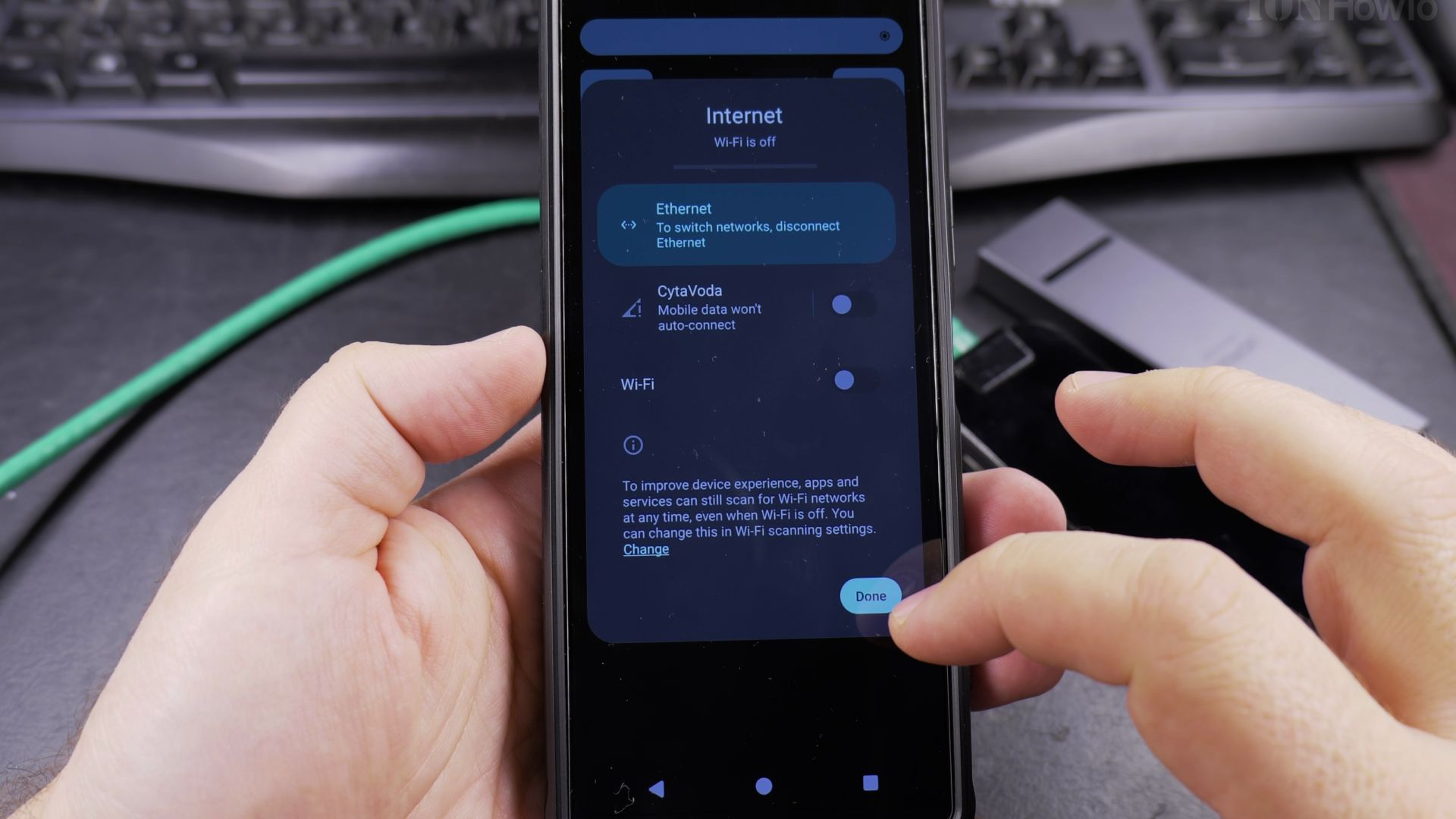
- Swipe down from the top of your screen to open Quick Settings
- Tap the gear icon to open Settings
- Go to Network & internet
- Look for Ethernet in the connection options
- Toggle Ethernet ON
Step 3: Verify Your Connection
- Check for the Ethernet icon in your status bar
- Open a browser and visit a website to test
- (Optional) Run a speed test to check your connection
Troubleshooting Tips
If Ethernet isn’t working:
- Try a different USB-C hub
- Test with another Ethernet cable
- Restart your Android device
- Check your router/switch connection
- Verify your USB-C hub supports Ethernet
Ethernet Adapter Recommendations
For best performance:
- Choose USB 3.2 Gen 2 hubs (faster speeds)
- Use Cat 6 Ethernet cables
- Ensure your network equipment supports 1Gbps
- Look for adapters specifically mentioning Ethernet support
Final Thoughts
While most people use Wi-Fi, Ethernet gives you the most reliable connection possible on Android. It’s perfect when you need maximum speed and stability for gaming, video calls, or large file transfers.
Remember that your actual speed will depend on your network equipment and internet plan. Most phones support up to 1Gbps Ethernet, which is more than enough for typical use.
Have questions about setting up Ethernet on your specific Android device? Let me know in the comments!
Helpful Tips
Take your time and check the screen carefully after each tap so you can confirm the setting changed as expected. If an option appears in a slightly different spot on your device, watch the embedded video above for a closer look.
Related Guides
- Step-by-Step Replace Ethernet Cable Pull New Cable with Old Cable in Conduit Upgrade Cat5E to Cat6A – If your home network needs 10-gigabit speeds, pulling new wiring through existing wall pipes is much easier than opening drywall.
- How to Connect an iPad to Wired Ethernet Internet Using a USB-C Cable – When Wi-Fi is spotty or you need zero-latency internet for gaming, video calls, or large file transfers, connecting your…
- Pull New Ethernet Cable Using Old Cable in Conduit – How to Pull New Ethernet Cable Using Old Cable in Conduit: Upgrade Cat5E to Cat6A.
- Android & Mobile Guides – Browse more tutorials and practical guides in this section.


Leave a Reply