
When you want to declutter your music library and remove old playlists you no longer listen to, Apple Music allows you to delete them in seconds. Here is how to delete a playlist from your library without losing the individual songs saved on your account.
1. Open Apple Music and Navigate to Library > Playlists
Open the Apple Music app on your iOS device, tap Library at the bottom, and select Playlists to view your playlist catalog.
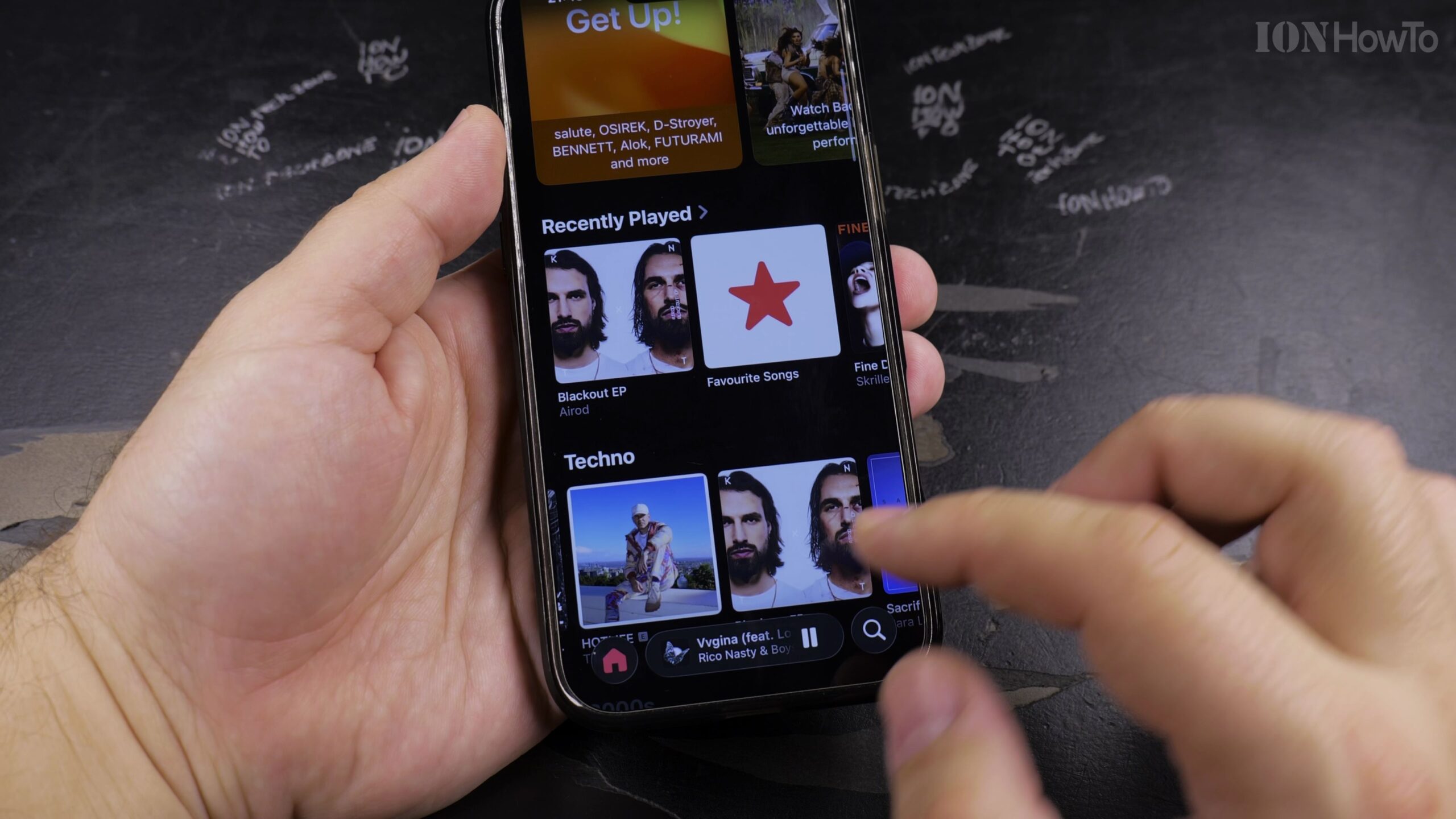 2. Locate the Specific Playlist You Wish to Delete
Scroll through your playlist list until you find the playlist you want to permanently remove from your collection.
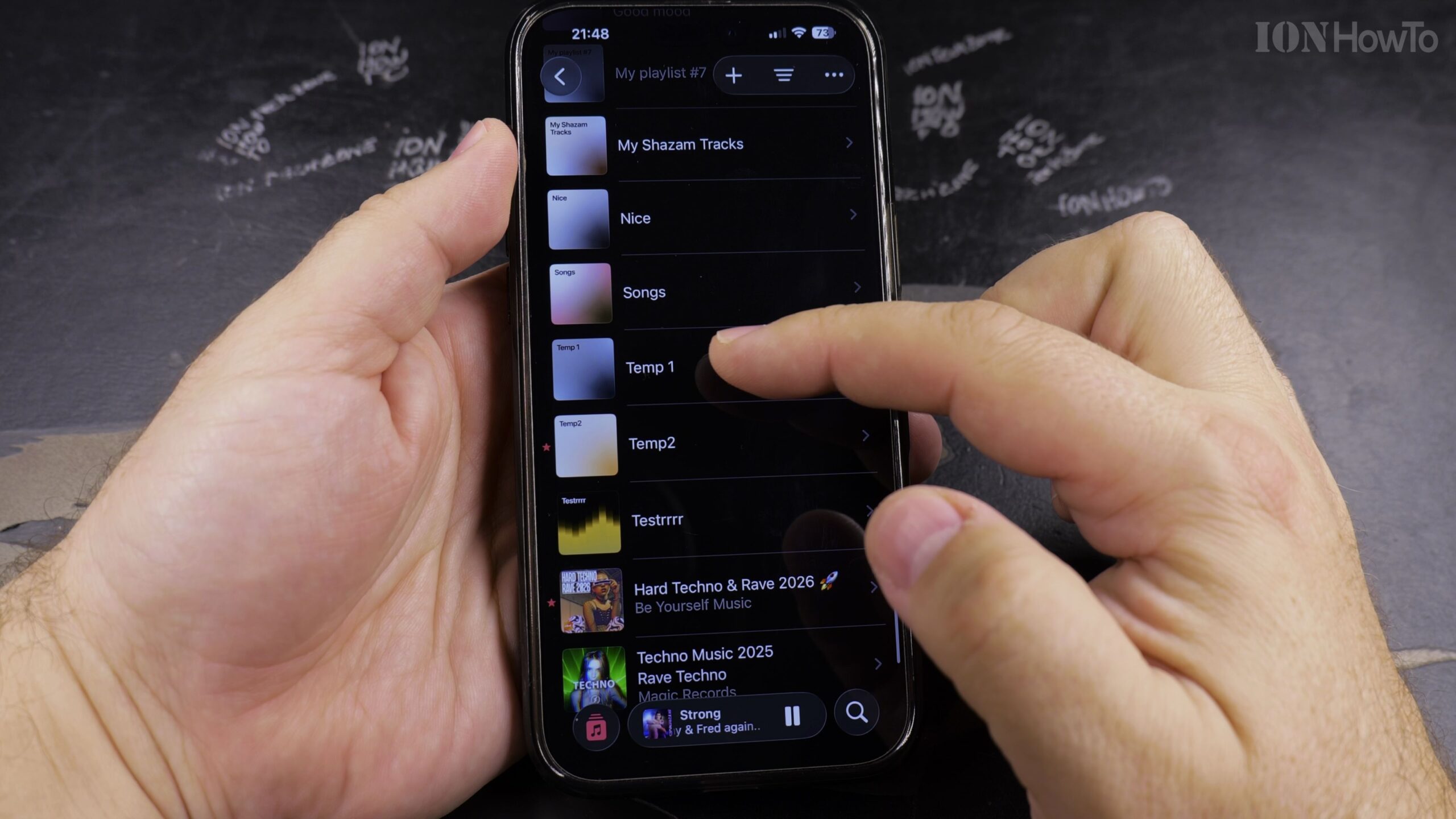
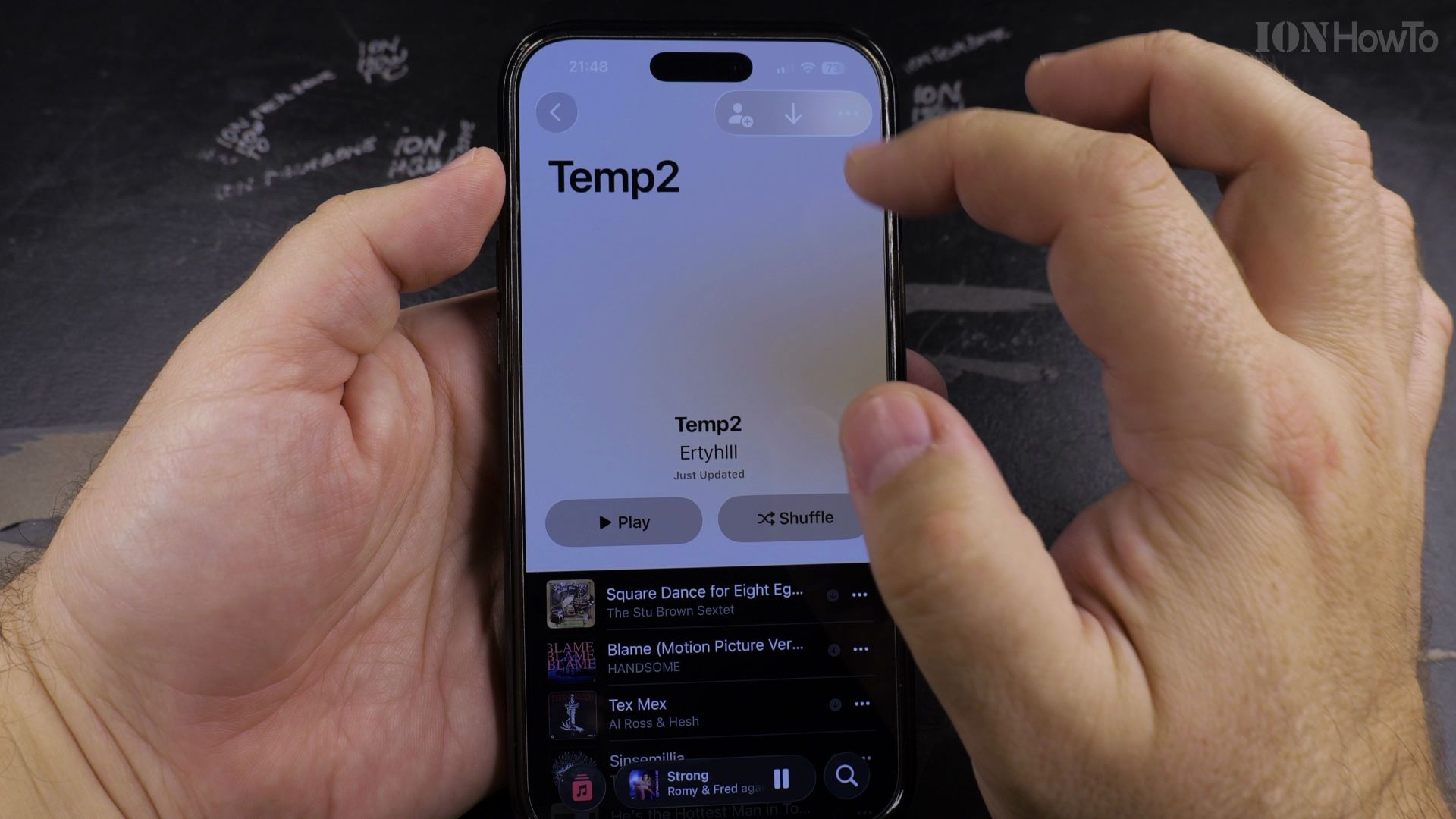
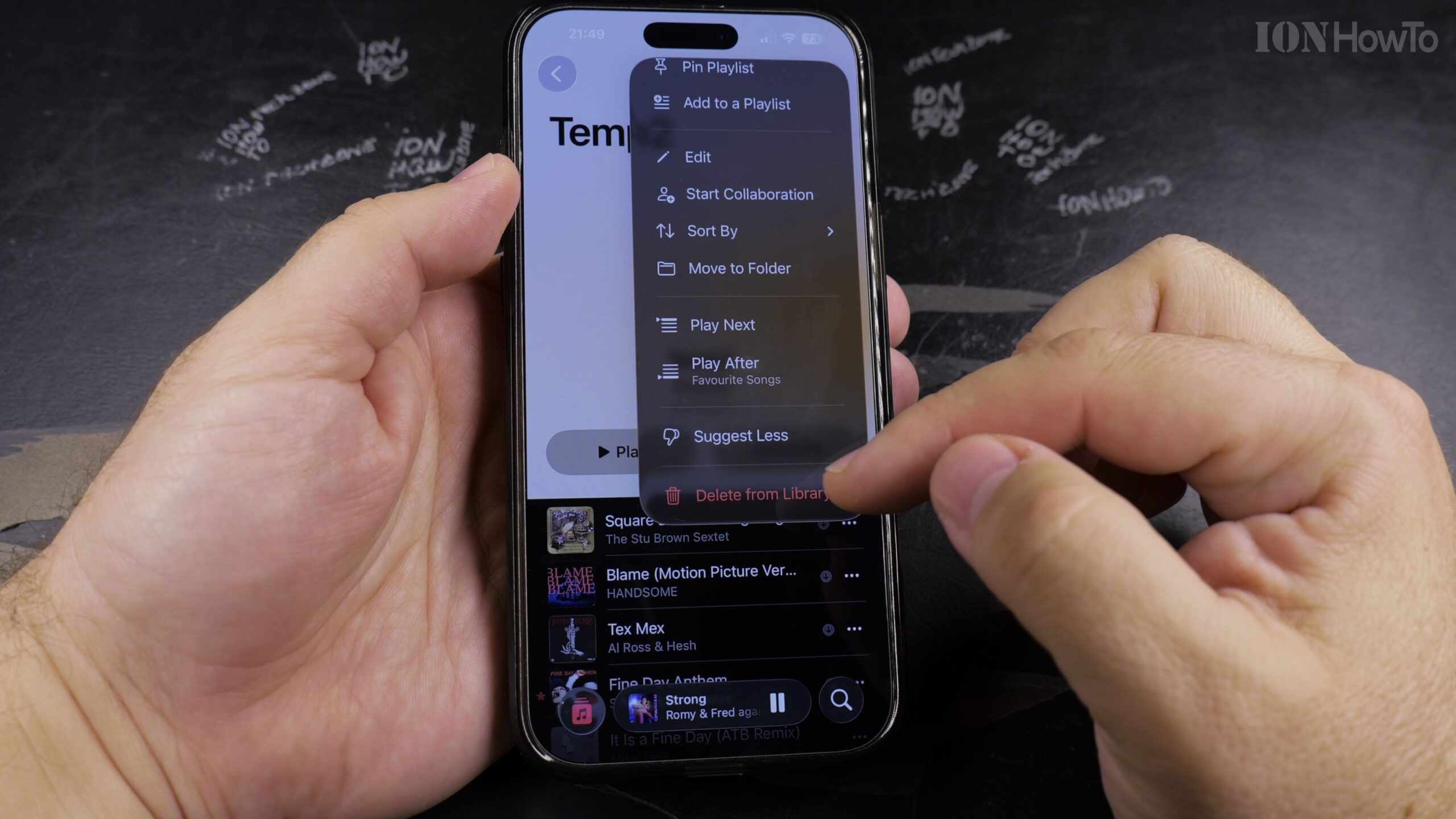
3. Touch and Hold the Playlist Tile or Tap the Three Dots
You can either press and hold on the playlist cover art from the list view or open the playlist and tap the circular three-dot menu in the upper corner.
4. Select Delete from Library from the Action Menu
Tap ‘Delete from Library’ highlighted in red text. A confirmation prompt will appear on your screen.
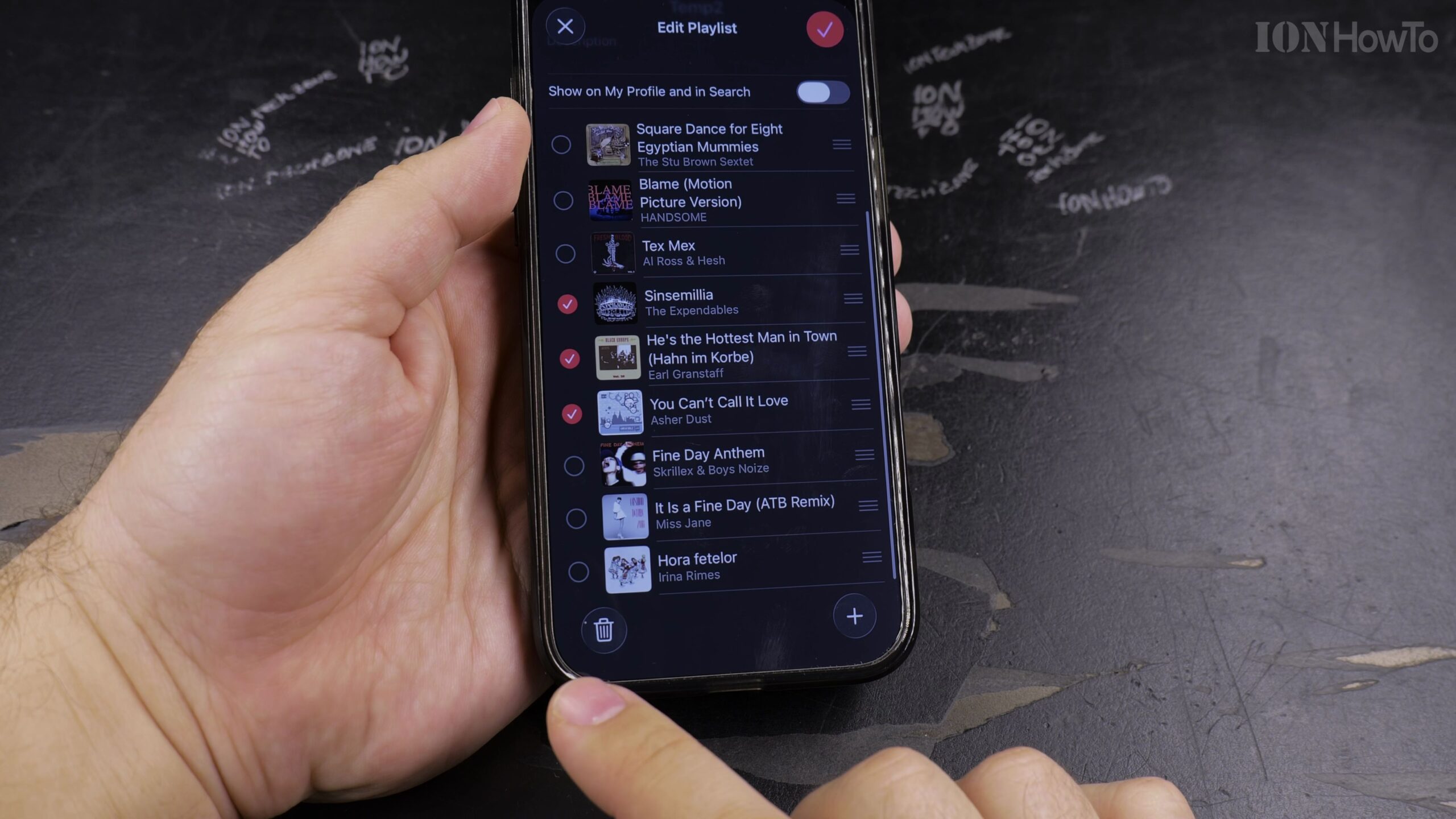
5. Confirm Playlist Deletion
Tap ‘Delete Playlist’ on the confirmation pop-up. The playlist will be immediately deleted across all devices synced with your Apple ID.
Helpful Tips and Related Guides
Deleting a playlist only removes the playlist grouping; the individual songs will remain in your library if you have added them separately. Read more in our Apple Music & Audio section, check our guide on Finding Playlists in Apple Music, or browse How-To guides.


Leave a Reply