
Learn how to clear storage on your Android device by removing or moving photos and videos. I’ll show you both deletion and transfer options to manage your storage effectively.
Amazon links
As an Amazon Associate I earn from qualifying purchases:
- Phone Cases
- Mobile Tripods
- Usb-c charger
- Usb-c cable
- Docking stations
- Wireless car chargers
- Wireless charger stand
- SIM card removal tool
- SIM card holder
Quick Steps and Scenarios Overview
| What You Need to Do | Quick Jump |
|---|---|
| Why Clean Up Media Files? | Jump to Step 1 |
| How to Delete Photos and Videos | Jump to Step 2 |
| How to Move Files to External Storage | Jump to Step 3 |
| Storage Management Tips | Jump to Step 4 |
| What to Keep in Mind | Jump to Step 5 |
Demonstrated on Sony Xperia 1V running Android 15
Why Clean Up Media Files?
- Free up valuable storage space
- Make your phone run faster
- Keep only what you really need
- Organize your memories better
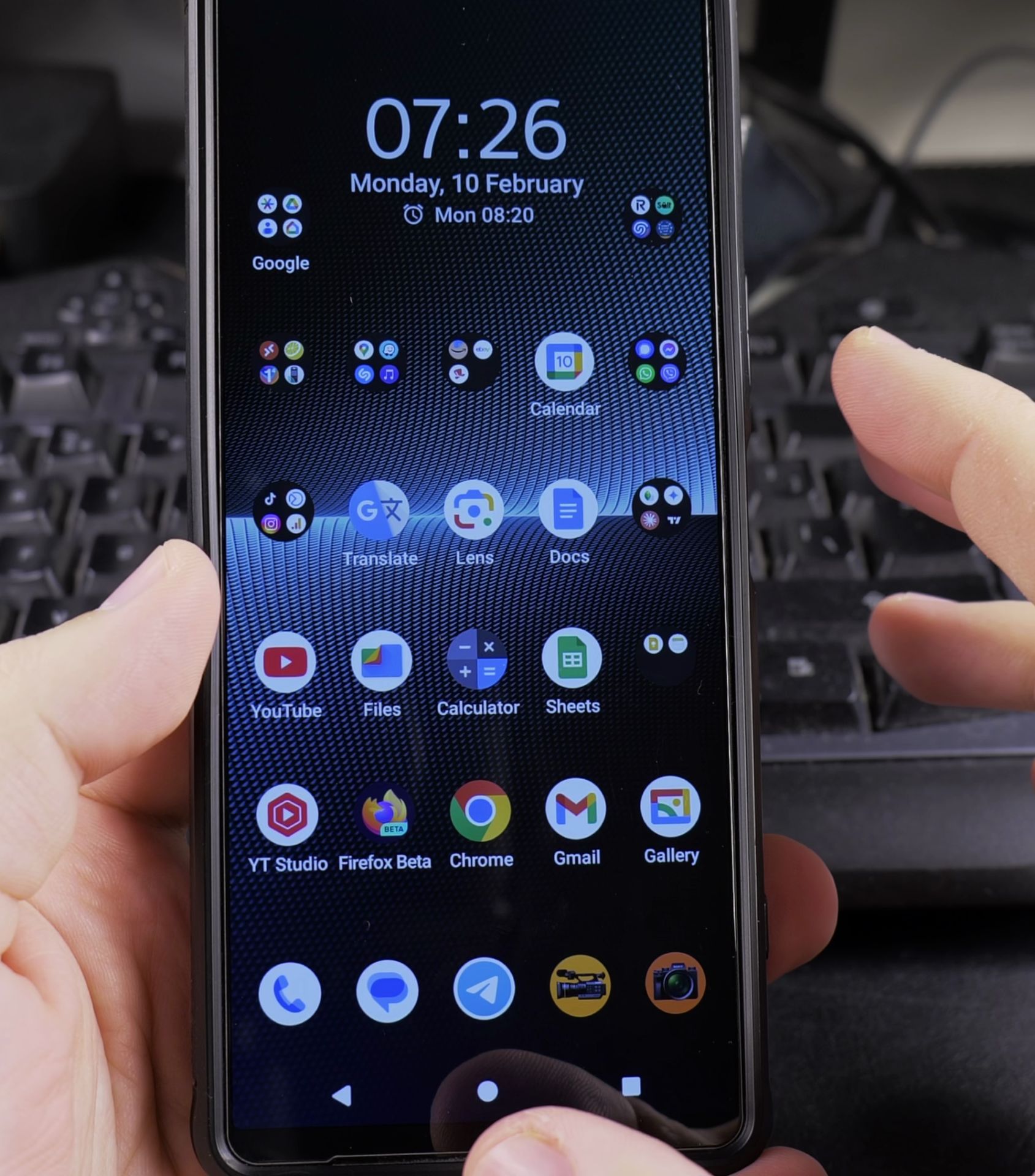
How to Delete Photos and Videos
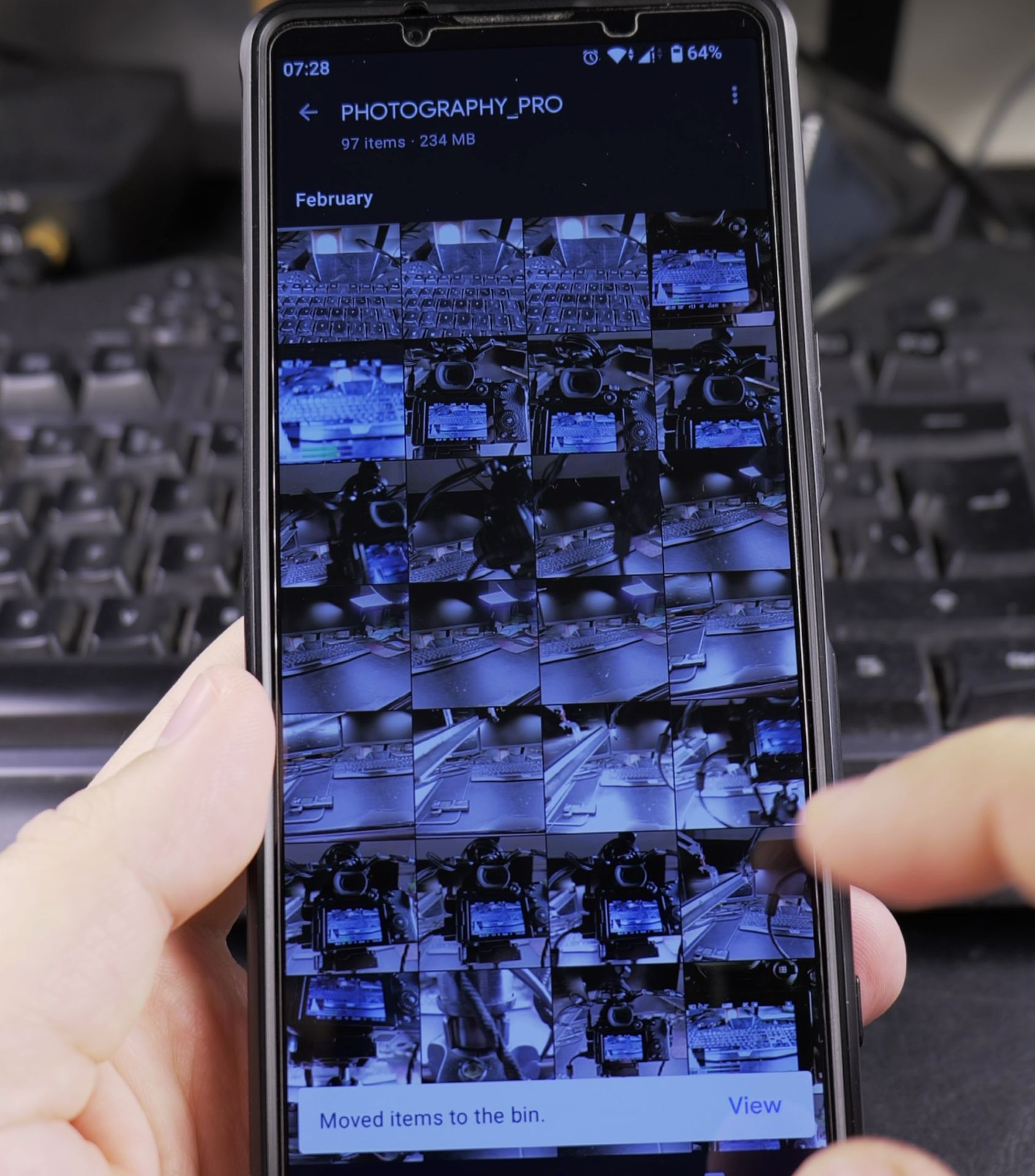
Method 1: Using Google Photos
- Open the Google Photos app
- Tap your profile picture > “Photos settings”
- Select “Free up space”
- Choose which items to remove (already backed up)
- Confirm deletion
Method 2: Using Your Gallery App
- Open your device’s Gallery app
- Select photos/videos to delete
- Tap the trash can icon
- Confirm deletion
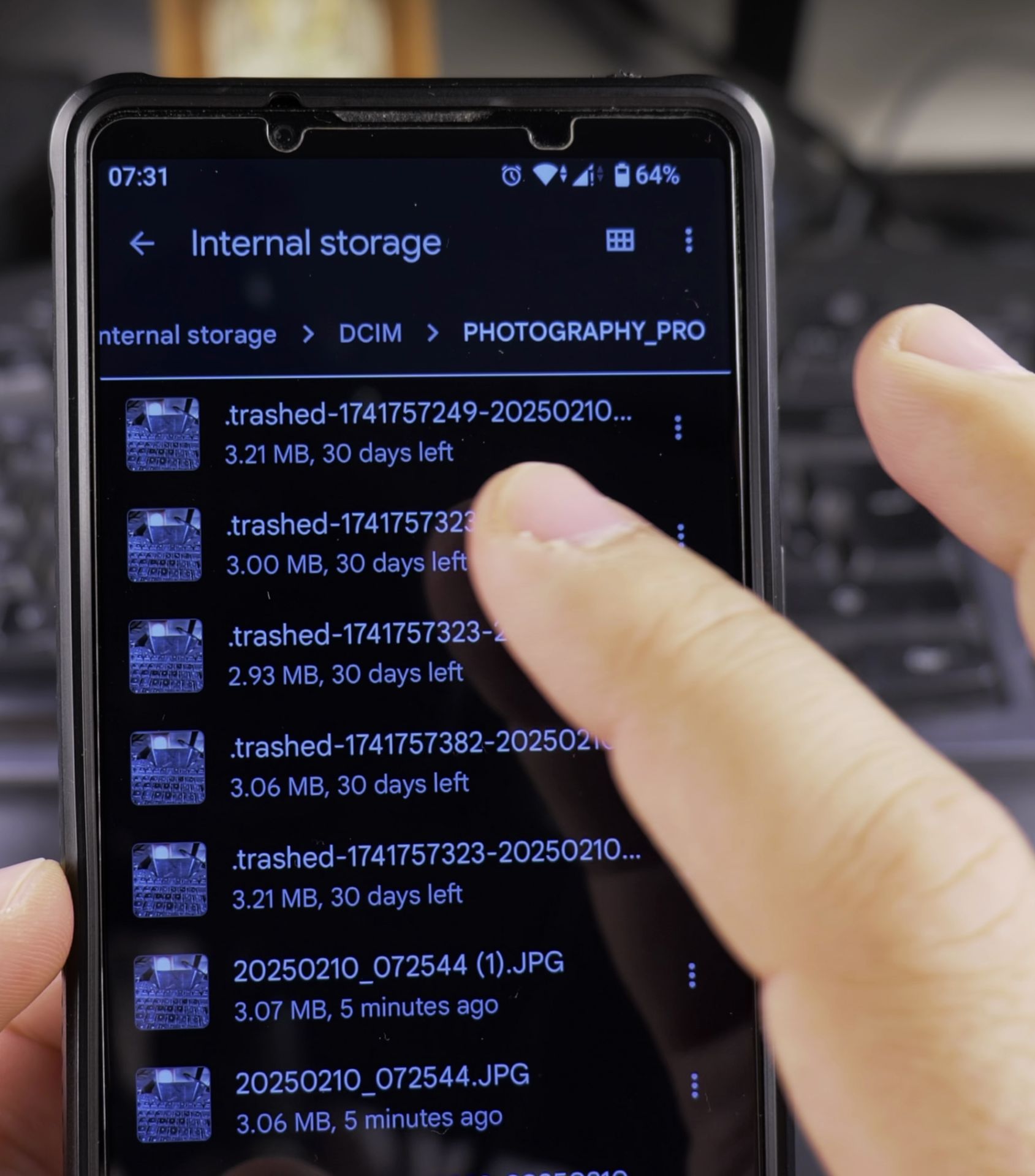
- Empty trash to permanently remove
How to Move Files to External Storage
Transfer to Computer
- Connect phone to computer via USB
- Select “File transfer” mode
- Open your phone’s DCIM folder
- Copy files to your computer
- Delete from phone after verifying backup
Move to External Drive
- Connect USB drive or SSD via adapter
- Open Files app on your phone
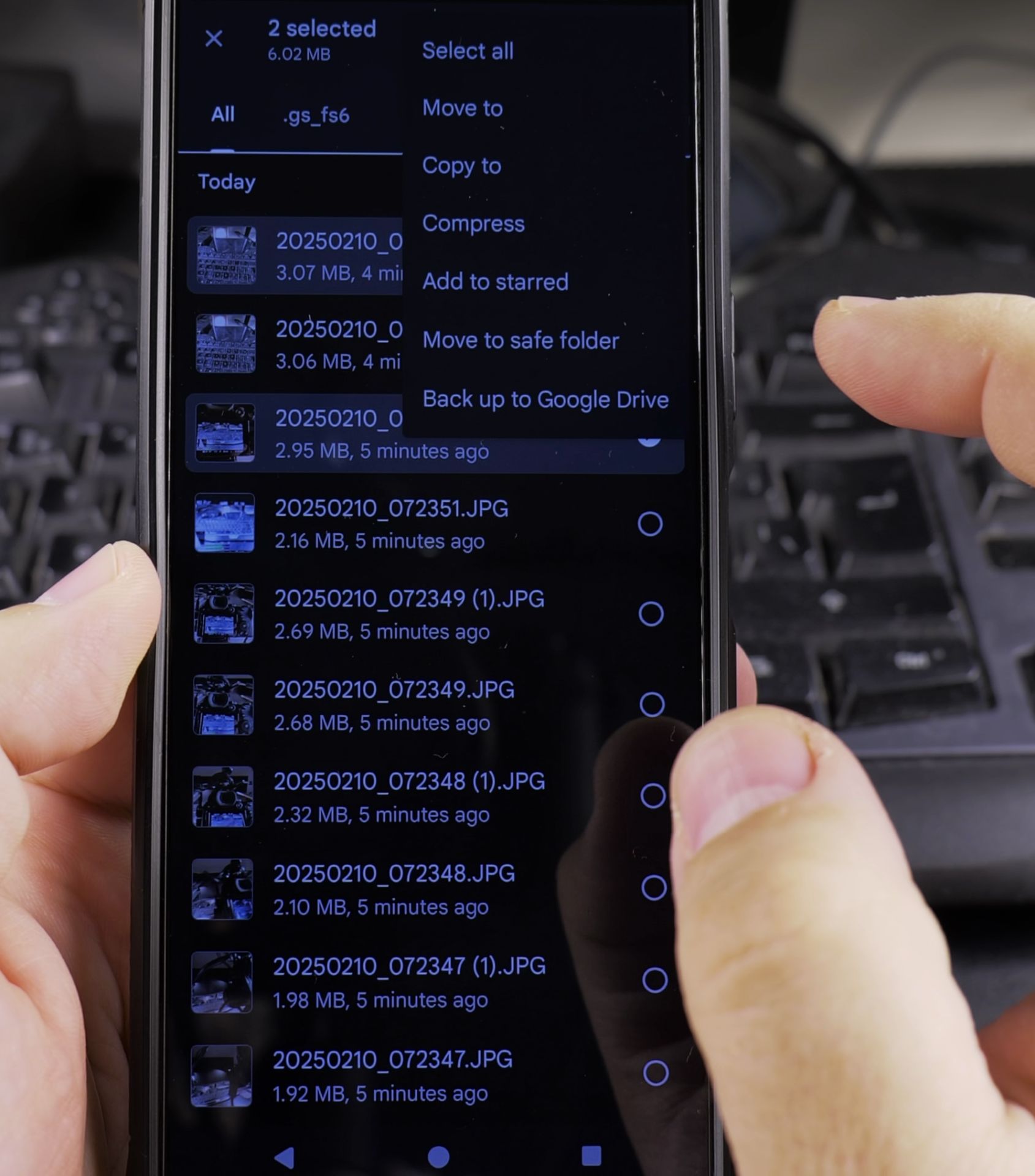
- Select photos/videos to move
- Choose “Move to” and select your drive
- Wait for transfer to complete
Storage Management Tips
- Sort by size to find largest files first
- Delete duplicate and similar shots
- Remove old screenshots and downloads
- Use cloud backup before deleting
- Set up auto-delete for backed-up items
What to Keep in Mind
- Double-check before permanent deletion
- Some apps may need certain media files
- External drives need proper ejection
- Cloud backups can save important memories
- Regular cleaning prevents storage crises
Final Thoughts
Managing your photos and videos is an easy way to keep your Android phone running smoothly. If you choose to delete or transfer files, these methods will help you reclaim storage space while keeping your important memories safe.
Remember that the exact steps might vary slightly depending on your Android version and phone model, but the basic principles remain the same across devices.
Helpful Tips
Take your time and check the screen carefully after each tap so you can confirm the setting changed as expected. If an option appears in a slightly different spot on your device, watch the embedded video above for a closer look.
Related Guides
- How to Delete Private Space and Erase All Hidden Apps on Android – If you no longer need Private Space on Android or want to wipe all hidden apps, accounts, and private photos stored inside…
- Delete Files and Directories on Samsung Android – How to Delete Files and Directories on Samsung Android Devices.
- Delete Clipboard History on Samsung Android – How to Delete Clipboard History on Samsung Android Devices.
- Android & Mobile Guides – Browse more tutorials and practical guides in this section.


Leave a Reply