
Every time you open an email attachment, save a receipt, or download a wallpaper, Android stores the file in your internal Downloads folder. Over time, these forgotten files accumulate and take up gigabytes of valuable storage.
Why Regularly Clearing Downloads Matters
Every time you open an email attachment, save a receipt, or download a wallpaper, Android stores the file in your internal Downloads folder. Over time, these forgotten files accumulate and take up gigabytes of valuable storage.
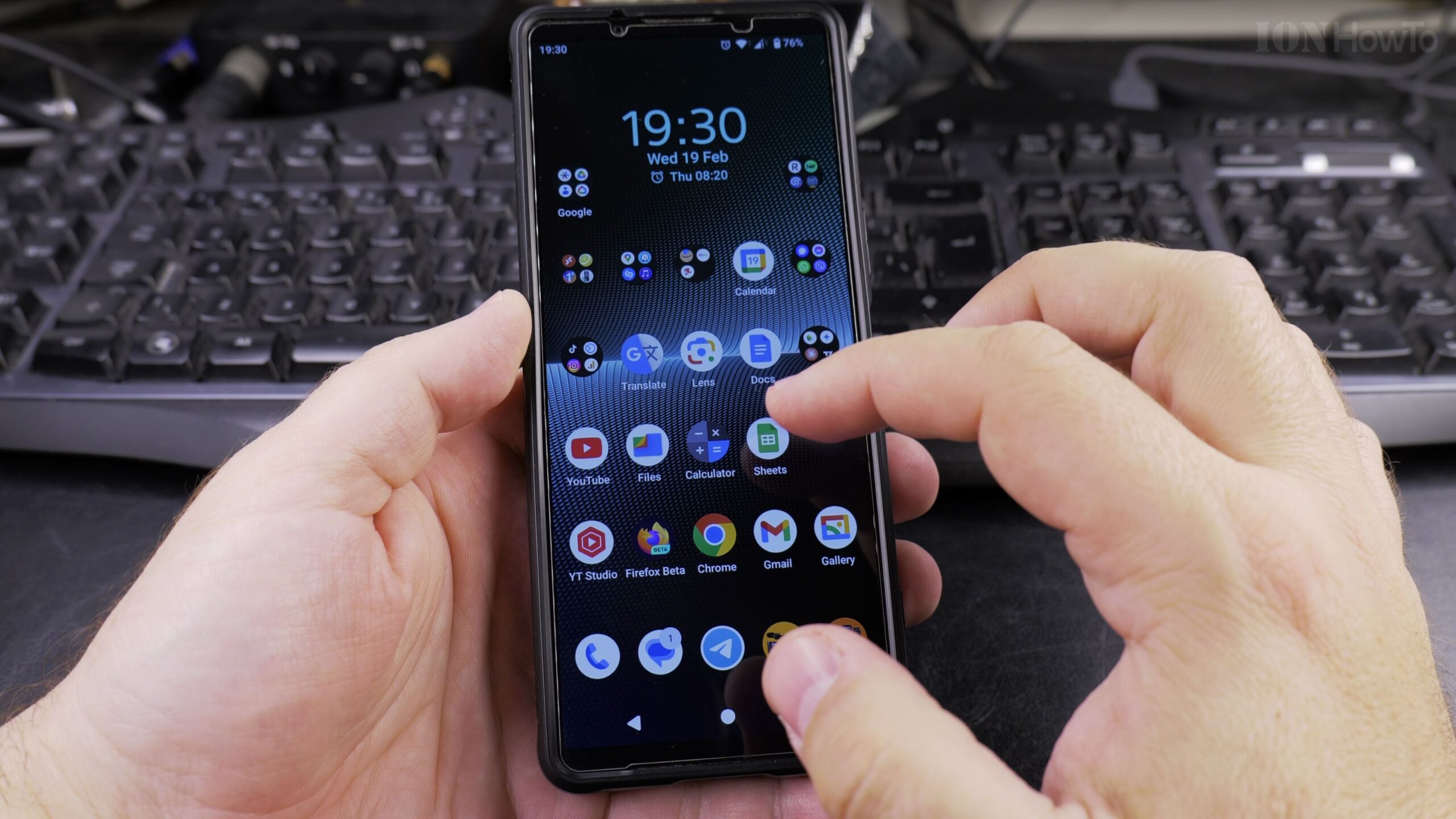
Step 1: Open the Files App on Your Device
Locate and open the Files application (or Files by Google) on your phone. If you cannot find it, swipe down from the center of the home screen and type Files into the search bar.
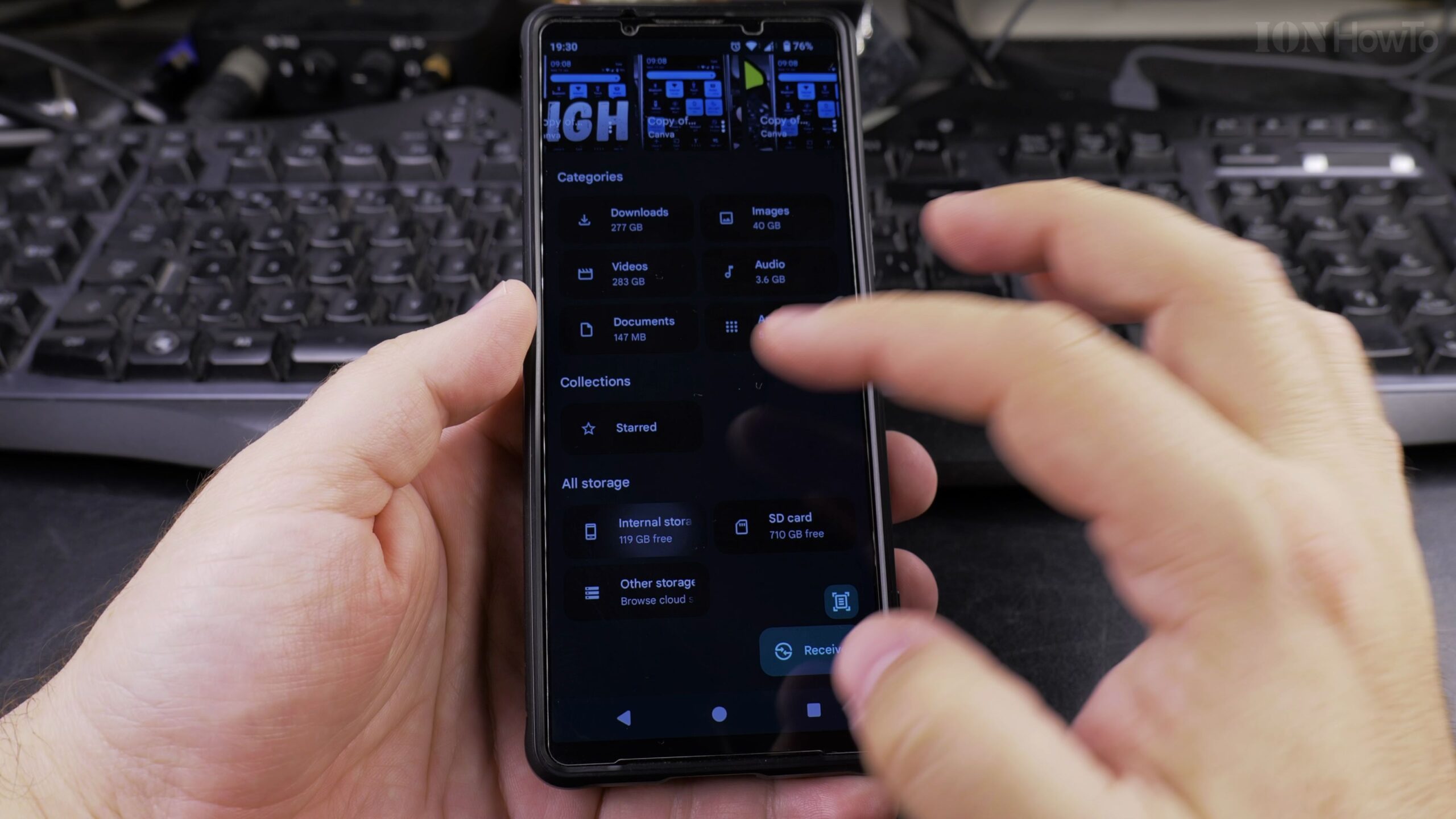
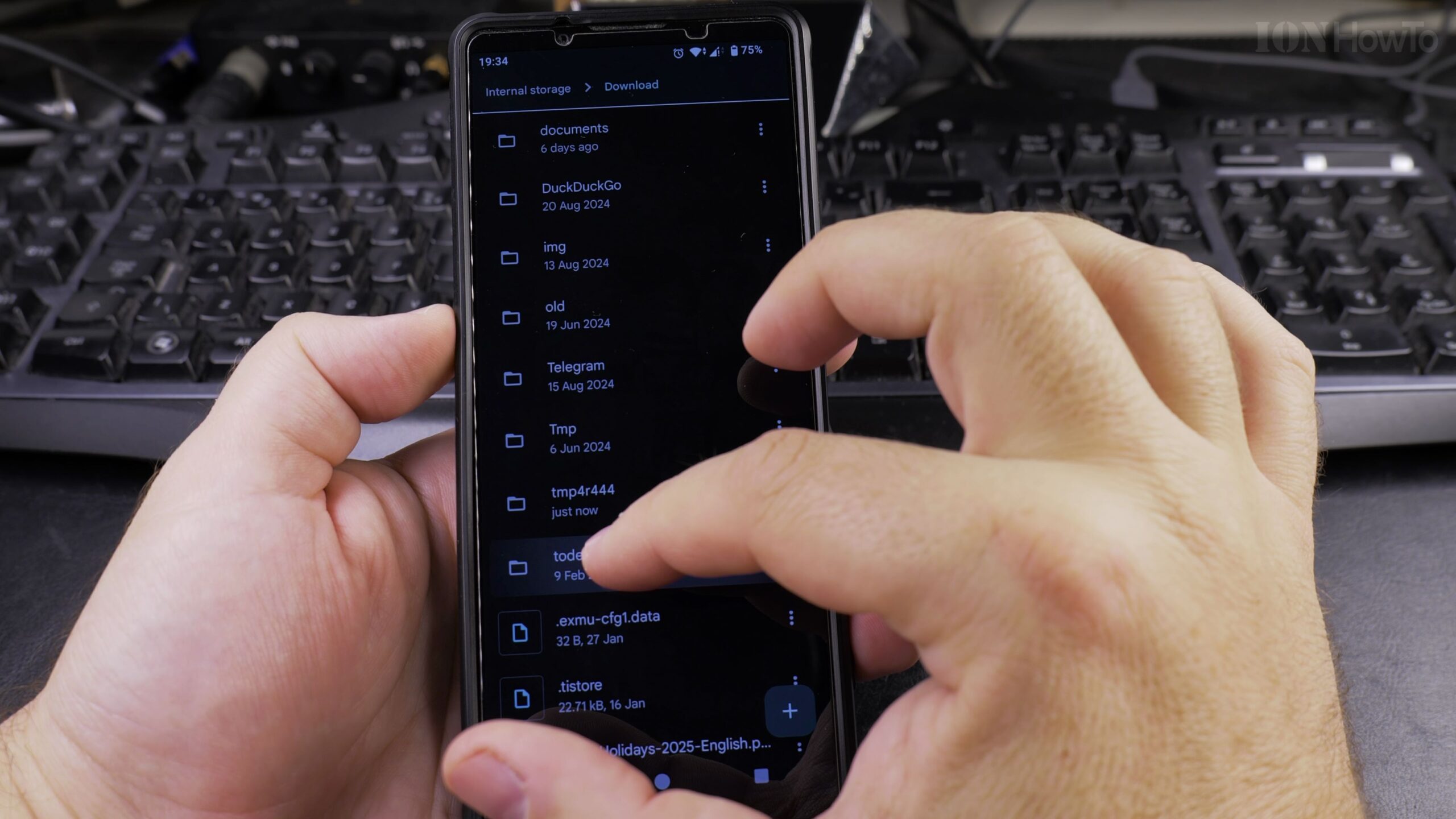
Step 2: Tap on the Downloads Category
Inside the Files app, look under the Categories section and tap on Downloads. You will see a chronological list of every downloaded file stored on your phone.
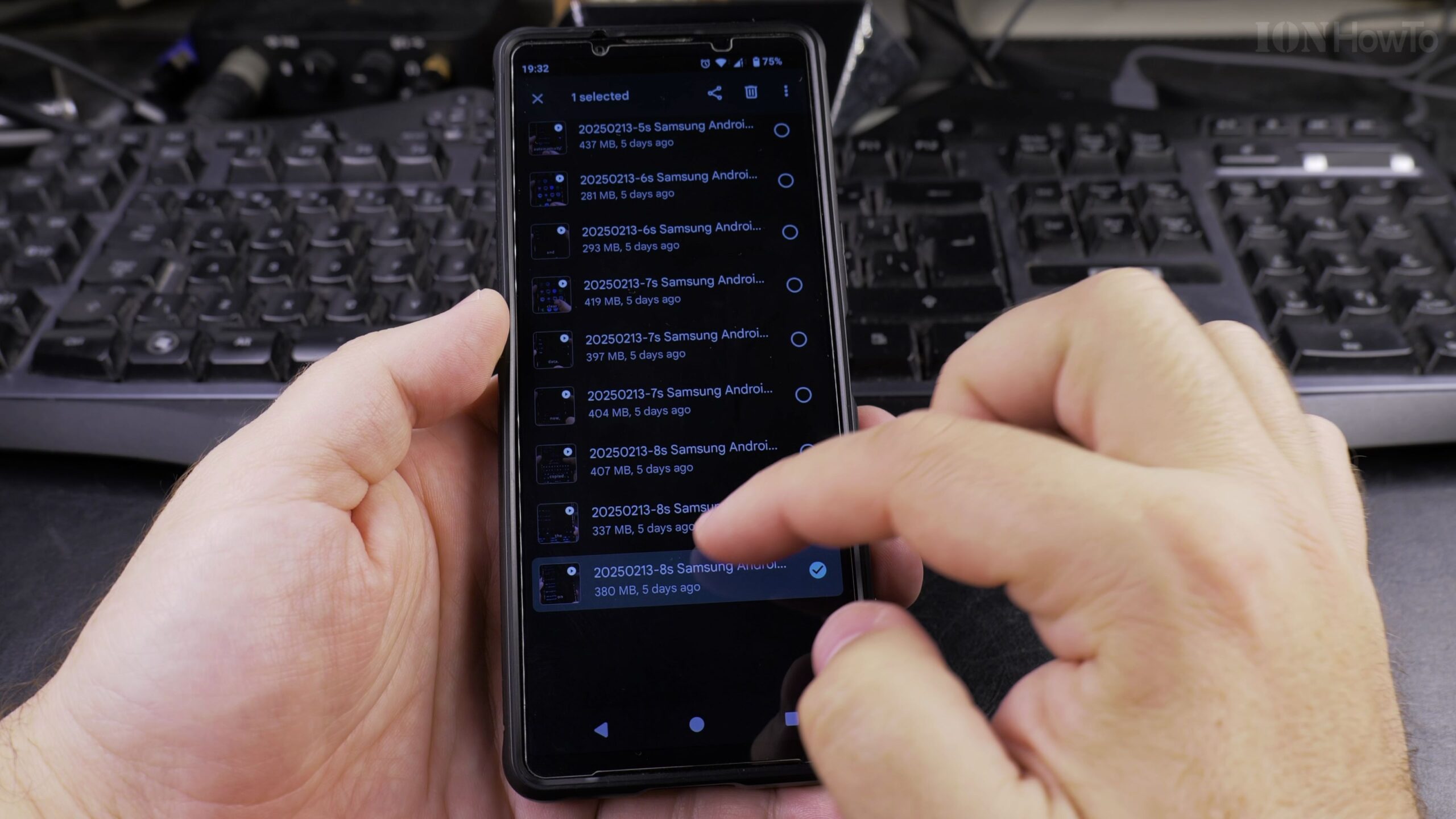
Step 3: Select Unwanted Files for Removal
Tap and hold on the first file you want to delete. Small checkmarks will appear beside each item. Tap any additional old files, APK installers, or duplicate images you no longer need.
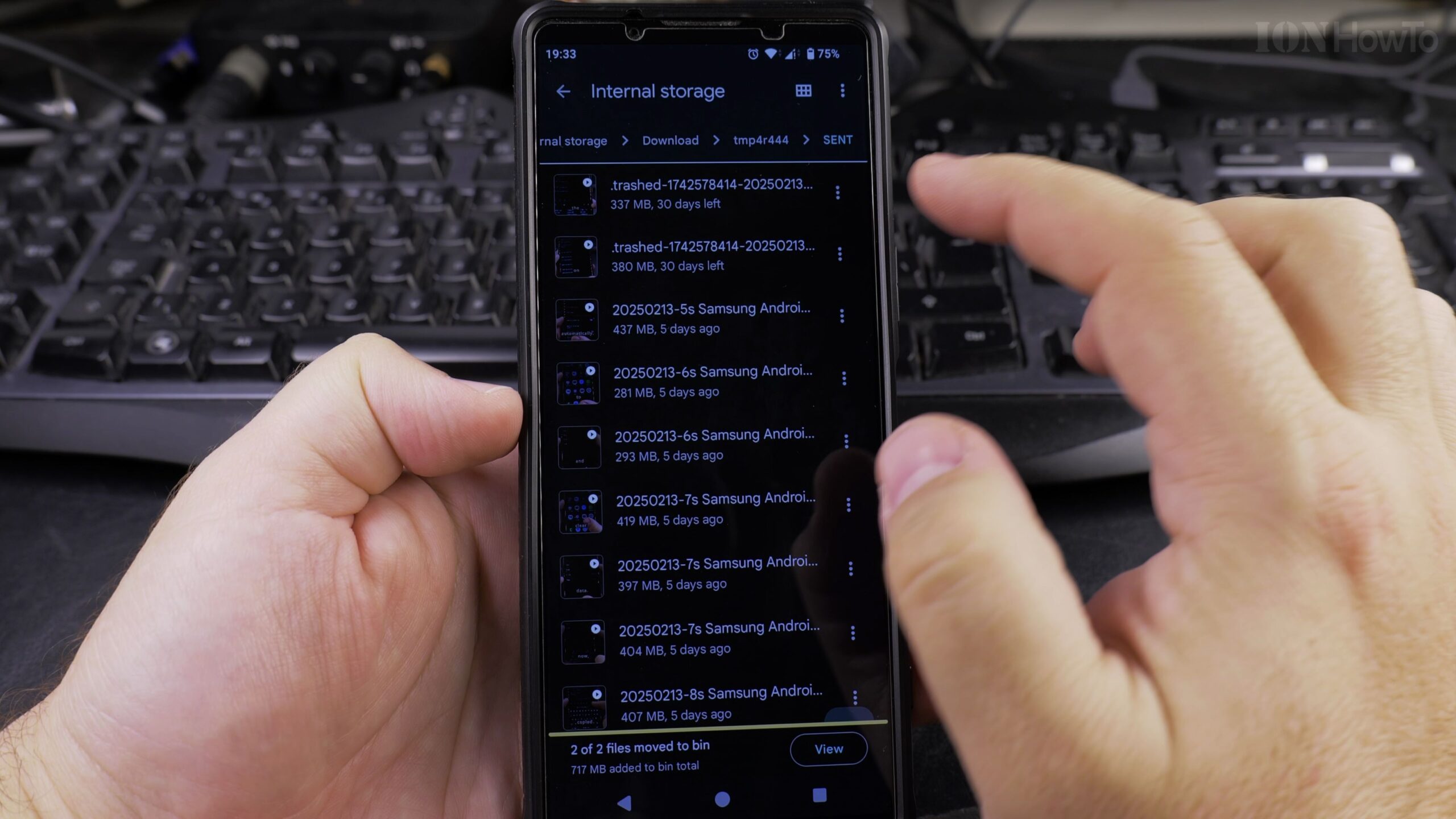
Step 4: Tap the Trash Icon and Confirm Deletion
Tap the trash can icon at the top of the screen. Android will prompt you to confirm moving the files to the Trash or deleting them permanently. Confirm your selection to instantly free up internal memory.
Helpful Tips and Related Tutorials
For more practical tutorials and setup guides, discover how to how to disable 2G on Android, explore how to use the stopwatch on Android, or browse our complete collection of Android tips.


Leave a Reply