
Setting up a new flagship phone is exciting, and Google modern transfer assistant makes moving from an iPhone or older Android phone virtually seamless. You can transfer contacts, photos, text history, call logs, and compatible apps in minutes.
Preparing for a Smooth Phone Migration
Setting up a new flagship phone is exciting, and Google modern transfer assistant makes moving from an iPhone or older Android phone virtually seamless. You can transfer contacts, photos, text history, call logs, and compatible apps in minutes.
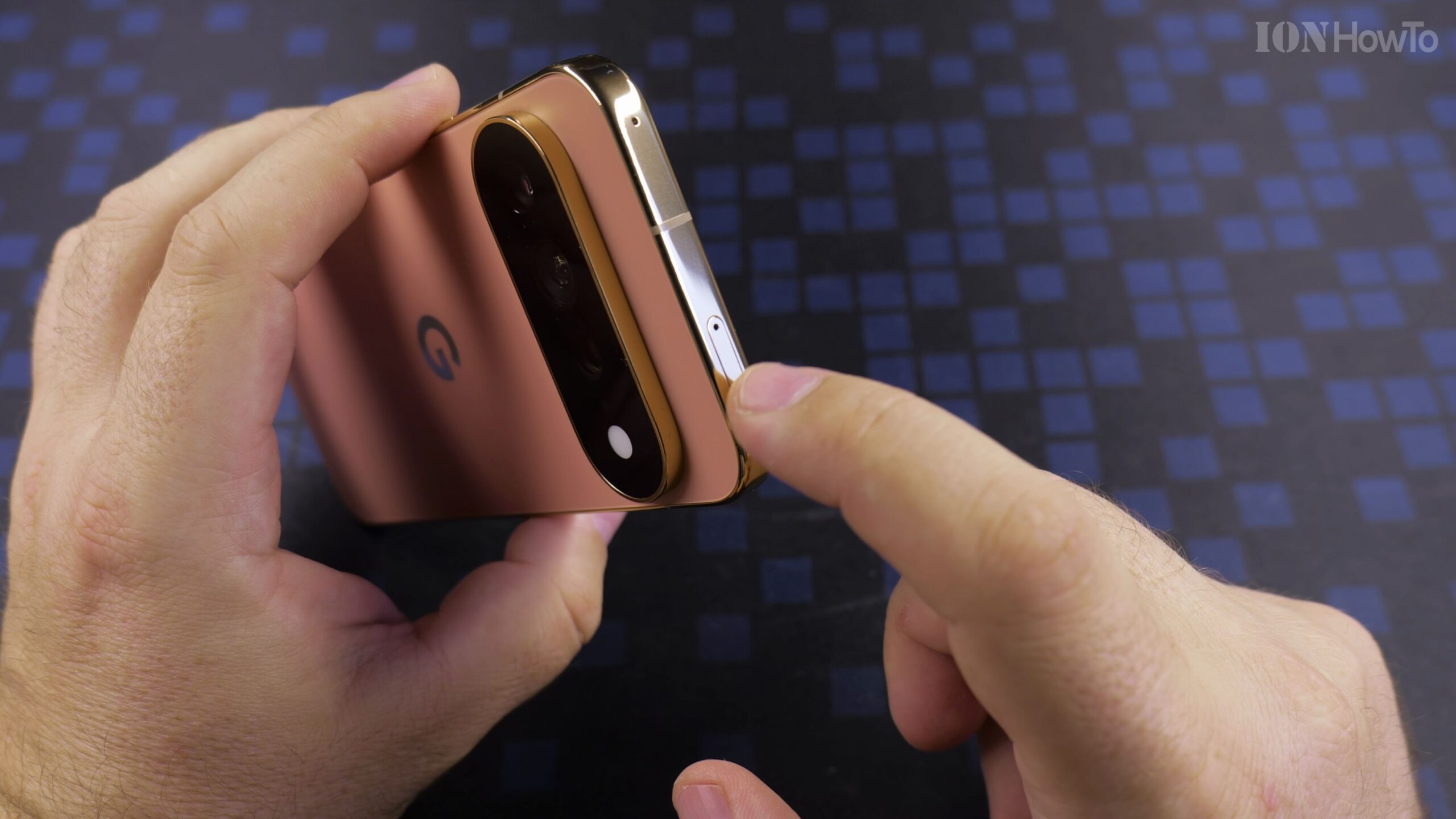
Step 1: Power On and Connect to Wi-Fi
Press the power button on the right side of the Pixel 11 Pro XL. Select your language and region, then connect to your secure home Wi-Fi network.
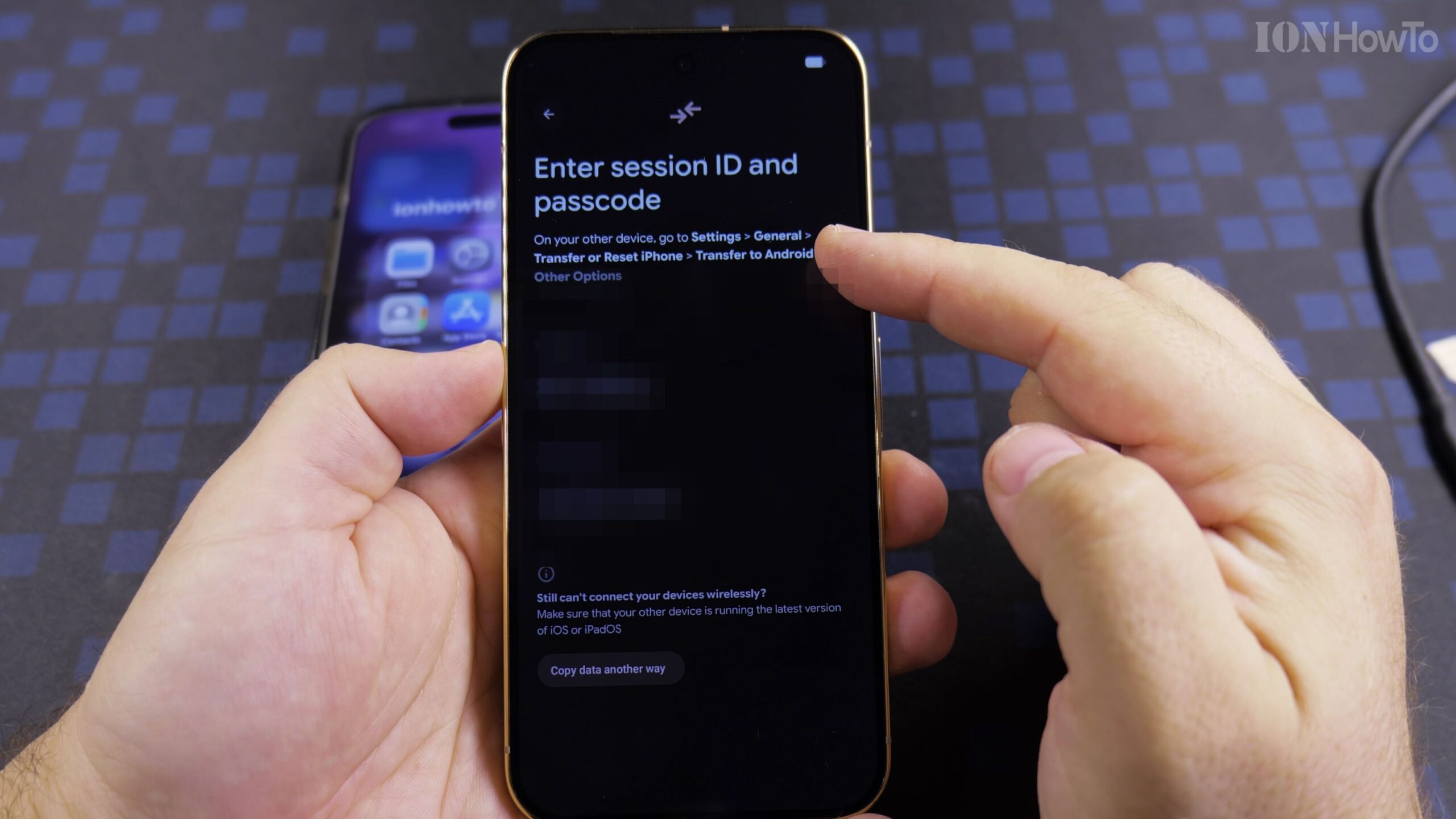
Step 2: Choose Cable or Wireless Transfer
When prompted to Copy Apps & Data, tap Next. Using the included USB-C to USB-C cable is significantly faster than wireless transfer and reliably migrates large video galleries and WhatsApp message history.
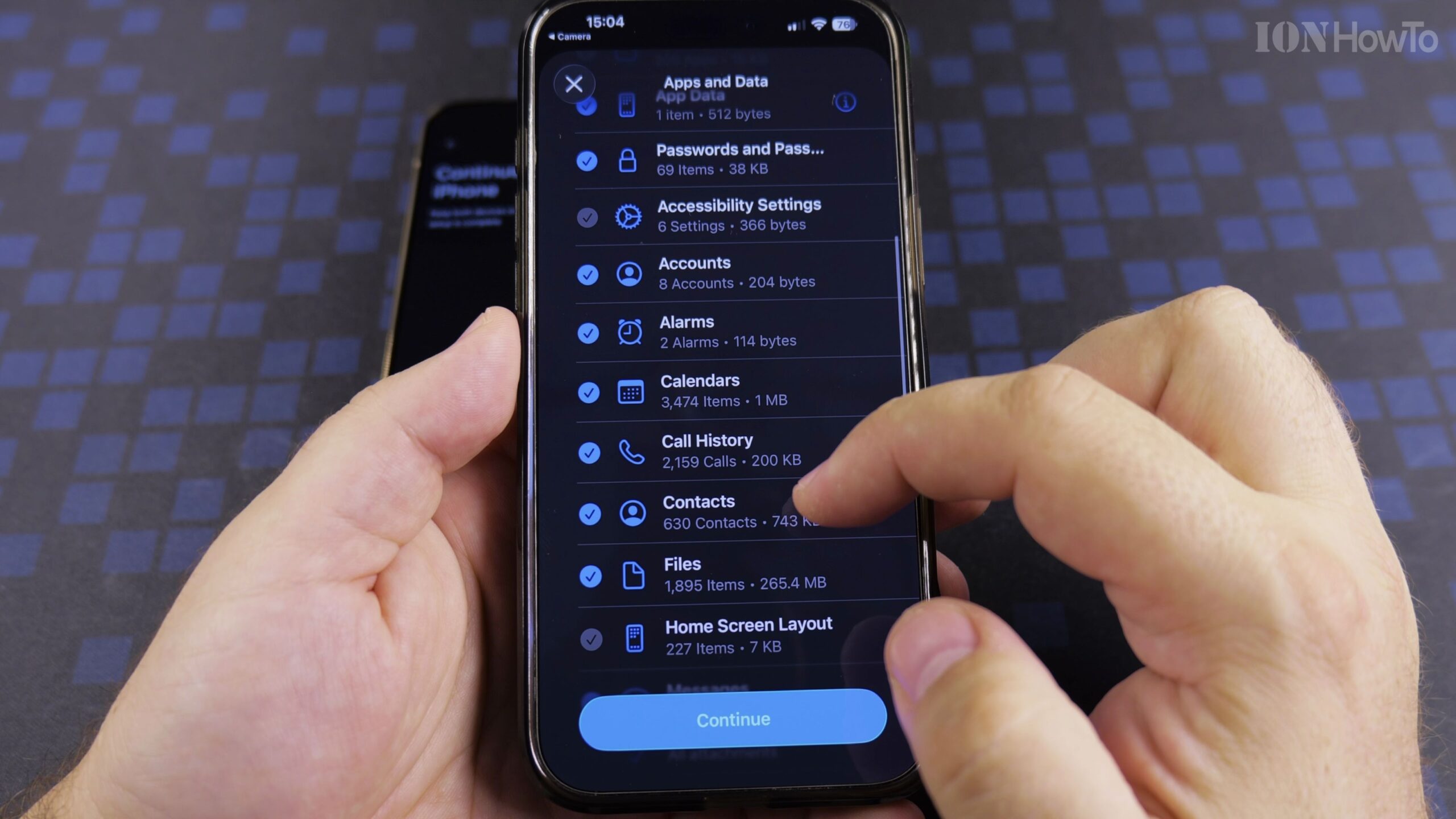
Step 3: Connect Devices and Trust Connection
Plug one end of the USB cable into your old phone and the other into the Pixel. Unlock your old phone and tap Trust or Allow on the prompt.
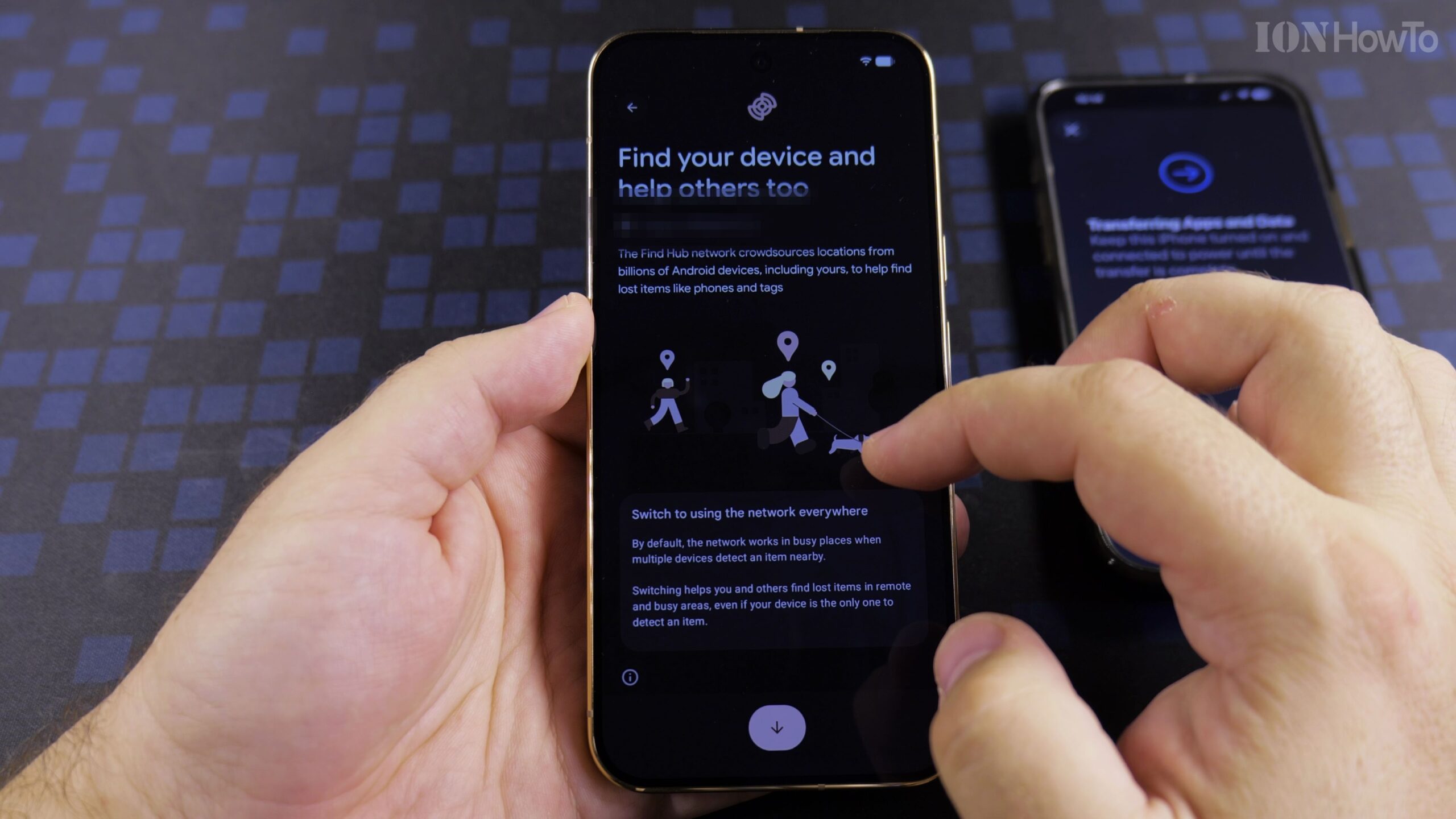
Step 4: Select Your Data and Complete Setup
Review the checklist of items to copy. Check the boxes for Apps, Photos, Messages, and Settings. Tap Copy and let the process run while you configure fingerprint and face unlock.
Helpful Tips and Related Tutorials
For more practical tutorials and setup guides, discover how to how to add a picture to a contact on Android, explore enable Google Gemini AI assistant on Pixel, or browse our complete collection of Android tips.


Leave a Reply