
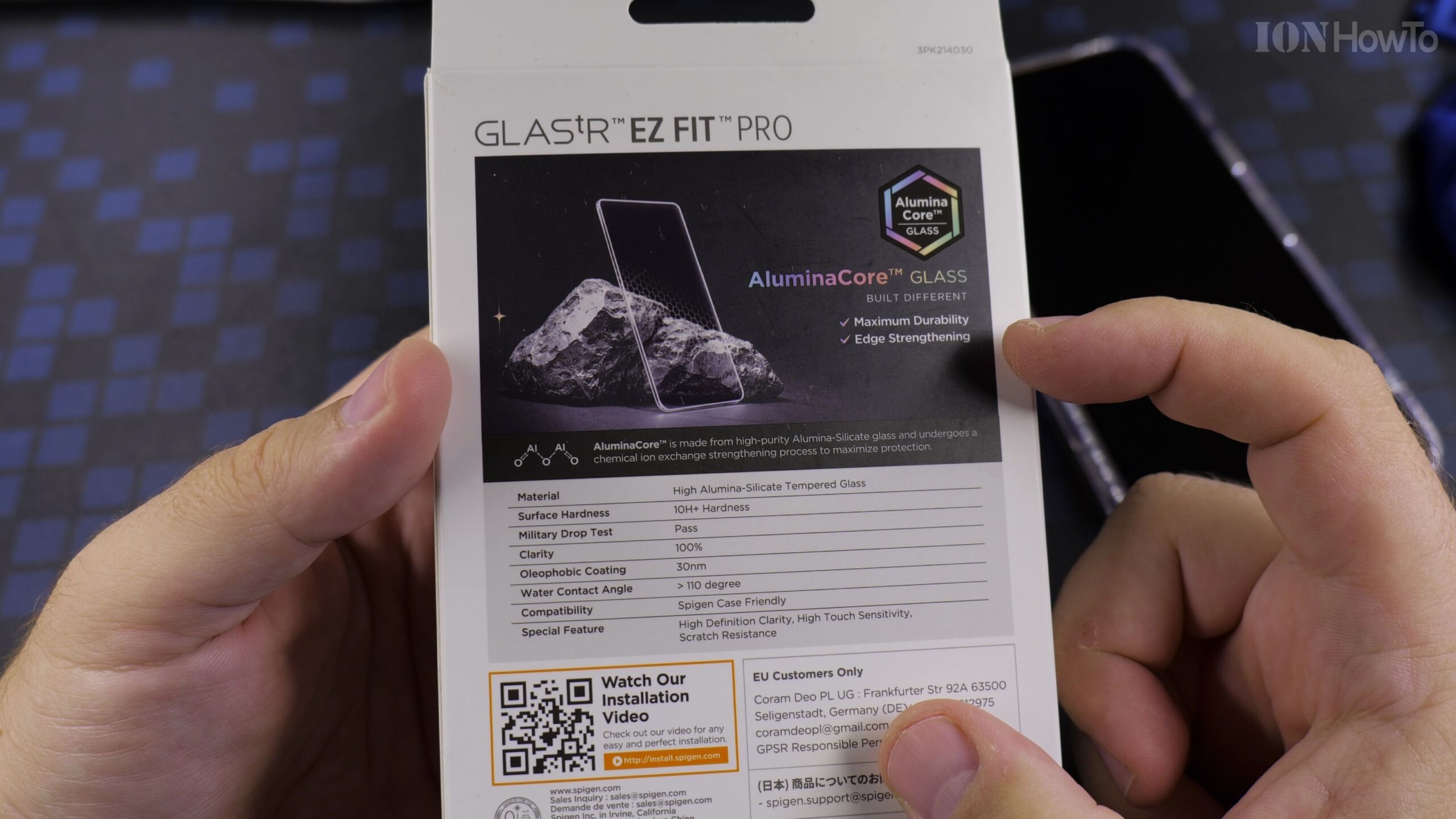
Applying tempered glass manually can be tricky, but Spigen custom EZ Fit housing aligns the glass automatically with microscopic precision, preventing misaligned camera cutouts or awkward gaps.
Why Auto-Alignment Makes Screen Protection Simple
Applying tempered glass manually can be tricky, but Spigen custom EZ Fit housing aligns the glass automatically with microscopic precision, preventing misaligned camera cutouts or awkward gaps.
Step 1: Thorough Screen Cleansing
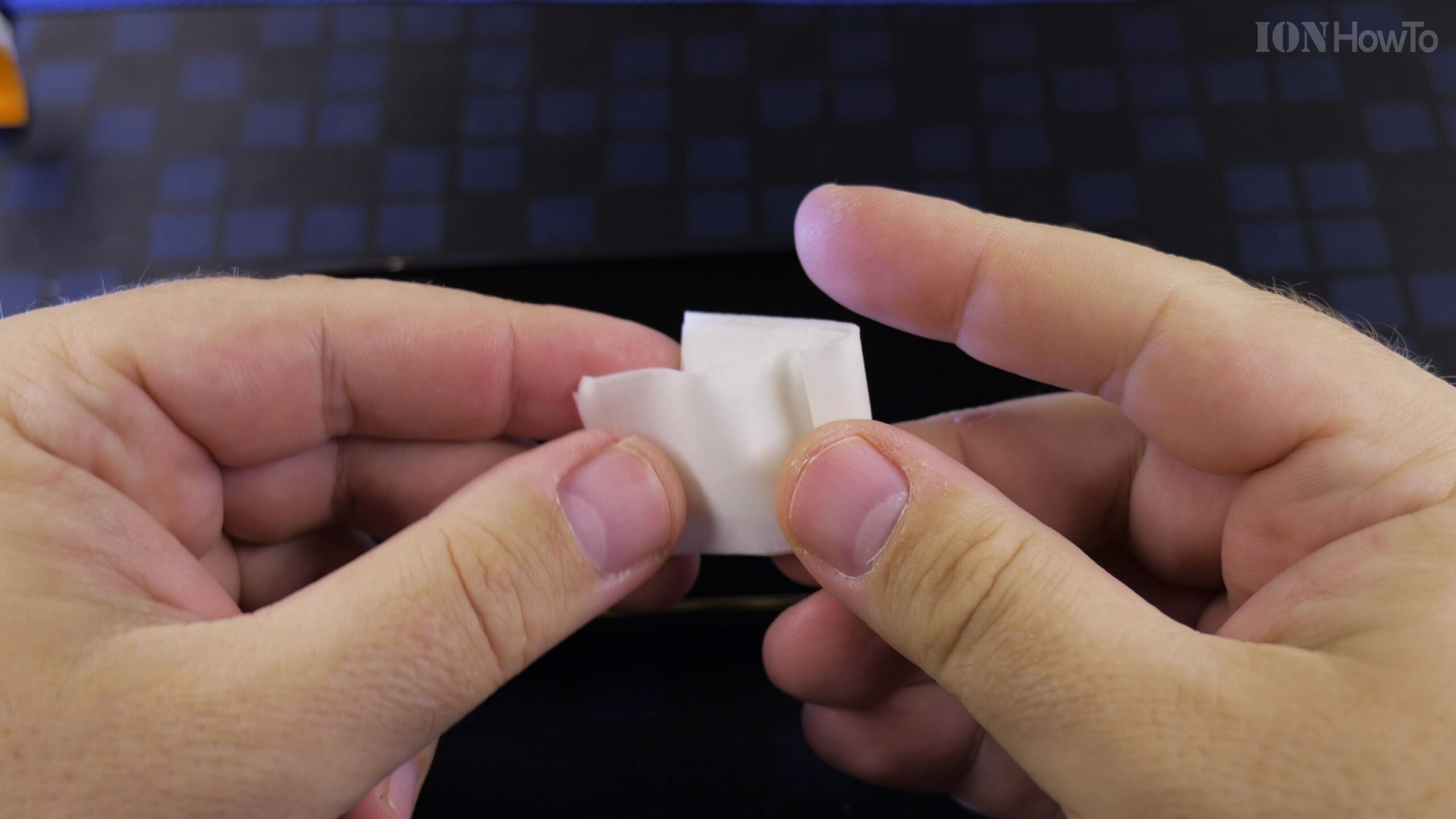
Wipe down the display with the included alcohol wipe, dry thoroughly with the microfiber cloth, and dab the screen with dust stickers to remove stray particles.
Step 2: Position the EZ Fit Housing
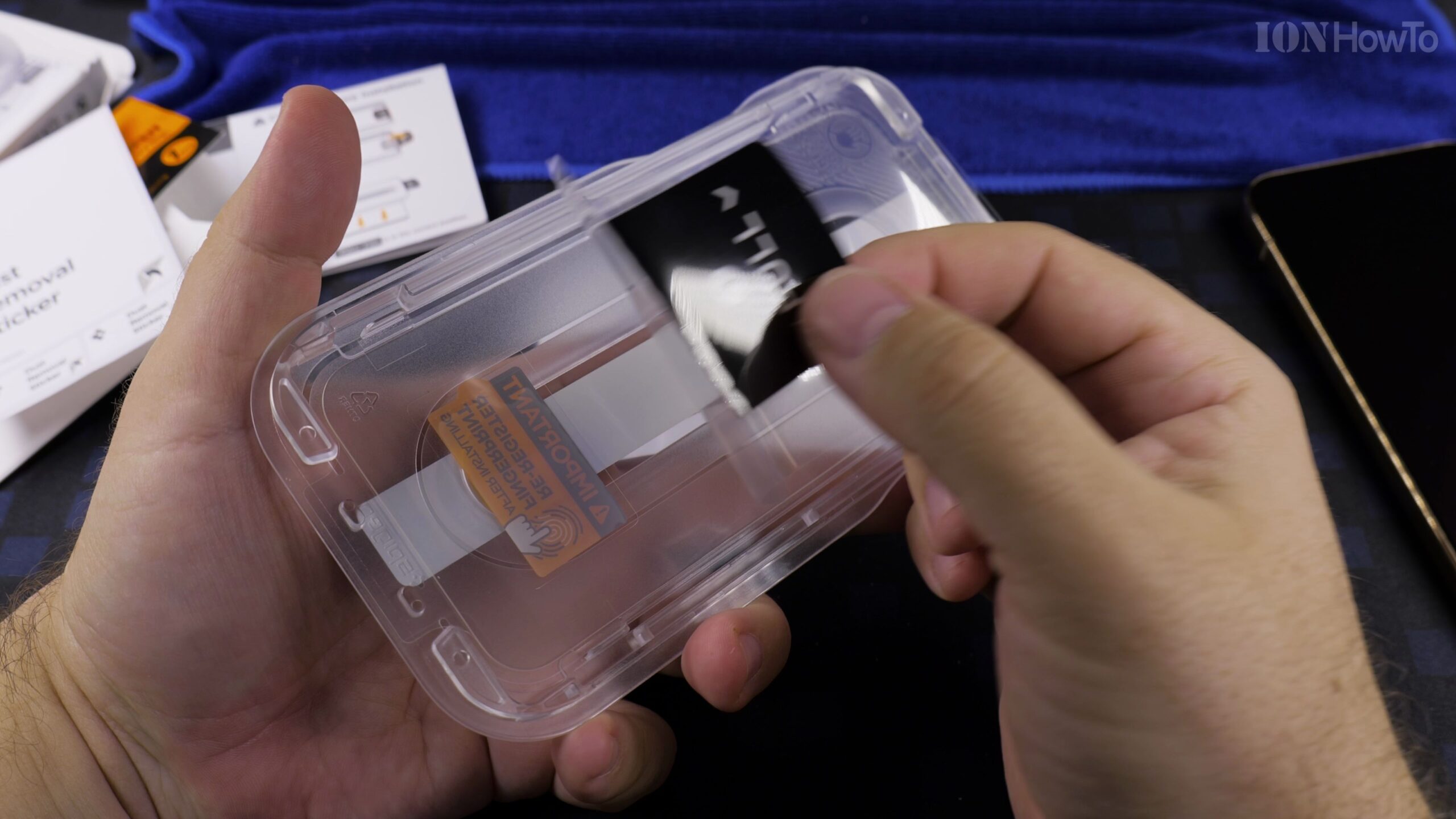
Remove the protective backing sheet and place the plastic alignment frame directly over the front of the phone until it locks around the chassis.
Step 3: Press, Slide, and Finish
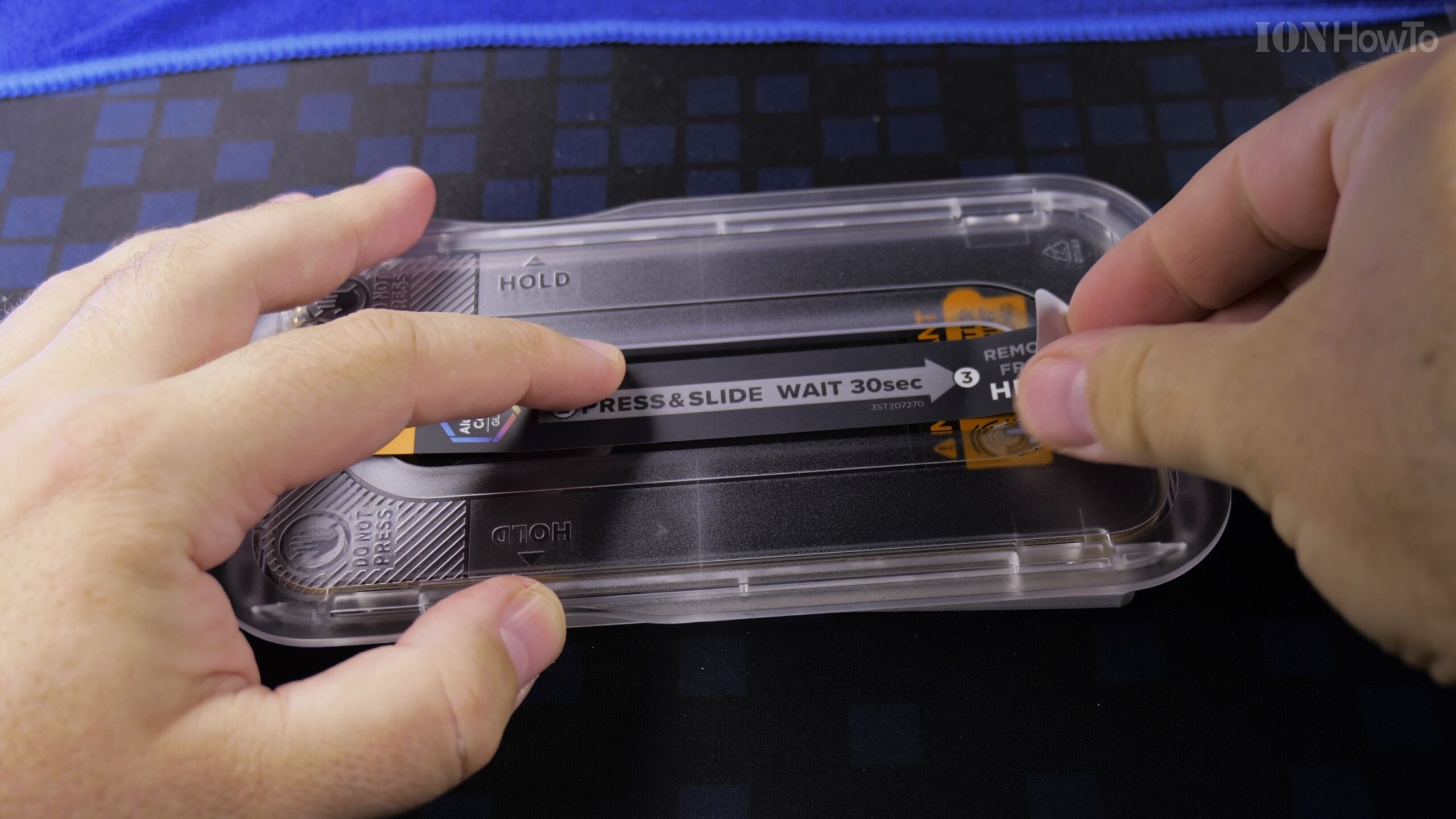
Press and slide along the center guide arrow. Wait 30 seconds, peel off the outer tray, and use the included squeegee to push any air bubbles off the edge.
Step 4: Enable Screen Protector Sensitivity
Head to Settings > Display > Touch Sensitivity and toggle on Screen Protector Mode to ensure lightning-fast touchscreen responsiveness.
Helpful Tips and Related Tutorials
For more practical tutorials and setup guides, discover how to how to add a phone password or PIN on Android, explore how to disable 2G on Android, or browse our complete collection of Android tips.


Leave a Reply