
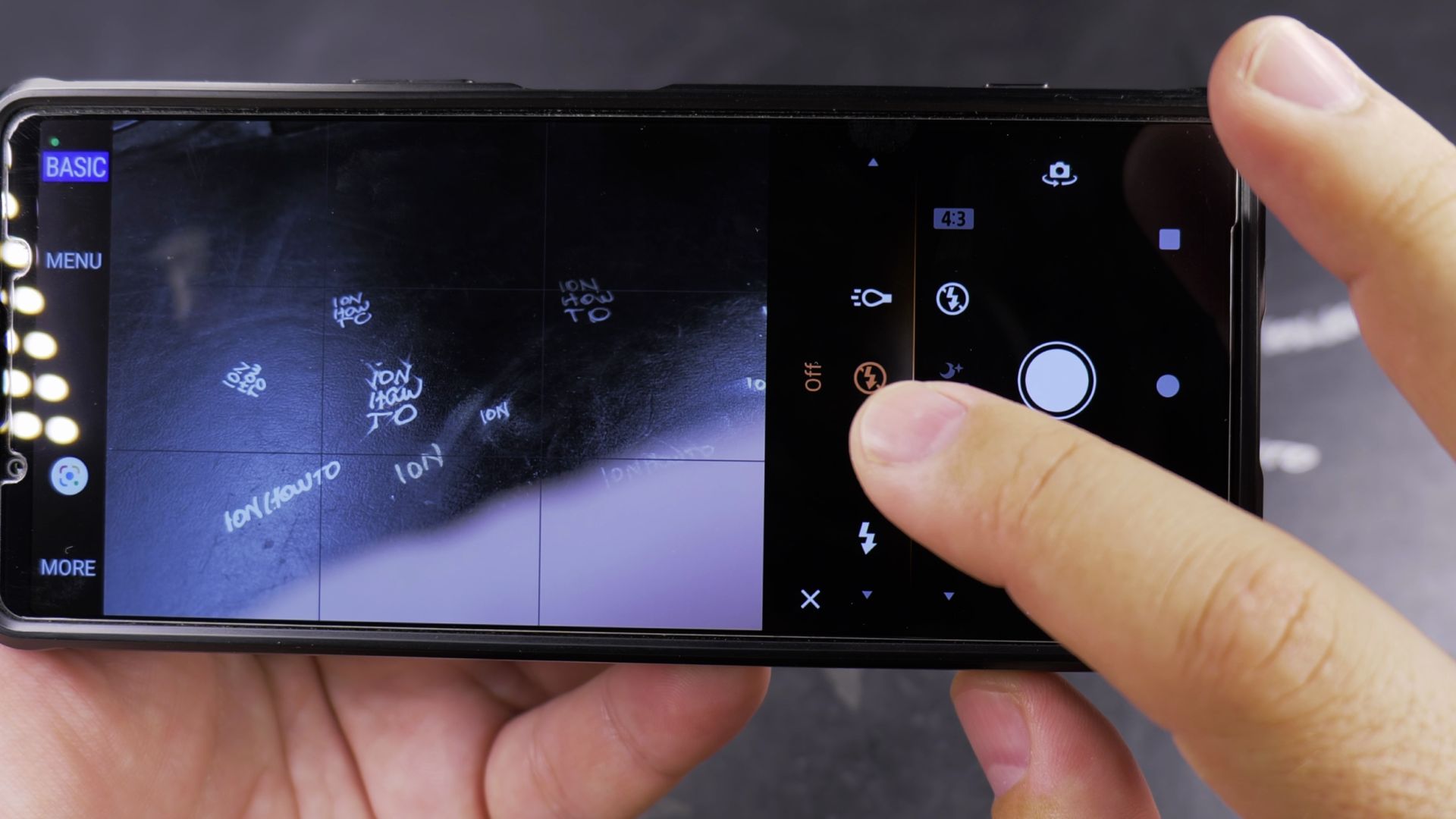
If your Android phone keeps firing a bright flash and creating harsh glare on glasses or windows, your camera flash is set to automatic or fill mode. I’ll show you how to turn off the camera flash in just a few taps.
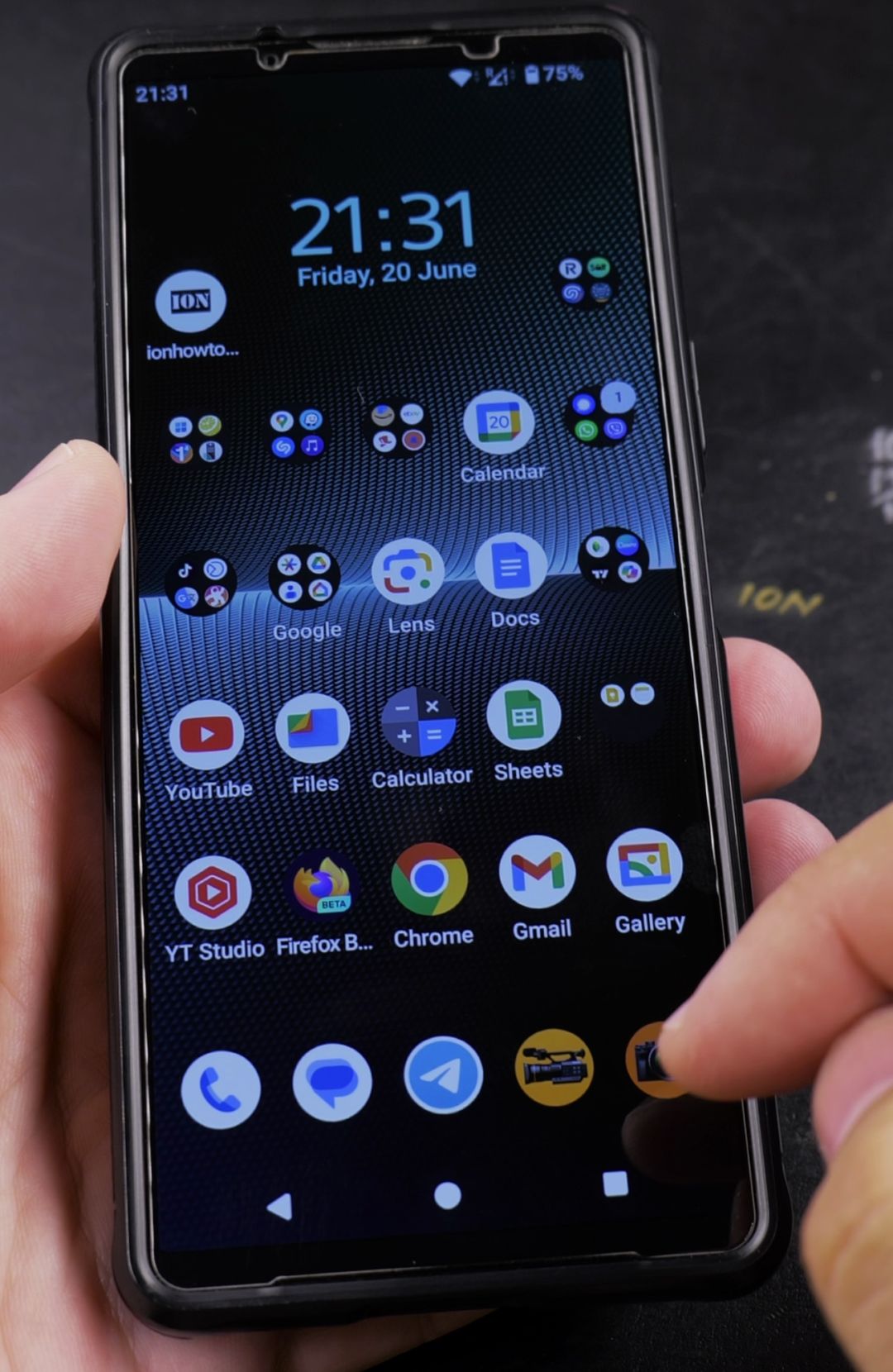
1. Open the Camera App
Unlock your Android phone and tap the Camera app icon in the bottom-right corner of your home screen.
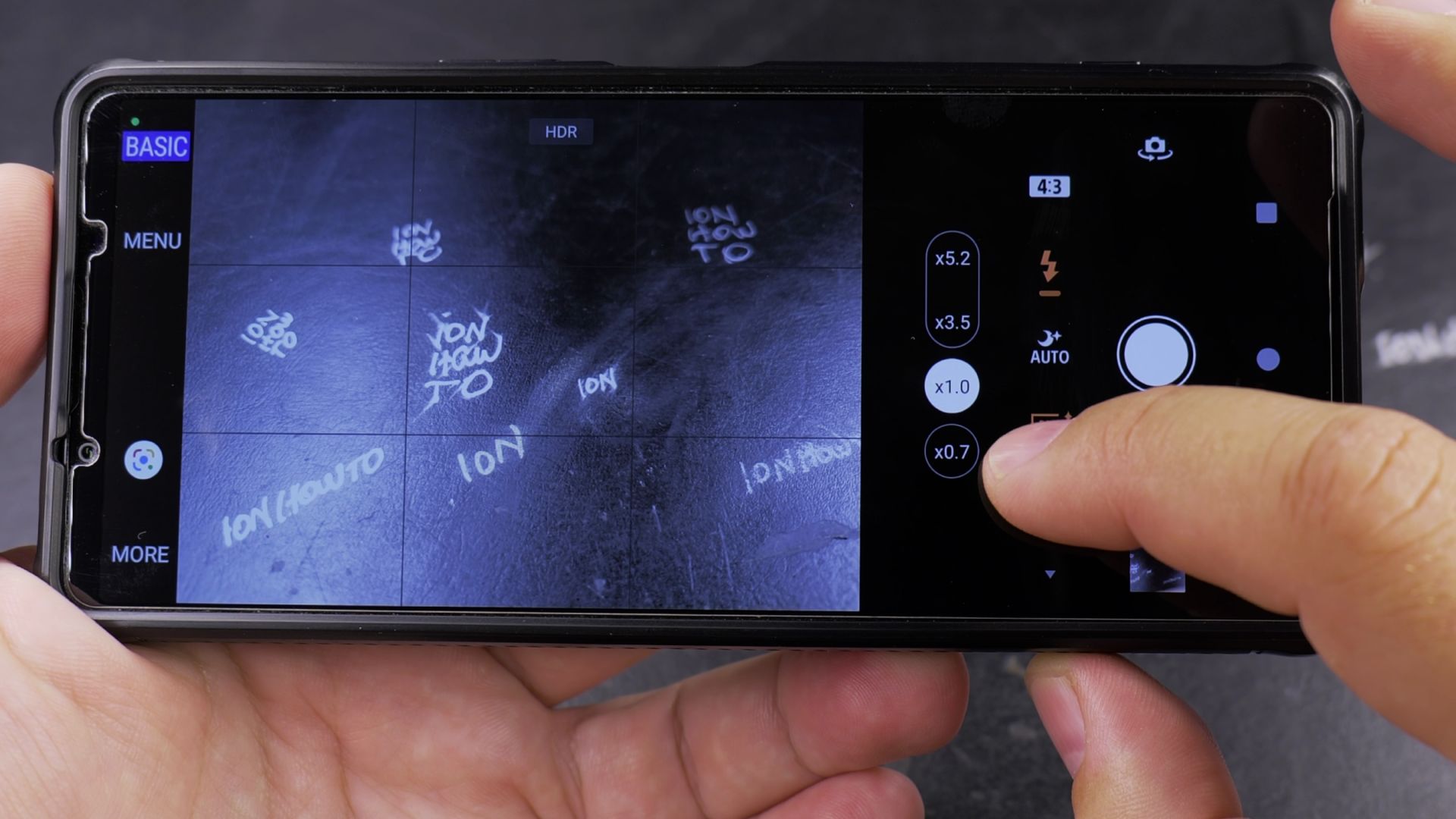
2. Tap the Flash Lightning Icon
Look along the camera toolbar near the top or side of the viewfinder and tap the Flash icon, which looks like a small lightning bolt. On most Android phones, this icon defaults to Auto, meaning the flash fires whenever the room looks dim.
3. Select the Crossed-Out Flash Off Icon
In the menu that opens, tap Off (the lightning bolt with a diagonal line through it). The main camera toolbar will now display the crossed-out lightning bolt icon, confirming the flash stays off when you press the shutter button.
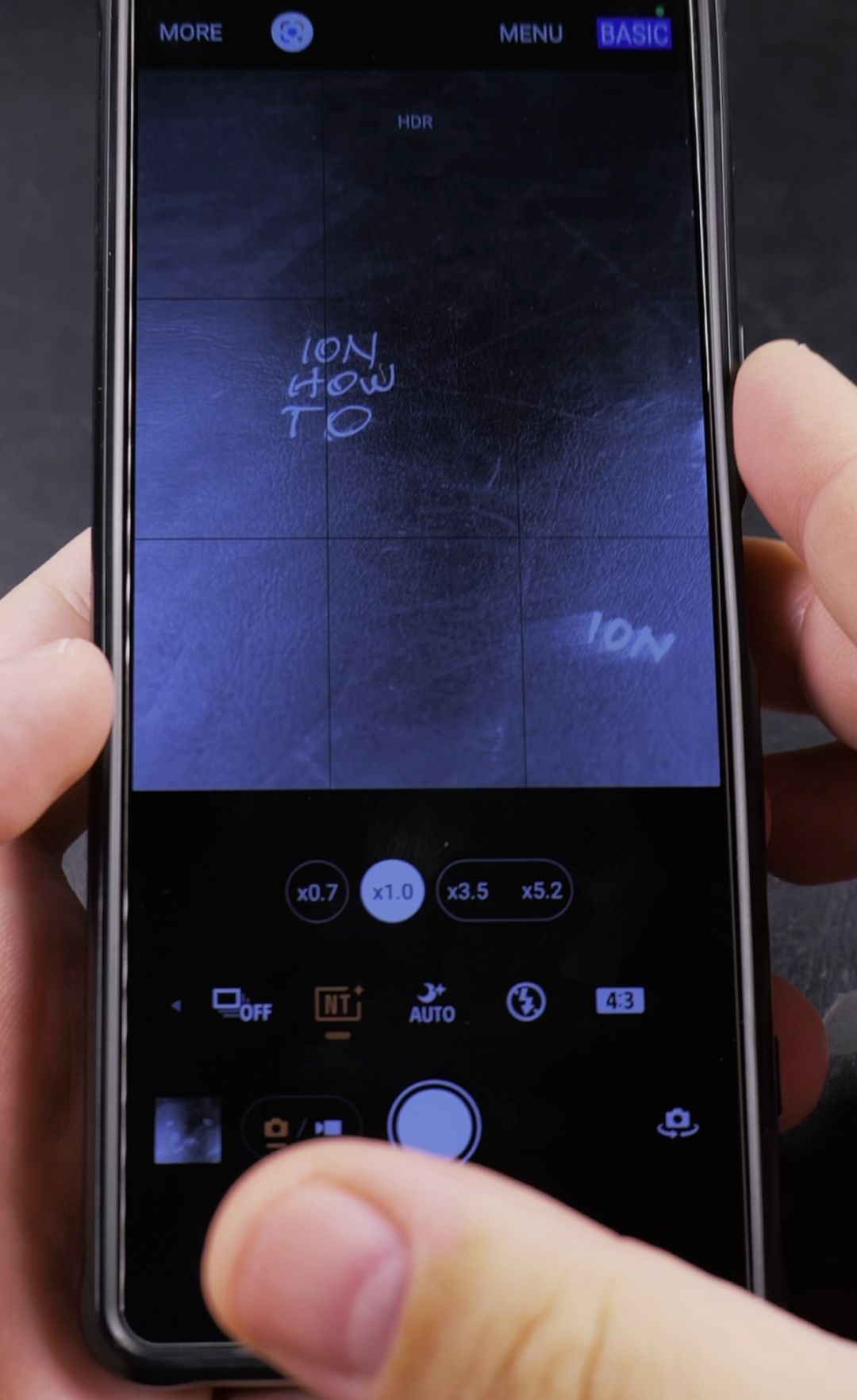
Helpful Tips
- Avoid glare on glass and mirrors: Always keep the flash turned off when taking photos through a window, near a mirror, or of someone wearing eyeglasses.
- Distant night shots: Phone camera flashes only reach a few feet, so turning the flash off at night gives you cleaner outdoor photos of distant buildings or landscapes.
- Video recording light: If your flash stays lit continuously like a flashlight while filming video, read our guide on how to turn off the video torch flash light on Android.
Related Guides
- How to Switch Between Cameras and Zoom Levels on Android
- How to Change Camera Video Quality and Resolution on Android
- How to Switch Between Rear and Front Cameras on Samsung Phones


Leave a Reply