
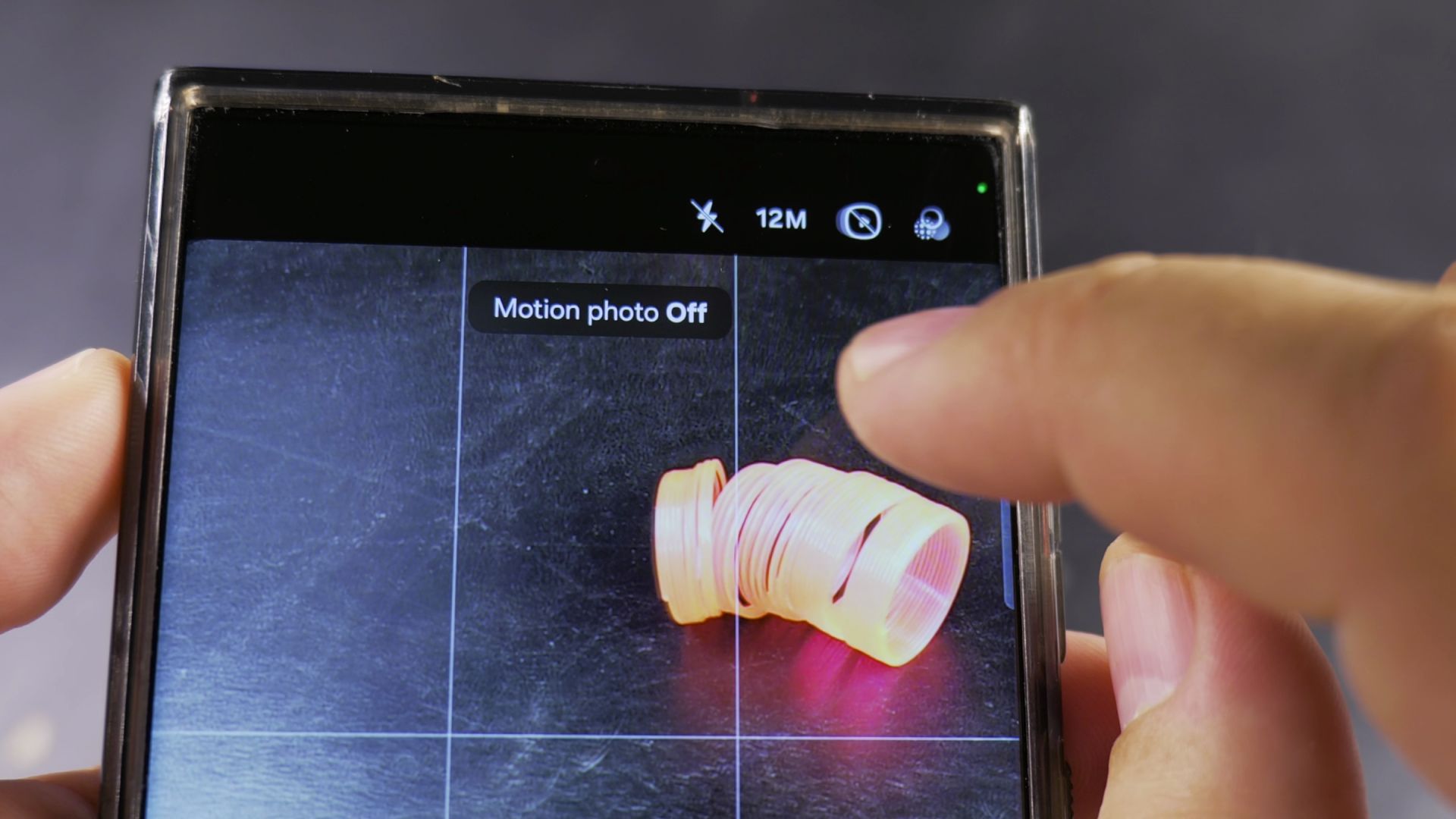
If your Samsung Galaxy phone records a short video clip every time you snap a picture, the Motion Photo feature is turned on. I’ll show you how to disable Motion Photo in one tap so your camera saves standard still photos that take up less storage space.
1. Open the Camera App and Check the Top Toolbar
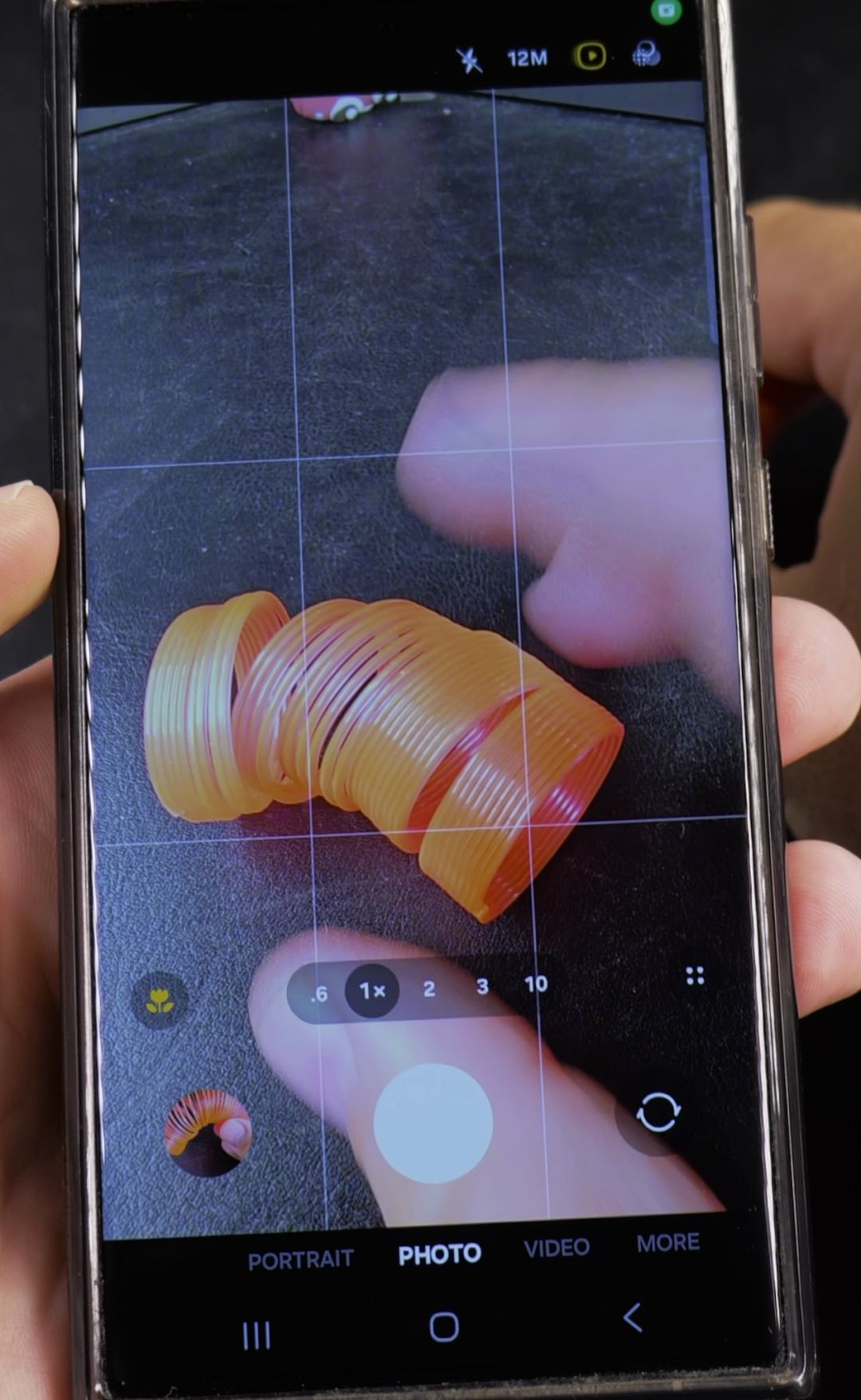
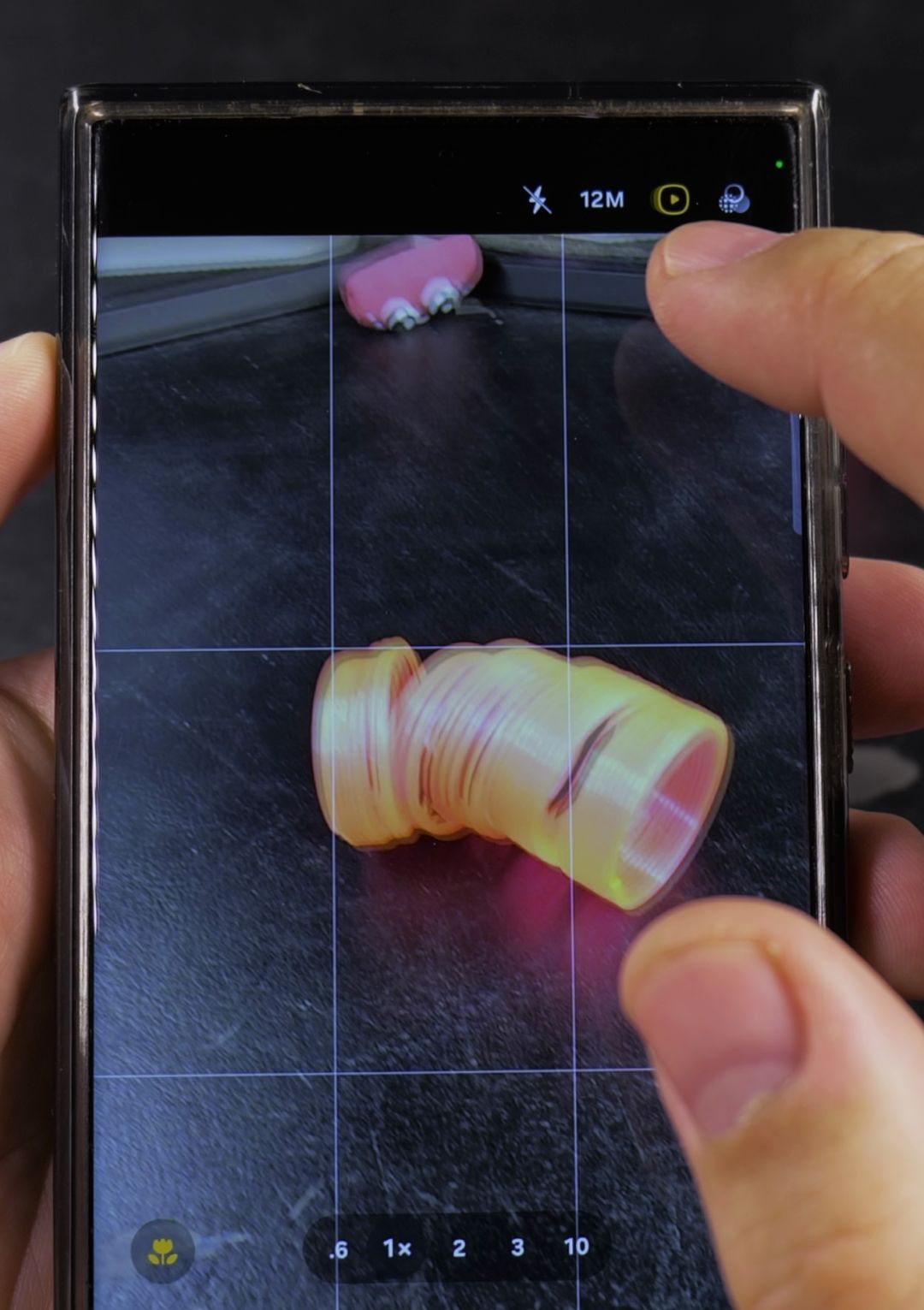
Open the Camera app on your Samsung Galaxy phone and make sure PHOTO mode is selected at the bottom. Look in the top-right corner of the screen next to 12M for the Motion photo icon (a rounded square with a small play triangle inside); if it is yellow, the feature is currently active.
2. Tap the Motion Photo Icon
Tap the yellow Motion photo icon in the top-right toolbar once.
3. Confirm the Icon Turns White with a Slash
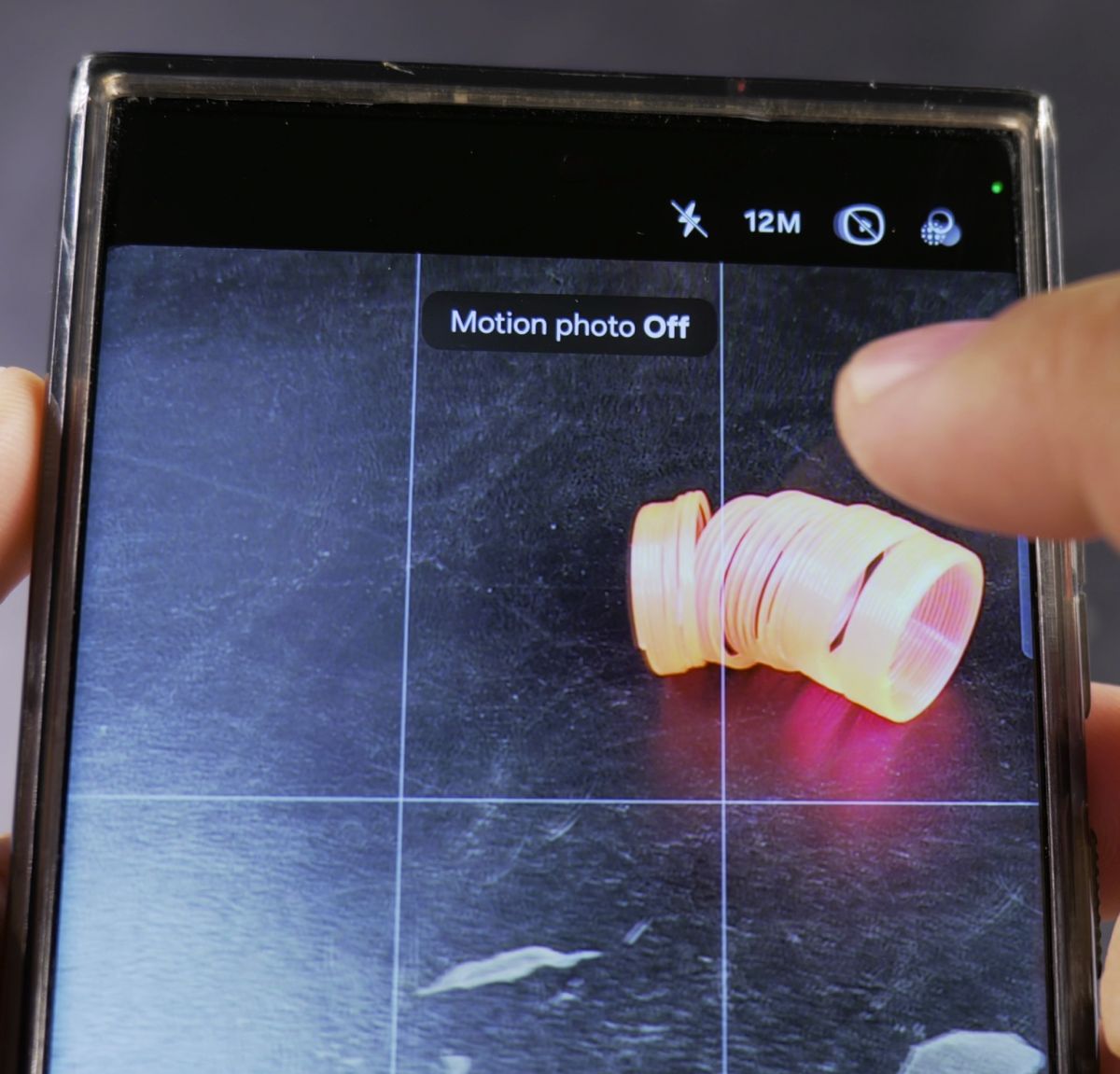
A Motion photo Off message briefly appears on screen, and the icon changes to white with a diagonal line through it. Your phone will now capture regular still pictures without attaching a video clip.
Helpful Tips
- Smaller photo file sizes: A 12-megapixel picture with Motion Photo turned on uses roughly 7 to 9 MB of storage, whereas a standard still photo uses less than half that space.
- High-resolution modes: If you switch your camera from 12M to 50M or 200M at the top of the screen, Samsung automatically disables Motion Photo.
- Turn it back on anytime: If you ever want to capture moving action shots again, follow our guide on how to enable Motion Photo on your Samsung camera.
Related Guides
- How to Enable Motion Photo on Samsung Camera
- How to Switch Between Rear and Front Cameras on Samsung Phones
- How to Disable Camera Flash on Android


Leave a Reply