
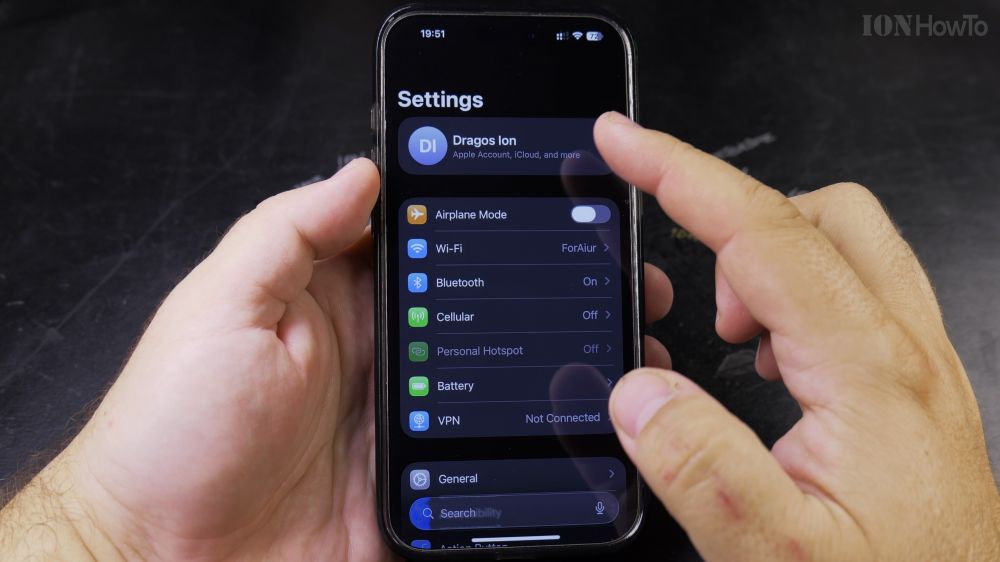
If your maps, ride apps, or local weather aren’t finding your exact spot, Location Services may be switched off. I’ll show you how to turn on location tracking and manage app permissions in a few taps.
1. Open Settings
Tap the gray **Settings** gear icon on your iPhone home screen.
2. Open Privacy & Security
Scroll down past the general settings section and tap **Privacy & Security**.
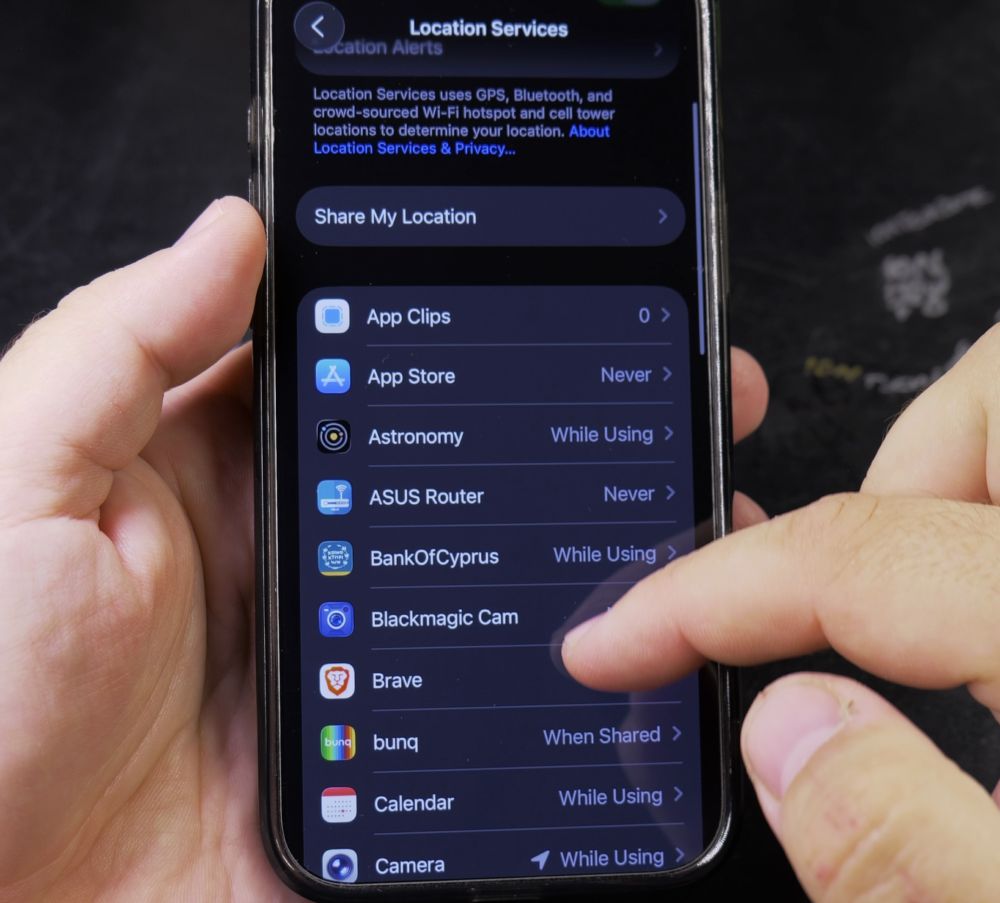
3. Tap Location Services
At the very top of the screen, tap **Location Services**.
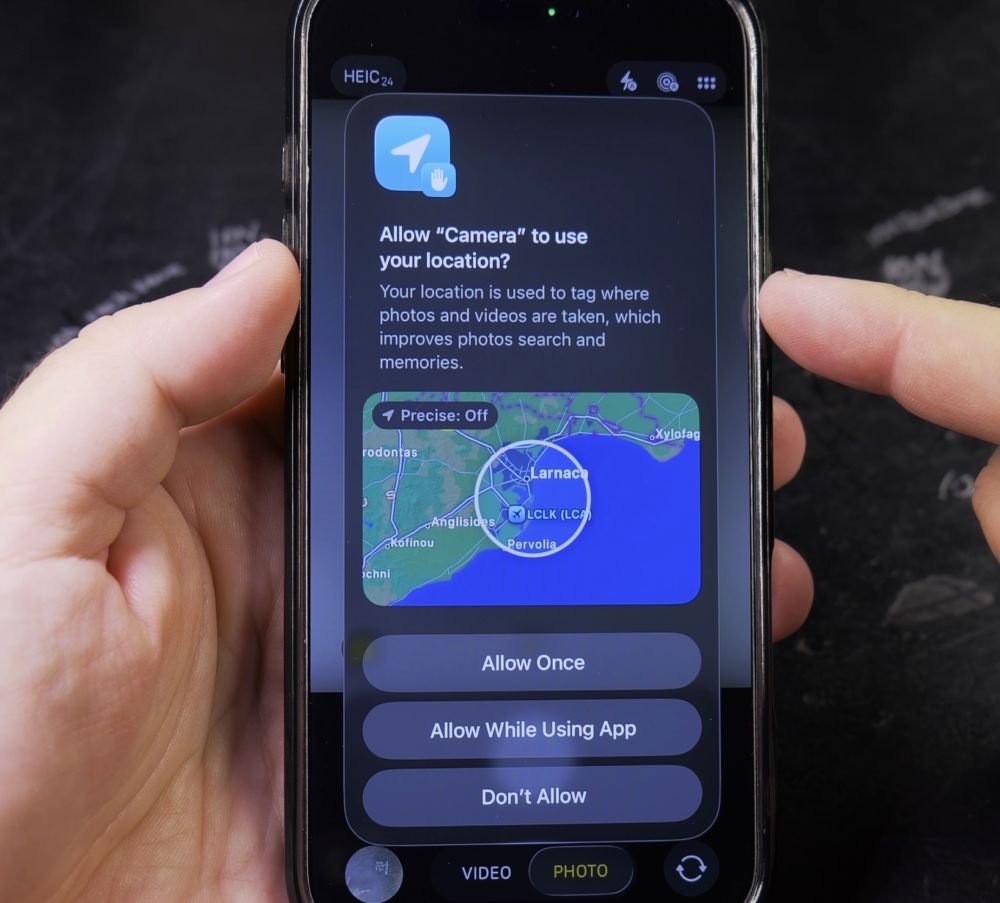
4. Turn on the Master Switch
Tap the toggle next to **Location Services** so it turns **On** (green).
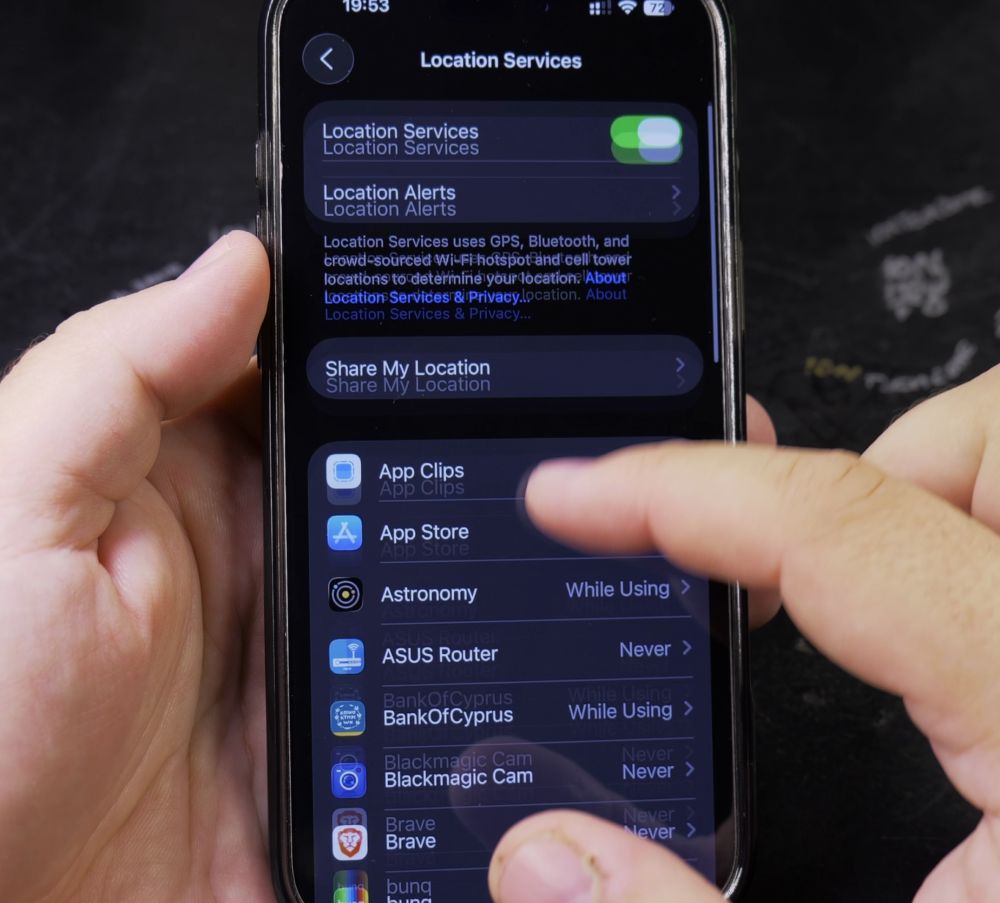
5. Adjust Individual App Permissions
Scroll down the list of apps and tap the app you want to use, such as **Maps** or **Weather**.
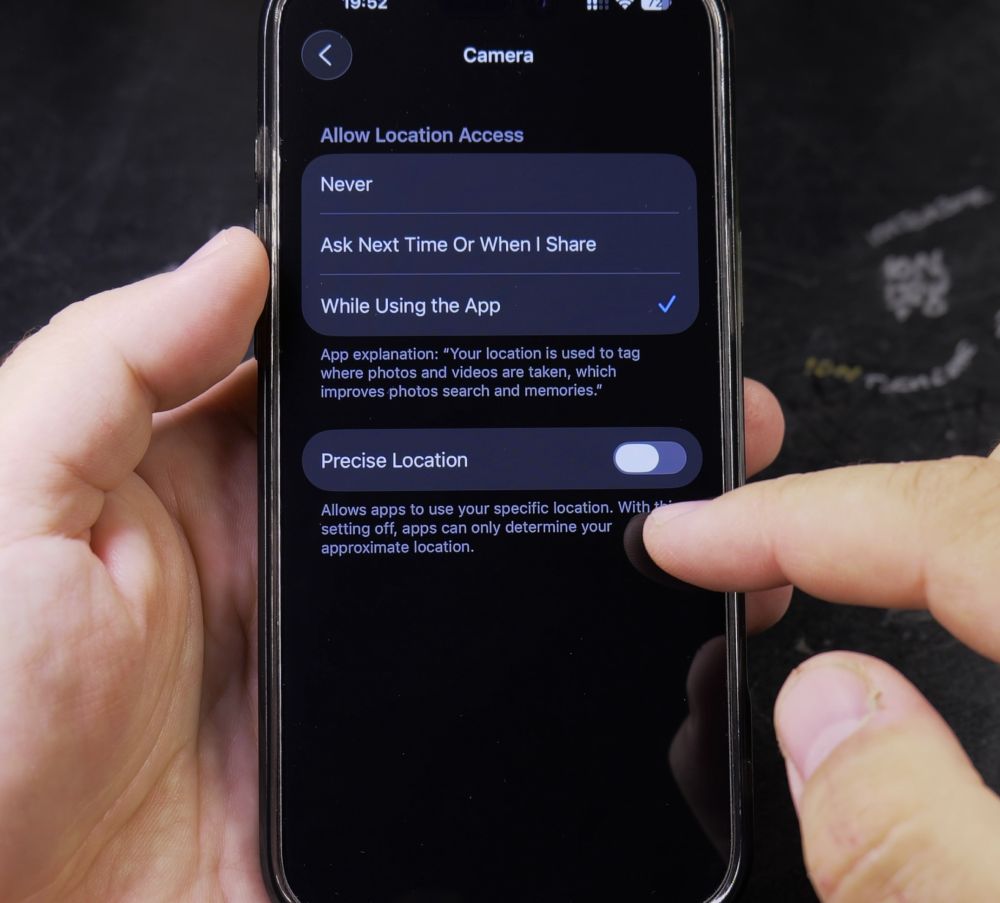
6. Enable While Using the App and Precise Location
Select **While Using the App**, and make sure the switch for **Precise Location** is turned **On** (green).
Helpful Tips
Turning on Precise Location helps navigation apps guide you turn-by-turn. For simple apps like weather, turning Precise Location off still provides accurate local forecasts while conserving battery life. For more smartphone guides, explore our iPhone Guides collection.


Leave a Reply