
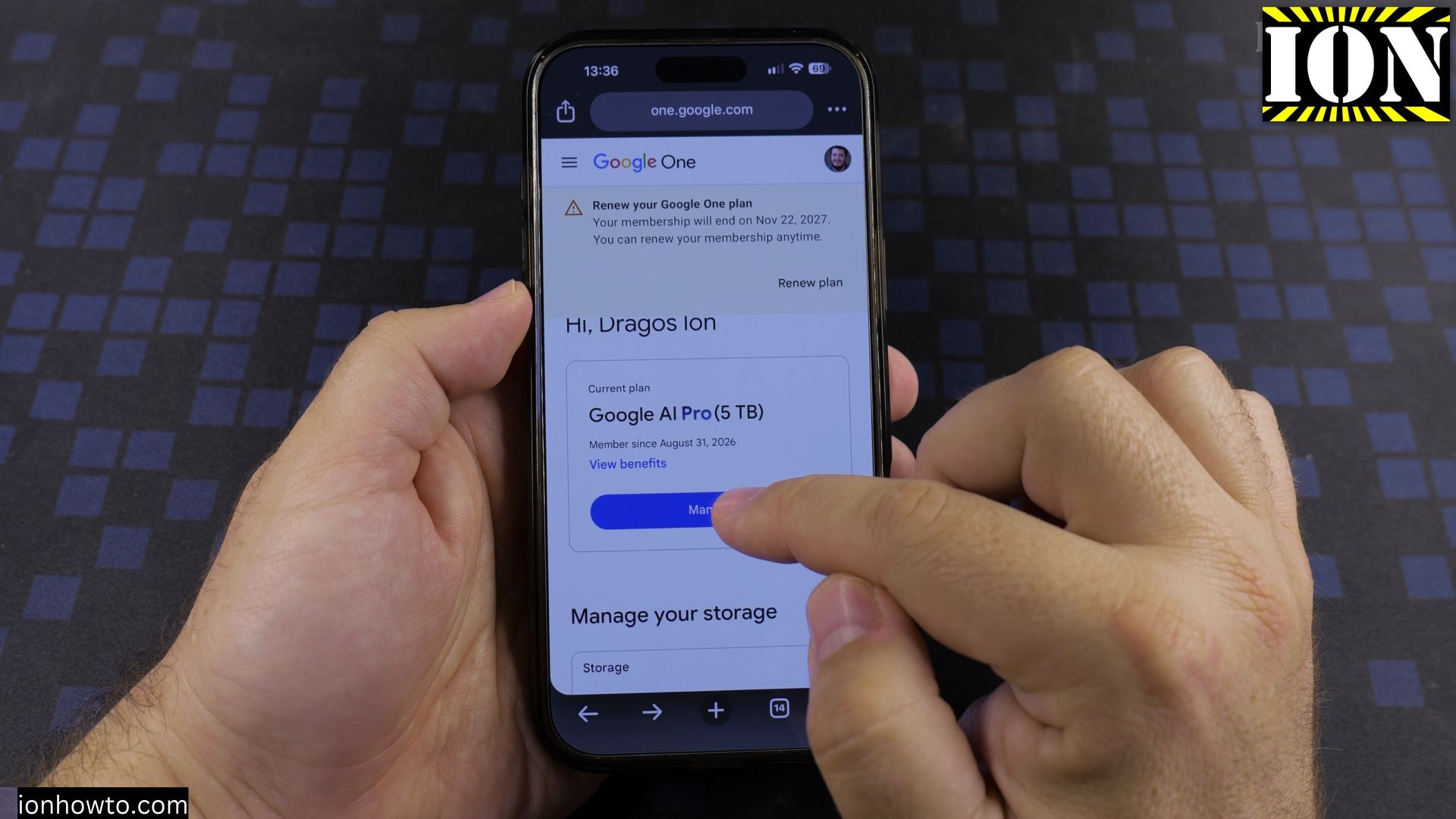
If you cancelled your Google AI Pro subscription or free trial to prevent surprise charges and later decide to keep it active, you can restore auto-renewal in seconds. In this simple step-by-step guide, I’ll show you how to use Renew inside Google One, tap Resubscribe in Google Play Subscriptions, and update or add a backup payment card.
Jump straight to a step
- Open one.google.com and tap Renew or Manage
- Tap Renew to open play.google.com Subscriptions
- Update your payment card or tap Resubscribe
- Confirm upcoming charges and family sharing stay active
1. Open one.google.com and tap Renew or Manage
Go to one.google.com in your phone browser and sign in to your Google account. At the top of the screen, look for the Renew your Google One plan banner showing when your cancelled plan expires, or tap Manage to review your current Google AI Pro 5 TB benefits and renewal options.
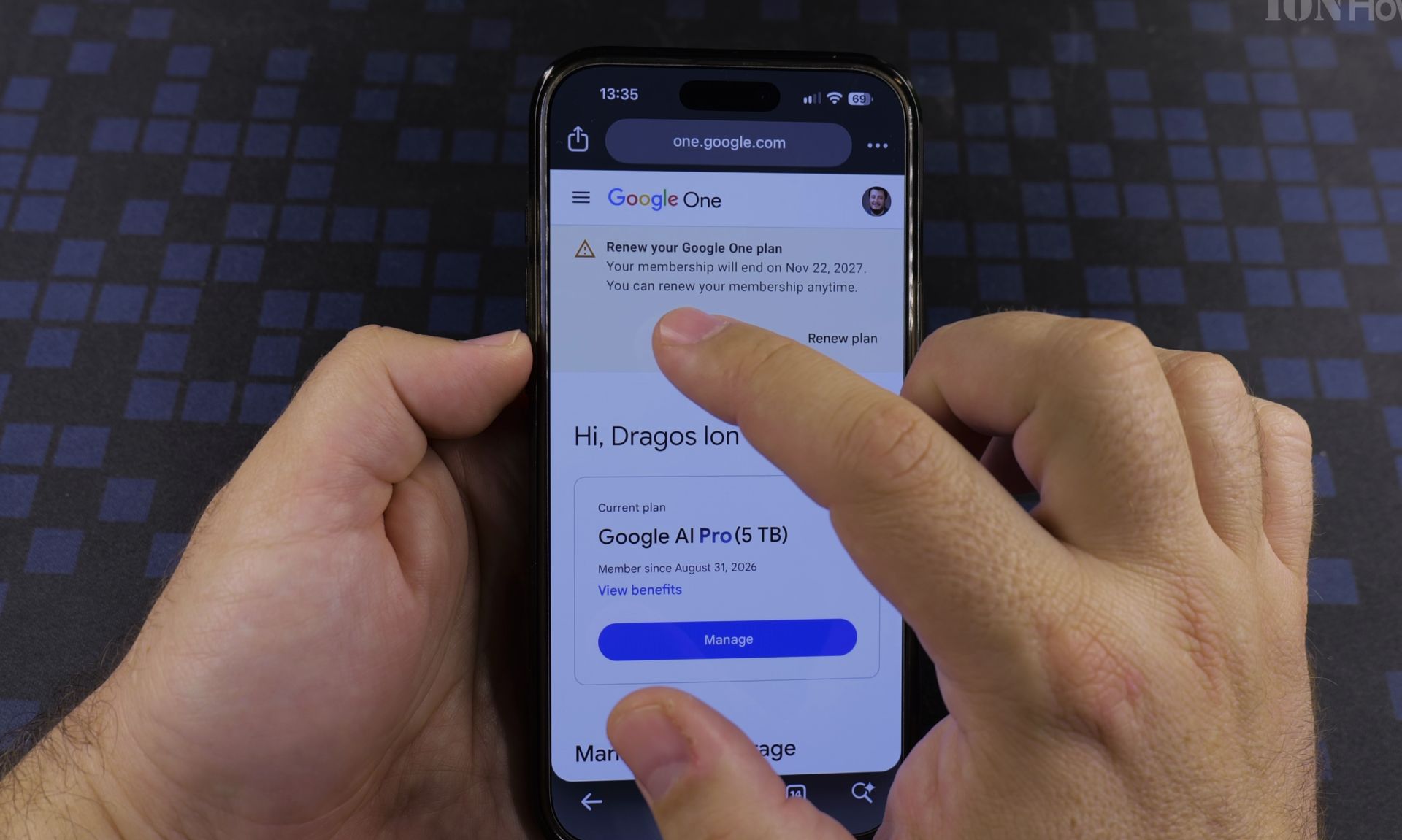
2. Tap Renew to open play.google.com Subscriptions
Tap Renew inside Google One to jump straight to the Subscriptions section on play.google.com. Here you see your cancelled Google AI Pro 5 TB plan alongside its next scheduled billing date.
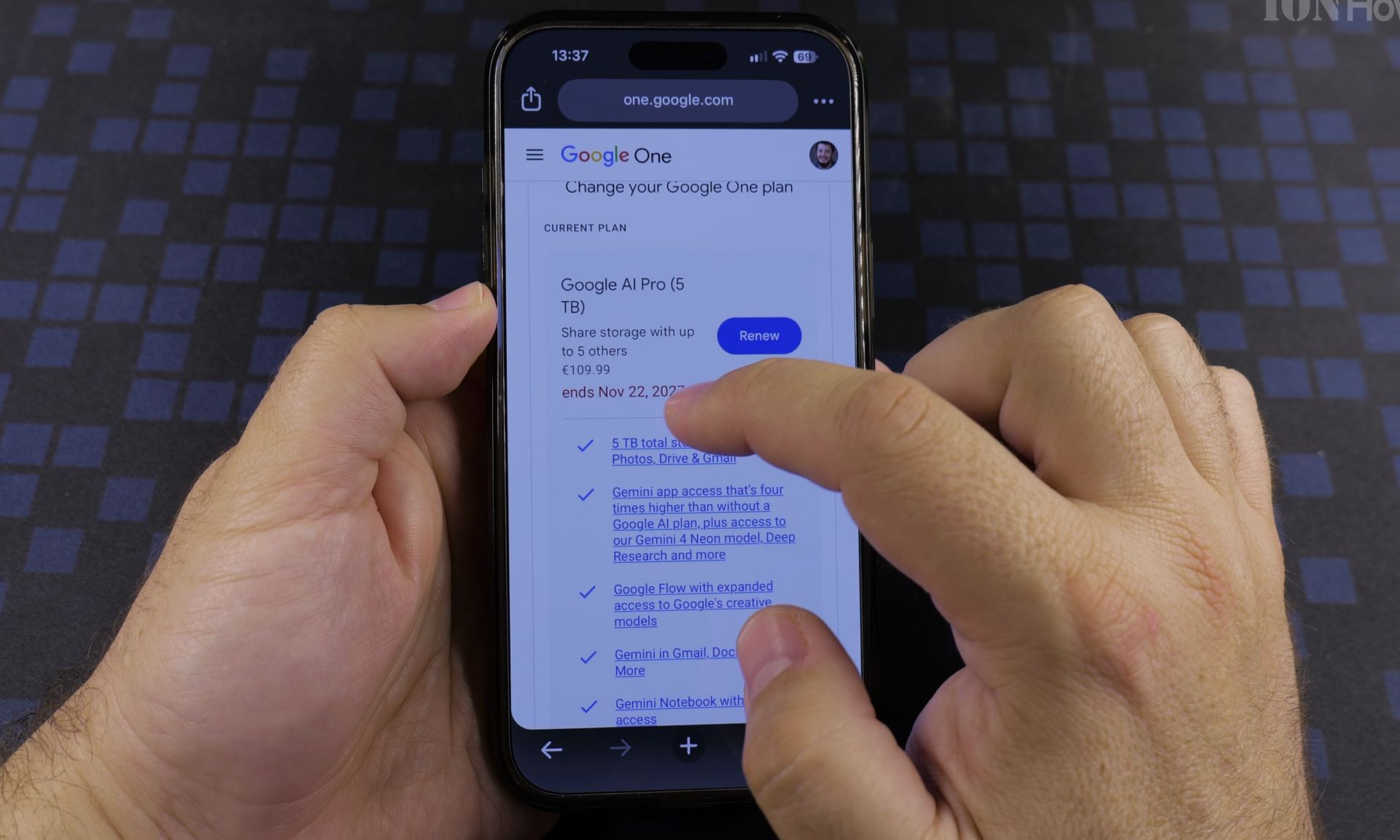
3. Update your payment card or tap Resubscribe
Tap Manage if you need to change an expired card or add a backup payment method first, or tap the Resubscribe button directly. Confirming Resubscribe restores your original Google AI Pro 5 TB subscription so it renews automatically at the regular annual rate on your renewal date.
4. Confirm upcoming charges and family sharing stay active
Check your email for the Google Play confirmation notice and tap Manage again to confirm your upcoming charge date. If you use Google Family Sharing, your family members keep uninterrupted 5 TB shared storage and AI benefits.
Helpful Tips
- Resubscribing before your expiration date keeps your 5 TB shared storage, Gemini features, and Google Family Sharing continuous with zero interruption.
- Always add a backup payment card inside Google Play Manage if your primary card expires soon so your storage never drops back to 15 GB unexpectedly.
- If you previously cancelled a free trial and want a Black Friday discount instead of regular renewal pricing, check one.google.com offers before tapping Resubscribe.
Related Guides
- Spigen GLASStR EZ Fit Pro Screen Protector on Google Pixel 11 Pro XL Installation Guide – Applying tempered glass manually can be tricky, but Spigen custom EZ Fit housing aligns the glass automatically with…
- Spigen GLASStR EZ Fit Pro Screen Protector on Google Pixel 11 Pro XL: Full Installation Guide – Installing a tempered glass screen protector freehand often results in crooked edges and trapped dust bubbles.
- How to Renew a Cancelled Roblox Plus or Premium Subscription Before It Expires – If you previously turned off automatic renewal on your Roblox Plus 1000 (or Roblox Premium) membership, your subscription…
- Google Interview Questions – Browse more tutorials and practical guides in this section.
Watch the Extended Step-by-Step Guide (Backup Cards and Family Check)
If you want the complete walkthrough including how to add a backup payment card, compare Google AI Pro against Google AI Ultra perks, and verify that Google Family Sharing stays active at 5 TB after renewing, watch my extended tutorial below.


Leave a Reply