
If you enjoy listening to songs in bed but do not want music playing all night, a sleep timer stops playback automatically. I’ll show you how to set a sleep timer for Apple Music on your iPhone in just a few taps.
1. Open the Clock App and Select Timers
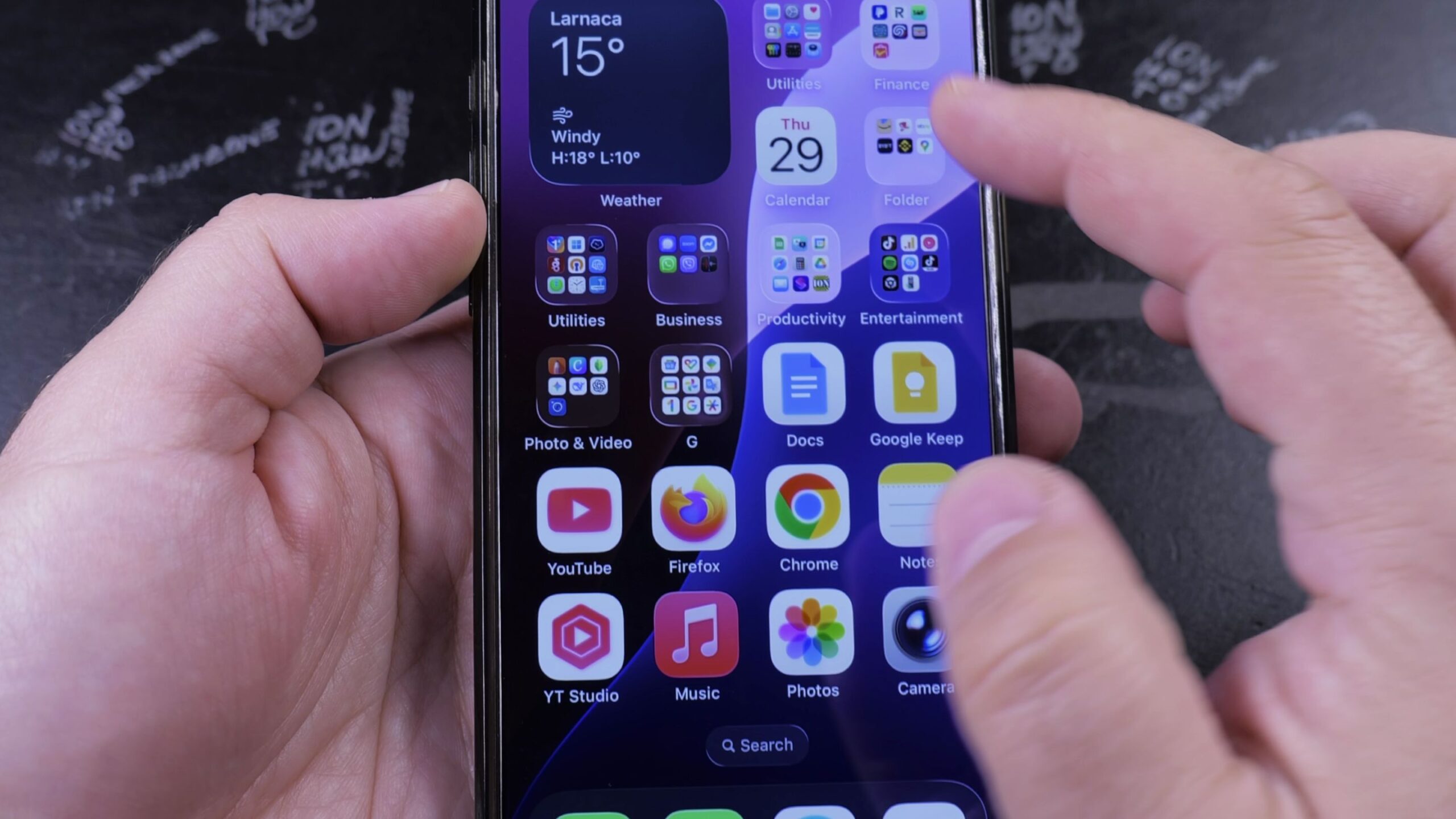
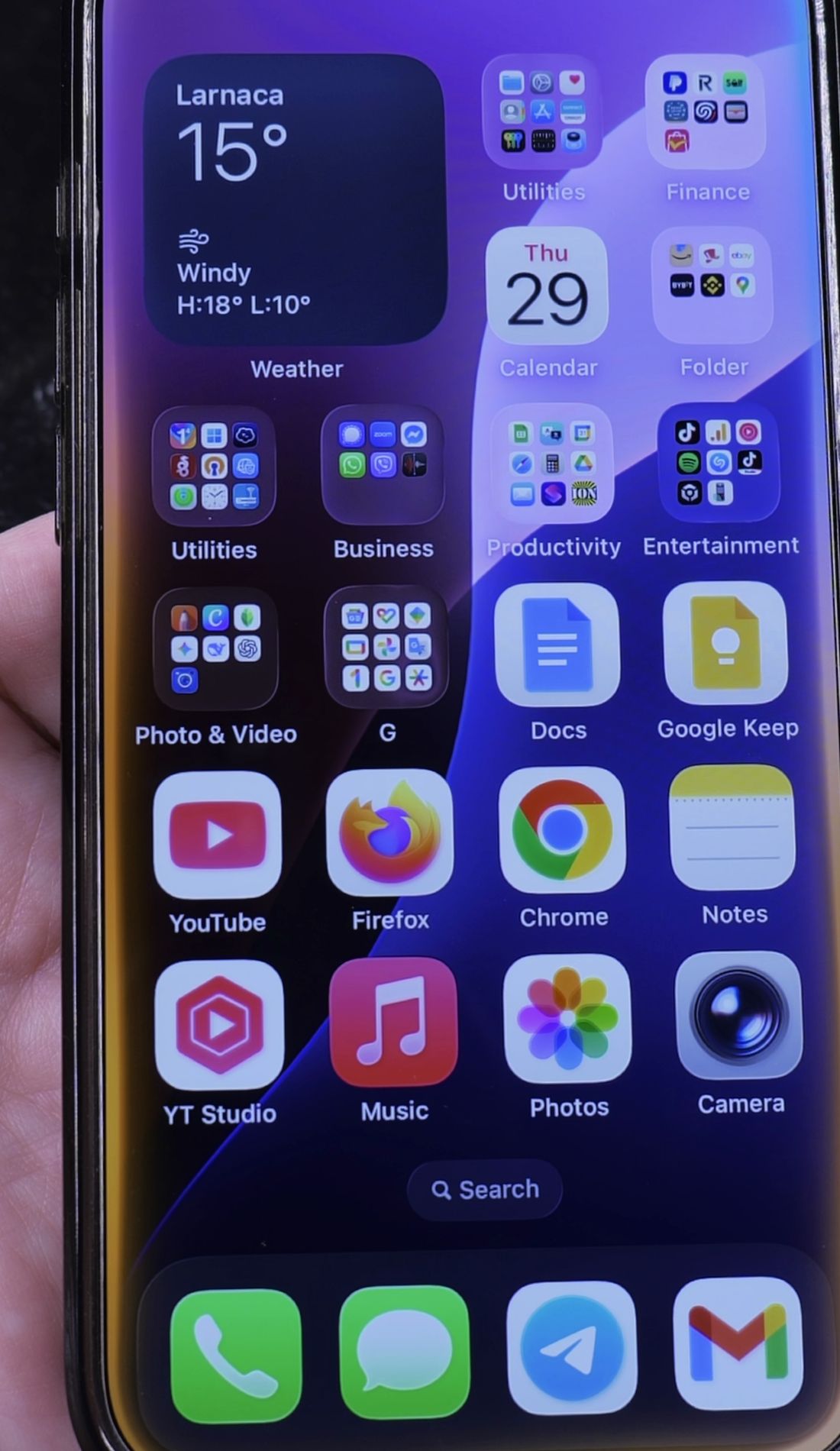
Go to your iPhone home screen. Find and tap the black Clock icon.
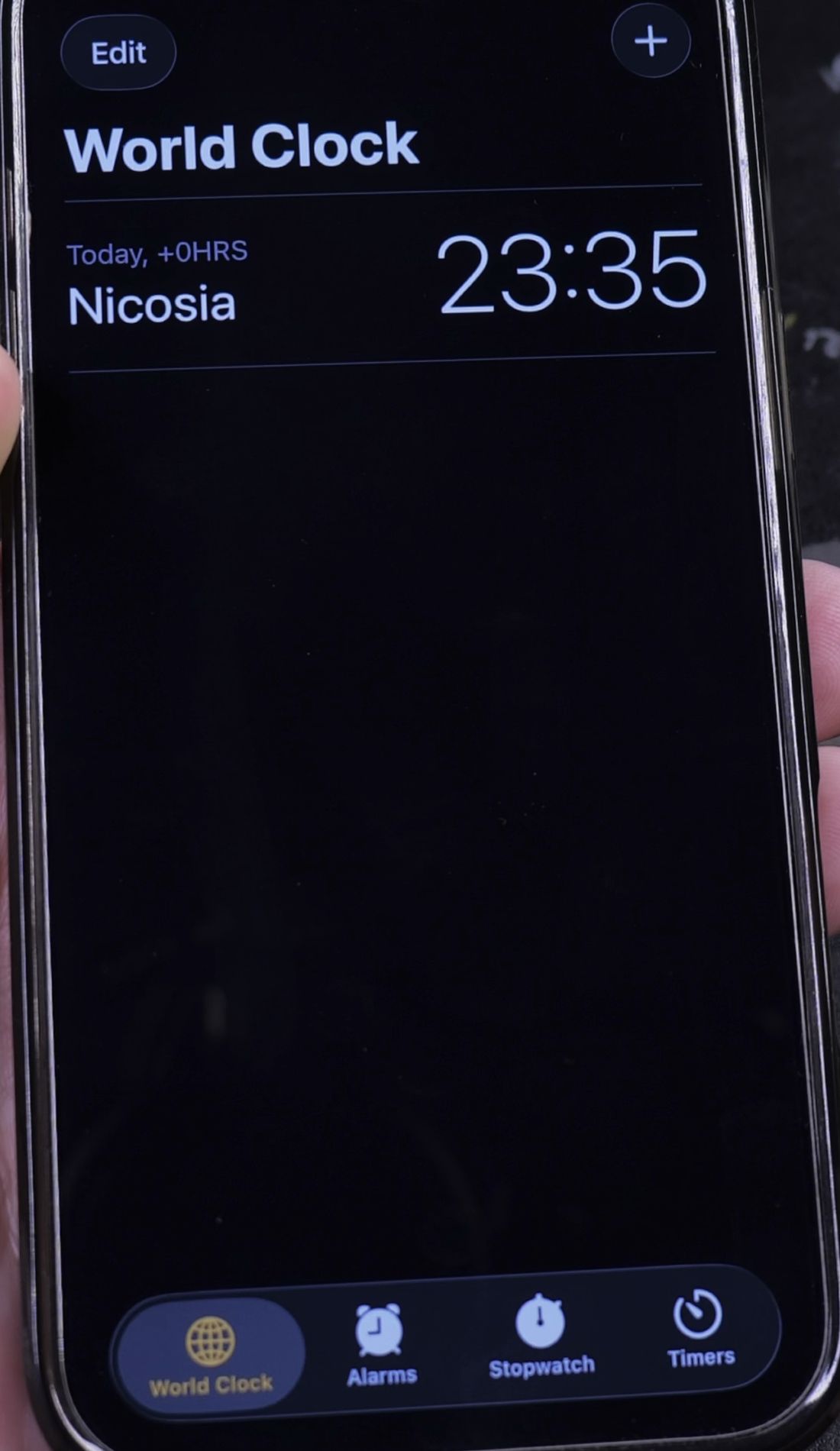
Look at the bottom row of tabs. In the bottom-right corner, tap Timers.
2. Set the Action to Stop Playing
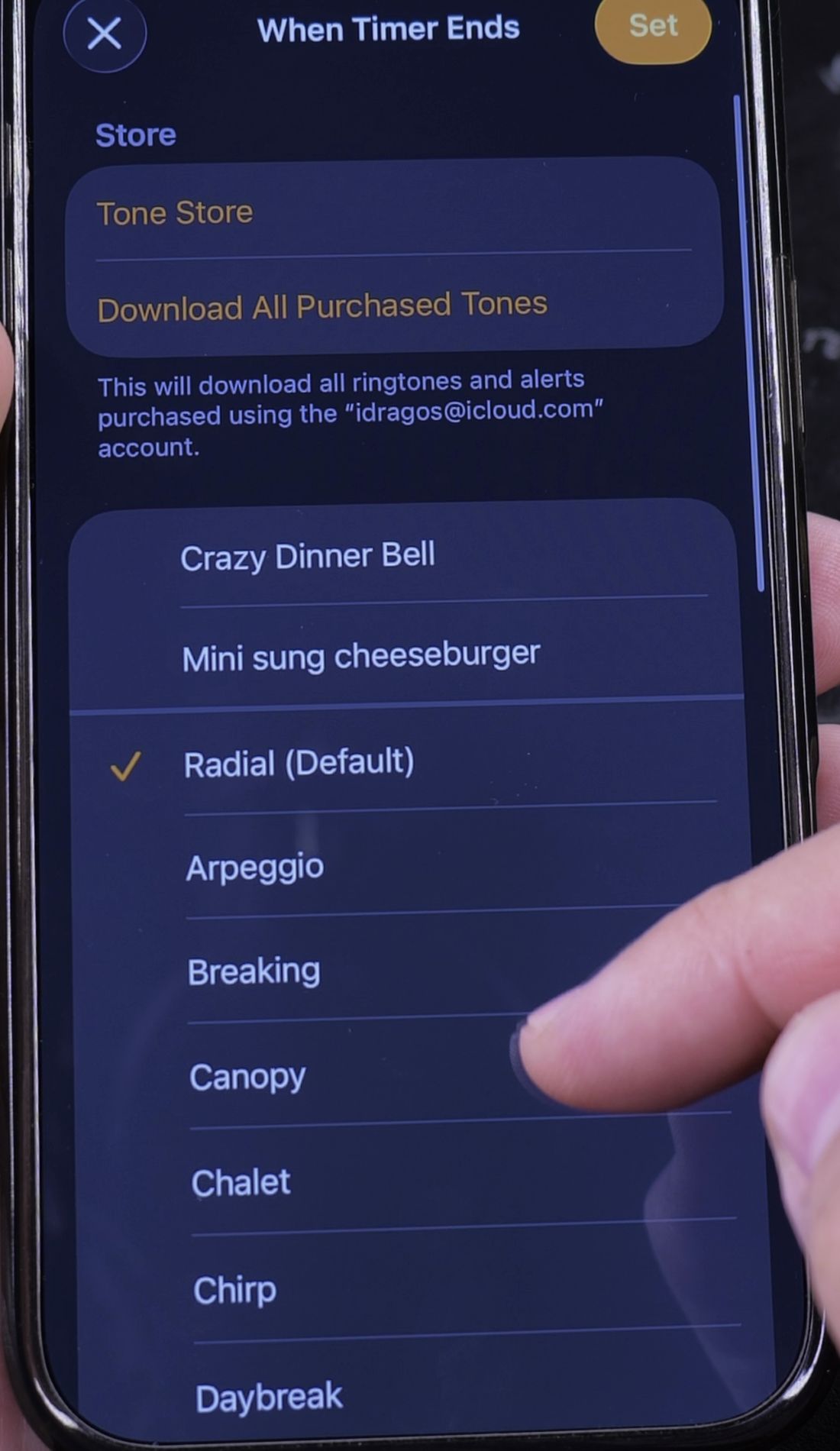
Directly under the countdown numbers, tap the row labeled When Timer Ends.
A list of alert sounds will appear. Scroll all the way down to the very bottom of this list.
Tap Stop Playing so an orange checkmark appears next to it. In the top-right corner, tap Set.
3. Choose Your Time and Tap Start
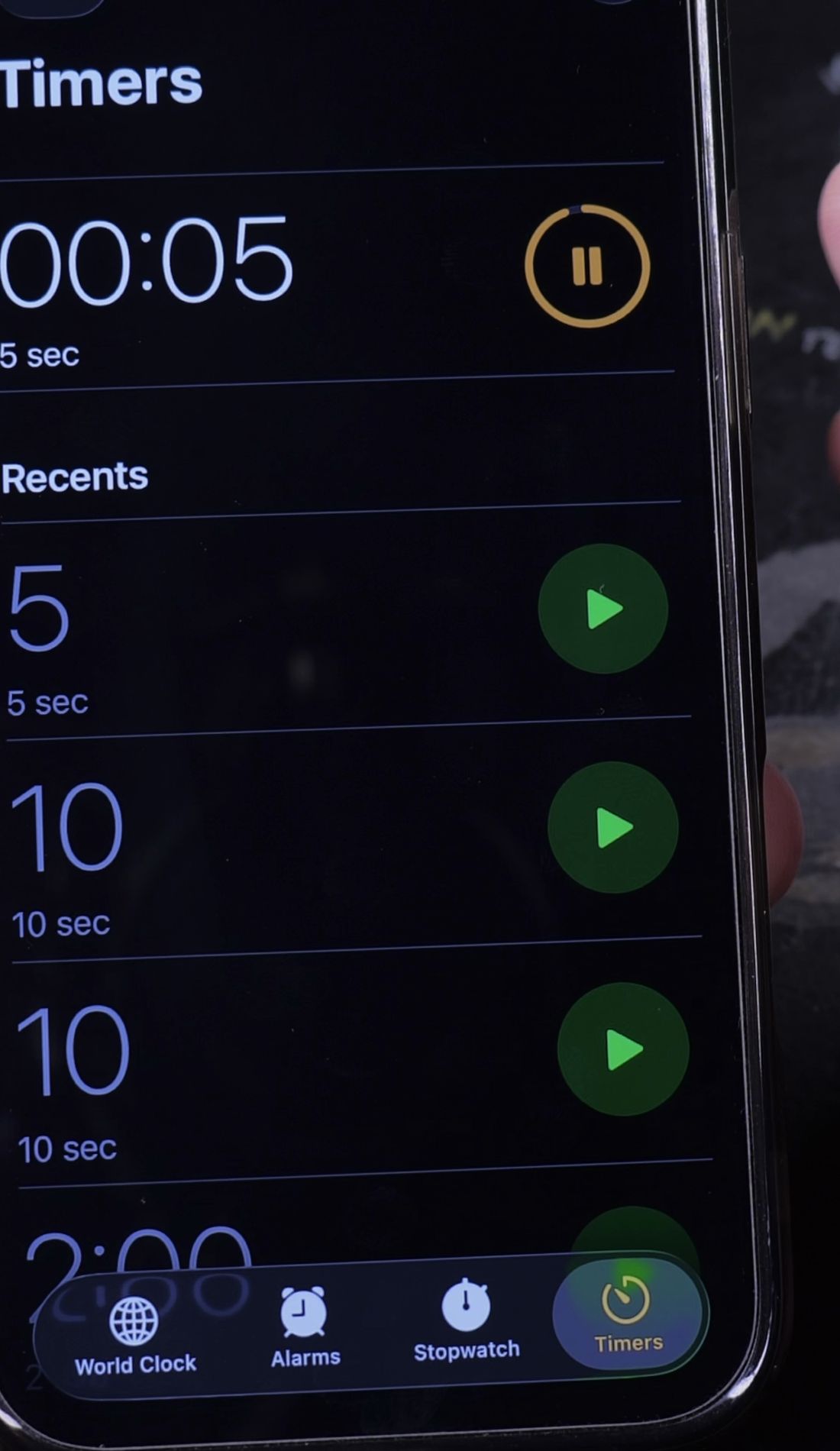
Scroll the hour and minute wheels to set how long you want the music to play. For example, choose 30 minutes.
Tap the green Start button. Your iPhone will now count down in the background while your songs play.
When the countdown reaches zero, Apple Music pauses immediately and your phone goes to sleep.
4. Alternative: Ask Siri to Set a Sleep Timer
You can also set the timer hands-free without opening any apps. Start playing your music as usual.
Say “Hey Siri, set a sleep timer for 45 minutes.”
Using the word sleep is important. Siri automatically configures the timer to stop playback instead of ringing an alarm.
Helpful Tips
Remember to change the timer sound back later if you use the Clock app as a regular morning alarm. Otherwise, the timer will silently stop instead of ringing.
If you like listening to playlists on loop before sleeping, learn how to repeat a playlist in Apple Music. You can also explore our full collection of Apple Music guides for more helpful playback tips.


Leave a Reply