
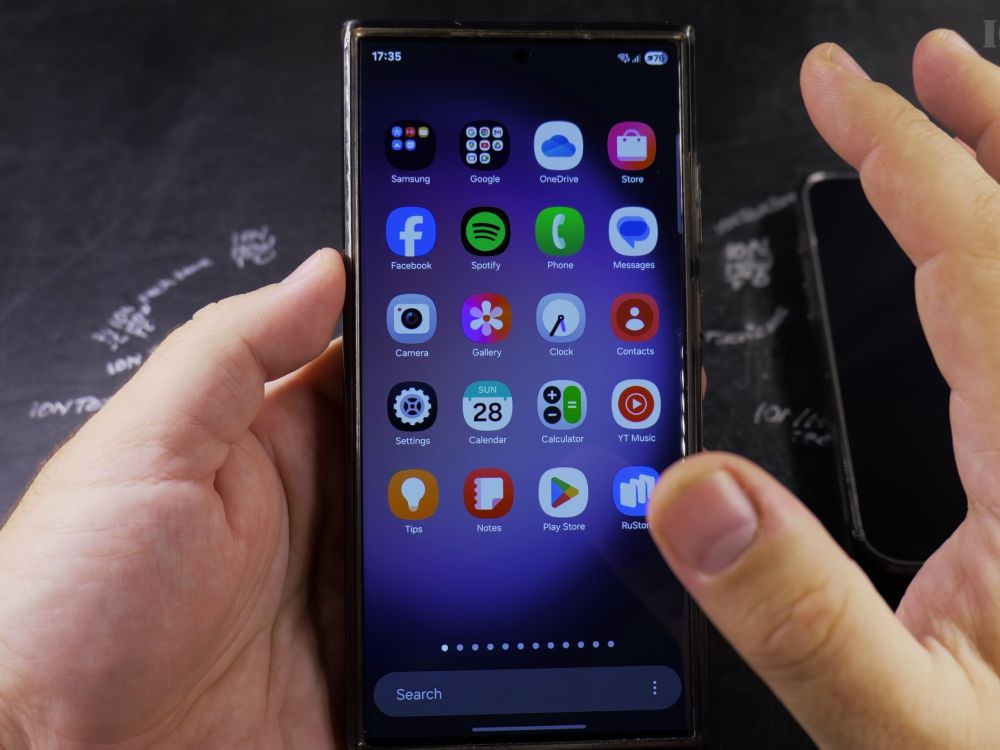
If people don’t answer your calls because your number shows up as Private or Unknown, your outgoing caller ID is hidden. I’ll show you how to turn your caller ID back on in your Samsung Phone settings.
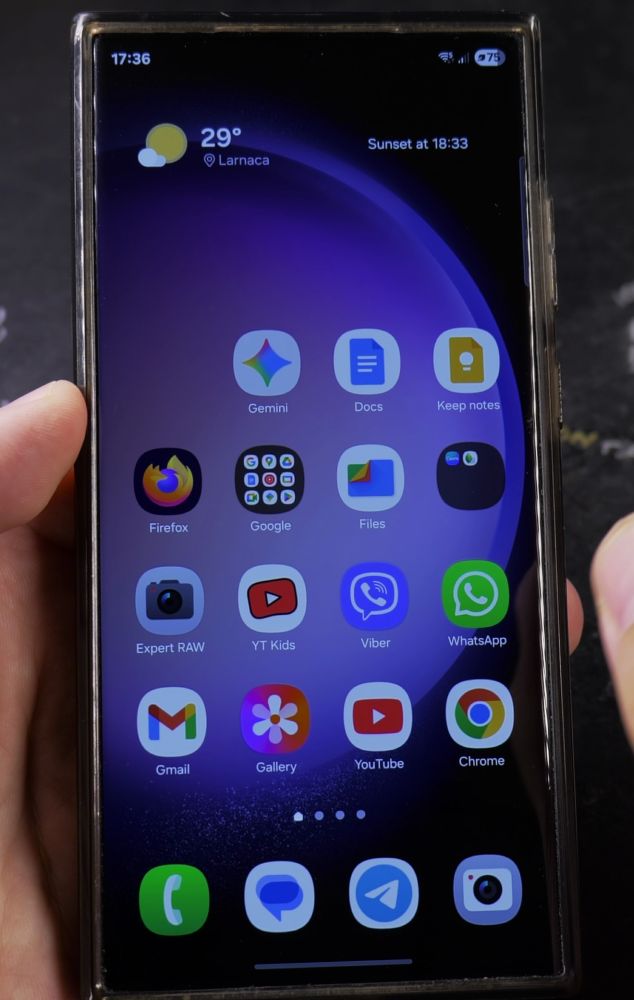
1. Open the Phone App
Tap the green **Phone** app icon at the bottom of your Samsung home screen.
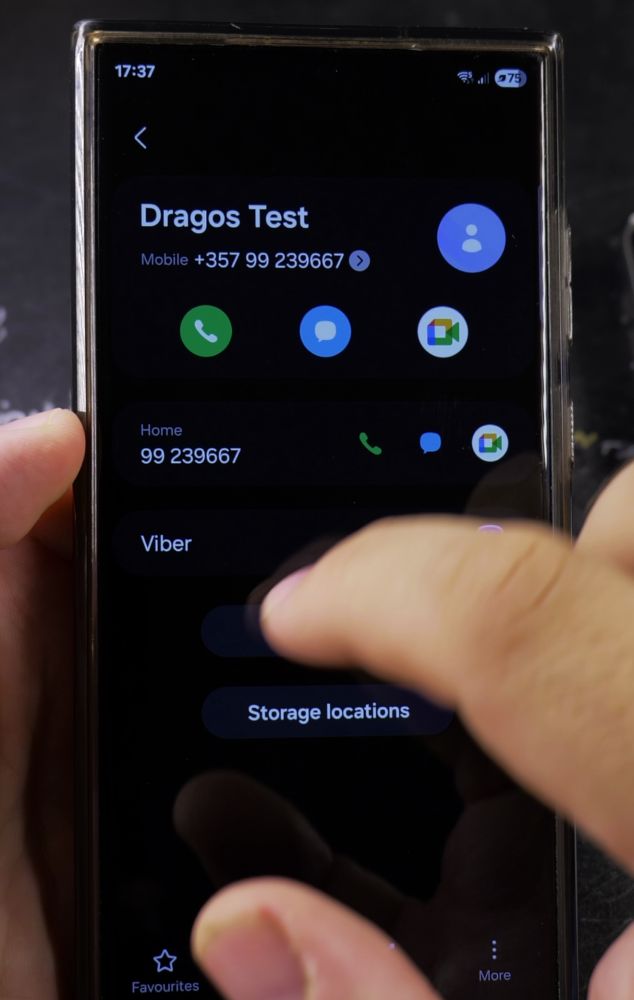
2. Open Phone Settings
In the upper-right corner of the screen, tap the **three dots** icon, then tap **Settings**.
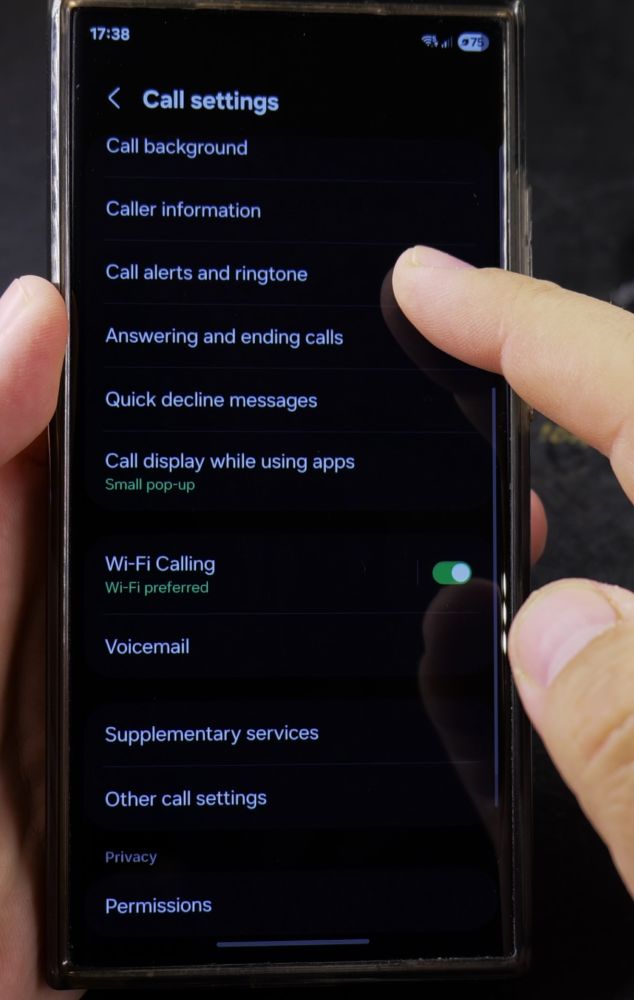
3. Tap Supplementary Services
Scroll down toward the bottom of the Call settings menu and tap **Supplementary services**.
4. Select Show Your Caller ID
Wait a few seconds for your carrier settings to load, then tap **Show your caller ID** at the top.
5. Select Always or Network Default
Tap **Always** (or **Network default**) so your phone number is transmitted on every call.
Helpful Tips
If the setting is grayed out or displays a network error, your cellular carrier may have a network-level caller ID block active on your account that requires contacting customer support. For more Android tricks, visit our Android Guides hub.


Leave a Reply