
When accessing Roblox account settings, many users notice that only Passkey is listed under login methods and the option to add or change a password has completely disappeared. Here is why Roblox hides the password setting and how to add a password back to your account.
Understand Why Roblox Hides the Password Field When a Passkey Is Active
When a Passkey is created on a modern browser or mobile device, Roblox prioritizes passwordless biometric authentication and suppresses the password setup fields to encourage hardware-level security.
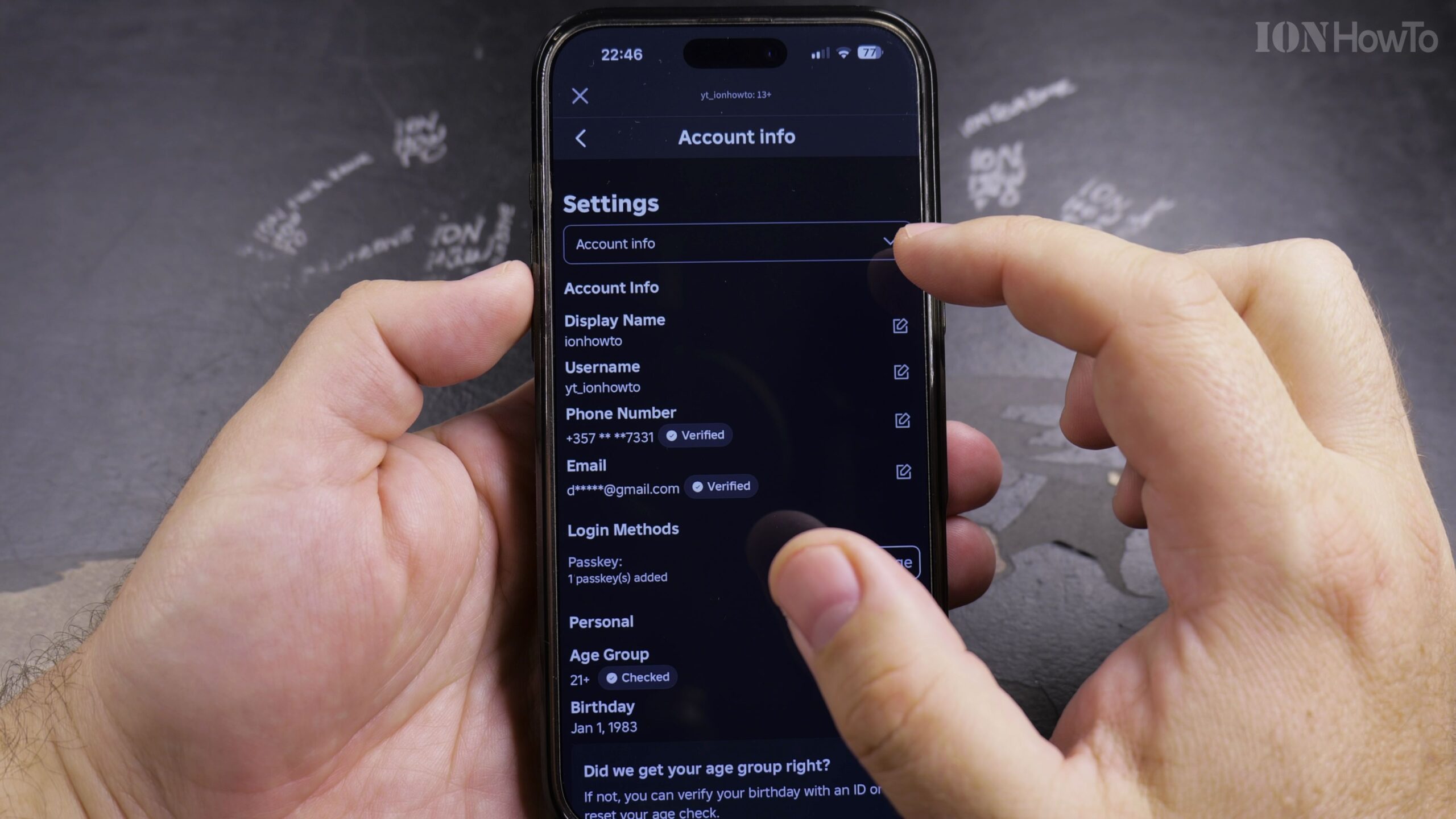
Open Roblox Settings in a Desktop Browser
For the most complete view of your account settings, sign in to Roblox on a computer web browser rather than the mobile app, and navigate to Settings > Account Info.
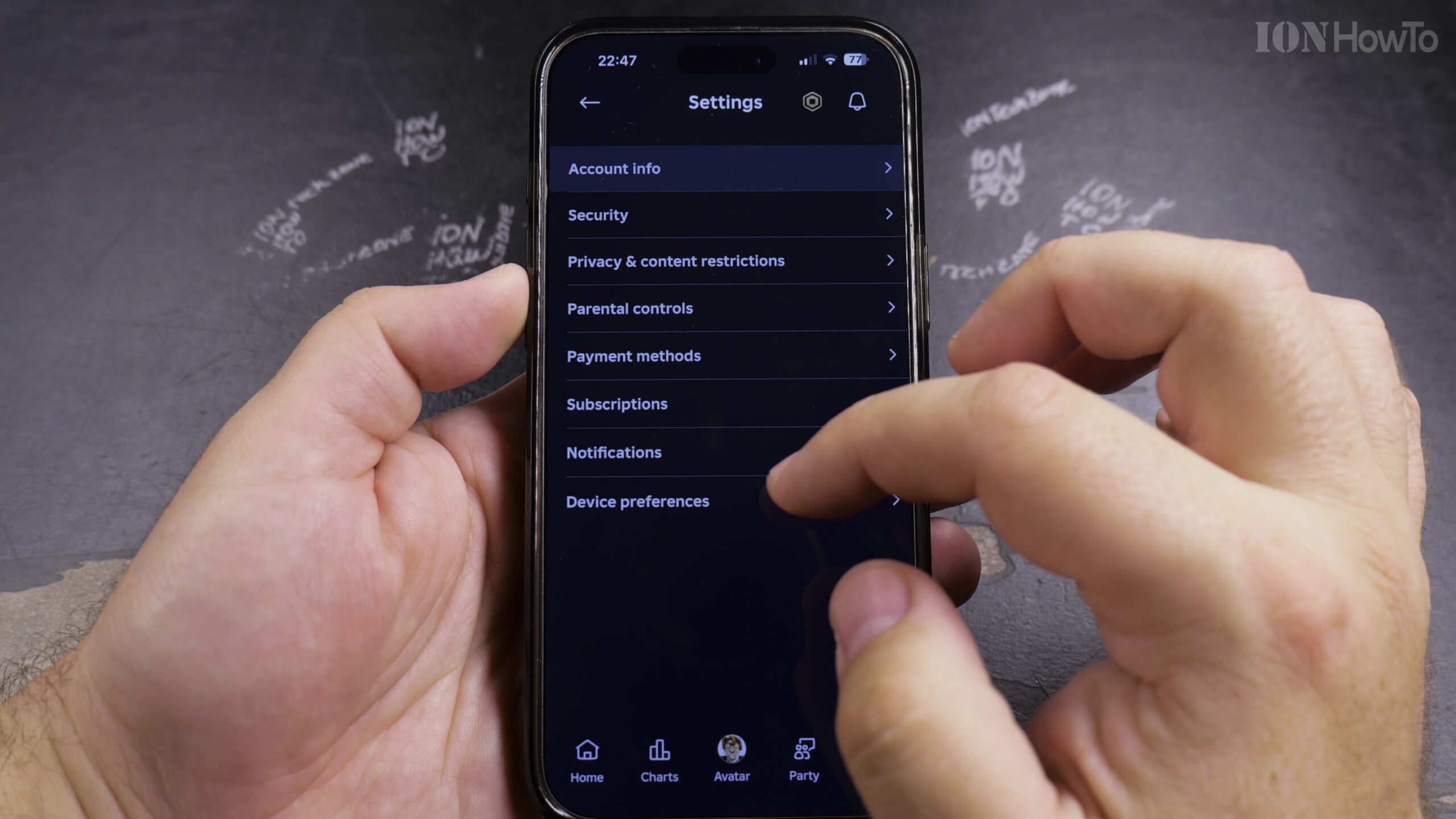
Use the Forgot Password Recovery Option to Set a Password
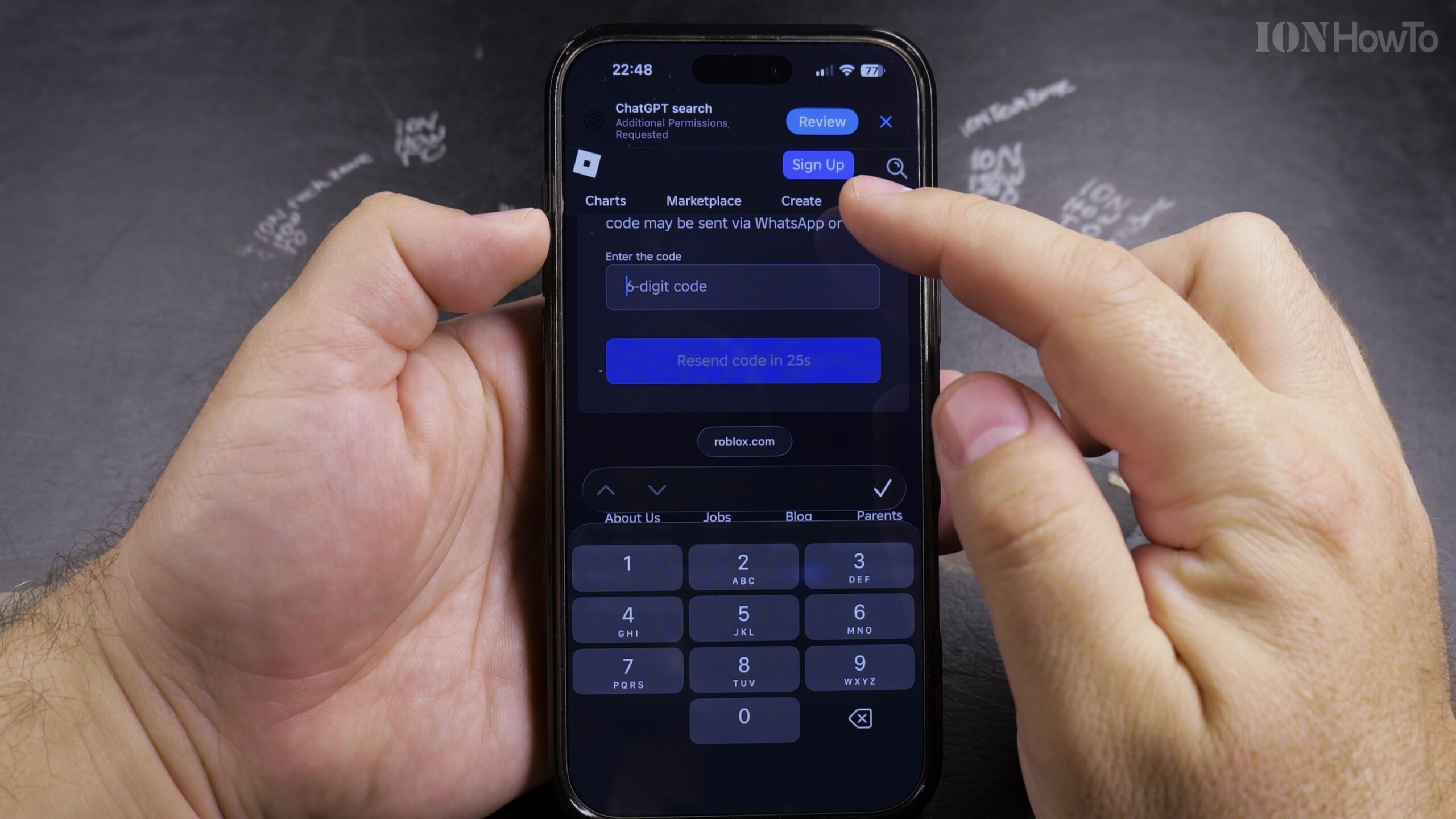
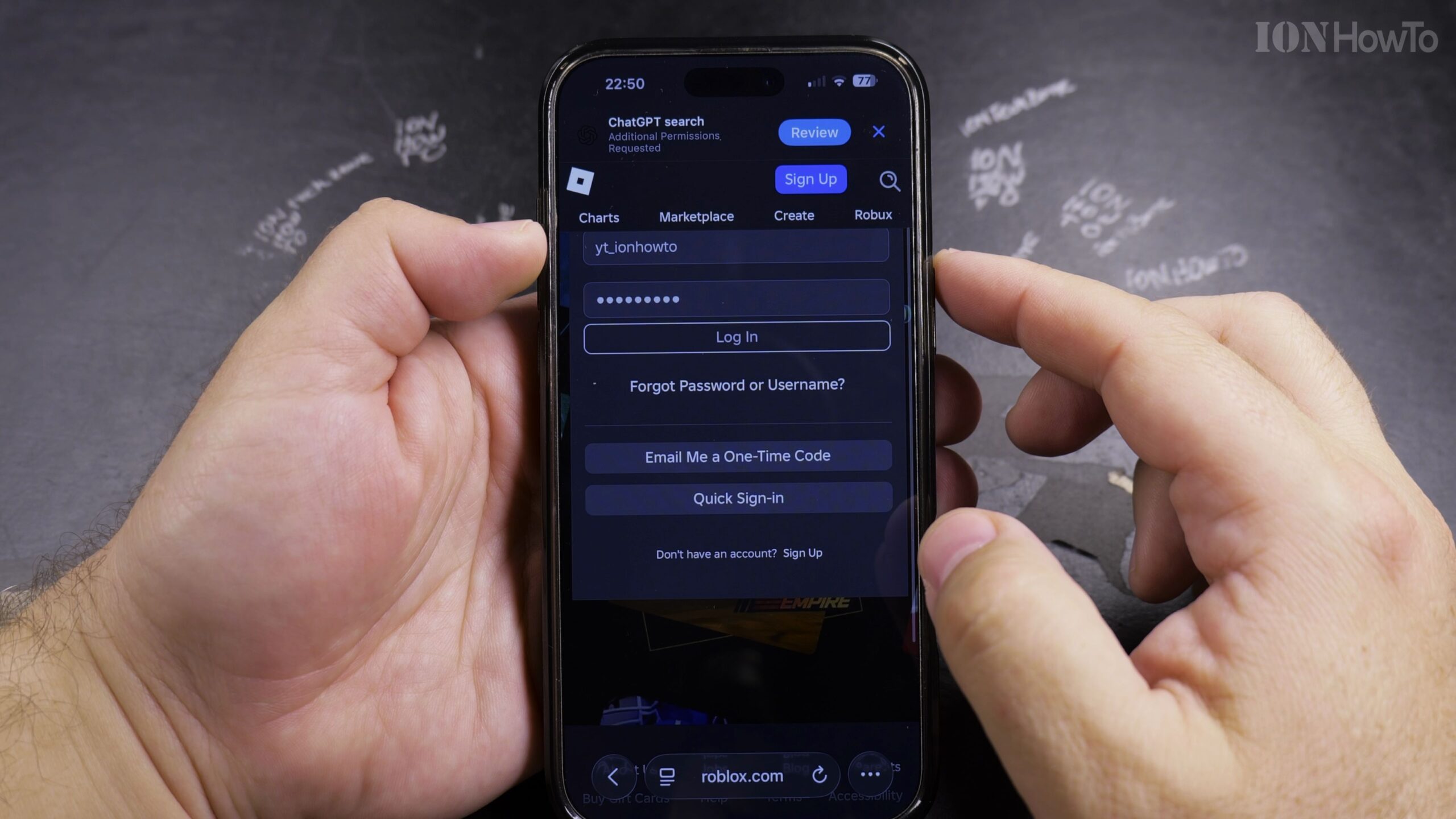
If you want to keep your Passkey active while adding a password, log out and click Forgot Password or Username on the login page. Enter your verified email address to receive a secure password creation link.
Temporarily Remove the Passkey to Expose the Add Password Button
Alternatively, go to Settings > Security (or Login Methods), click Remove next to your Passkey, and confirm device authentication. As soon as the Passkey is unlinked, the Add Password button reappears.
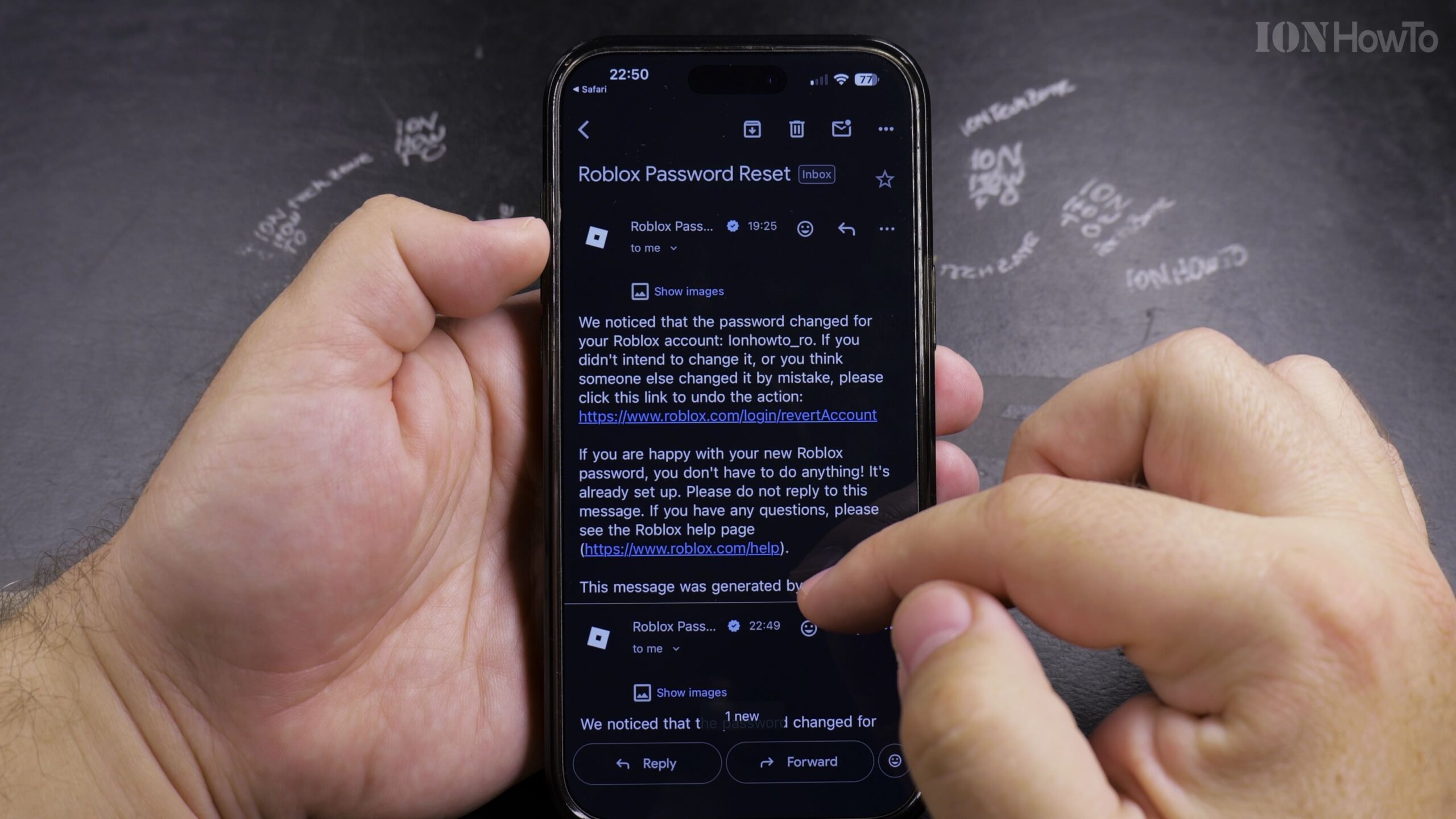
Save Your New Password and Confirm Dual Login Options
Type your new password twice, click Save, and test logging in. You can now use either your password or re-add a Passkey for flexible access across all your devices.
Helpful Tips and Related Guides
Adding a strong password alongside your Passkey is especially helpful when logging in on public computers or game consoles where biometric passkeys are unavailable. Read more in our Roblox How-To Guides category, check our guide on Cancelling Roblox Plus Subscriptions, or see our How-To articles.


Leave a Reply