

Amazon links
As an Amazon Associate I earn from qualifying purchases:
- Phone Cases
- Mobile Tripods
- Usb-c charger
- Usb-c cable
- Docking stations
- Wireless car chargers
- Wireless charger stand
- SIM card removal tool
- SIM card holder
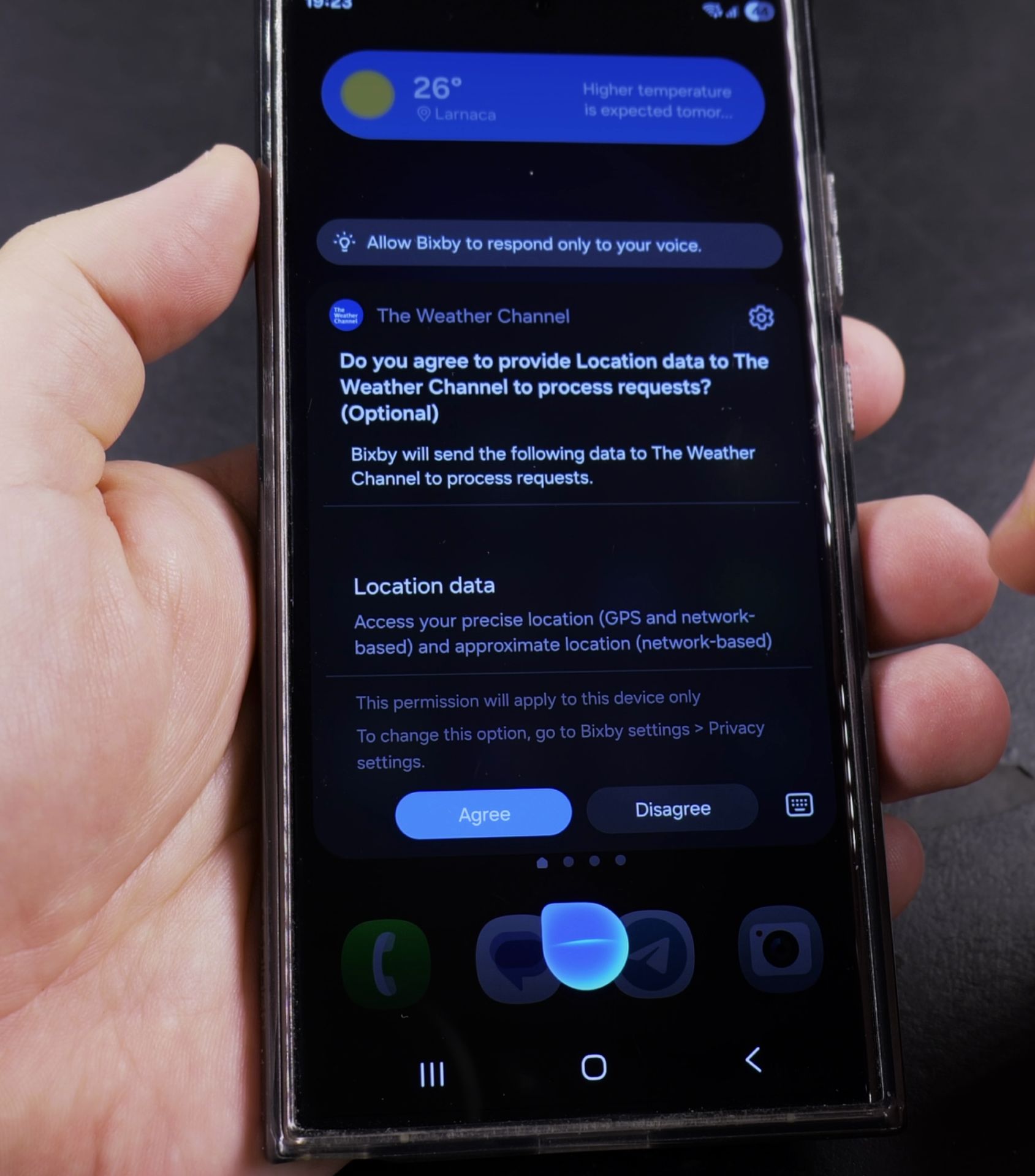
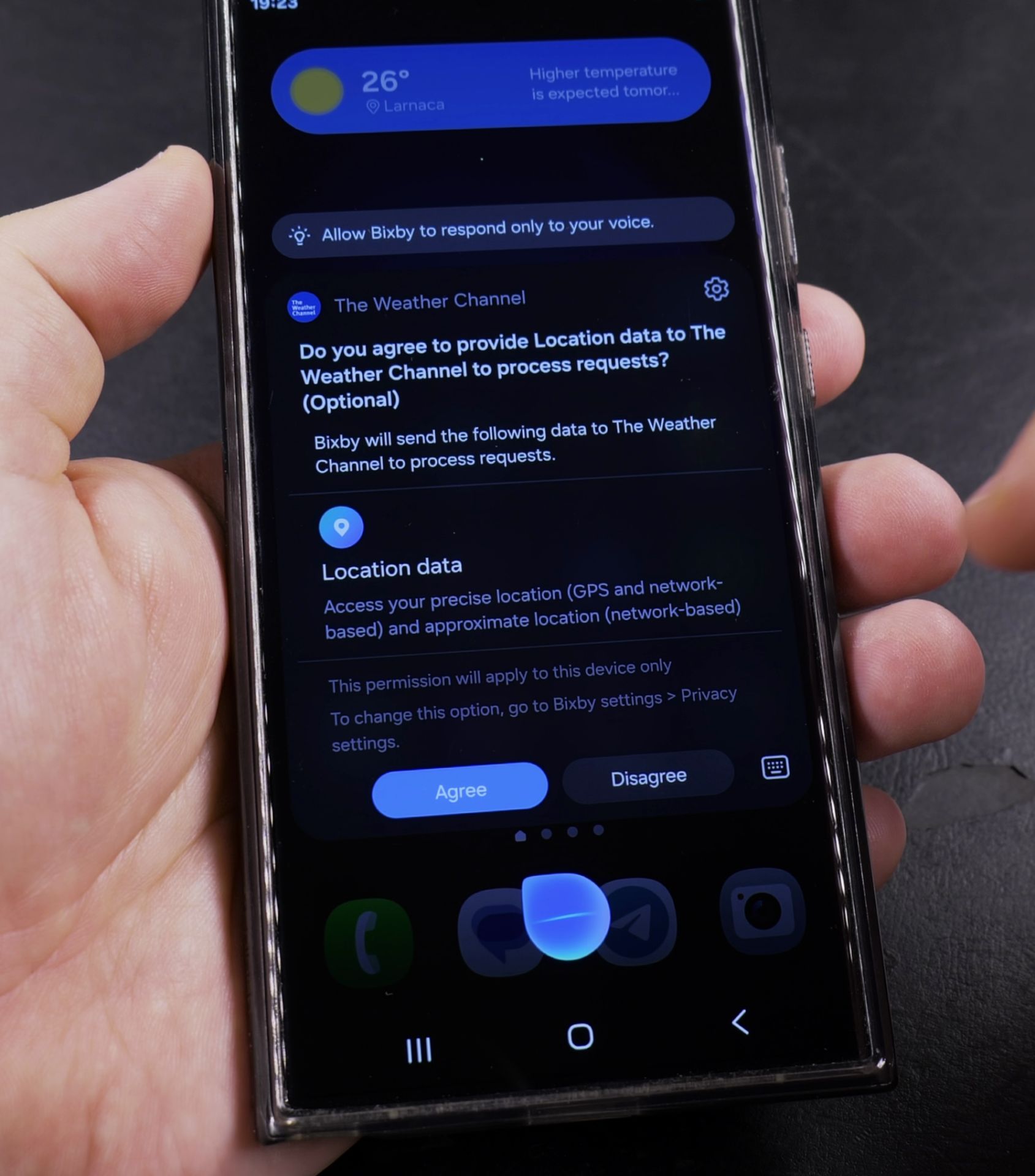
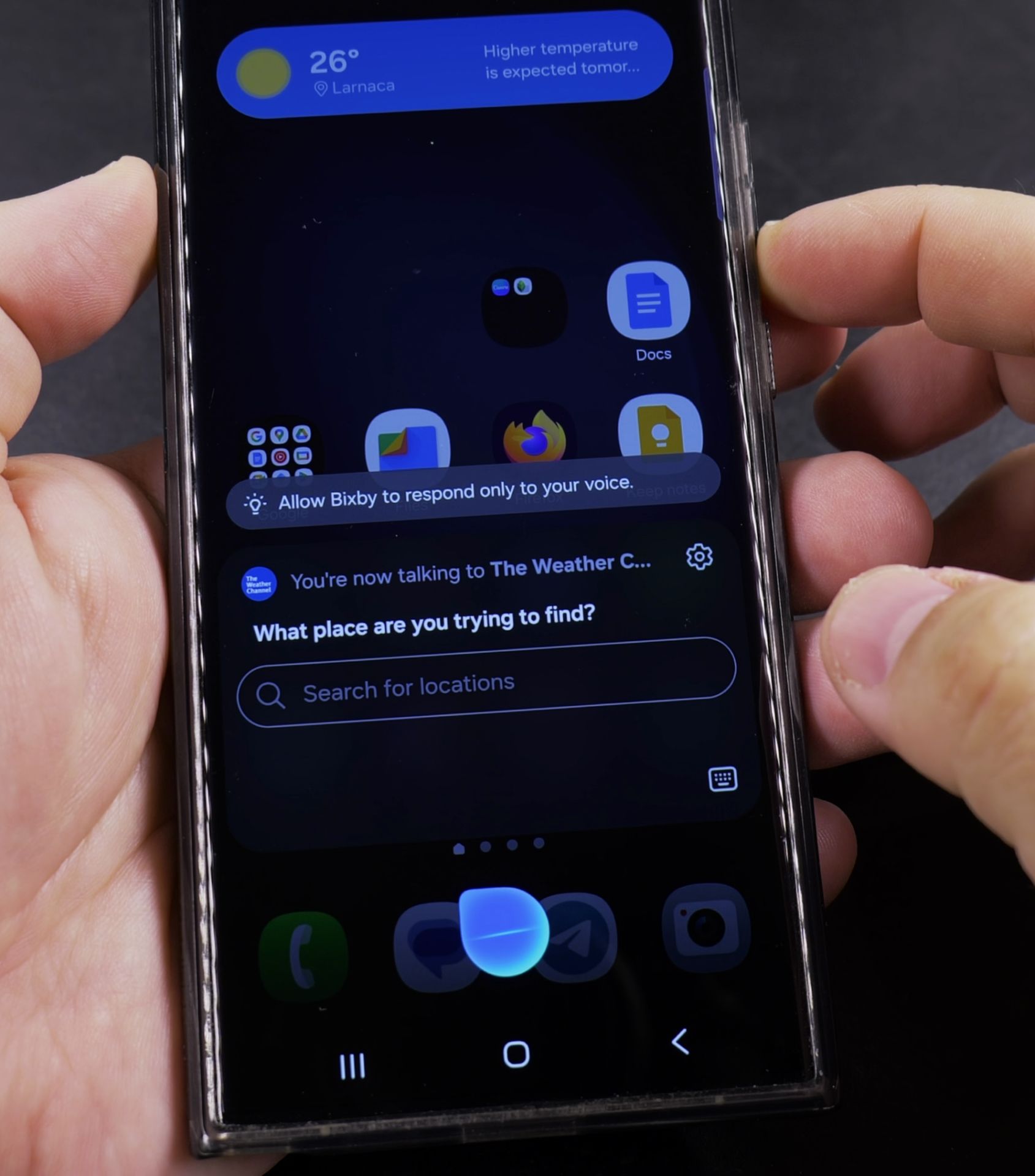
Learn why many users find Samsung Bixby frustrating. A simple command like asking for the weather often leads to unnecessary steps, like asking for permission to share location data. Even when you tell Bixby your city name, it sometimes confuses it with a completely different city in another country.
Quick Steps and Scenarios Overview
| What You Need to Do | Quick Jump |
|---|---|
| The Biggest Bixby Complaints | Jump to Step 1 |
| A Better Alternative: Google Gemini | Jump to Step 2 |
| How to Switch from Bixby to Gemini | Jump to Step 3 |
| Long press your home button – This | Jump to Step 1 |
| Tap the settings icon – Looks like | Jump to Step 2 |
| Select "Digital Assistant App" | Jump to Step 3 |
Showing on Samsung S23 Ultra Android 15, OneUI 7.0
The Biggest Bixby Complaints
Here are the most common issues users experience with Bixby:
- Location Confusion
- Gets cities wrong even when specified
- Constantly asks for location permissions
- Sometimes shows weather for completely wrong locations
- Slow Responses
- Takes longer to process commands than competitors
- Often has noticeable lag before answering
- Unnecessary Steps
- Asks follow-up questions for simple requests
- Makes basic tasks more complicated than they need to be
- Limited Understanding
- Struggles with natural language commands
- Frequently misunderstands what you’re asking
A Better Alternative: Google Gemini
If you’re tired of these issues, there’s a solution. Since the One UI 7 update, you can replace Bixby with Google Gemini as your default AI assistant. Learn how to switch from Bixby to Gemini and avoid these common problems.
Why Gemini Works Better
- More accurate responses – Better at understanding what you mean
- Faster processing – Responds quickly to commands
- Smarter follow-ups – Handles complex requests more smoothly
- Better integration – Works well with Google services you already use
How to Switch from Bixby to Gemini
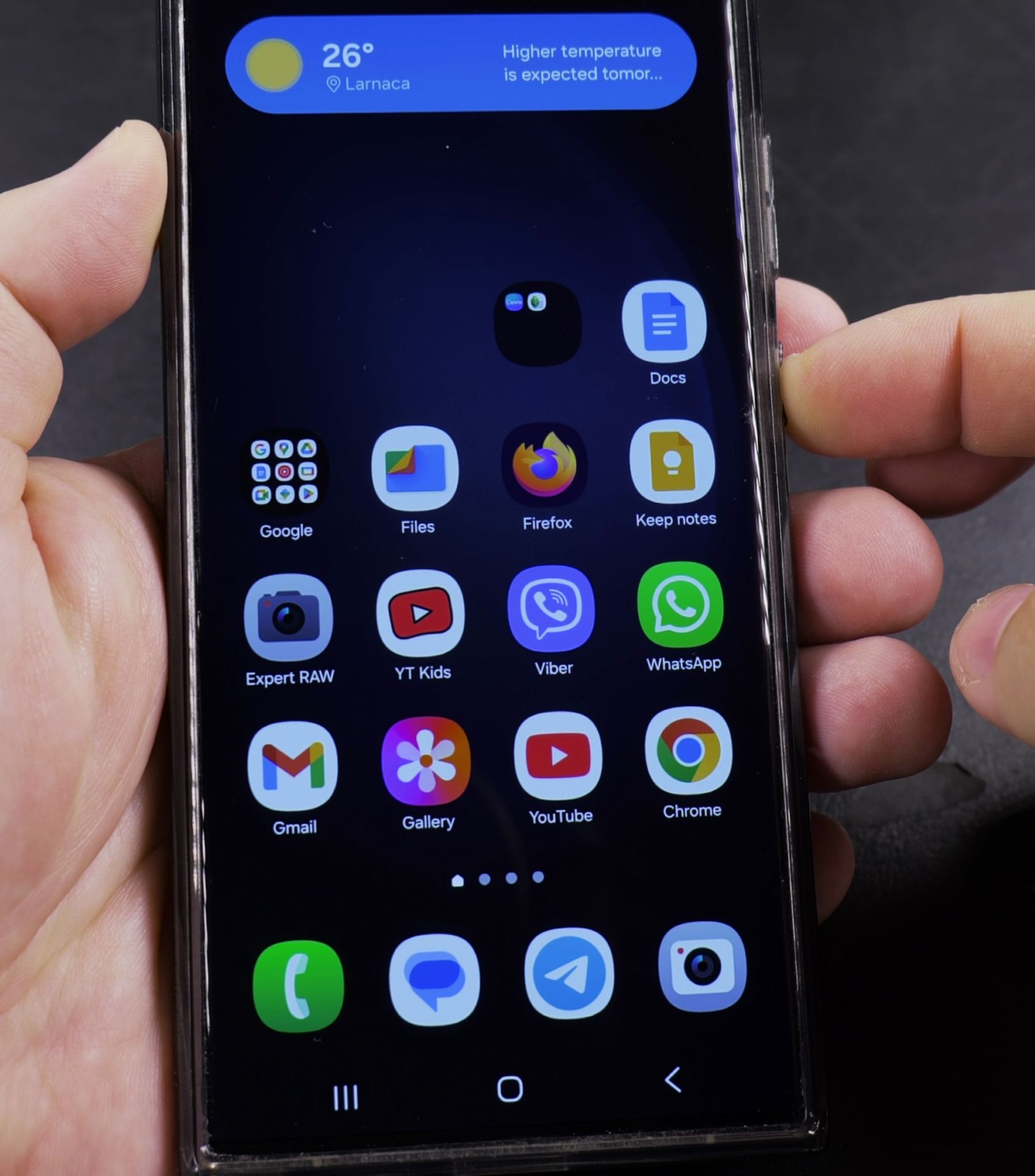
1. Long press your home button – This
Long press your home button – This normally activates Bixby.
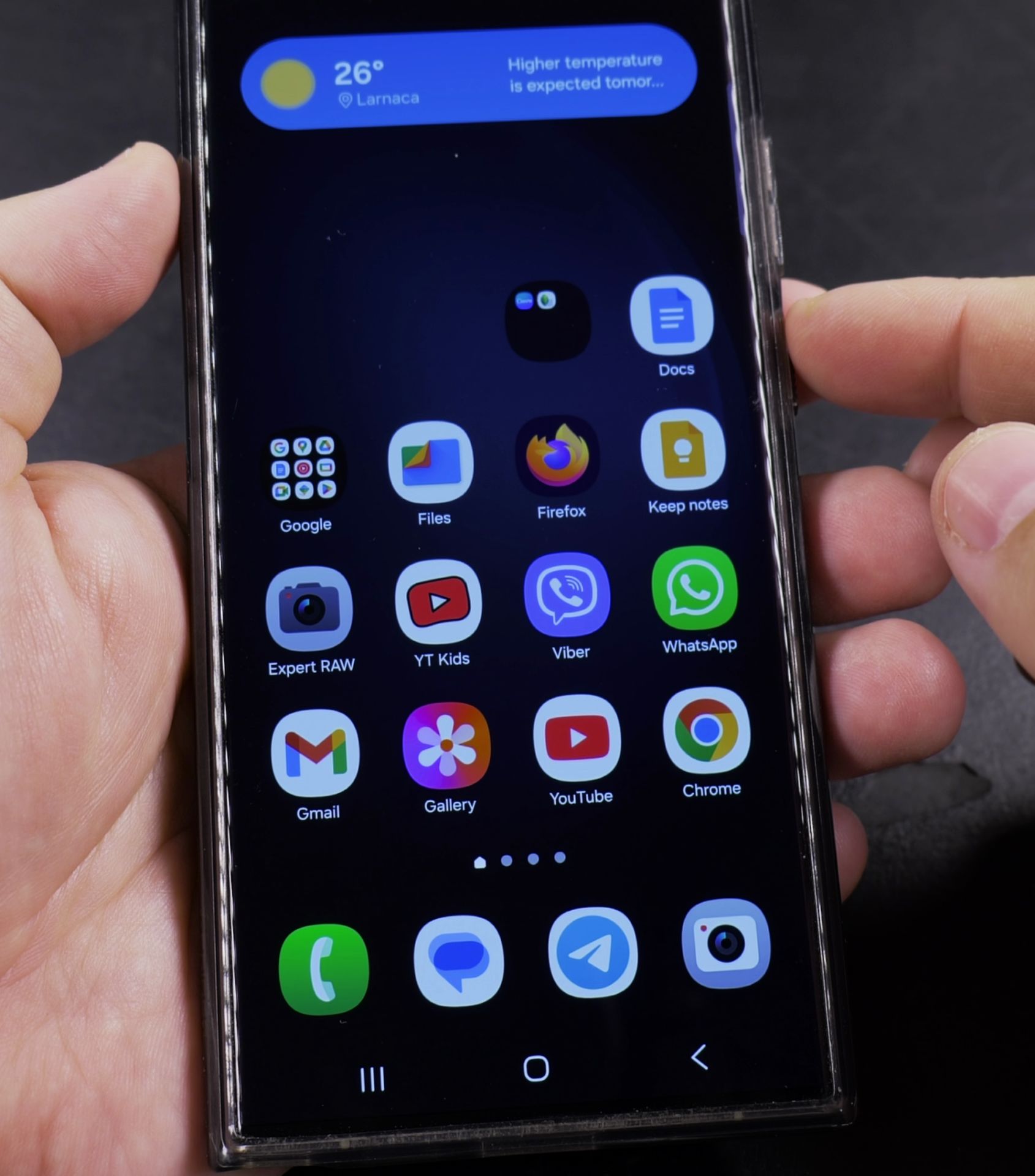
2. Tap the settings icon – Looks like
Tap the settings icon – Looks like a gear in the corner.
3. Select “Digital Assistant App”
Select “Digital Assistant App”.
4. Choose Google Gemini – Instead of Bixby
Choose Google Gemini – Instead of Bixby.
5. Set as default – Confirm your selection
Set as default – Confirm your selection.
What to Expect After Switching
- More natural conversations – Gemini understands everyday language better
- Fewer mistakes – Gets locations and facts right more often
- Faster help – Responds quickly to your requests
- Better Google integration – Works seamlessly with your Google account
Final Thoughts
While Bixby comes pre-installed on Samsung phones, it’s not your only option. If you’ve been frustrated with Bixby’s limitations, switching to Gemini might solve your problems. The process is simple and the improvement in performance is noticeable.
In another video I’ll show you how to make Gemini your default assistant on Samsung phones. You might prefer Gemini over Bixby because they respond faster and understand commands better. If you’ve been dealing with Bixby’s mistakes, this guide will help you switch to a better option.
Helpful Tips
Take your time and check the screen carefully after each tap so you can confirm the setting changed as expected. If an option appears in a slightly different spot on your device, watch the embedded video above for a closer look.
Related Guides
- Turn Off Bixby Side Button on Samsung – How to Turn Off Bixby Side Button on Samsung Phones.
- Enable Bixby Side Button on Samsung – Enable Bixby Side Button on Samsung Phones.
- Samsung Galaxy S23 Ultra – Browse more tutorials and practical guides in this section.


Leave a Reply