
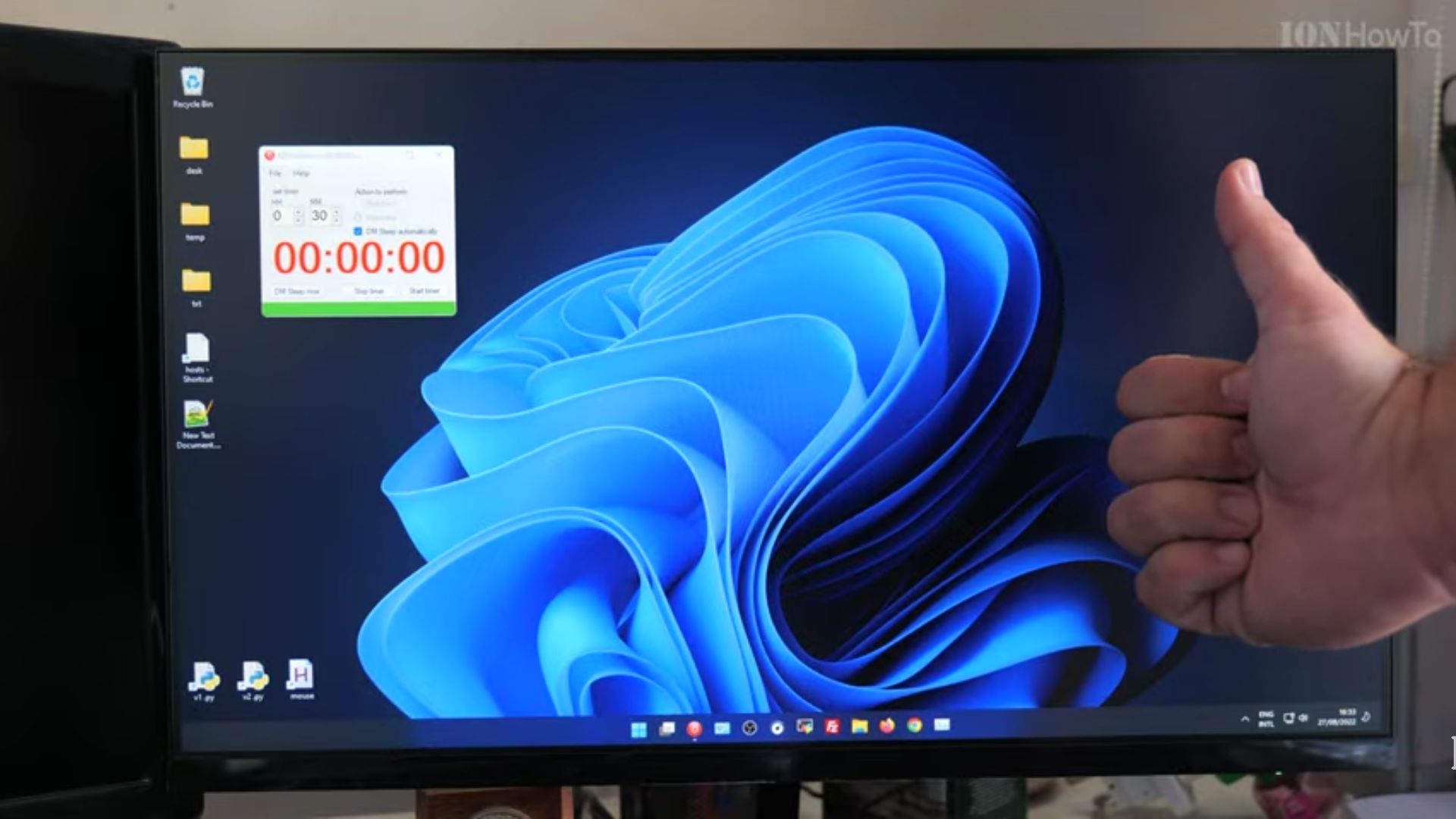
Teams chat can’t be unpinned from taskbar but it can be disabled from Settings – Personalization.
Also open task manager app and go to the startup tab and find Teams Chat and toggle the state to disabled.
like this, the next time you start Windows 11, you won’t see Teams Chat or Widgets in your taskbar.
The Widgets usually show news and interests and weather. They can show other apps too but you can re-enable them any time later.
Quick Steps and Scenarios Overview
| What You Need to Do | Quick Jump |
|---|---|
| Removing Teams Chat | Jump to Step 1 |
| Remove the Widgets | Jump to Step 2 |
| What You're Not Missing | Jump to Step 3 |
| Bring Them Back | Jump to Step 4 |
| Quick Tip | Jump to Step 5 |
| Results | Jump to Step 6 |
Teams Chat and Widgets icons taking up space on your Windows 11 taskbar? Clean up your taskbar and know that you can always bring these features back if you change your mind later.
Why Remove Teams Chat and Widgets?
Teams Chat and Widgets can be useful, but they’re not for everyone. Maybe you’re using a different chat app, or you just want a cleaner taskbar. Whatever your reason, removing these items is easy.
Removing Teams Chat
Here’s how to get rid of that persistent Teams Chat icon:
First, try the Settings method:
- Open Windows Settings (press Windows key + I)
- Click on ‘Personalization’
- Select ‘Taskbar’
- Find ‘Teams Chat’ in the taskbar items
- Toggle it off
Still seeing Teams? Use this extra step to completely disable it:
- Open Task Manager (press Ctrl + Shift + Esc)
- Click on the ‘Startup’ tab
- Look for ‘Teams Chat’ in the list
- Right-click it and select ‘Disable’ or toggle the switch to ‘Disabled’
Remove the Widgets
Widgets are easier to remove:
- Open Settings again
- Go to ‘Personalization’
- Click ‘Taskbar’
- Find ‘Widgets’ in the taskbar items
- Toggle it off
What You’re Not Missing
The Widgets panel typically shows:
- News updates
- Weather information
- Stock prices
- Sports scores
- Calendar events
You can still access weather and news through your web browser, and your calendar through the regular Windows calendar app.
Bring Them Back
Re-enabling these features is just as easy:
- Follow the same steps above
- Toggle the features back on instead of off
- For Teams Chat, remember to re-enable it in Task Manager if you disabled it there
Quick Tip
Before making these changes, you might want to spend a day noting which widgets you actually use. This helps you make the decision about removing them.
Results
After following these steps and restarting your PC, you’ll have a cleaner taskbar. Your Windows 11 experience will feel more personalized and less busy.
Remember, these changes don’t delete anything from your system – they just hide the features from view. You can always bring them back if you find yourself missing them later.
That’s all there is to it! Enjoy your cleaner Windows 11 taskbar.
Helpful Tips
Check all labels, connections, and power ratings before starting so everything fits safely and securely. If any detail looks slightly different on your model, pause the embedded video above for a clear closeup view.
Related Guides
- How to Turn Off Roblox Voice Chat on Windows PC – Roblox How to Turn Off Voice Chat on Windows PC.
- Setup Logitech MK270 on Windows 11 – Setting Up Your Logitech MK270 on Windows 10 & 11.
- Windows 11 Move license and Activate Windows 11 with Windows 10 Product Key – Windows 11 Move license and Activate Windows 11 with Windows 10 Product Key This will move the license from Windows 10 to…


Leave a Reply