
Learn how to disable audio auto dubbing on YouTube Shorts. If you prefer your Shorts to keep their original audio without automatic translations, I’ll show you how to turn this feature off in the YouTube Shorts player.
Amazon links
As an Amazon Associate I earn from qualifying purchases:
- iPhone Accessories
- iPhone Charger
- iPhone Cases
- iPhone Screen protector
- iPhone Magsafe
- iPhone Wallet
- iPhone Usb c cable
How to Disable Audio Auto Dubbing on YouTube Shorts Video
Quick Steps and Scenarios Overview
| What You Need to Do | Quick Jump |
|---|---|
| For YouTube Viewers: How to Disable Auto Dubbing | Jump to Step 1 |
| Understanding Auto Dubbing | Jump to Step 2 |
| Language Selection Options | Jump to Step 3 |
| For YouTube Creators: Controlling Your Content | Jump to Step 4 |
| Checking If Your Shorts Have Auto Dubbing | Jump to Step 5 |
For YouTube Viewers: How to Disable Auto Dubbing
Learn how to disable audio auto dubbing on YouTube Shorts and hear the original audio track. This helps you avoid AI automated translations when watching YouTube Shorts and videos.
Here’s how to turn it off:
- Open the YouTube app on your phone
- Tap your profile picture in the top right corner
- Select Settings > Captions
- Tap Auto-translate
- Choose Off to disable all automatic translations
Alternatively, while watching a Short:
- Tap the three dots in the upper right corner
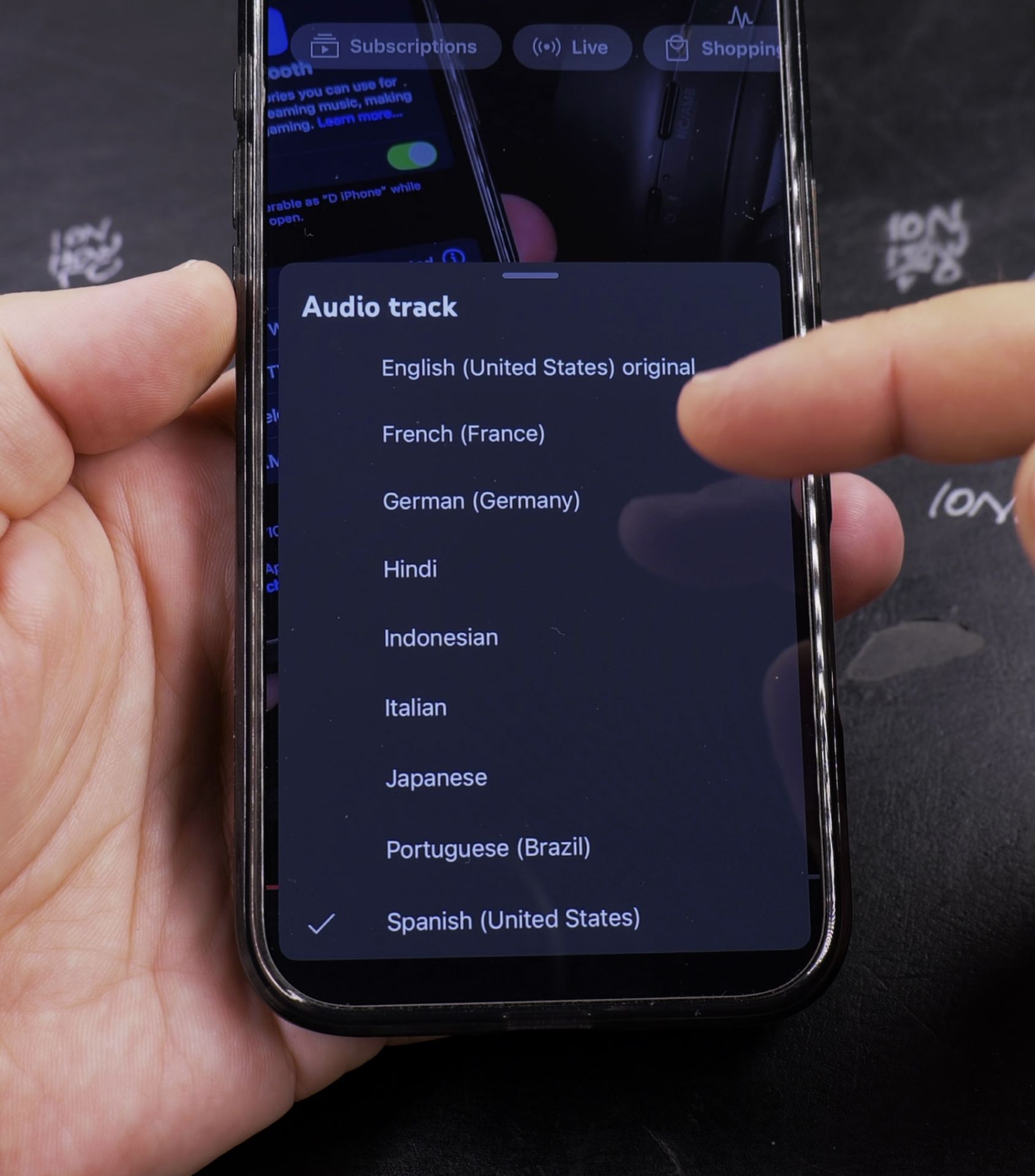
- Select Audio track
- Choose Original instead of any translated options
Understanding Auto Dubbing
The auto dubbing feature translates the spoken language of YouTube videos and Shorts. You can:
- Disable it completely
- Change the dubbing language
- Select the original audio track
If the original audio is in French, German, or another language, you can choose to hear it in the original language rather than translated to English.
Language Selection Options
The language settings currently work like this:
- Set your preferred language in YouTube settings
- Videos will default to auto-dubbed versions in your language
- You can manually select original audio for each video
Hopefully YouTube will soon add:
- An option to always prefer original audio
- Easier switching between languages in the player
- Better controls for multilingual viewers
For YouTube Creators: Controlling Your Content
Some creators want to control how their content is presented. Disabling auto dubbing lets you keep the original language. Here’s what creators should know:
- Auto dubbing is enabled by default
- You can’t currently disable it for your content specifically
- Viewers can choose to hear original audio
- The quality of translations varies
Checking If Your Shorts Have Auto Dubbing
To see if your Shorts are being auto-dubbed:
- Watch your own Shorts in incognito mode
- Check if translated audio options appear
- Note that results may vary by viewer location
Why You Might Want to Disable Auto Dubbing
Some good reasons to turn it off:
- Preserves the creator’s original tone and meaning
- Avoids awkward AI translations
- Maintains original background music and sounds
- Gives you more control over what you hear
Final Thoughts
While auto dubbing can help make content more accessible, many prefer the original audio. The current system gives viewers some control, but could be improved with more options. As YouTube updates this feature, we’ll likely get better ways to manage audio preferences.
Helpful Tips
Take your time and check the screen carefully after each tap so you can confirm the setting changed as expected. If an option appears in a slightly different spot on your device, watch the embedded video above for a closer look.
Related Guides
- Enable Auto Dubbing and Change Audio Language on YouTube – How to Enable Auto Dubbing and Change Languages on YouTube.
- Get Full YouTube Video from Shorts – How to Watch Full YouTube Videos from Shorts.
- Captions and Auto-Translate on YouTube App – How to Enable Captions and Auto-Translate on the YouTube Android App
- Apple Music & Audio – Browse more tutorials and practical guides in this section.


Leave a Reply