
The Google Pixel 11 Pro XL in Canyon color has one of the most distinctive colorways in modern smartphones. The Ultra Hybrid combines a rigid anti-yellowing polycarbonate backplate with shock-absorbing TPU bumpers, offering drop protection without hiding the finish.
Why Spigen Ultra Hybrid Is Ideal for Pixel 11 Pro XL
The Google Pixel 11 Pro XL in Canyon color has one of the most distinctive colorways in modern smartphones. The Ultra Hybrid combines a rigid anti-yellowing polycarbonate backplate with shock-absorbing TPU bumpers, offering drop protection without hiding the finish.
Step 1: Peel Off the Blue Protective Films
Before putting the case on your phone, locate the peel tabs on the clear back panel. Remove both the inner and outer protective films to reveal crystal-clear glass transparency.
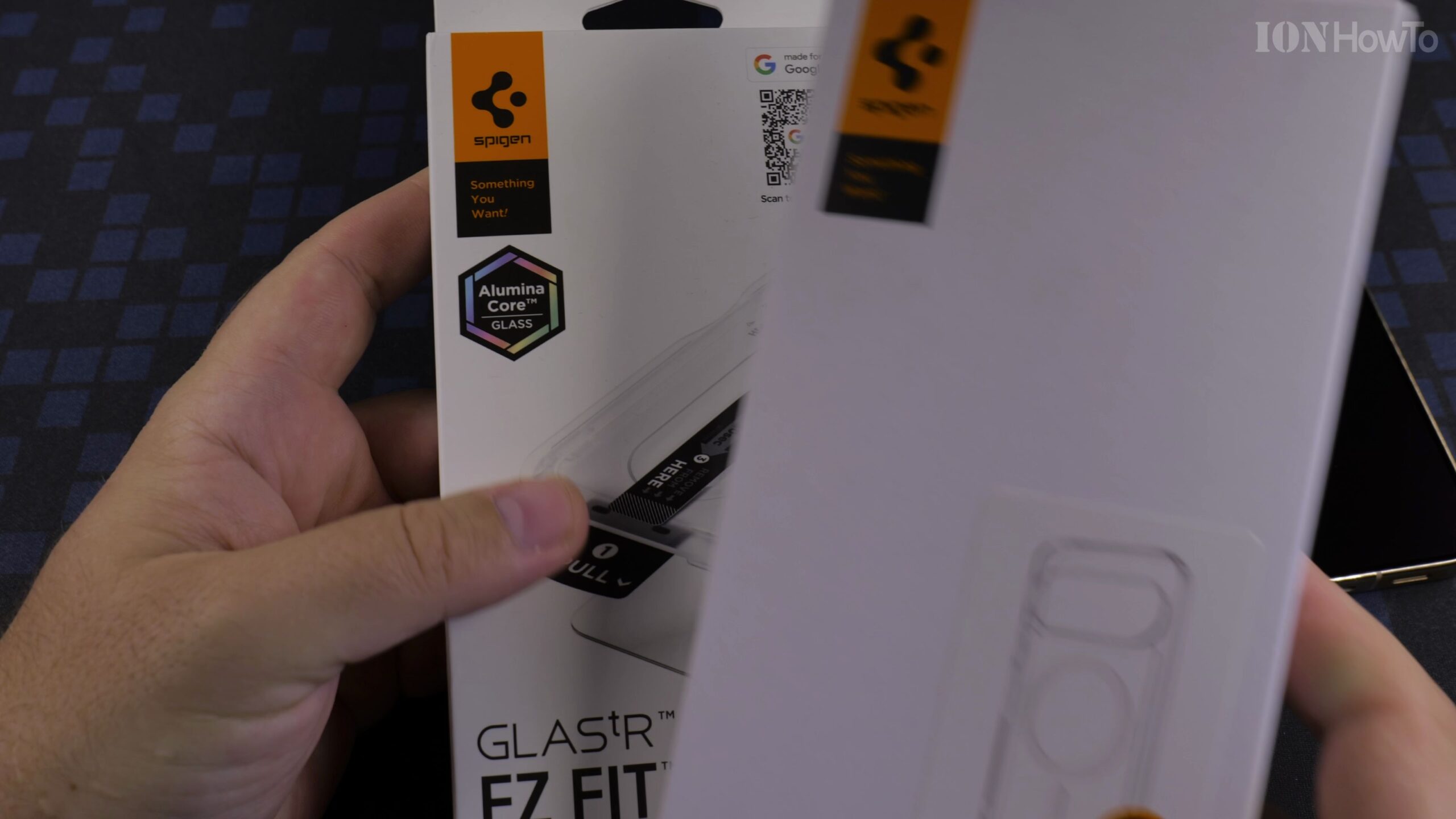
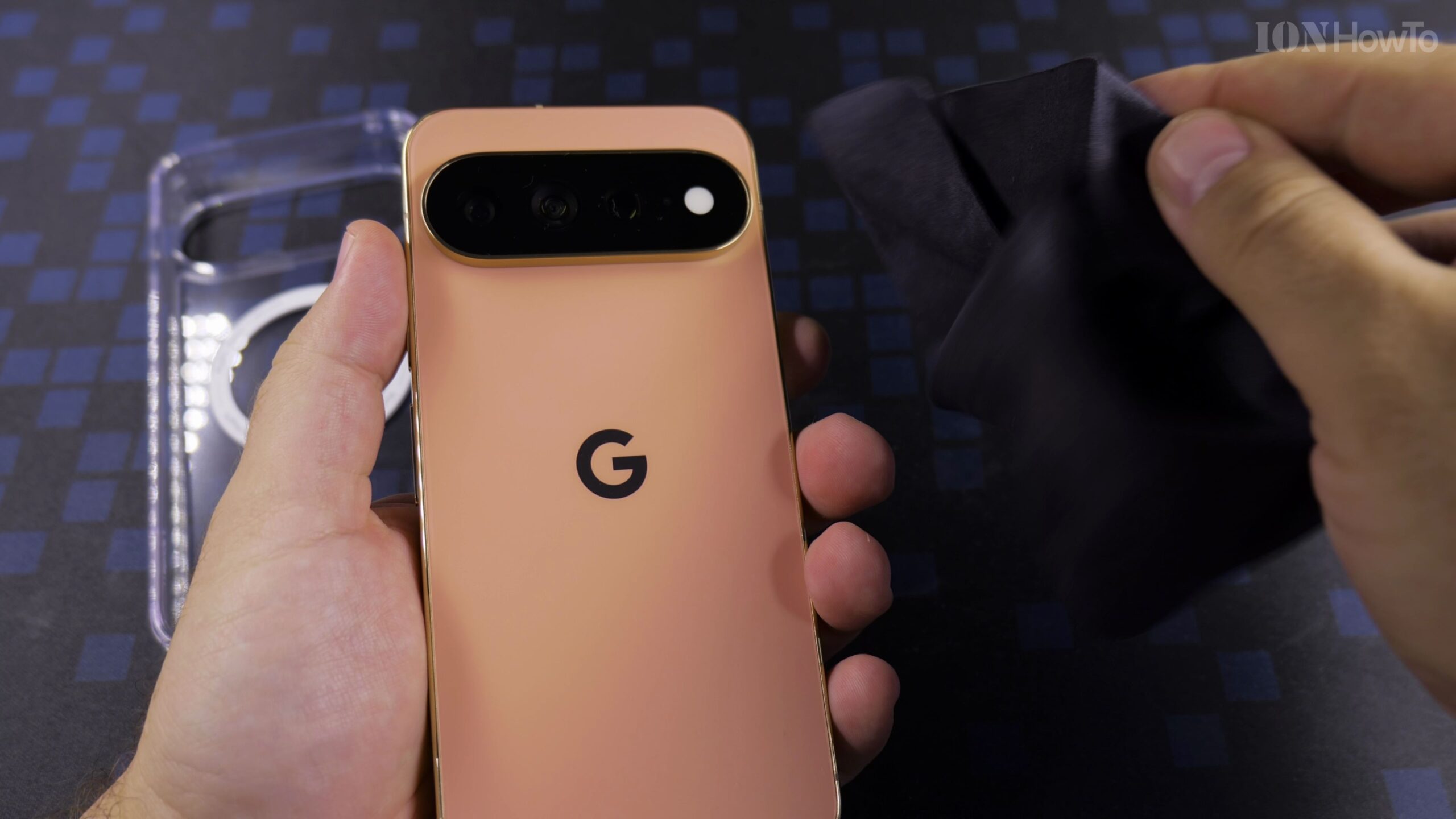
Step 2: Clean the Back of Your Phone
Wipe down the phone rear glass with a microfiber cloth so no trapped lint or dust particles are visible through the transparent shell.
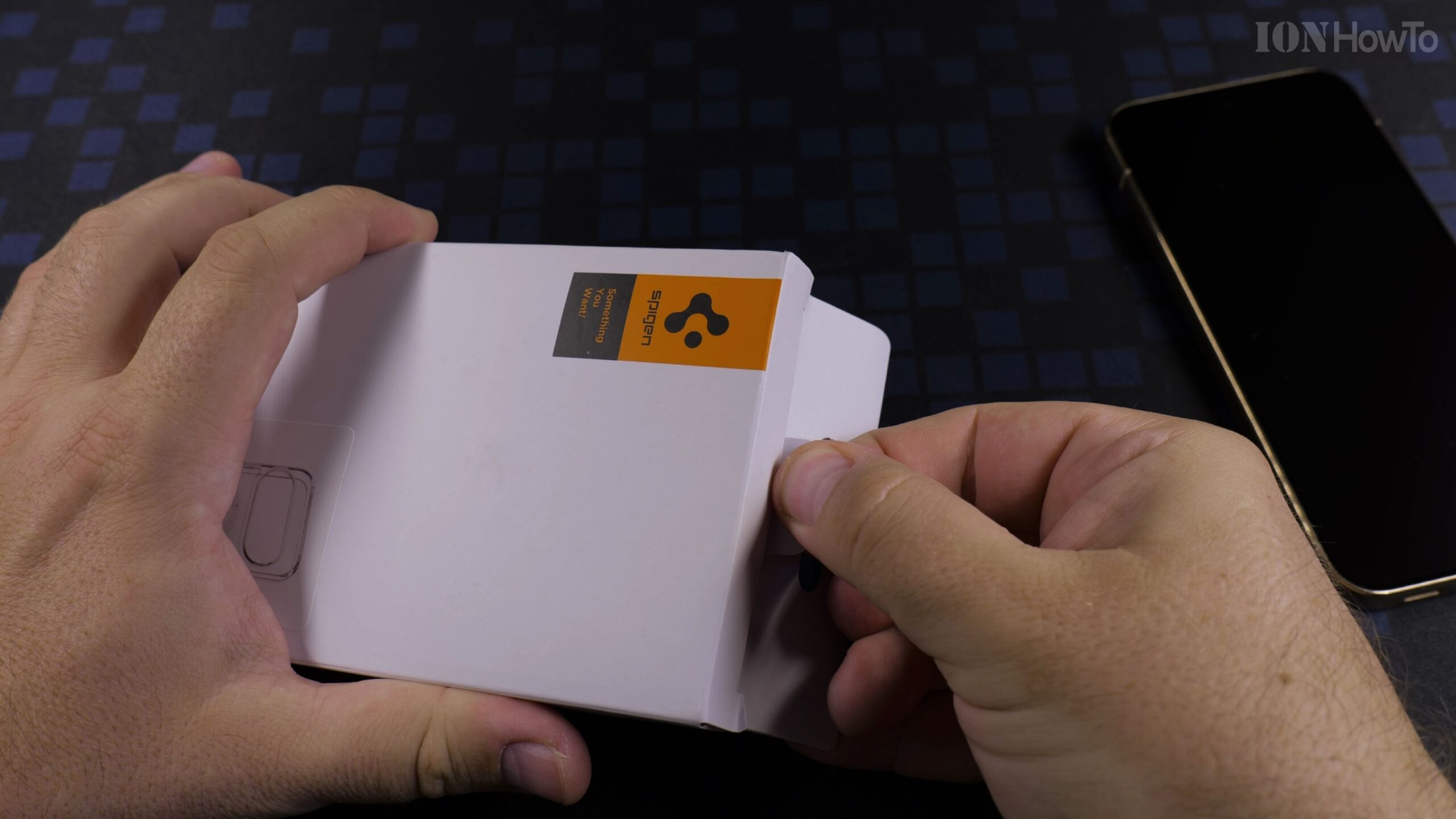
Step 3: Insert the Top of the Phone First
Slide the top corners of the Pixel into the case first so the camera bar nests snugly into the raised protective cutout.
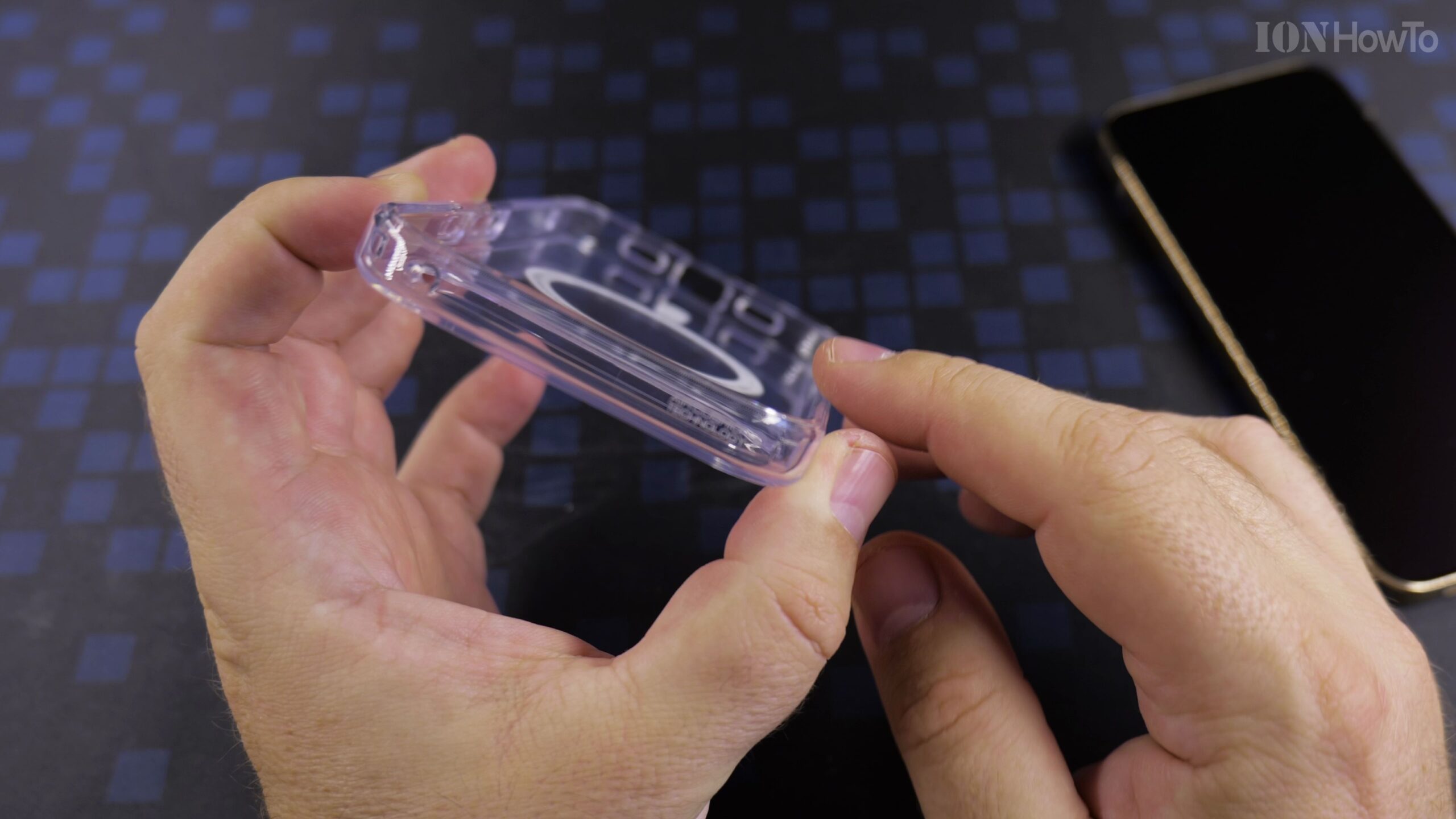
Step 4: Snap the Bottom Corners into Place
Press the bottom two corners firmly with your thumbs until the case lips lock completely around the front bezel. Check all port cutouts to ensure proper alignment.
Helpful Tips and Related Tutorials
For more practical tutorials and setup guides, discover how to how to disable 2G on Android, explore how to remove SIM card tray on Google Pixel 11 Pro XL, or browse our complete collection of Android tips.


Leave a Reply