
When creating personal workout playlists or private audio collections, you may not want friends or followers on your Apple Music profile to see what you are listening to. In this tutorial, I’ll show you how to hide playlists and make them strictly private.
1. Open Apple Music and Navigate to Your Playlist
Open Apple Music on your iOS device, tap Library, and open the playlist you want to set to private.
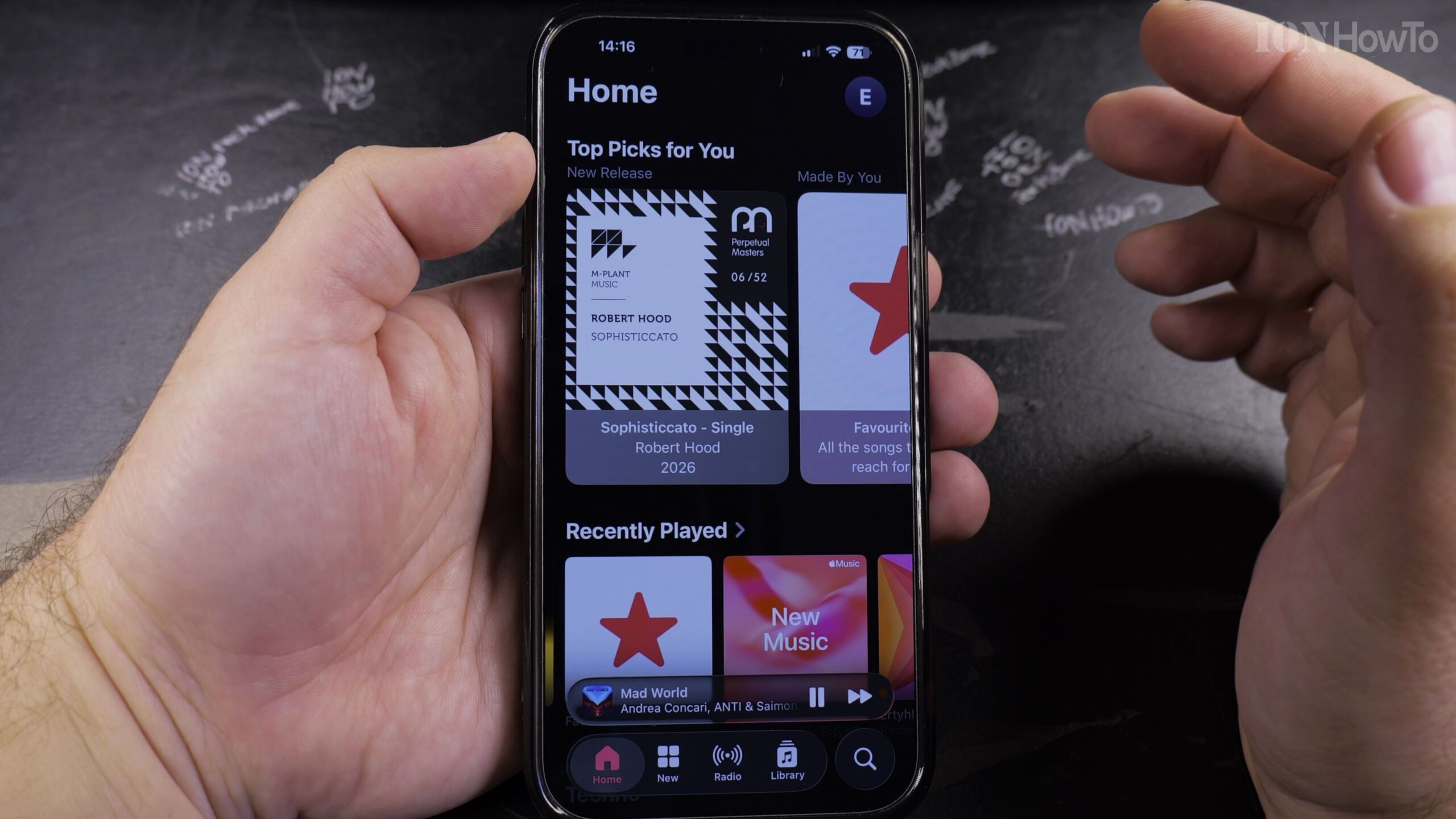
2. Tap the Three-Dot Menu and Tap Edit
Tap the circular three-dot menu icon in the upper-right corner, then tap ‘Edit’ to enter playlist editing mode.
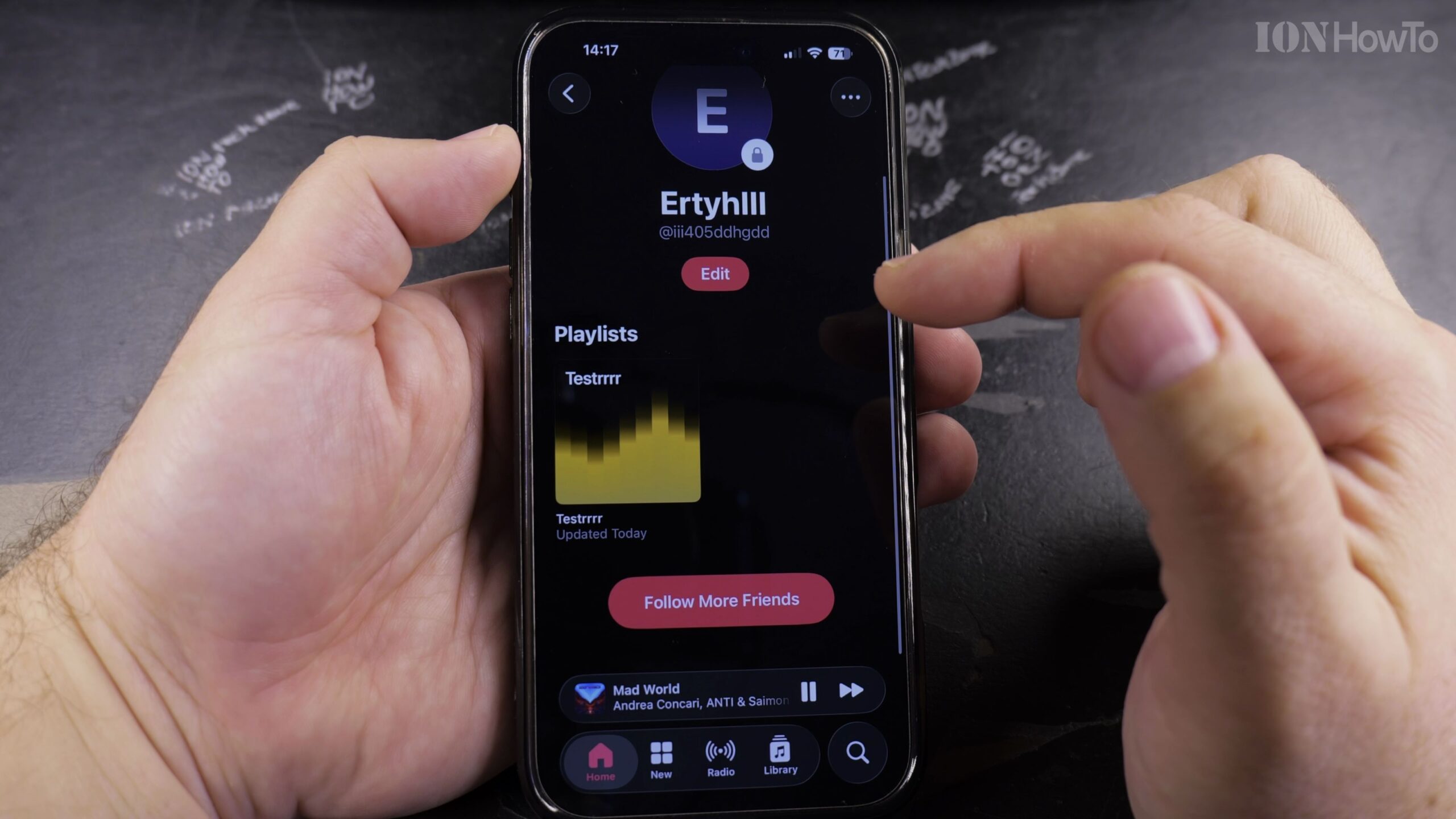
3. Locate the Show on My Profile and in Search Toggle
Scroll beneath the playlist title and artwork to find the toggle switch labeled ‘Show on My Profile and in Search’.
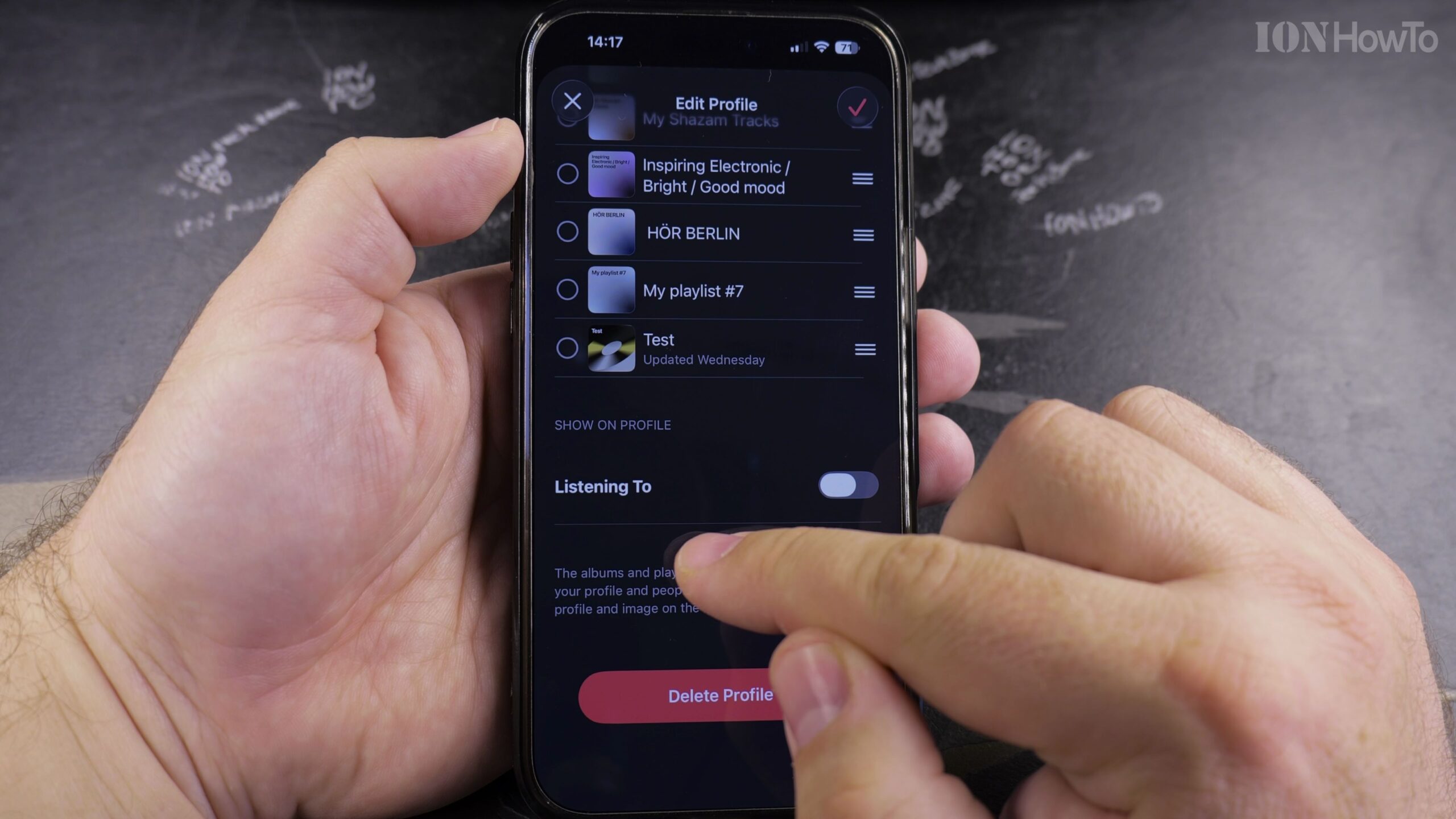
4. Toggle Off Profile and Search Visibility
Tap the switch to turn it off. When greyed out, this playlist is completely hidden from your public Apple Music profile and search engines.
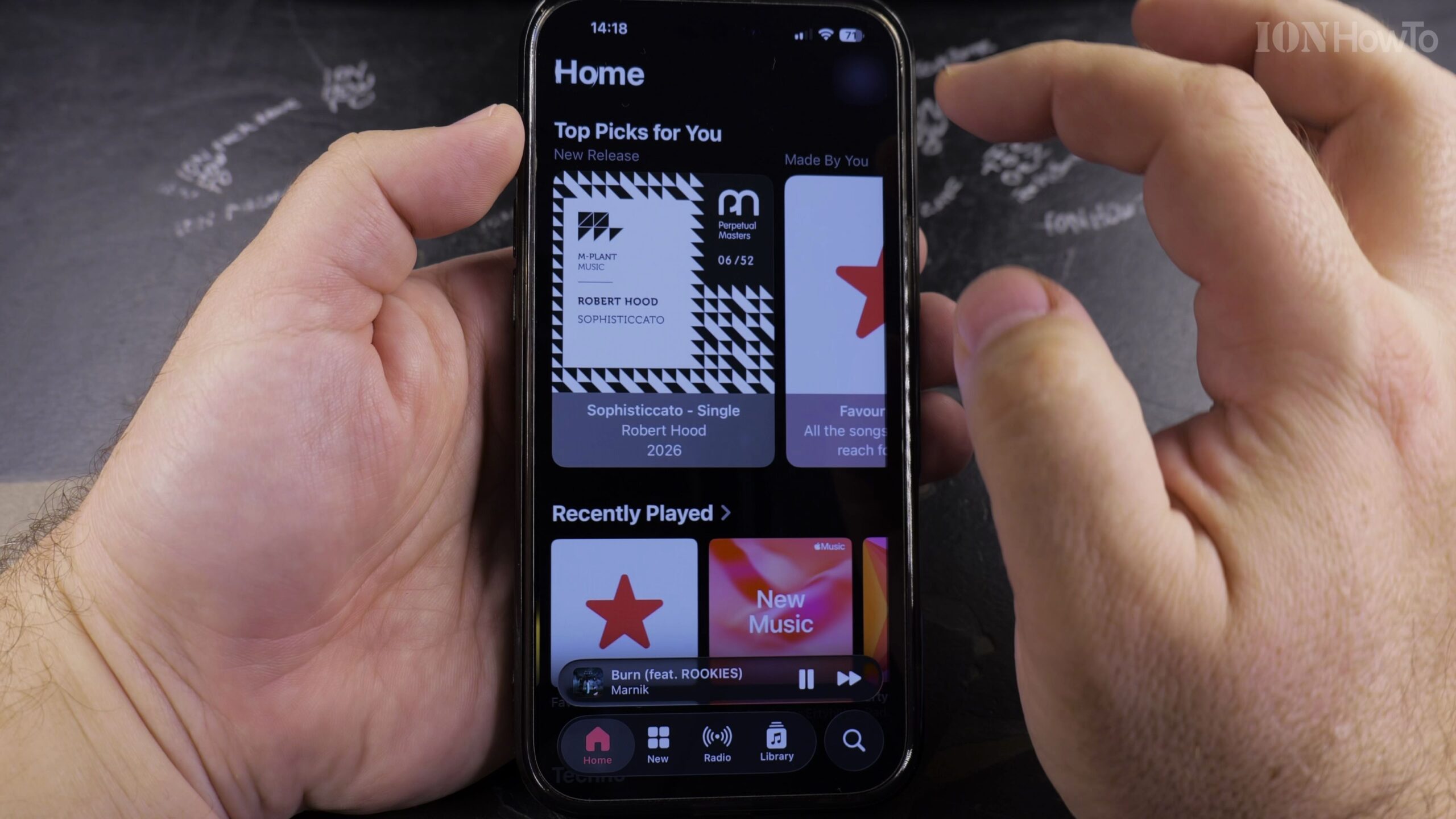
5. Tap Done to Save Your Privacy Settings
Tap ‘Done’ in the top-right corner to save. Only you will be able to view and play this playlist on your account.
Helpful Tips and Related Guides
Making a playlist private does not affect your ability to listen to it across all your synced devices. Learn more privacy and playback tips in our Apple Music & Audio category, read our guide on Finding Playlists in Apple Music, or explore iPhone Guides.


Leave a Reply