
Adding a photo to a contact makes it easy to recognize who is calling with a glance at your screen. Here is the step-by-step way to assign a picture from your photo gallery or take a new photo for any contact on Android.
Open the Contacts App and Choose a Contact
Launch the Contacts app on your Android phone, browse your address book, and tap on the person’s name to open their contact card.
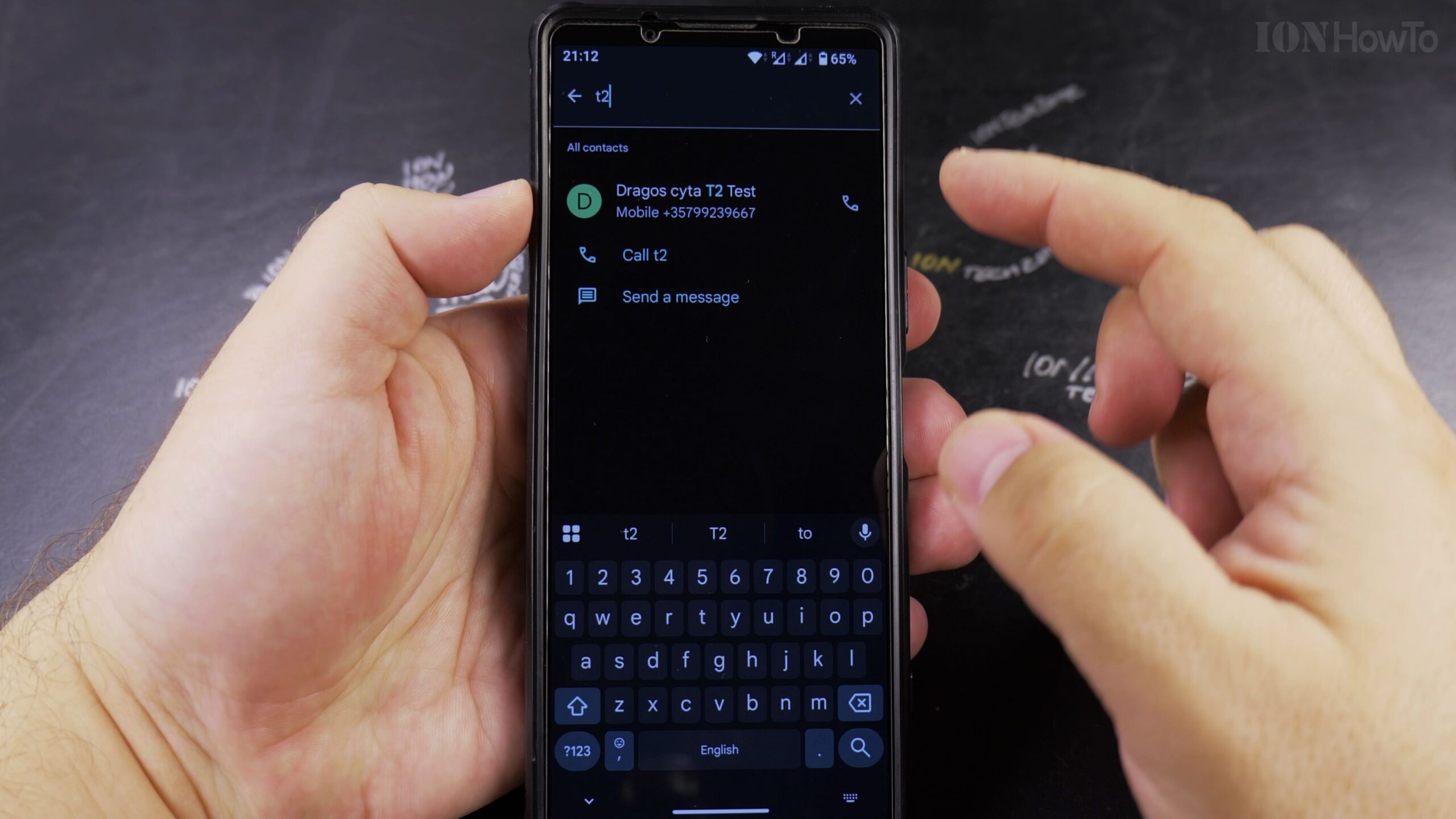
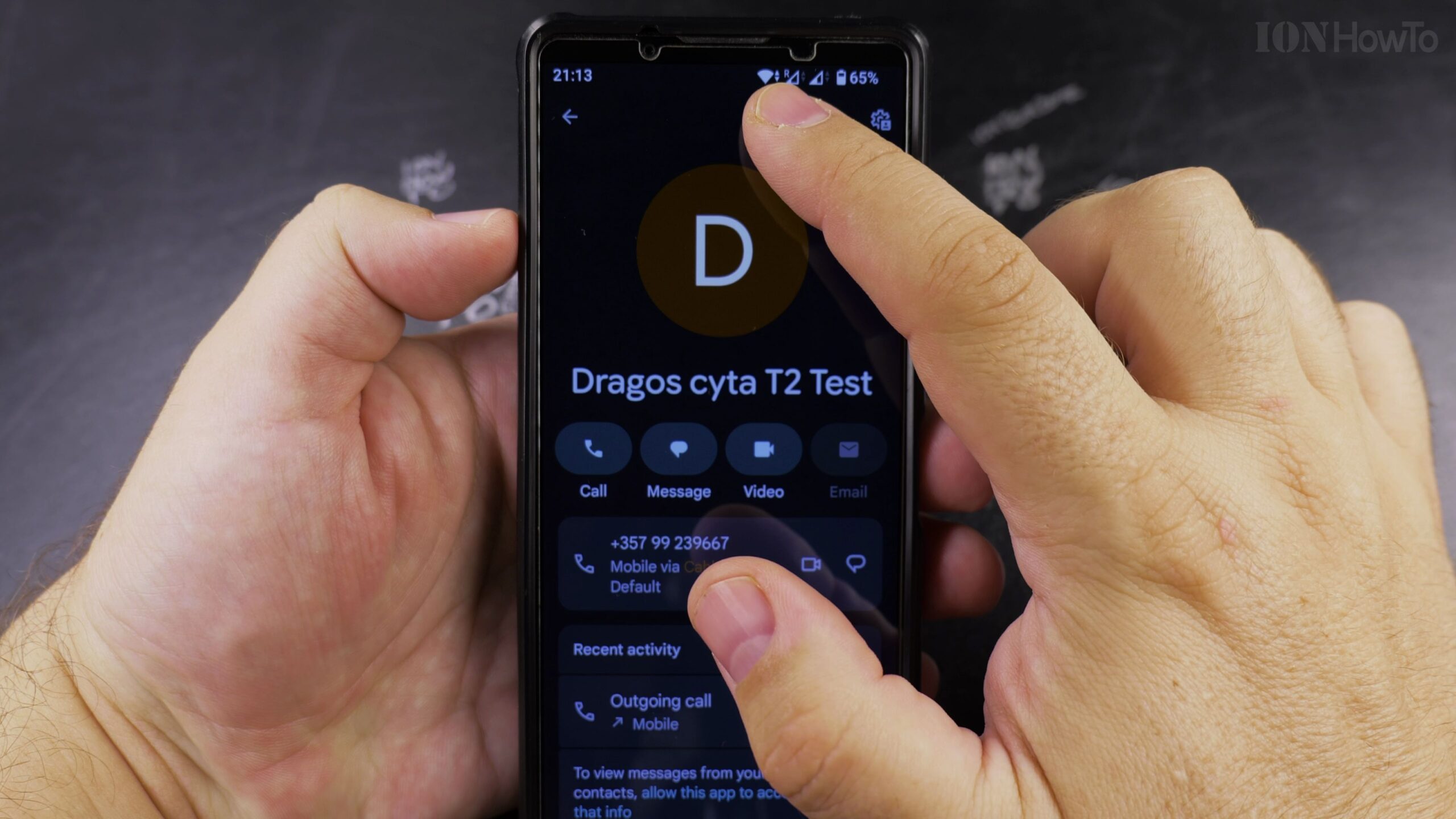
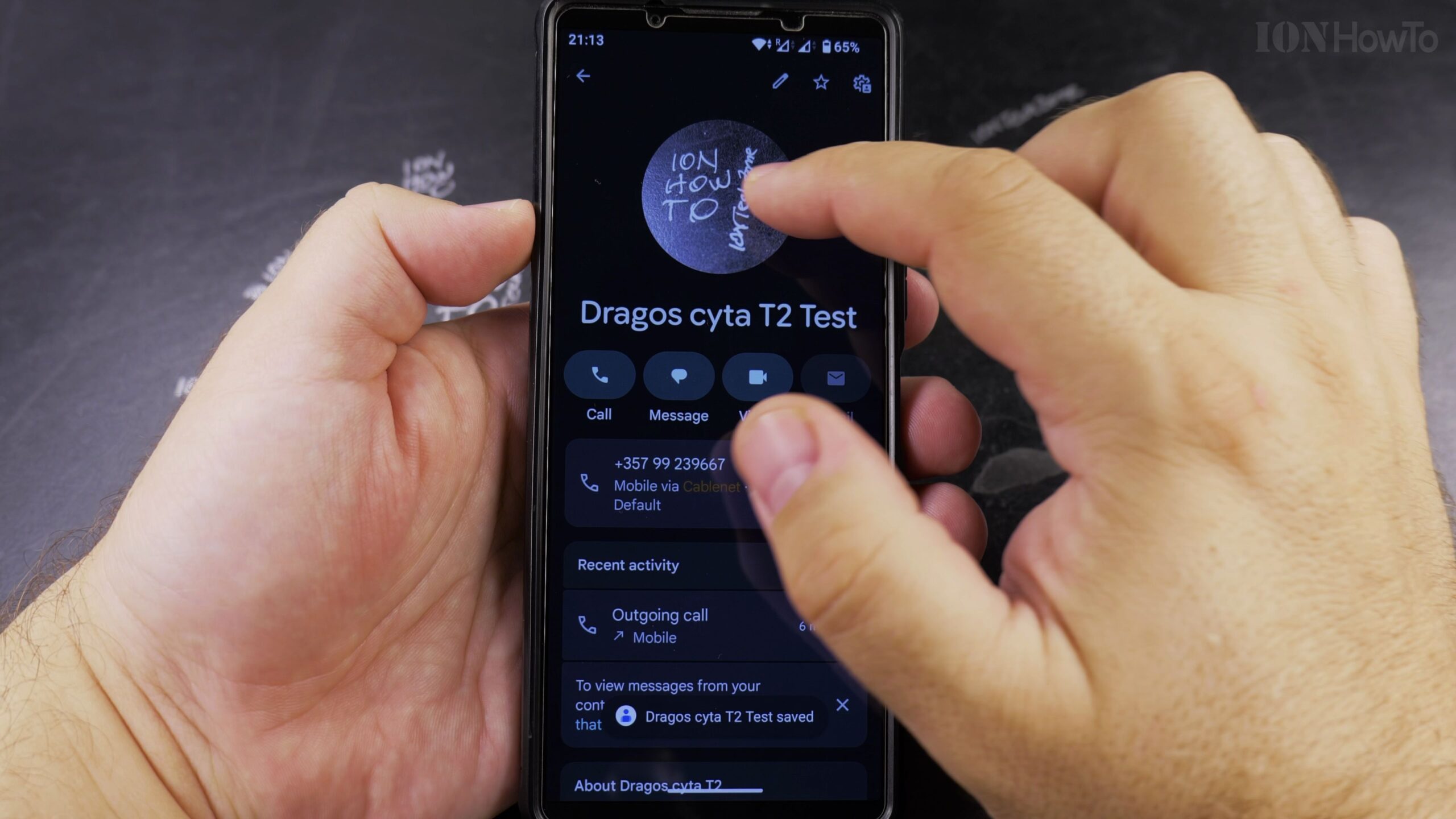
Tap the Contact Avatar Icon or Edit Button
Tap the circular avatar icon displaying their initials (or tap the pencil Edit icon at the bottom of the screen).
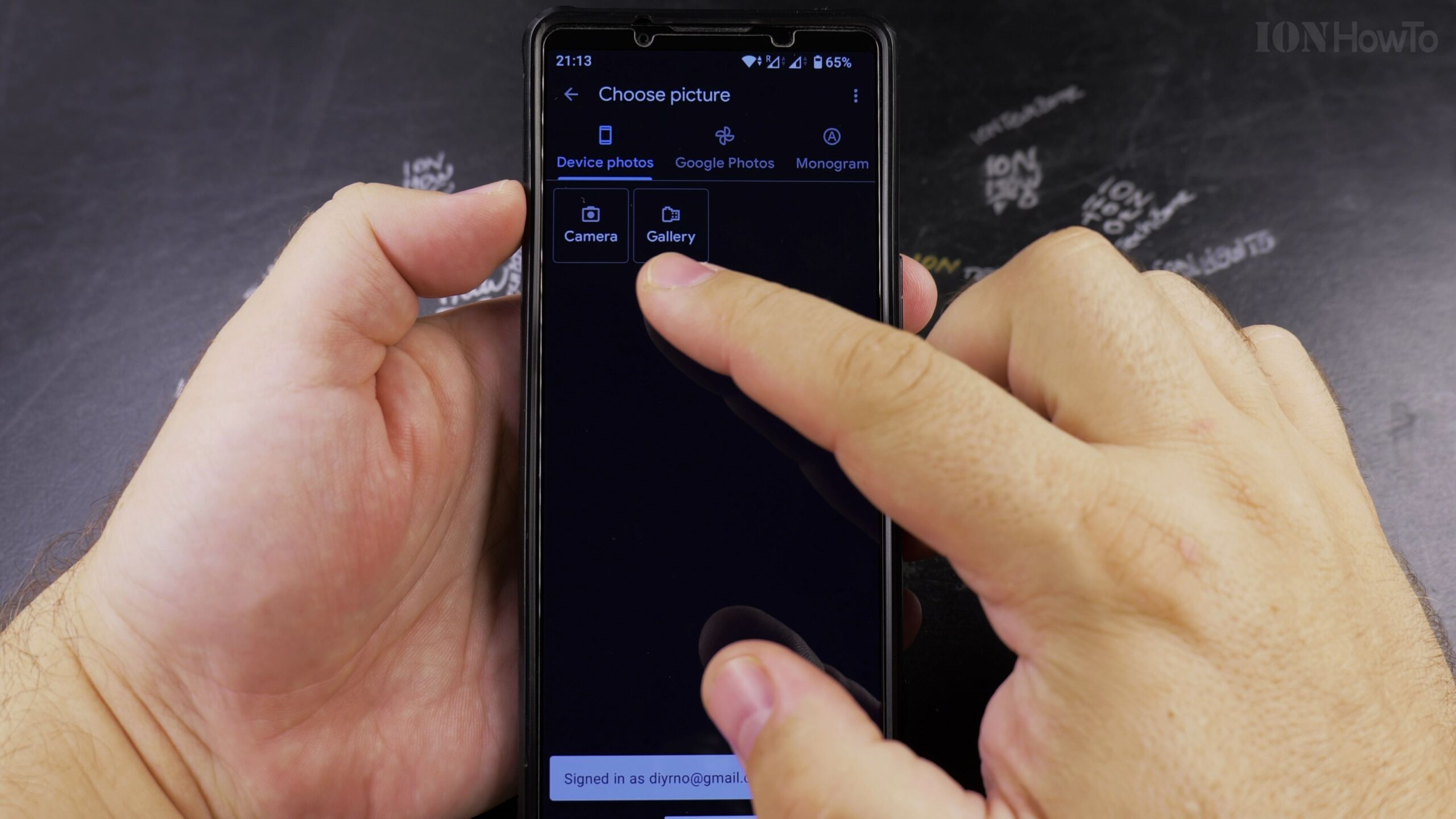
Choose Take Photo or Select Photo from Gallery
A menu will pop up asking if you want to Take photo with your camera or Select photo from your device’s Gallery or Google Photos.
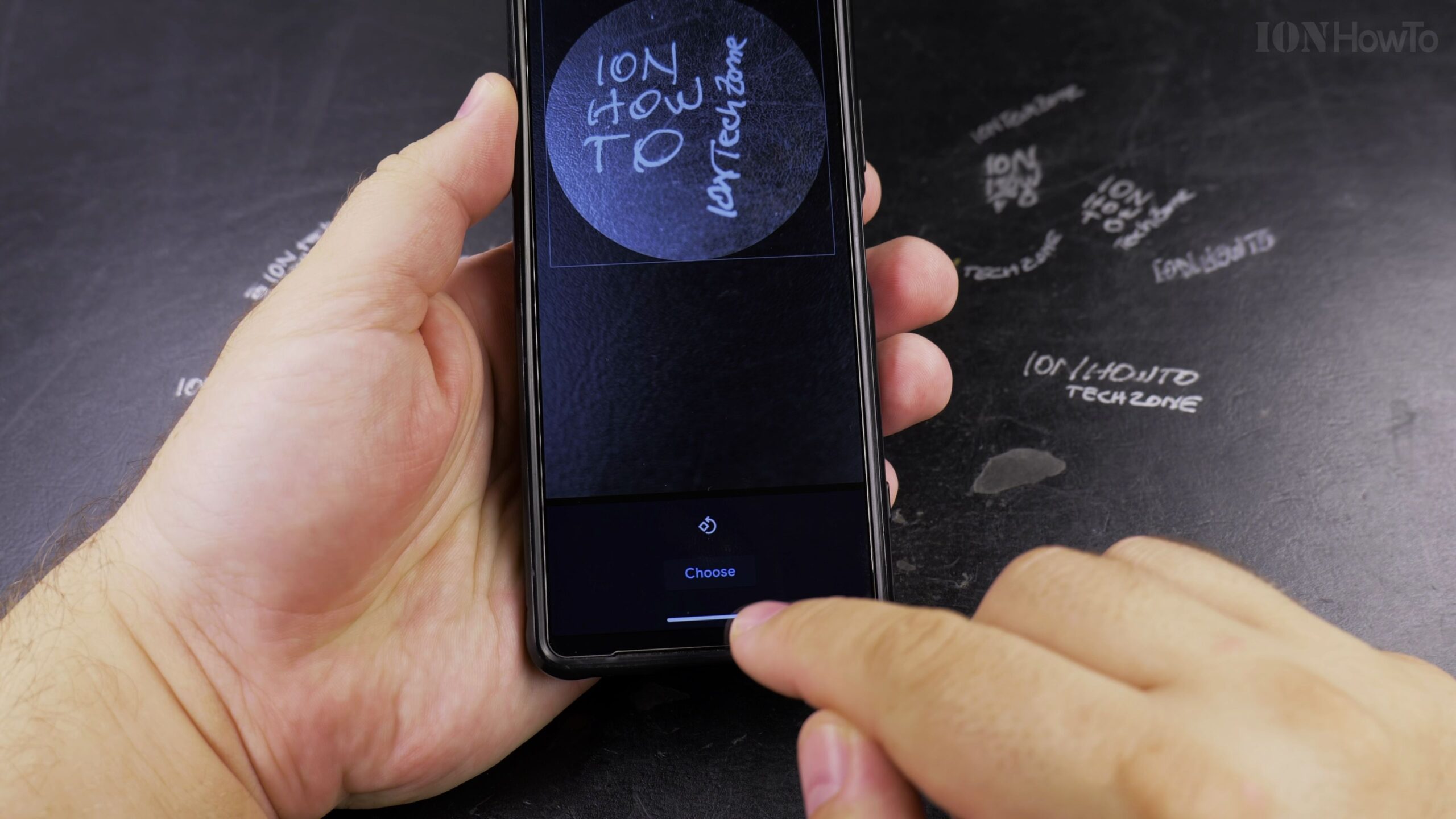
Crop and Position the Image Inside the Circle
Select the picture, pinch and drag to frame the person’s face inside the circular crop preview, and tap Choose or Done.
Tap Save to Apply the Contact Picture
Tap Save in the top-right corner. The high-resolution photo will now display across incoming call screens, Google Messages, and your contacts list.
Helpful Tips and Related Guides
For the crispest display during incoming calls, choose a well-lit, centered photo. Explore more guides in our Adding Pictures to Contacts Tutorial, browse our Android Tips category, or visit Android.


Leave a Reply