
How to Connect Sony WH-1000XM5 Bluetooth Headphones to Android.
Connecting Sony WH-1000XM5 ANC Bluetooth headphones to your Android phone.
Amazon links
As an Amazon Associate I earn from qualifying purchases:
- Phone Cases
- Mobile Tripods
- Usb-c charger
- Usb-c cable
- Docking stations
- Wireless car chargers
- Wireless charger stand
- SIM card removal tool
- SIM card holder
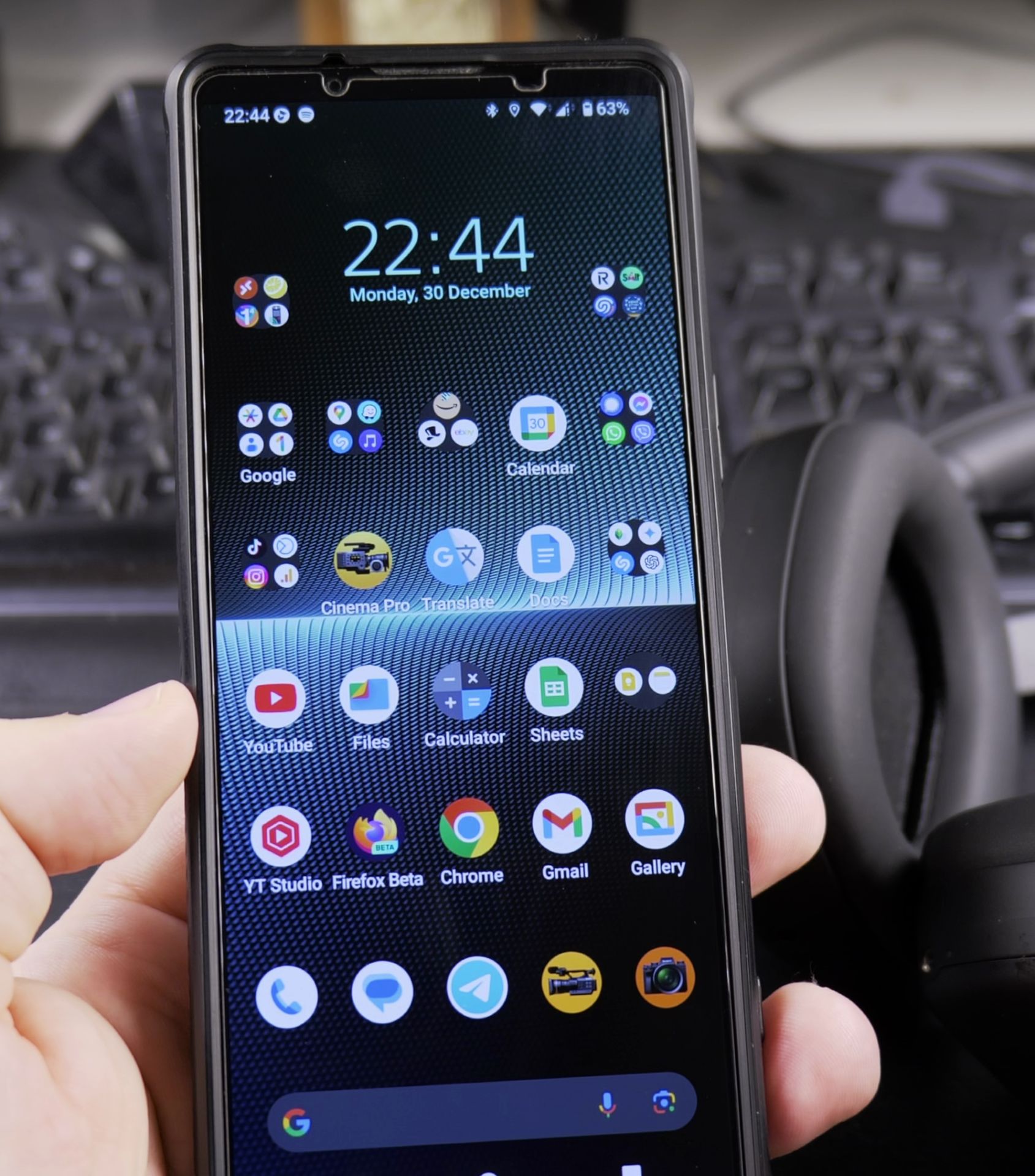
I’m using a Sony Xperia 1V with Android 14 for this guide, these steps work for most Android phones and Bluetooth headphones.
Quick Steps and Scenarios Overview
| What You Need to Do | Quick Jump |
|---|---|
| Getting Your Headphones Ready | Jump to Step 1 |
| Setting Up Your Phone | Jump to Step 2 |
| Connect | Jump to Step 3 |
| Wait for Sony WH-1000XM5 | Jump to Step 1 |
| Tap on the headphones' name | Jump to Step 2 |
| Wait a few seconds while they connect | Jump to Step 3 |
Before You Start
Make sure your headphones are charged and ready. You will need them for the pairing process.
Getting Your Headphones Ready
Put your Sony WH-1000XM5 headphones in pairing mode:
- Start with the headphones turned off
- Press and hold the power button for about 5 seconds
- Look for the blue LED light blinking rapidly – this means they’re in pairing mode
- Keep them nearby while we set up your phone
Setting Up Your Phone
Get the Android phone ready:
- Open Settings
- Tap on “Connected devices” or “Bluetooth & device connections”
- Make sure Bluetooth is turned on (flip the toggle if it isn’t)
- Tap Pair new device
Connect
1. Wait for Sony WH-1000XM5
Wait for Sony WH-1000XM5 to appear in the available devices list.
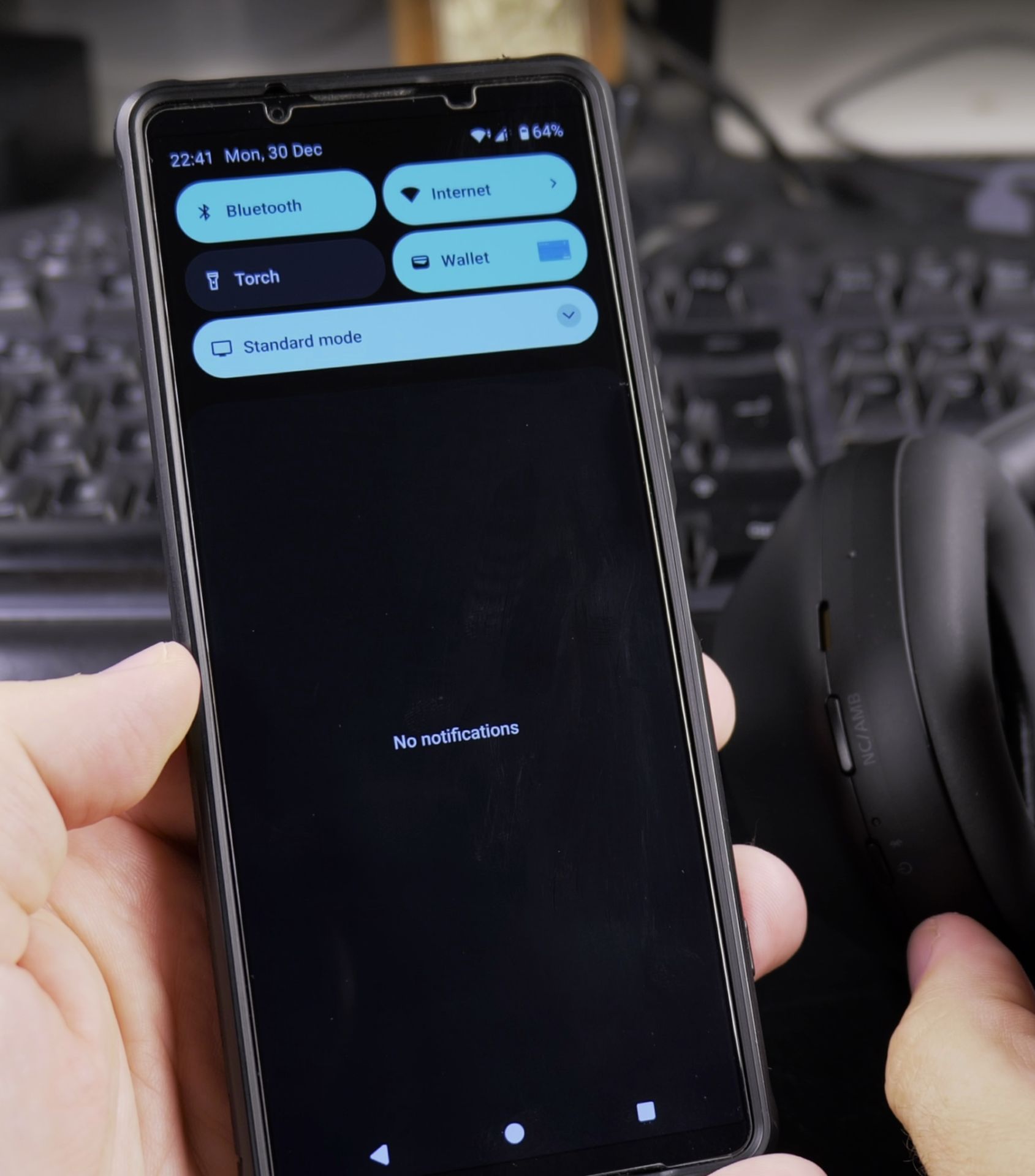
2. Tap on the headphones’ name
Tap on the headphones’ name.
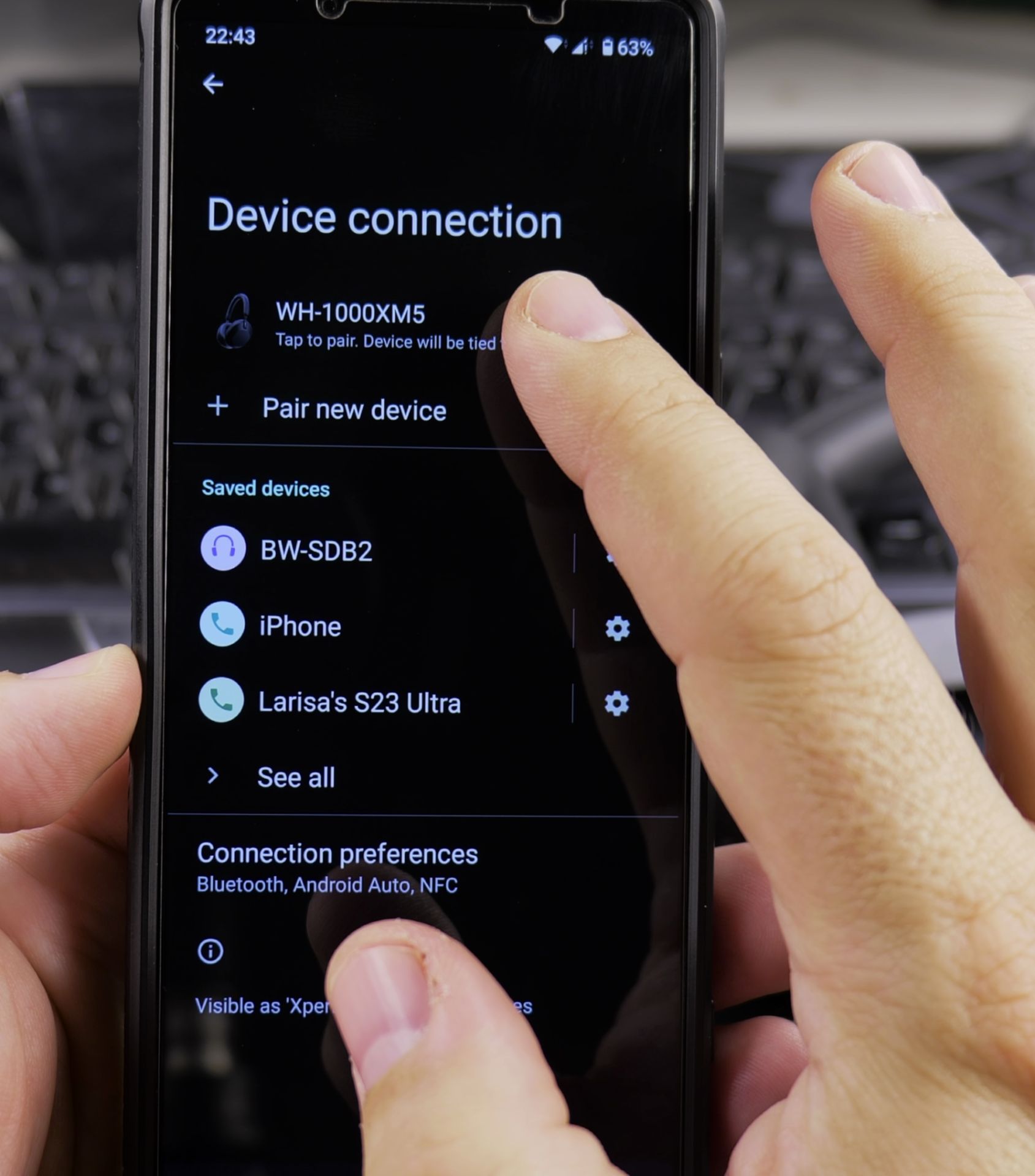
3. Wait a few seconds while they connect
Wait a few seconds while they connect.
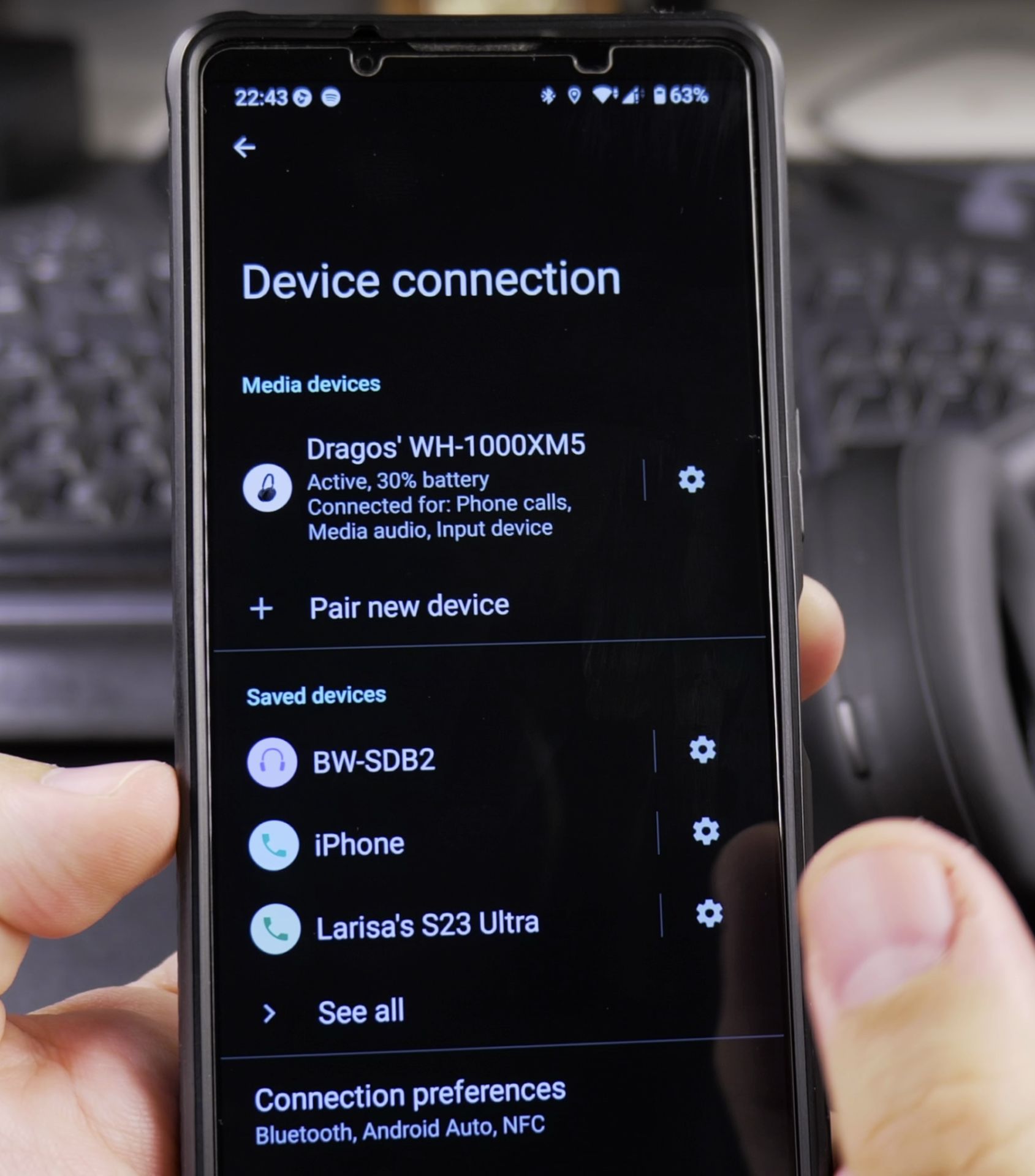
4. You’ll hear a confirmation sound
You’ll hear a confirmation sound in the headphones when they’re connected.
Testing
Make sure everything works:
- Open a music app
- Play something at a low volume
- Adjust the volume using your phone’s buttons
- Try the touch controls on your headphones
Tips
If your headphones won’t connect:
- Turn Bluetooth off and back on
- Put your headphones back in pairing mode
- Try restarting both devices
If the sound quality is poor:
- Make sure nothing’s blocking the signal
- Move closer to your phone
- Check for interference from other devices
If your headphones keep disconnecting:
- Check your battery level
- Make sure you’re in range
- Update your phone’s software if needed
Manage Your Device
Once connected, you can:
- Rename your headphones (tap the gear icon next to them in Bluetooth settings)
- Choose what they’re used for – calls, media, or both
- Set up Google Assistant if you want voice controls
Tips
- Your headphones will usually reconnect automatically when turned on
- Keep your headphones’ firmware updated through the Sony Headphones app
- Use the Sony app to customize your sound settings
- Clean your headphones regularly to maintain good connection quality
Conclusion
Connecting Bluetooth headphones might look tricky at first, but it’s pretty easy once you know how to do it.
Once your headphones are paired, they will usually connect automatically whenever they’re turned on and in range.
Helpful Tips
Take your time and check the screen carefully after each tap so you can confirm the setting changed as expected. If an option appears in a slightly different spot on your device, watch the embedded video above for a closer look.
Related Guides
- SONY WH-CH510 – Good enough wireless headphones – Sony cheap wireless headphones are all I need and they sound really good actually!
- Change Media Output on Multiple Bluetooth Android Devices – How to Change Media Output on Multiple Bluetooth Devices for Android Phones and Tablets.
- How to Disable Absolute Bluetooth Volume on Samsung Android – How to Disable Absolute Bluetooth Volume on Samsung Galaxy Android Devices.
- Android & Mobile Guides – Browse more tutorials and practical guides in this section.


Leave a Reply