
Curating custom playlists for workouts, road trips, or relaxing evenings is one of the best features of Apple Music. In this step-by-step guide, I’ll show you how to add any song to an existing playlist or create a brand new playlist on the fly.
1. Find Any Song in Apple Music or the Now Playing Screen
Browse Apple Music, open Search, or bring up the Now Playing player for the song you want to organize.
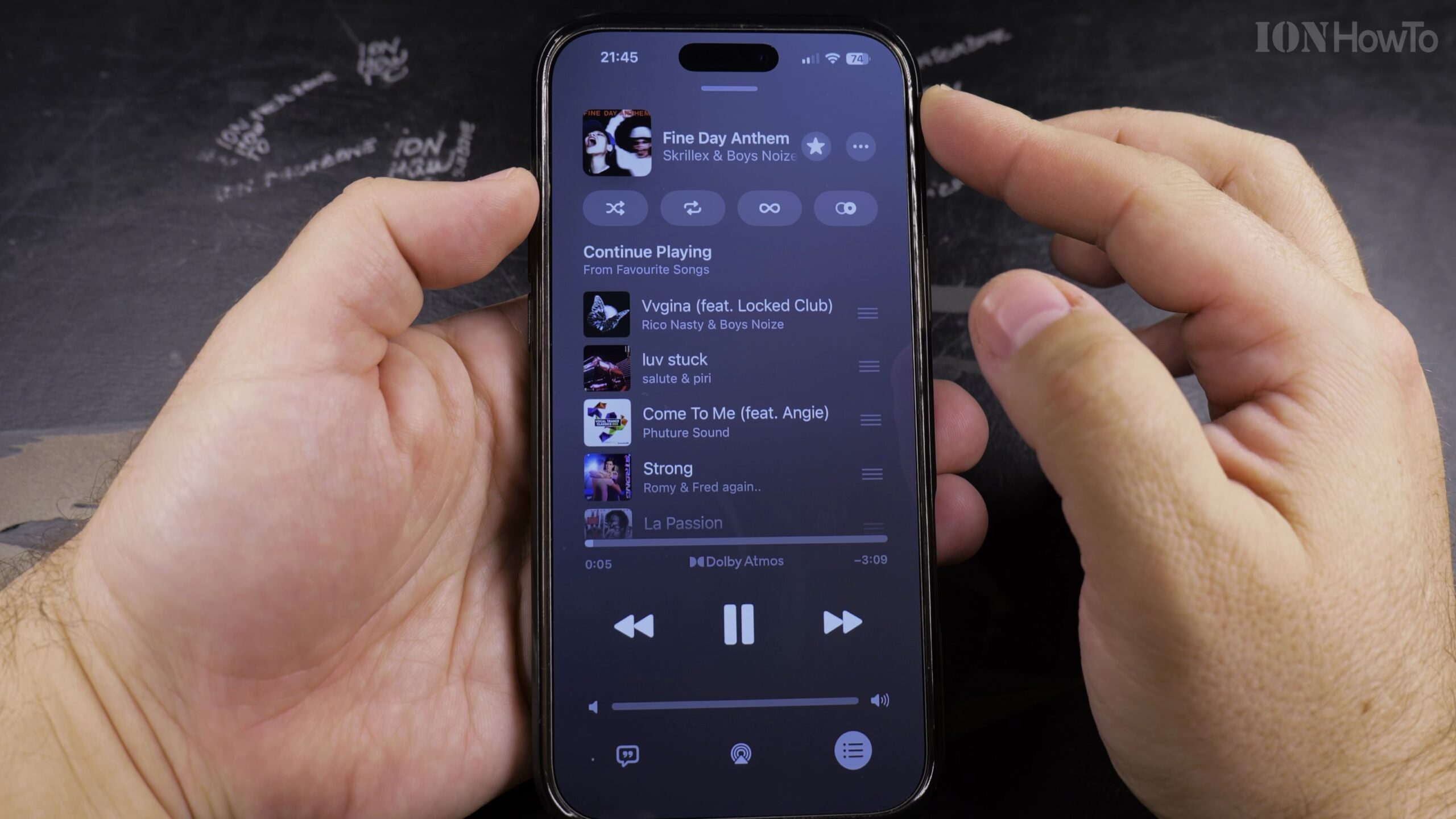
2. Tap the Three-Dot (…) Menu Icon Next to the Song Title
Tap the three dots located to the right of the song title or in the top-right corner of the full-screen player.
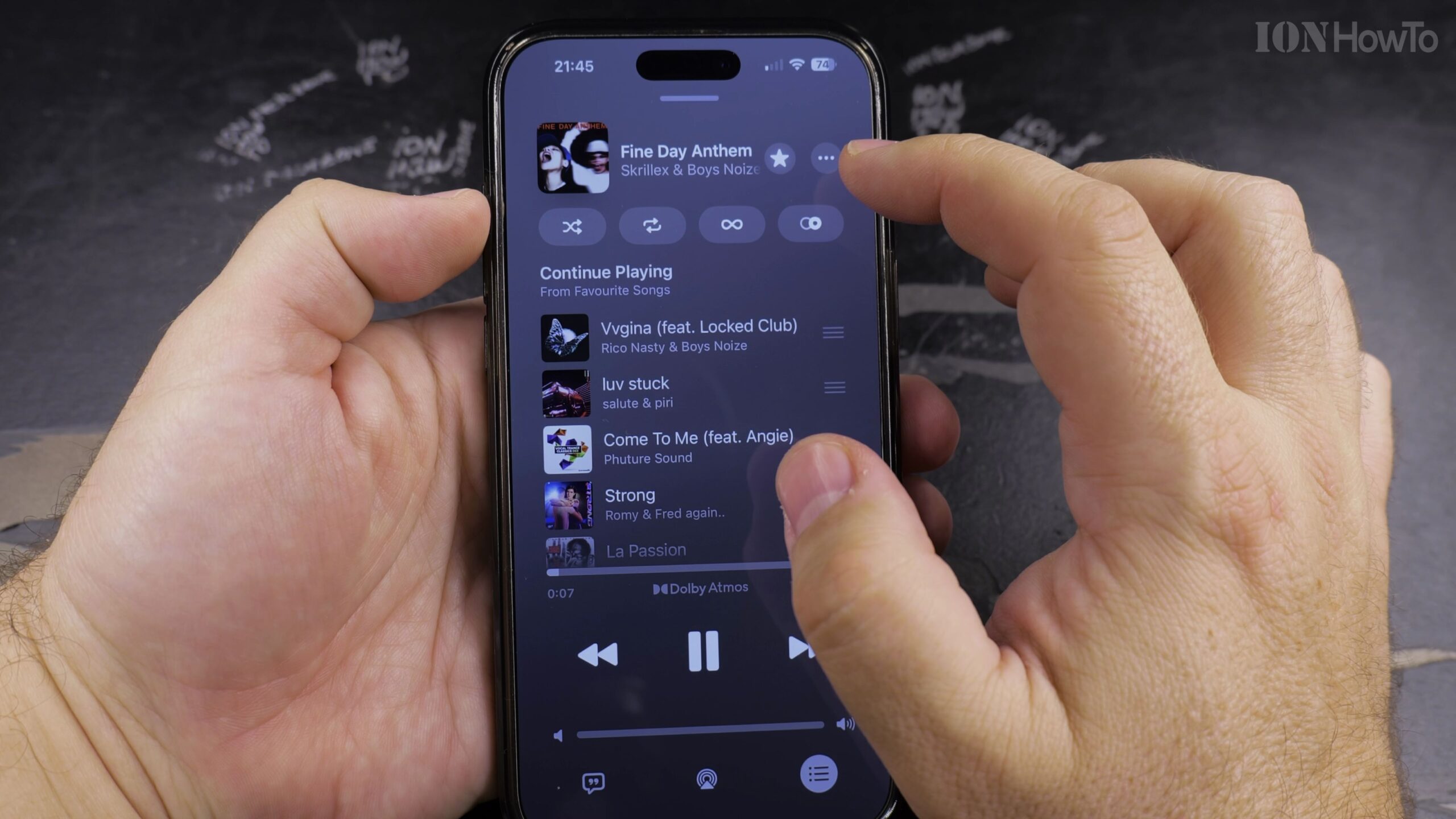
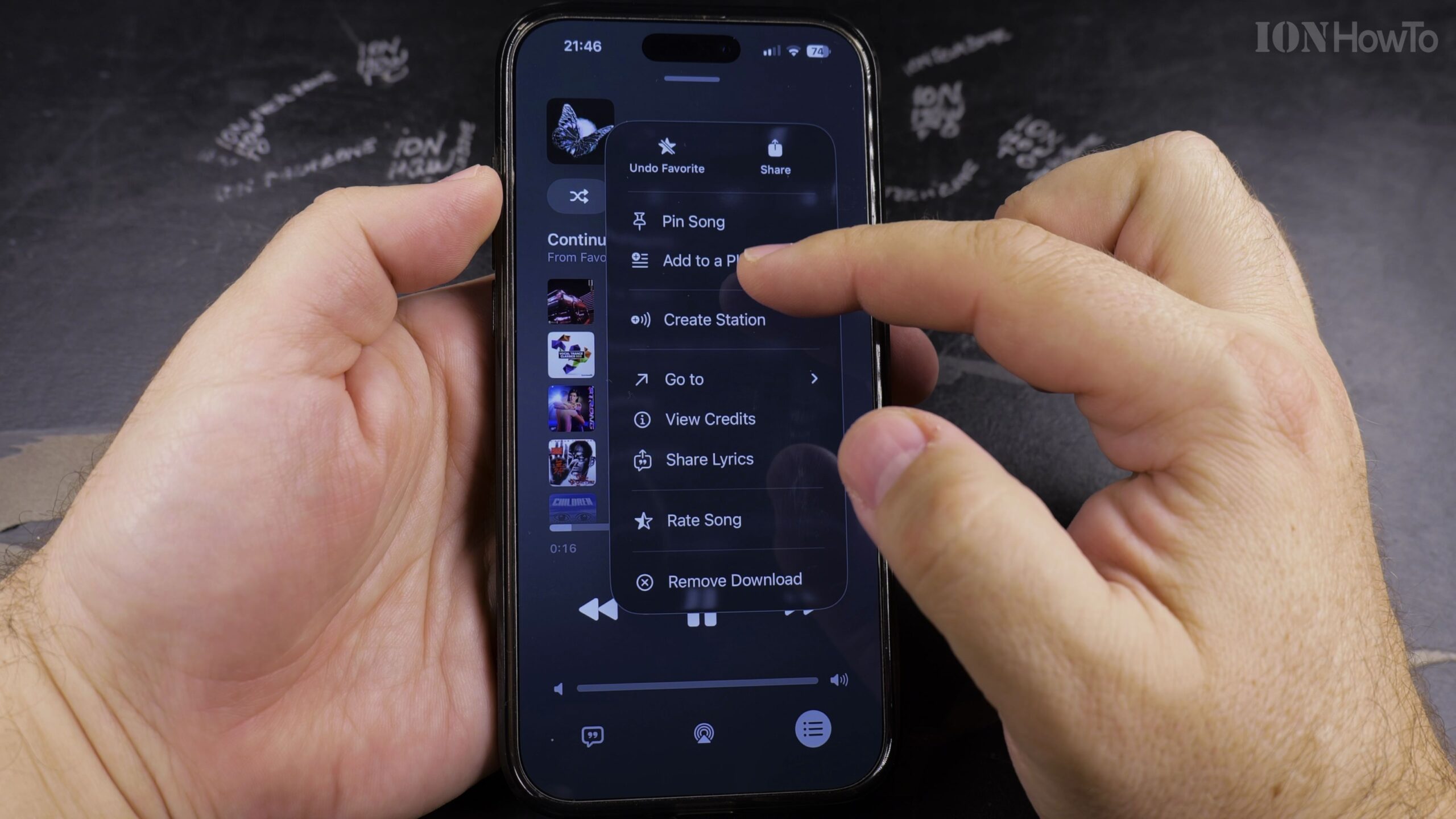
3. Select Add to a Playlist from the Options Menu
In the popup menu, tap ‘Add to a Playlist’. A list of all your created playlists will slide up on your screen.
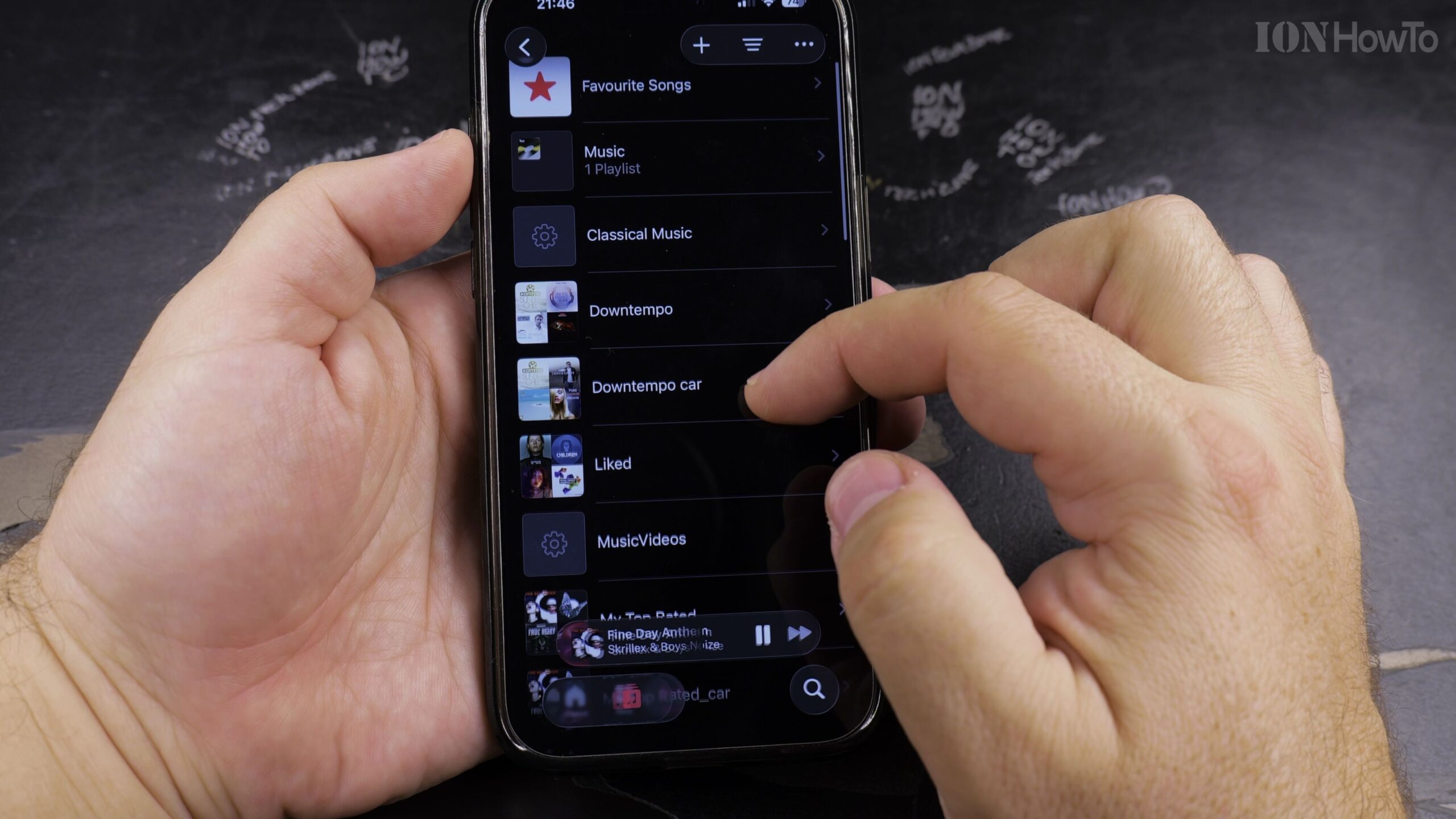
4. Choose an Existing Playlist or Tap New Playlist
Tap the name of the playlist you want to add the song to, or tap ‘New Playlist’ at the top to start a fresh collection with custom artwork.
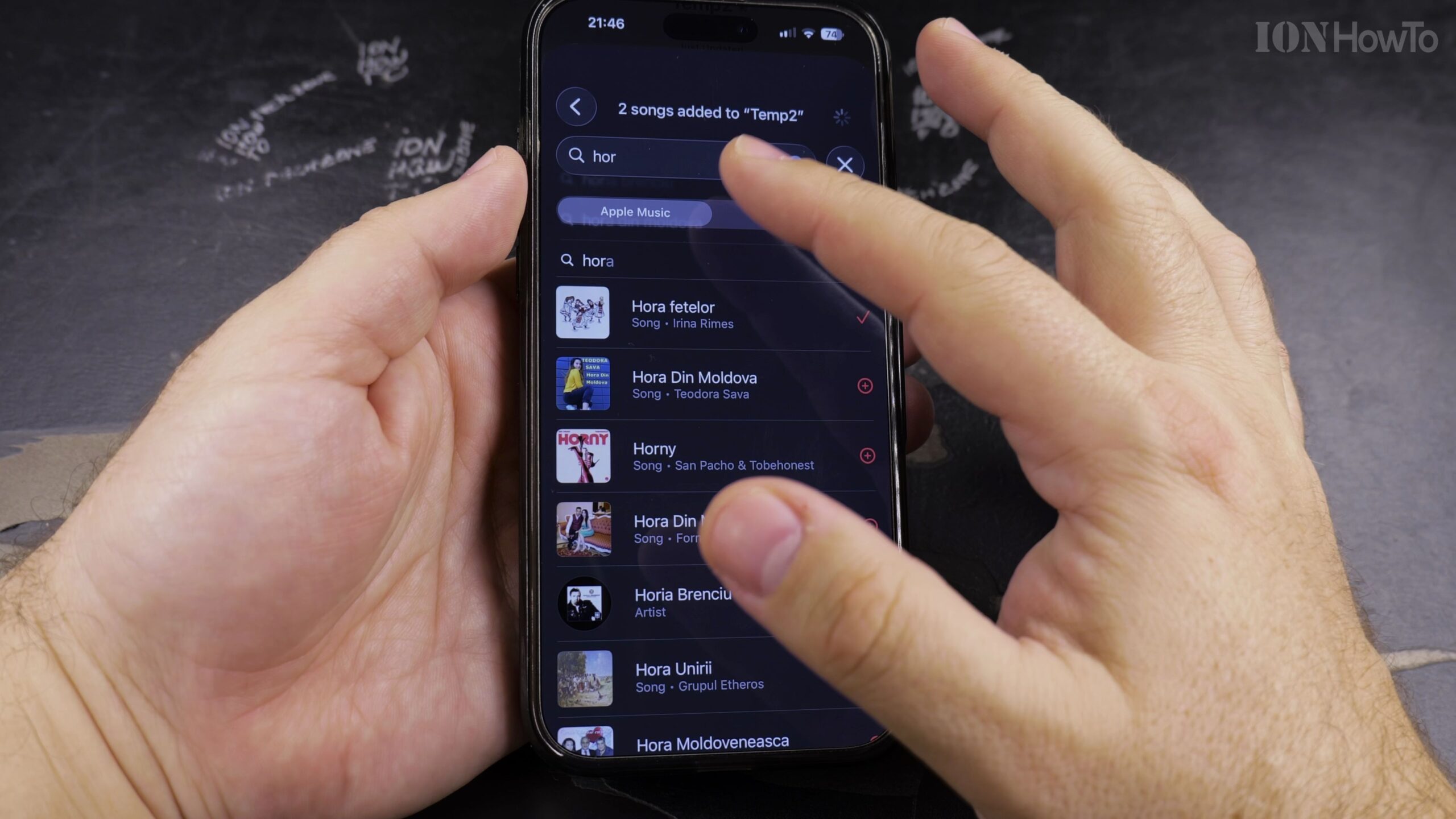
5. Verify the Song Addition in Your Library
Open your Library tab, tap Playlists, and select your playlist to confirm that the new track appears and is ready for playback.
Helpful Tips and Related Guides
You can also long-press on any track title in search results or album tracklists to quickly reveal the ‘Add to a Playlist’ shortcut. Explore more guides in our Apple Music category, read our tutorial on Finding Playlists in Apple Music, or browse How-To guides.


Leave a Reply