
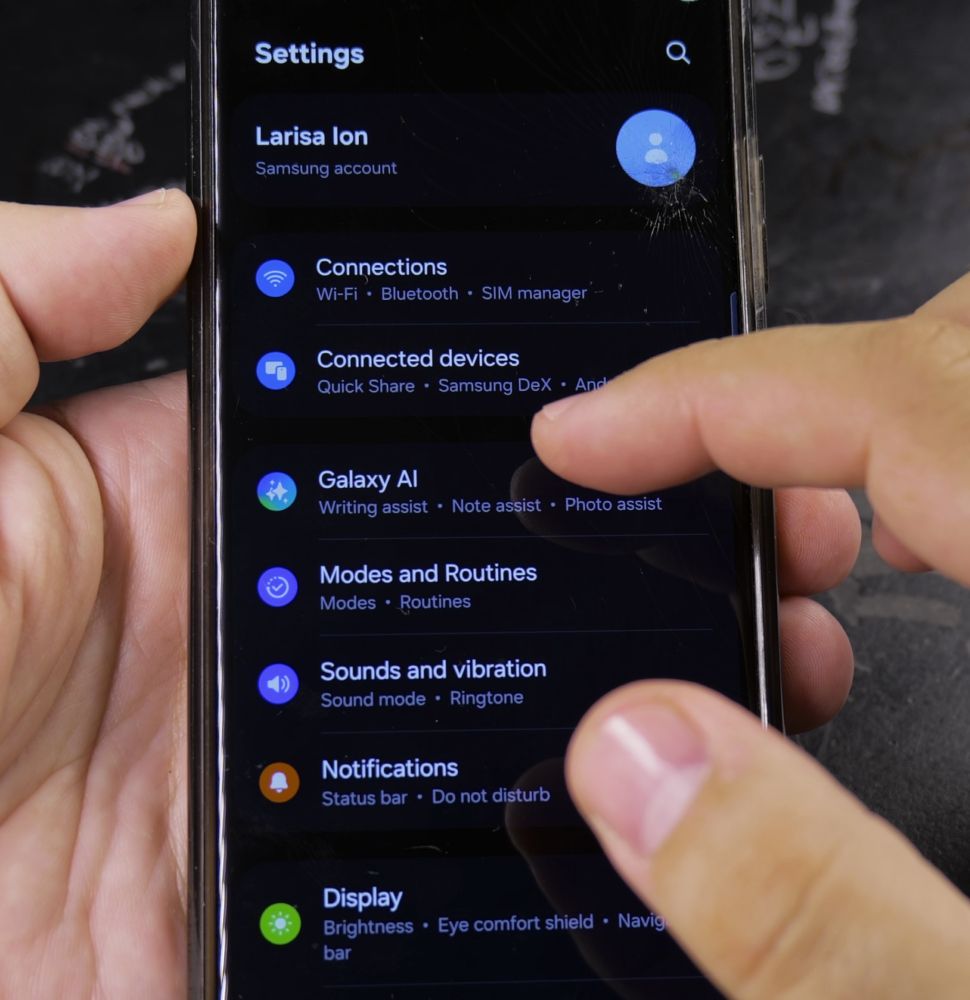
If you don’t like the default voice of your Google Gemini assistant, you can choose from a range of friendly and natural speech options. I’ll show you how to change Gemini’s speaking voice on your Samsung Galaxy phone.
1. Open Google Gemini on Your Phone
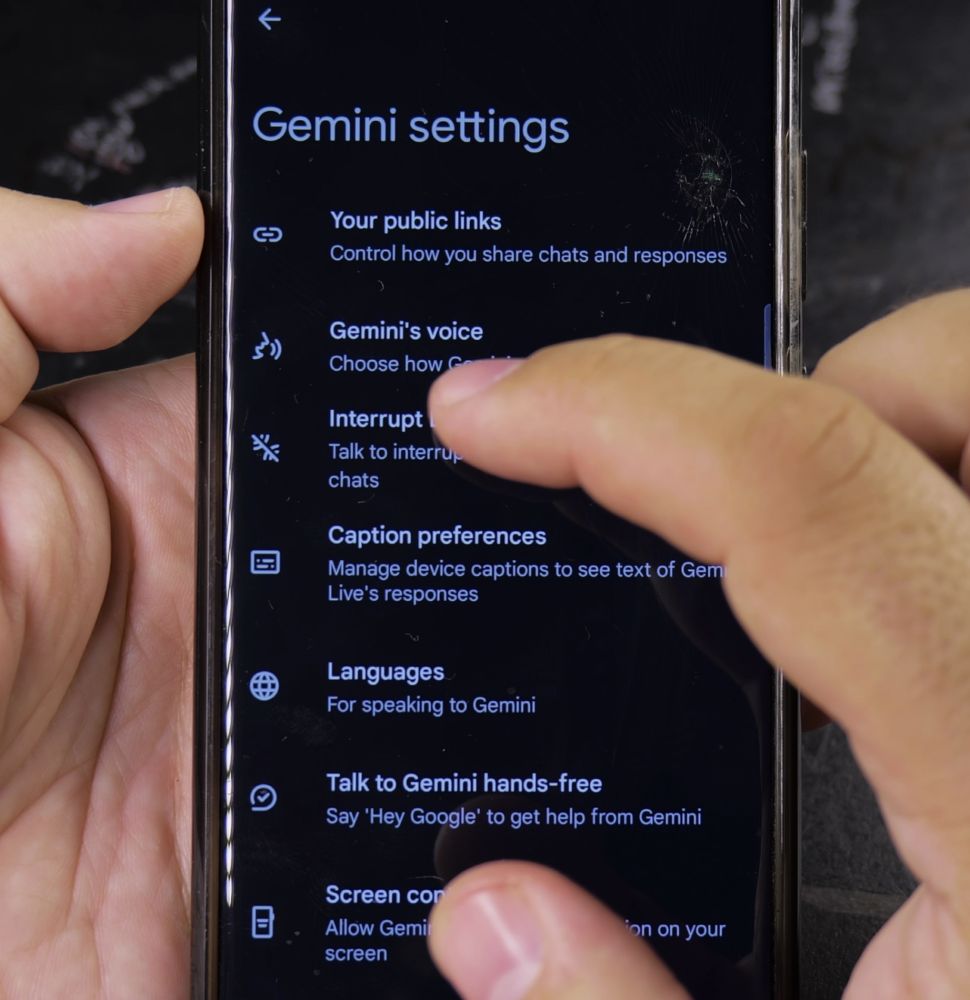
Tap the **Gemini** app icon or activate the assistant using your side key shortcut.
2. Tap Your Profile Icon
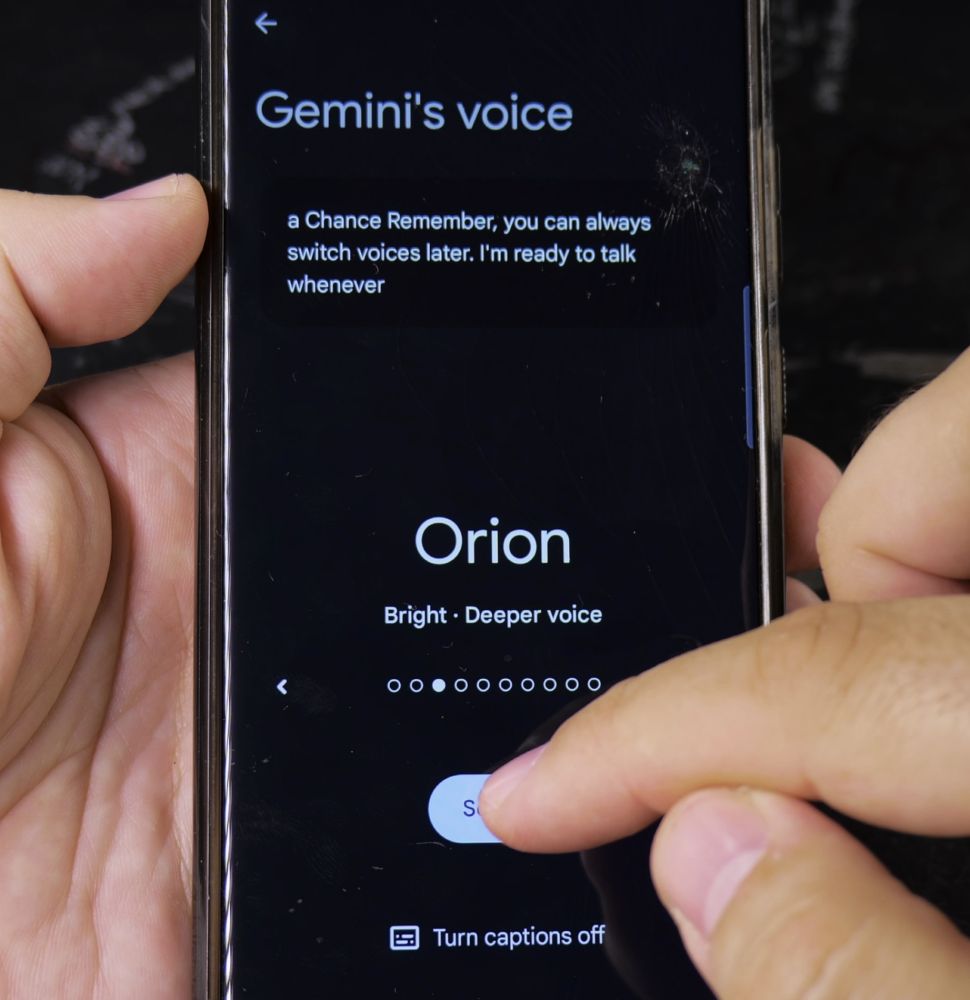
In the top-right corner of the screen, tap your **Profile avatar** circle.
3. Tap Settings and Gemini’s Voice
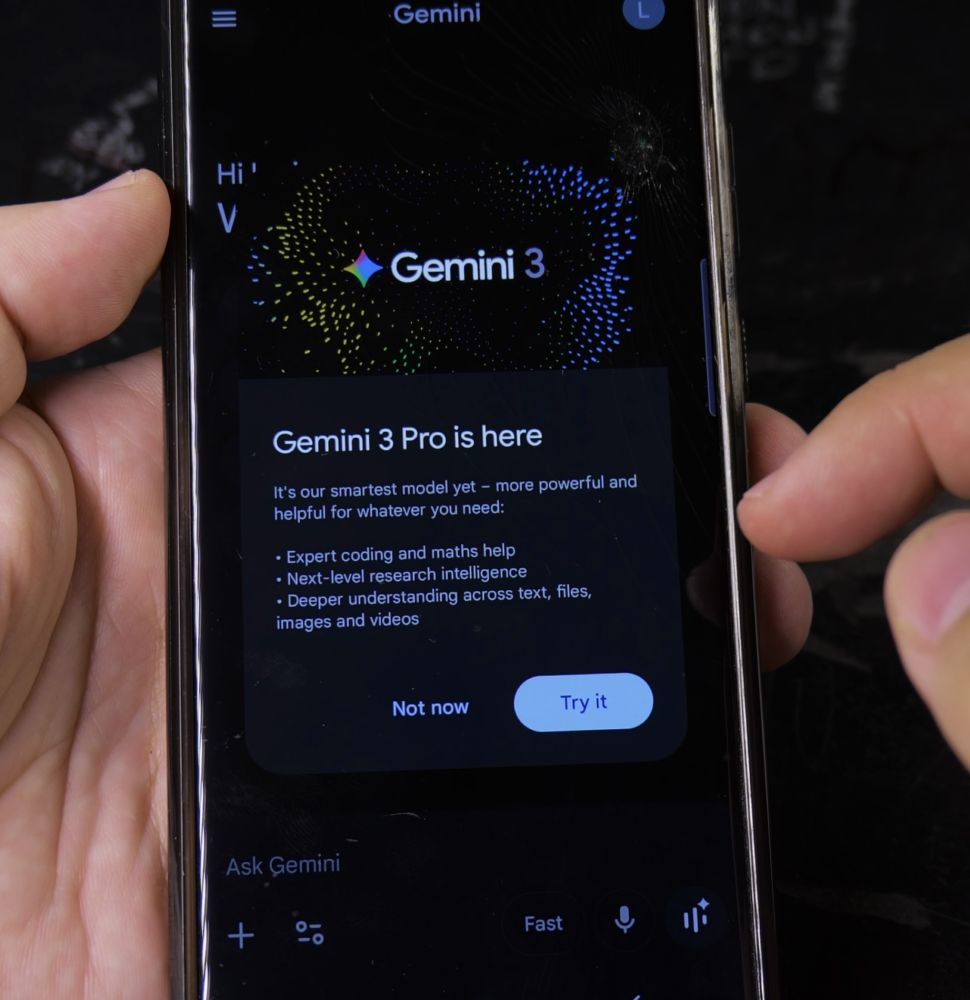
Tap **Settings**, then tap the option labeled **Gemini’s voice**.
4. Preview and Choose Your Preferred Voice
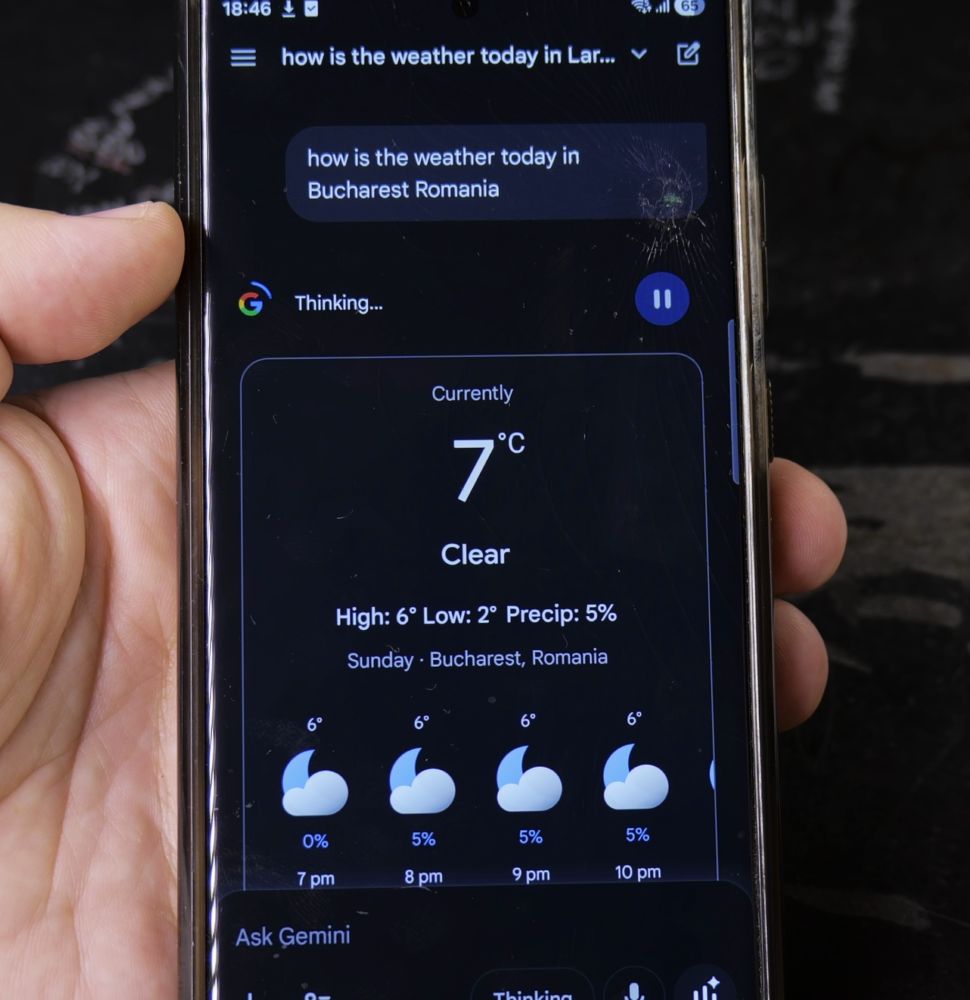
Swipe through the available voice options, tap each one to hear a sample, and select the one you like best.
Helpful Tips
Changing the voice in the Gemini app will update all spoken responses across Gemini Live conversations and home screen widgets. For more Samsung controls, read our guide on Accessing Network Shares on Samsung or browse our Samsung Galaxy hub.


Leave a Reply