
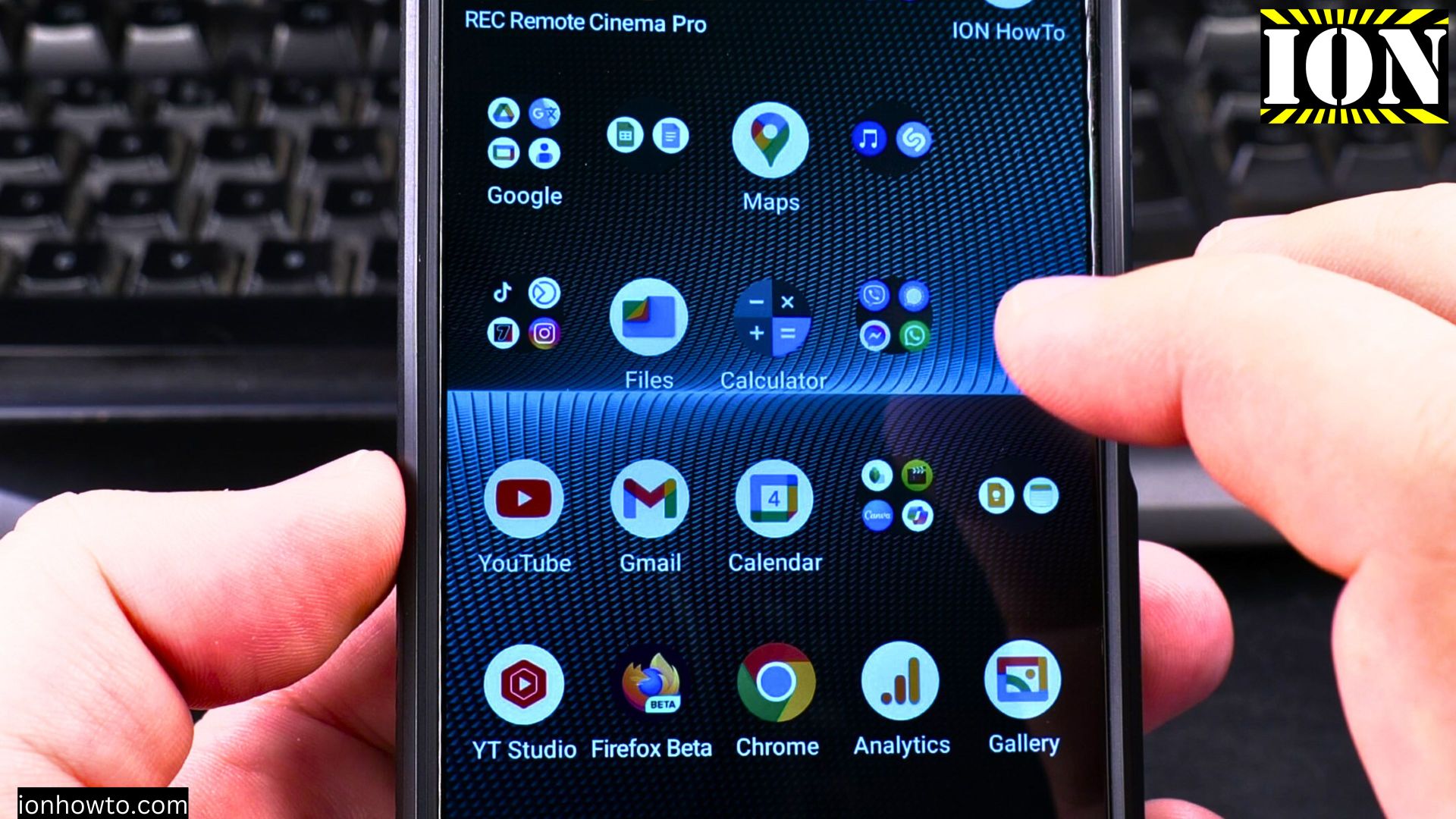
Learn how to free up space on your Android device using simple built-in tools. I’ll show you how to identify what’s taking up storage and how to remove unnecessary files safely.
Amazon links
As an Amazon Associate I earn from qualifying purchases:
- Phone Cases
- Mobile Tripods
- Usb-c charger
- Usb-c cable
- Docking stations
- Wireless car chargers
- Wireless charger stand
- SIM card removal tool
- SIM card holder
Quick Steps and Scenarios Overview
| What You Need to Do | Quick Jump |
|---|---|
| Why Clean Your Android Storage? | Jump to Step 1 |
| How to Check Your Storage | Jump to Step 2 |
| Open Settings | Jump to Step 1 |
| Tap "Storage" | Jump to Step 2 |
| View what's using space | Jump to Step 3 |
| Easy Ways to Free Up Space | Jump to Step 3 |
Demonstrated on Sony Xperia 1V running Android 15
Why Clean Your Android Storage?
Freeing up space helps:
- Make your phone run faster
- Allow for more photos and apps
- Prevent storage-related errors
- Improve overall performance
How to Check Your Storage
1. Open Settings
Open Settings.
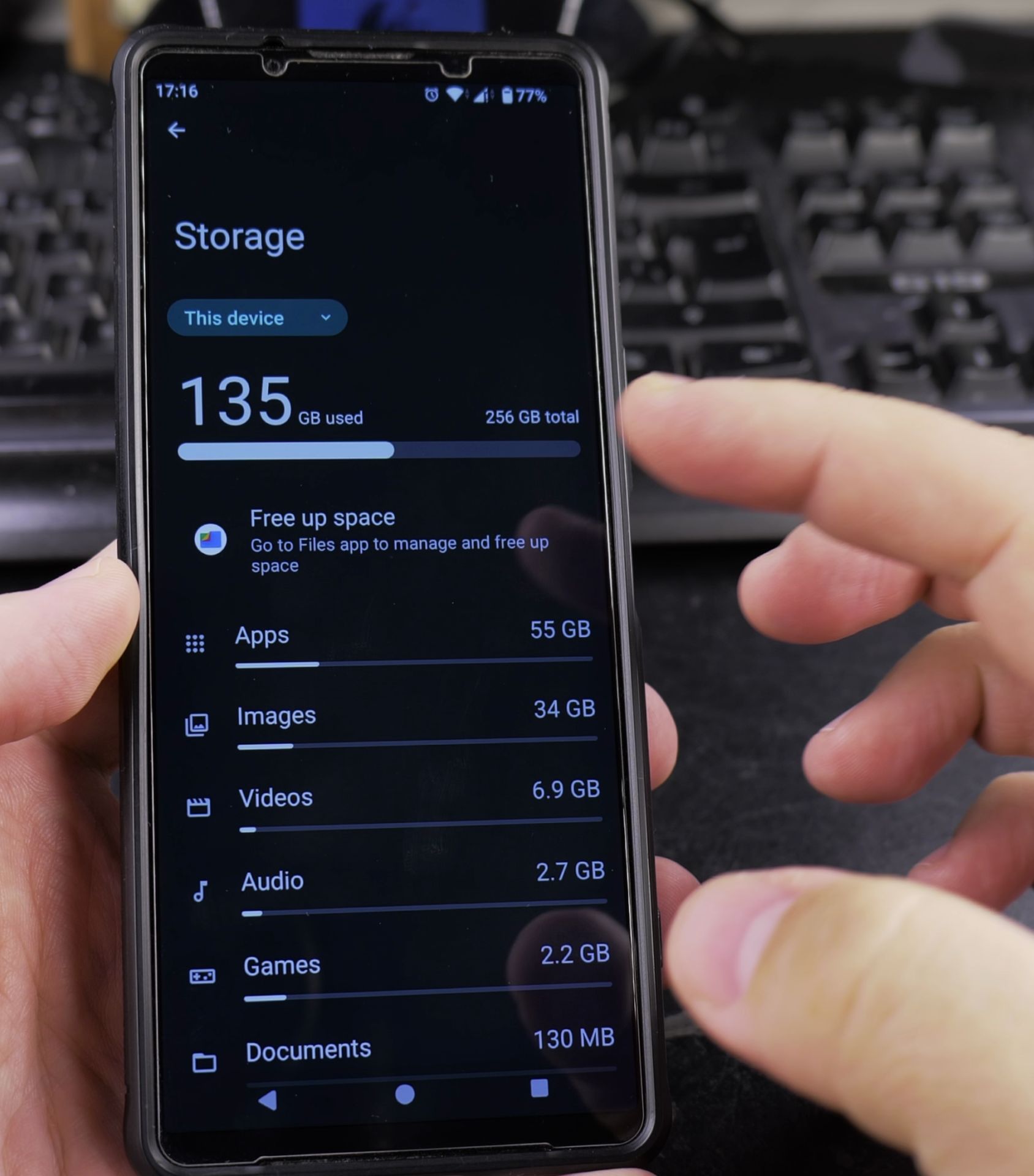
2. Tap “Storage”
Tap “Storage”.
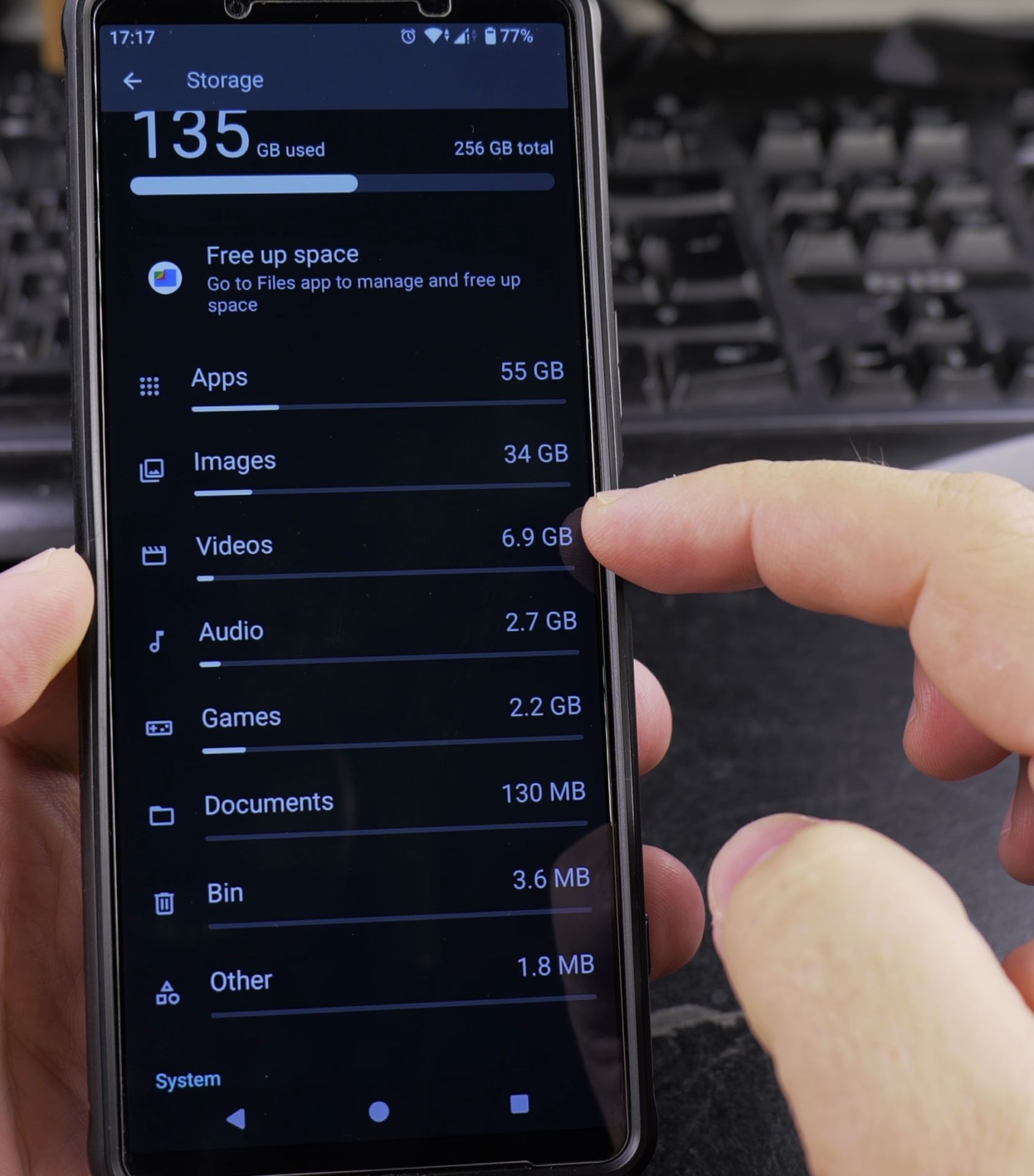
3. View what’s using space
View what’s using space:.
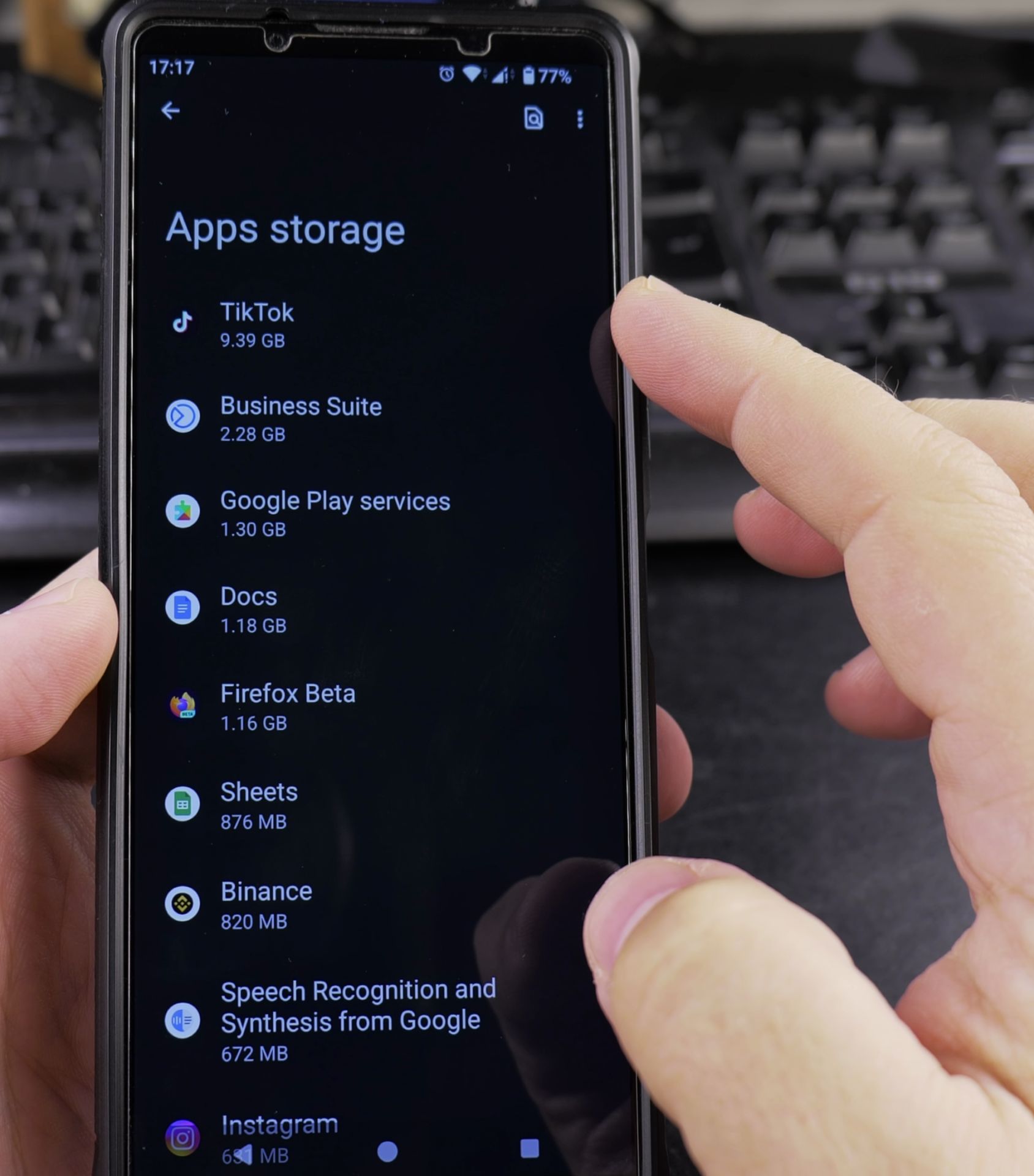
- Apps
- Photos & videos
- System files
- Cached data
Easy Ways to Free Up Space
1. Delete Unwanted Files
- Open the Files by Google app
- Tap “Clean” at the bottom
- Select categories to clean:
- Junk files
- Large files
- Duplicate files
- Tap “Free up” to remove
2. Clear App Cache
- Go to Settings > Apps
- Select an app
- Tap “Storage”
- Choose “Clear cache”
3. Uninstall Unused Apps
- Open Settings > Apps
- Sort by “Last used”
- Select apps you don’t need
- Tap “Uninstall”
Advanced Storage Cleaning
Move Files to Cloud Storage
- Install Google Photos or Google Drive
- Select files to back up
- Delete local copies after backup
Use SD Card (if available)
- Insert SD card
- Open Files app
- Move files to SD card
Storage Maintenance Tips
- Check storage monthly
- Enable auto-delete in Google Photos
- Limit offline content in apps
- Regularly clear browser cache
- Use streaming instead of downloads
Final Thoughts
Keeping your Android device clean doesn’t require special tools – just regular maintenance. The Files by Google app makes it especially easy to find and remove unnecessary files.
Remember to review what you’re deleting before confirming, as some files can’t be recovered. A little cleaning every few weeks keeps your phone running smoothly.
Helpful Tips
Take your time and check the screen carefully after each tap so you can confirm the setting changed as expected. If an option appears in a slightly different spot on your device, watch the embedded video above for a closer look.
Related Guides
- How to Delete Private Space and Erase All Hidden Apps on Android – If you no longer need Private Space on Android or want to wipe all hidden apps, accounts, and private photos stored inside…
- How to Set Up and Enable Private Space on Android 15 and 16 – Private Space is an operating-system-level secure profile in modern Android that lets you isolate sensitive banking…
- How to Enable Private Space on Android 15 Devices – Android 15 private space for personal content – personal information like banking apps, photos and documents.
- Android & Mobile Guides – Browse more tutorials and practical guides in this section.


Leave a Reply