
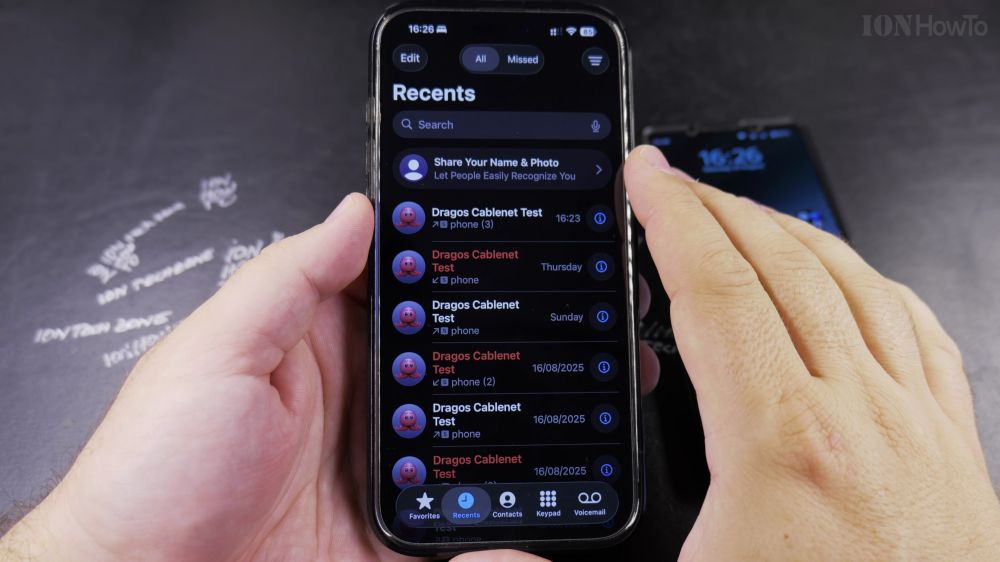
If you want to call someone saved in your iPhone or return a call you just missed, you never need to type the number manually. I’ll show you how to dial contacts and call back recent callers in a few quick taps.
1. Open the Phone App
Tap the green **Phone** app icon in your iPhone dock.
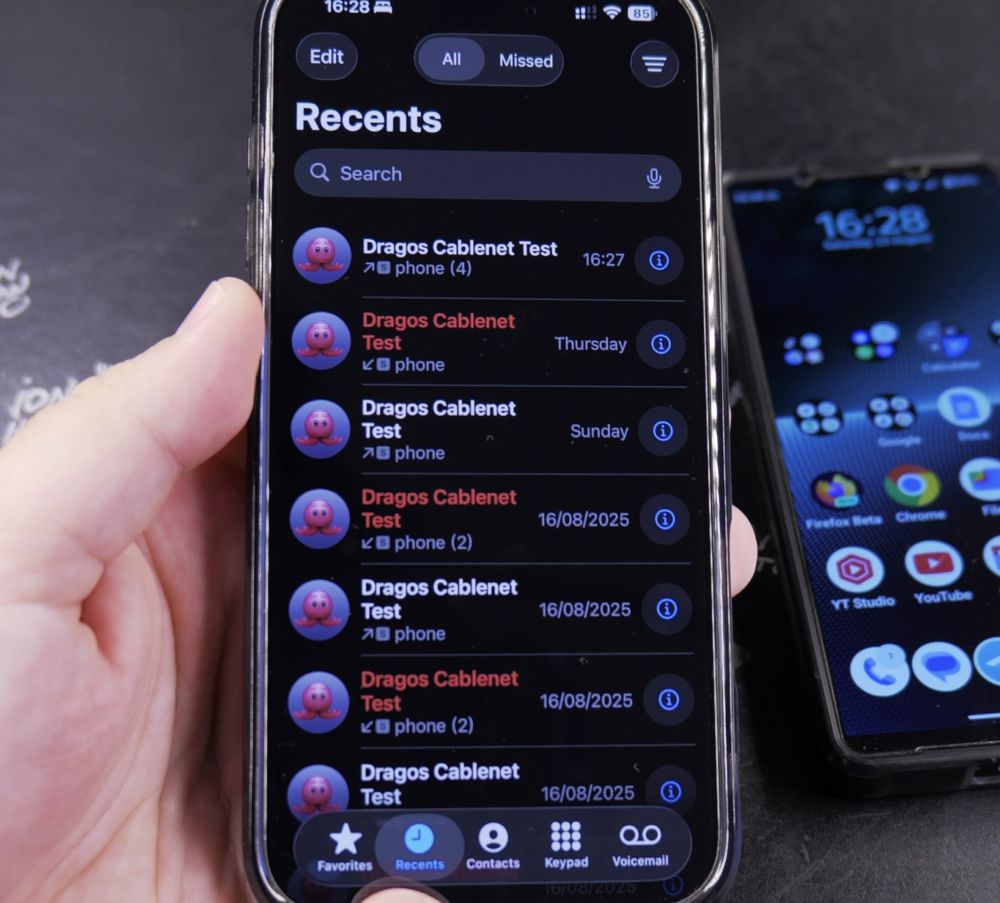
2. Call Back from Recents
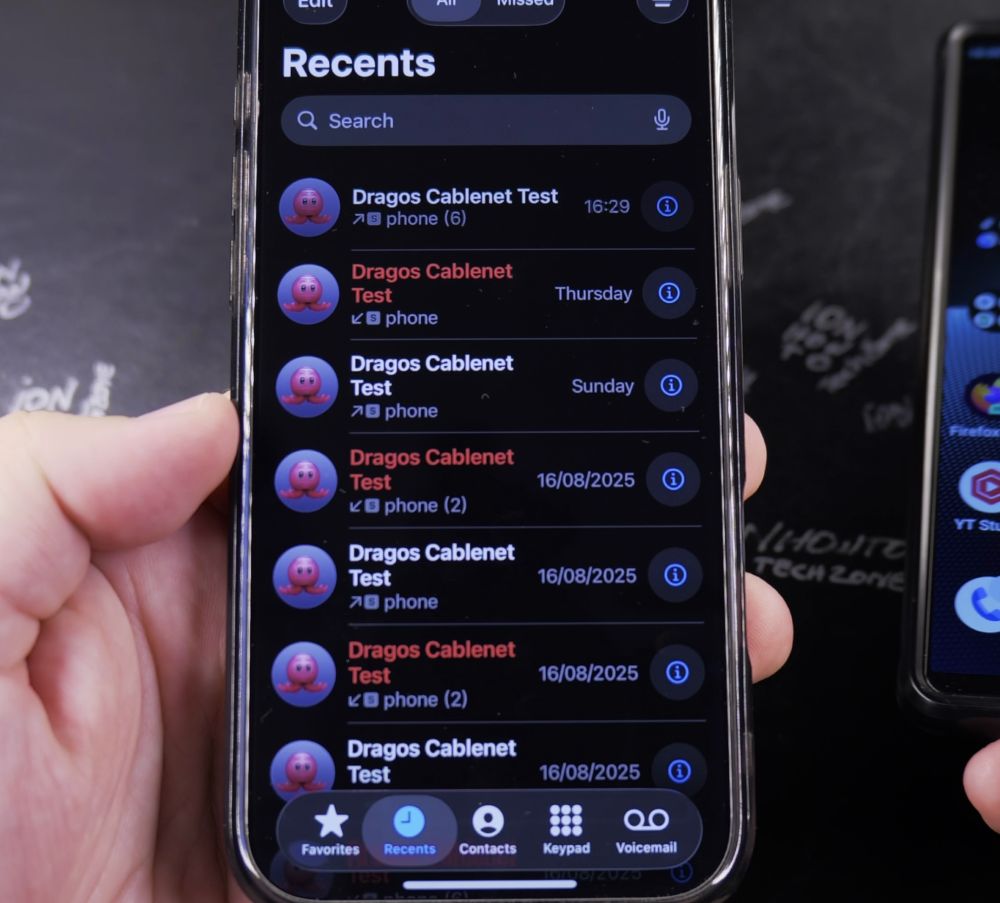
Tap the **Recents** tab (clock icon) at the bottom. Tap directly on any caller name or red missed call row to call them back right away.
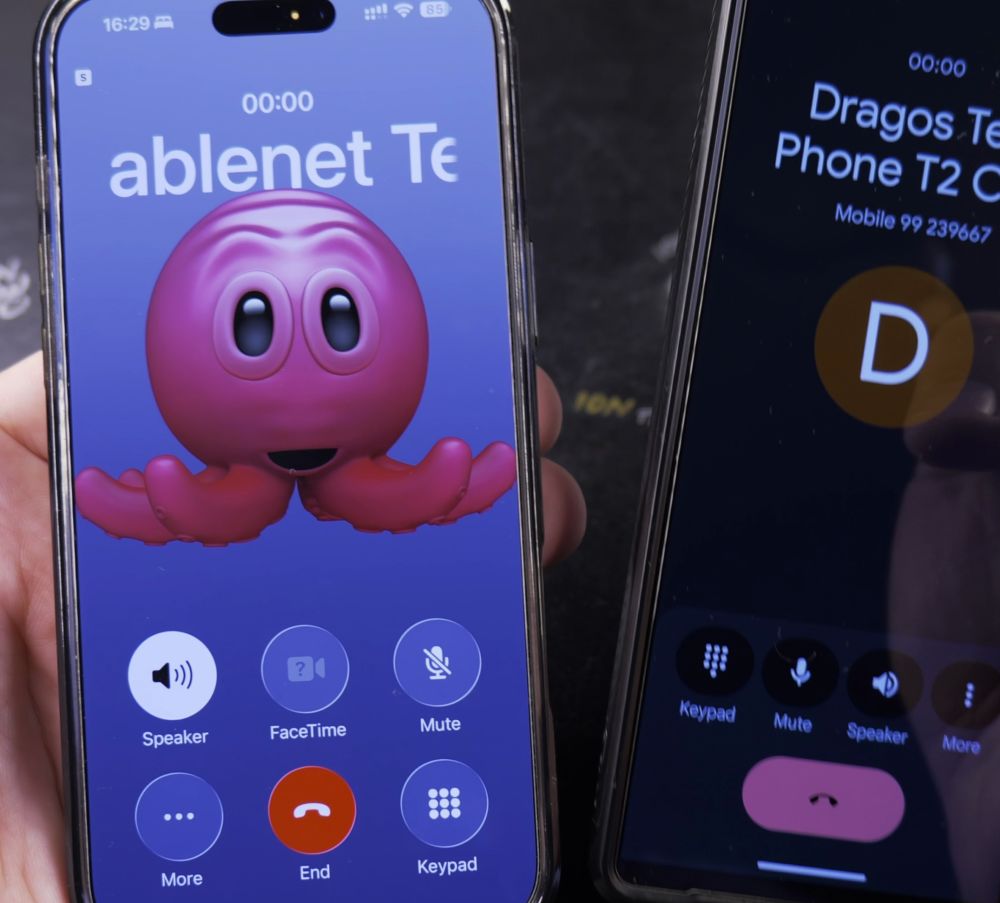
3. Open Your Contacts List
Tap the **Contacts** tab in the center of the bottom toolbar.
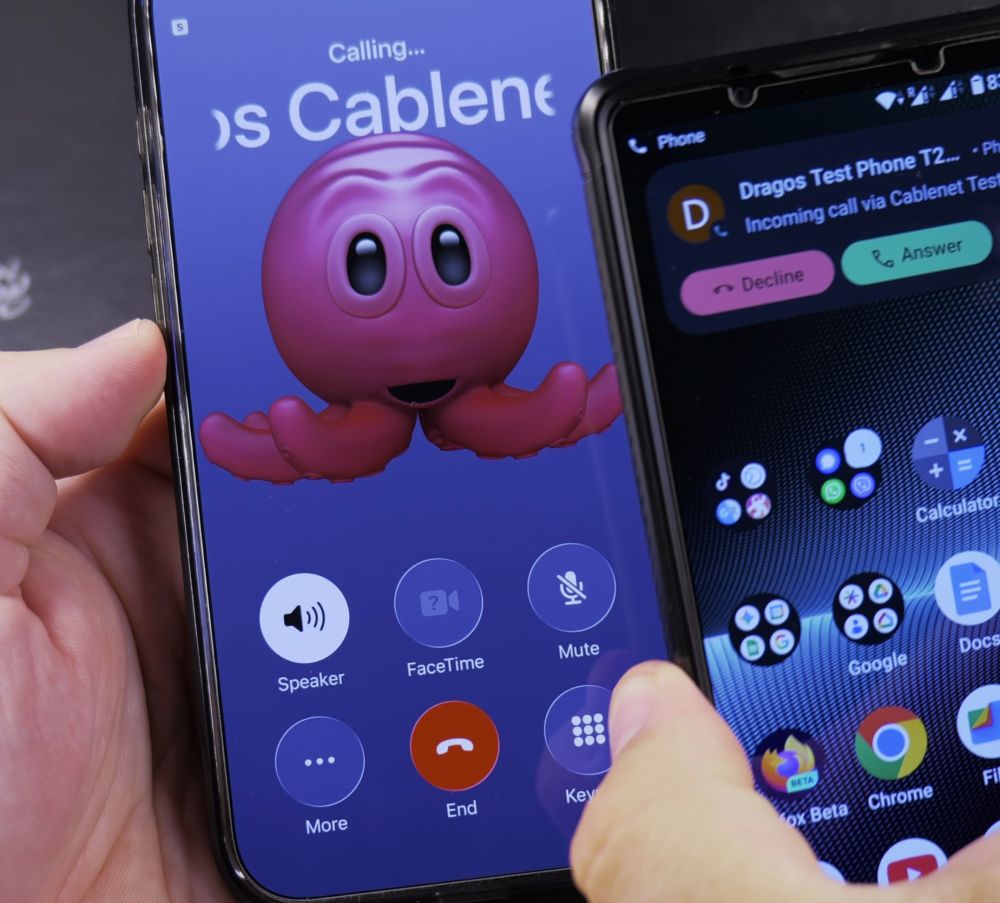
4. Search or Scroll for a Name
Tap the **Search** field at the top and type the person’s name, or slide your finger down the **A–Z** alphabet column on the right edge.
5. Tap Call to Dial
Tap the person’s name to open their contact card, then tap the blue **Call** button (or tap their mobile number).
Helpful Tips
To view call timestamps or see how long a call lasted, tap the small blue **i** (info) button on the right edge of any row in Recents. For more calling guides, visit our iPhone Guides collection.


Leave a Reply