
Trying to delete a saved credit or debit card from your Roblox account often triggers an error if that card is still linked as the renewal method for an active Roblox Plus or Premium membership. In this step-by-step guide, I’ll show you how to cancel or unlink the active subscription renewal first and cleanly remove your payment method from Roblox.
Open Roblox Account Settings and Select Payment Methods
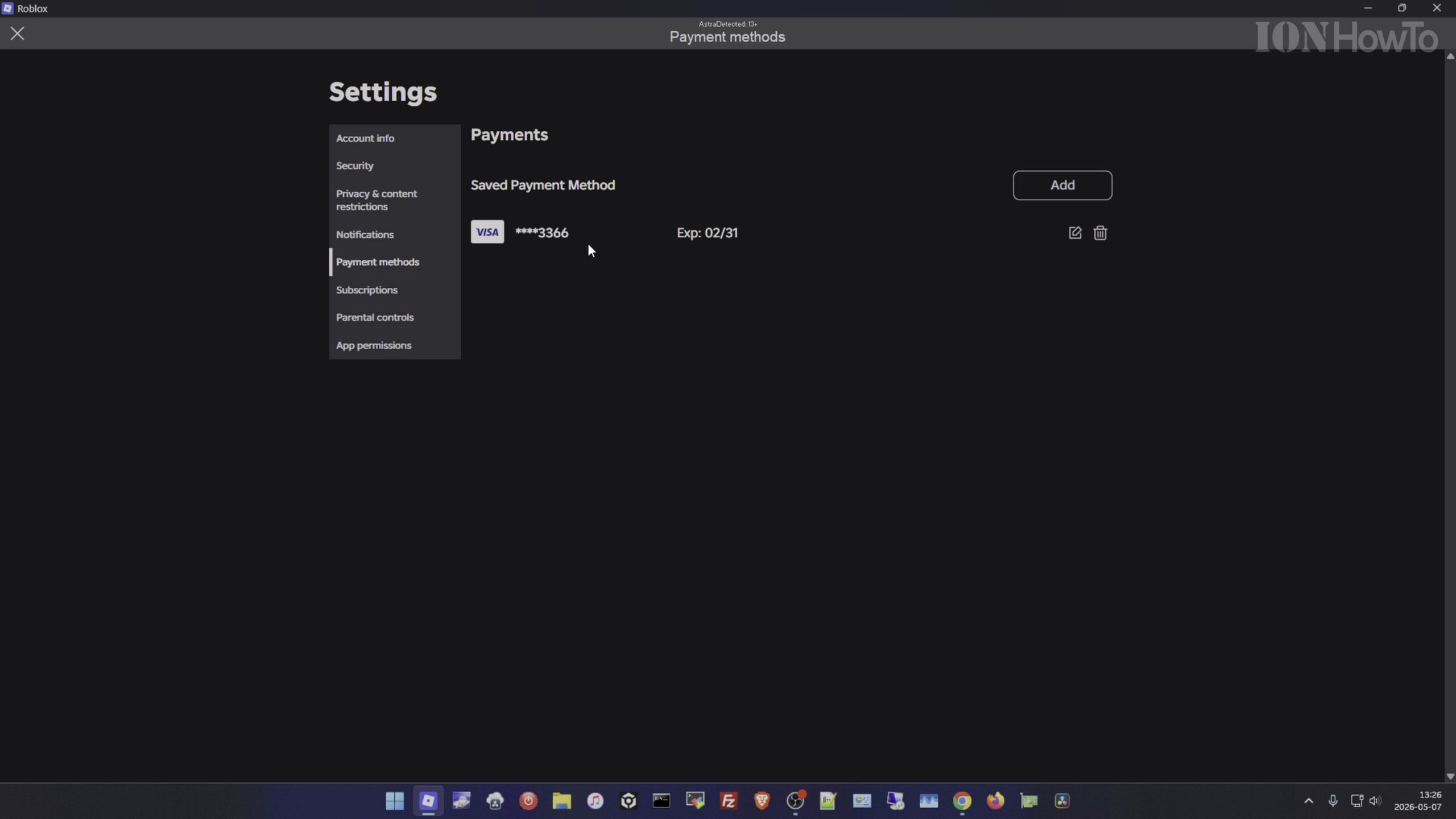
Log in to your Roblox account in a browser or the app, click the gear icon in the top-right corner, and open Settings. Select Payment Methods in the left sidebar to view your saved credit or debit cards.
Check Why the Delete Button Shows an Active Subscription Error
If clicking the trash bin icon next to your saved card displays an error message stating the payment method cannot be removed, it means an active Roblox Plus or Roblox Premium subscription is still set to renew on that card.
Switch to the Subscriptions Tab in Roblox Settings
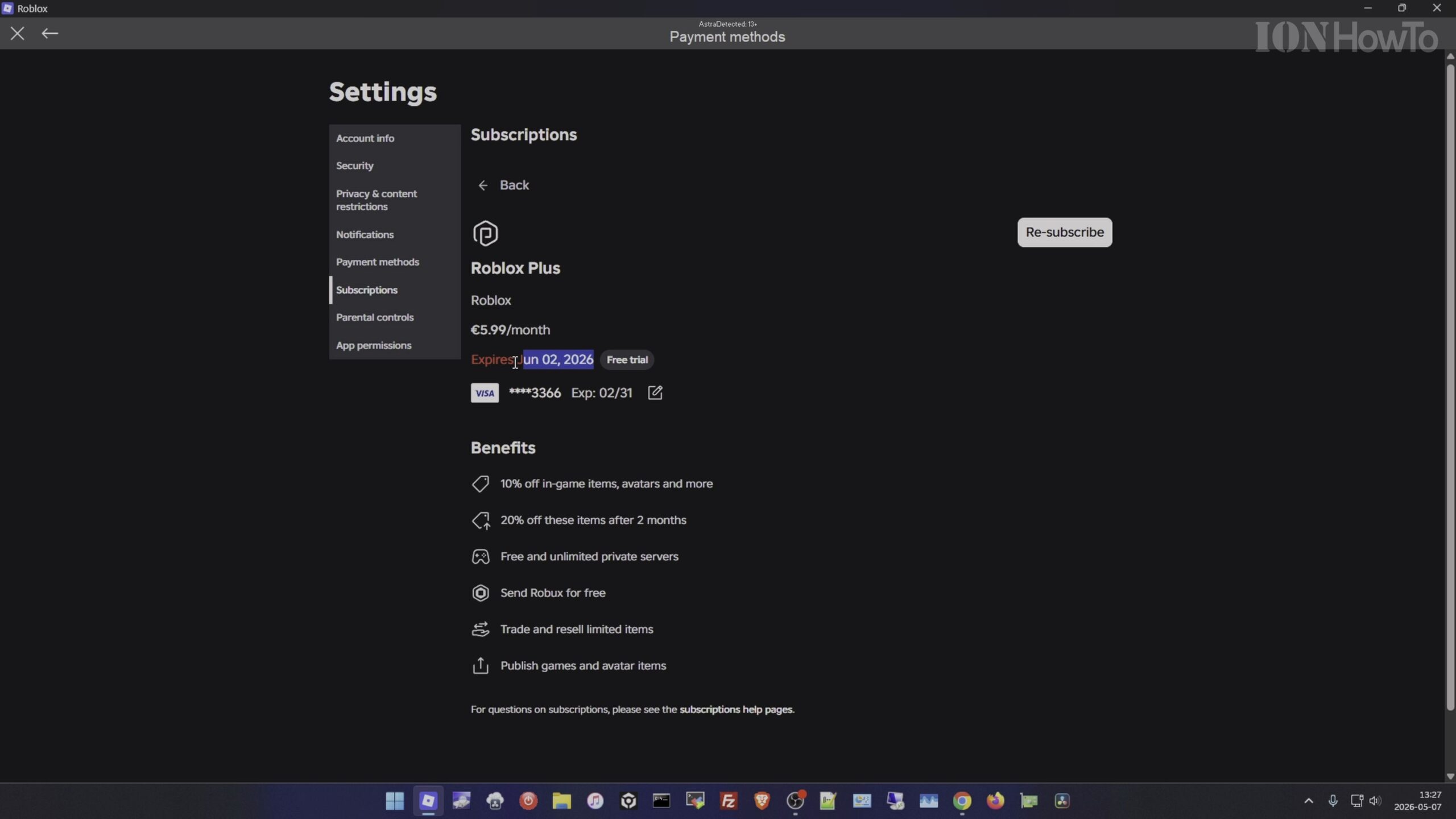
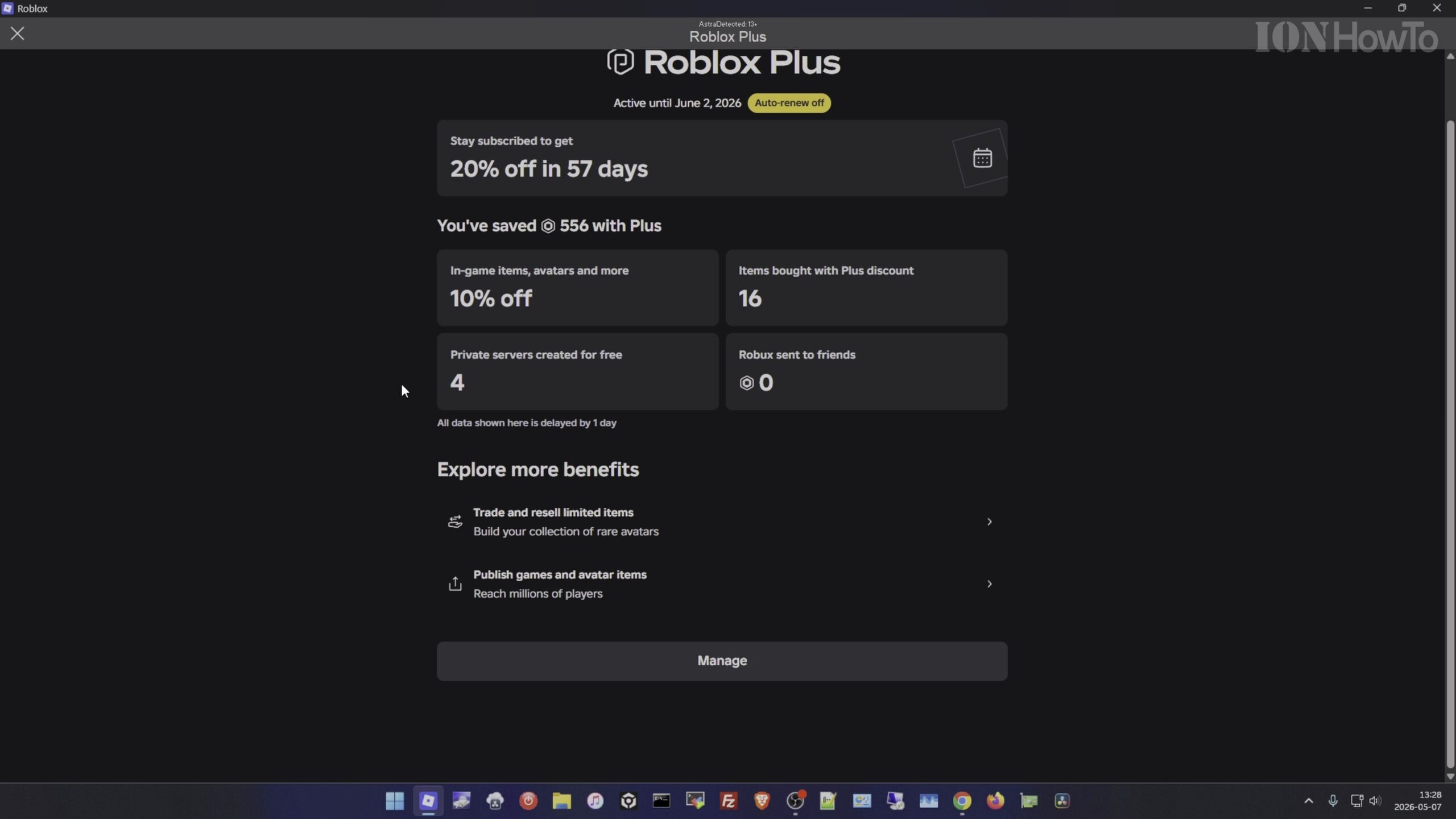
Click Subscriptions in the left-hand menu right below Payment Methods. Select your active Roblox Plus or Premium membership to view its billing status and attached renewal card.
Cancel the Subscription Renewal or Switch to a Secondary Card
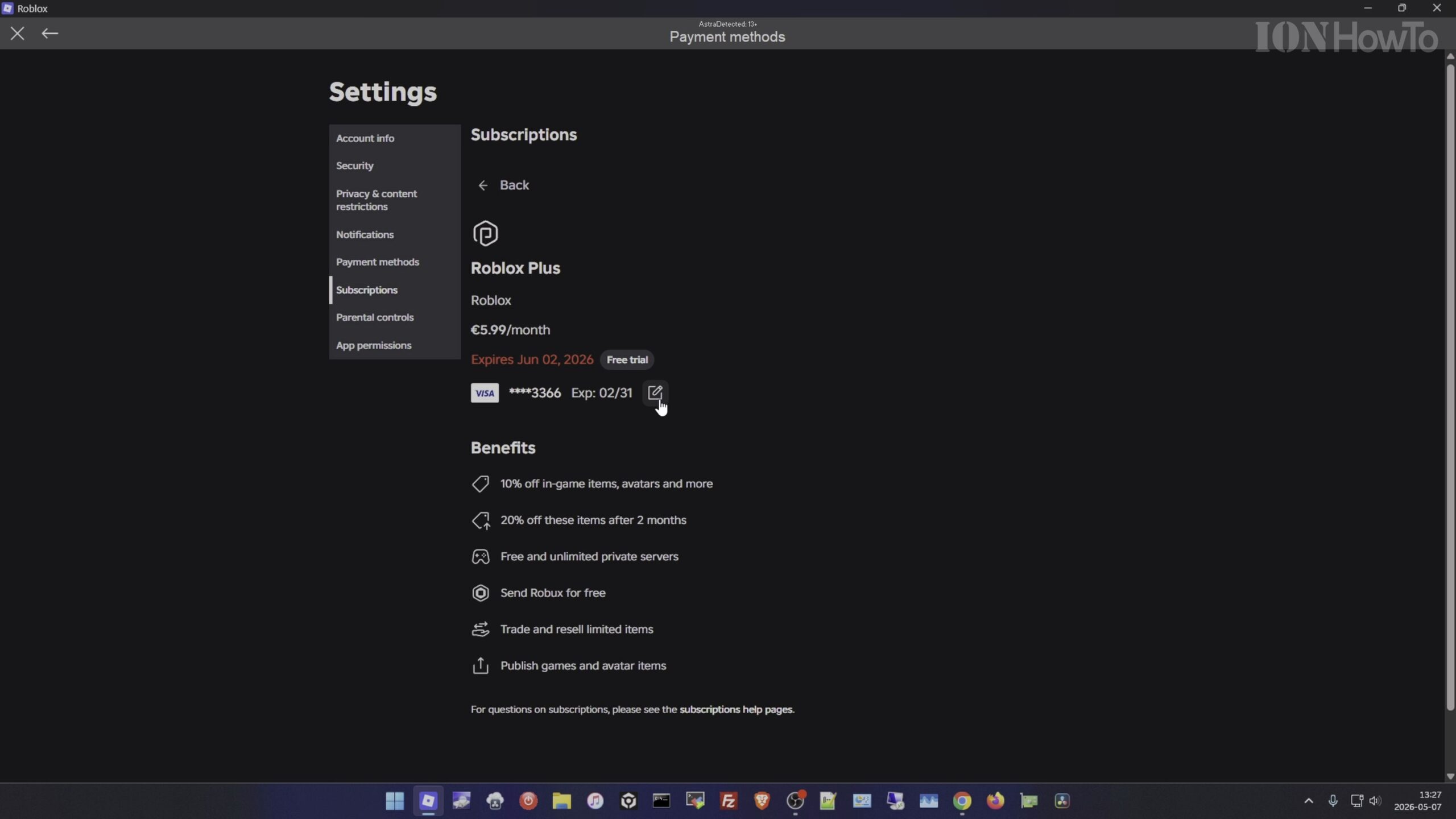
If you want to remove all cards from your account, click Cancel Renewal and confirm cancellation so no recurring charge is tied to the card. Alternatively, if you want to keep your subscription active, add a second card first and set it as the new renewal card.
Return to Payment Methods and Click the Trash Bin to Delete the Card
Go back to the Payment Methods tab, click the trash bin delete icon beside the old payment card, and confirm removal. With no active renewal attached, the card is deleted immediately from your Roblox account.
Helpful Tips and Related Guides
Remember that cancelling automatic renewal on Roblox Plus lets you keep your remaining membership benefits until the current billing cycle expires while immediately freeing you to delete your saved card. Browse more helpful tutorials in our Roblox How-To Guides, check our guide on How to Renew a Cancelled Roblox Plus Subscription Before Expiry, or visit our Roblox Games section.


Leave a Reply