
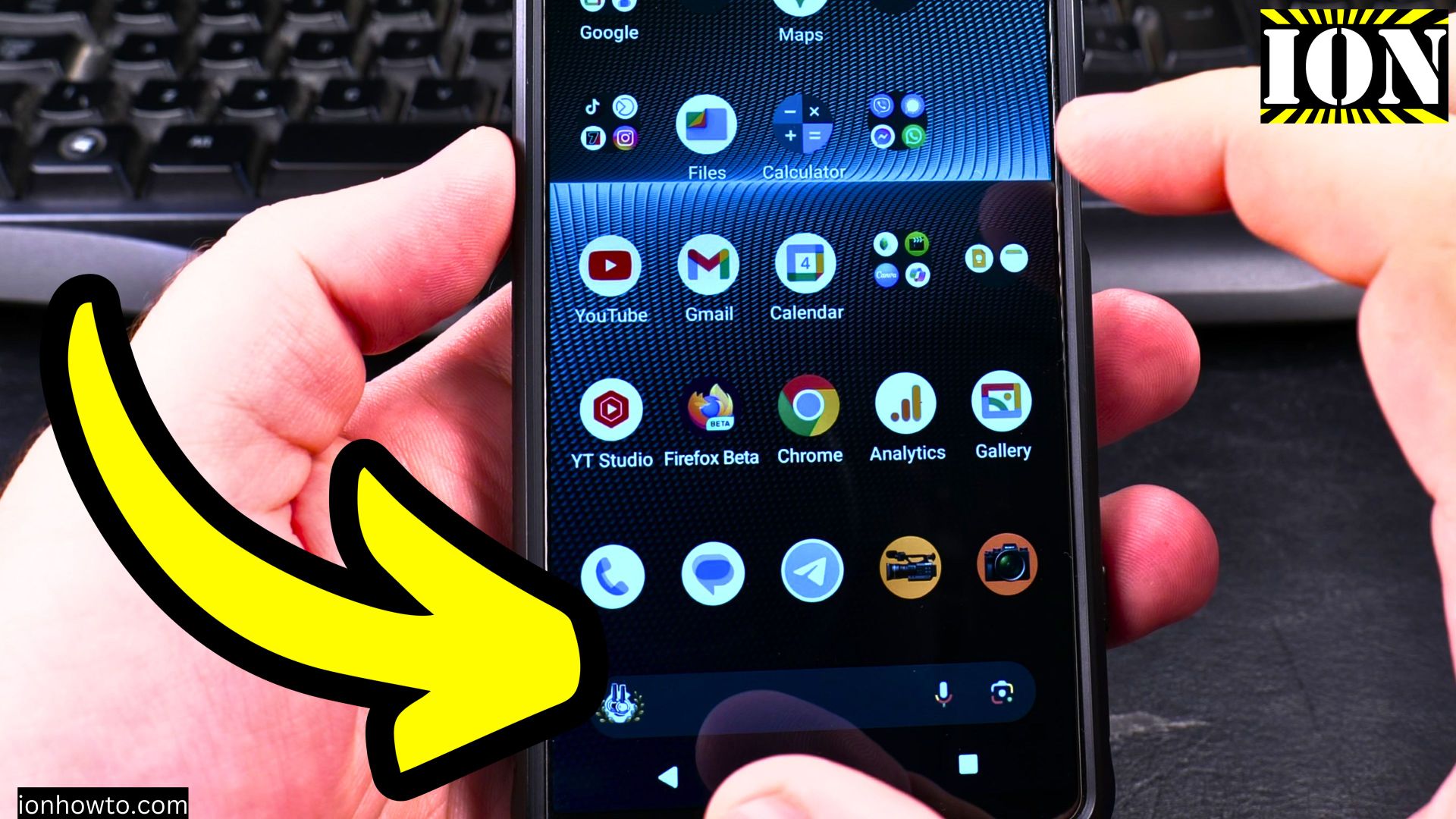
Remove Google Search bar Android or how to delete the search bar on Android. Customize Android home screen and remove search bar from home screen. Android home screen tips to increase productivity.
Amazon links
As an Amazon Associate I earn from qualifying purchases:
- Phone Cases
- Mobile Tripods
- Usb-c charger
- Usb-c cable
- Docking stations
- Wireless car chargers
- Wireless charger stand
- SIM card removal tool
- SIM card holder
Phone: Sony Xperia 1V Android 14 version.
Video
In this video, I will show you how to remove the Google Search bar from your Android home screen.
Quick Steps and Scenarios Overview
| What You Need to Do | Quick Jump |
|---|---|
| Video | Jump to Step 1 |
| Step by step guide | Jump to Step 1 |
Many users find the search bar unnecessary and prefer a cleaner, more organized home screen. Removing the Google Search bar can free up space for other widgets and apps, making your device more personalized and efficient.
Step by step guide
Steps to Remove the Google Search Bar:
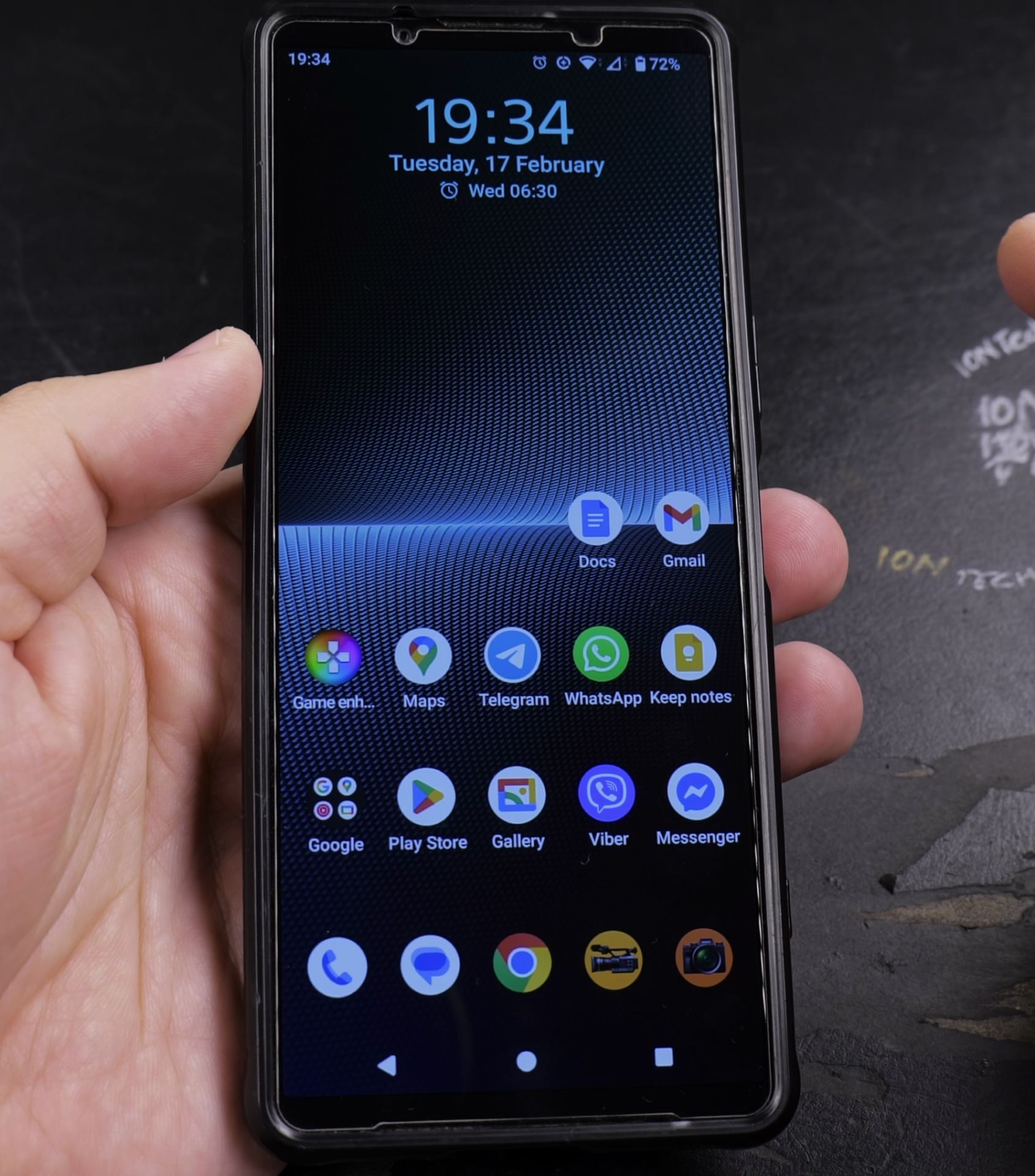
- Long Press the Search Bar: Start by long-pressing the Google Search bar on your home screen. This will bring up a menu with various options.
- Select ‘Remove’: In the menu that appears, tap on the ‘Remove’ or ‘Delete’ option. This will remove the search bar from your home screen.
- Alternative Method: If the above method doesn’t work, you can also go to your home screen settings. Long press on an empty area of your home screen, select ‘Home settings,’ and toggle off the Google Search bar option.
Removing the Google Search bar is important for several reasons. It helps declutter your home screen, giving you more space for the apps and widgets you use most frequently. Also, it can improve the overall aesthetic of your device, allowing you to better appreciate your wallpaper and other visual elements.
This tutorial covers various methods to remove the Google Search bar, including using built-in features and custom launchers. If you have a Samsung, OnePlus, or any other Android device, these steps will help you achieve a cleaner and more organized home screen.
By following this guide or the video, you will learn how to remove the Google Search bar from your Android device, making your home screen more functional and visually appealing. This video is perfect for anyone looking to customize their Android experience and remove unnecessary elements from their home screen.
Watch the video to learn how to remove the Google Search bar and take control of your Android home screen!
Helpful Tips
Take your time and check the screen carefully after each tap so you can confirm the setting changed as expected. If an option appears in a slightly different spot on your device, watch the embedded video above for a closer look.
Related Guides
- Remove App From Android Home Screen – How to Remove an App from Your Home Screen on Android.
- Change Wallpaper on Android Lock Screen and Home Screen – How to Change Wallpaper on Android Lock Screen and Home Screen.
- Add Contact to Home Screen on Android – How to Add a Contact to Your Android Home Screen.
- 10GB Fiber Home Network – Browse more tutorials and practical guides in this section.


Leave a Reply