
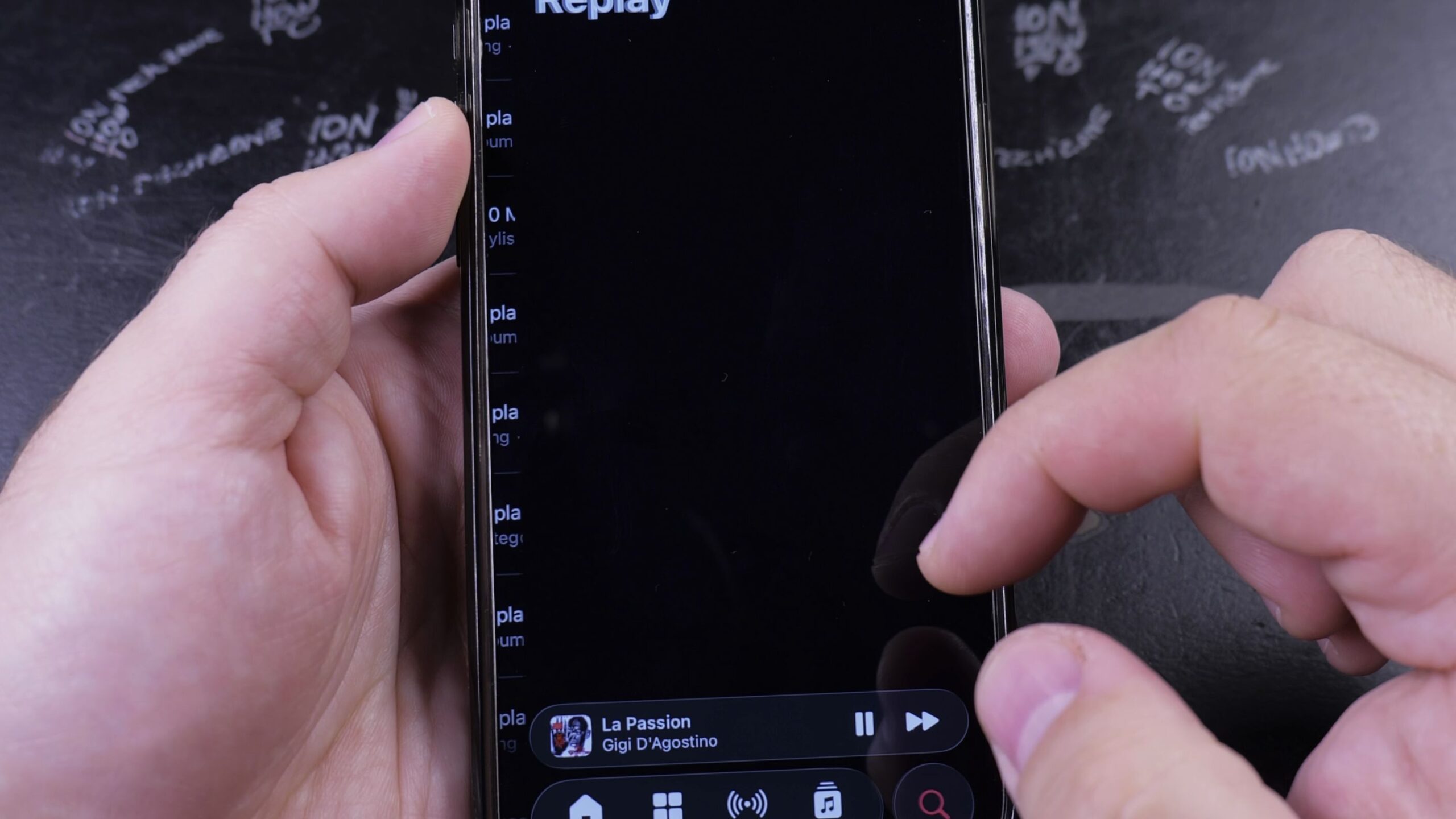
If you want to know which tracks you listen to the most, Apple Music keeps a running summary of your top favorites. I’ll show you how to see your most played songs in Apple Music on your iPhone in just a few taps.
1. Open Search in Apple Music
Open the Music app on your iPhone. Look at the bottom menu bar.
In the bottom-right corner, tap the magnifying glass labeled Search.
Tap inside the search bar at the top of the screen and type Replay.
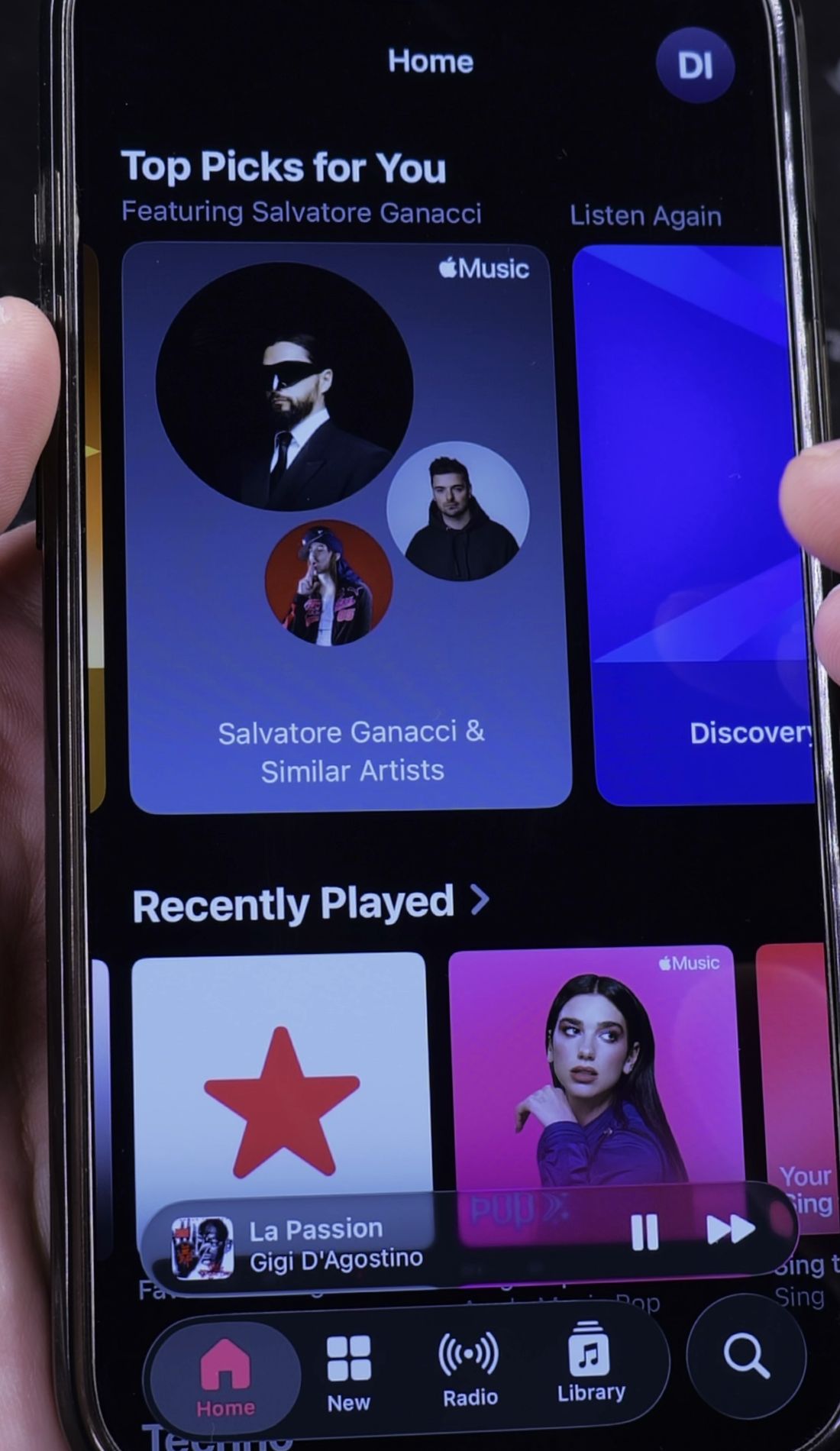
2. Open Your Apple Music Replay
Under the search results, look for the colorful Replay category card.
Tap the card for the current year or month. A highlight reel will start playing with animations and your favorite tunes.
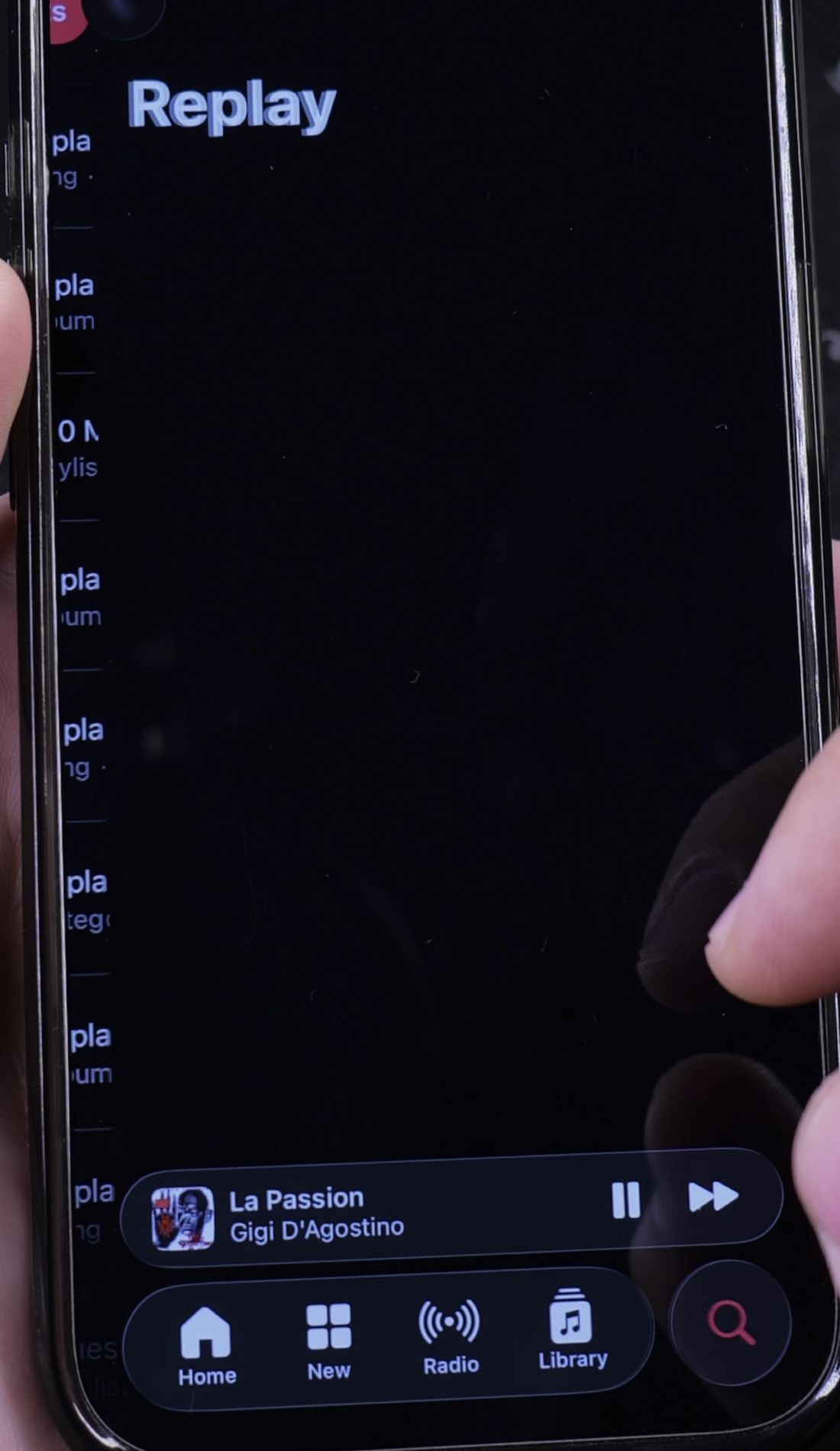
3. View Your Top Songs and Artists
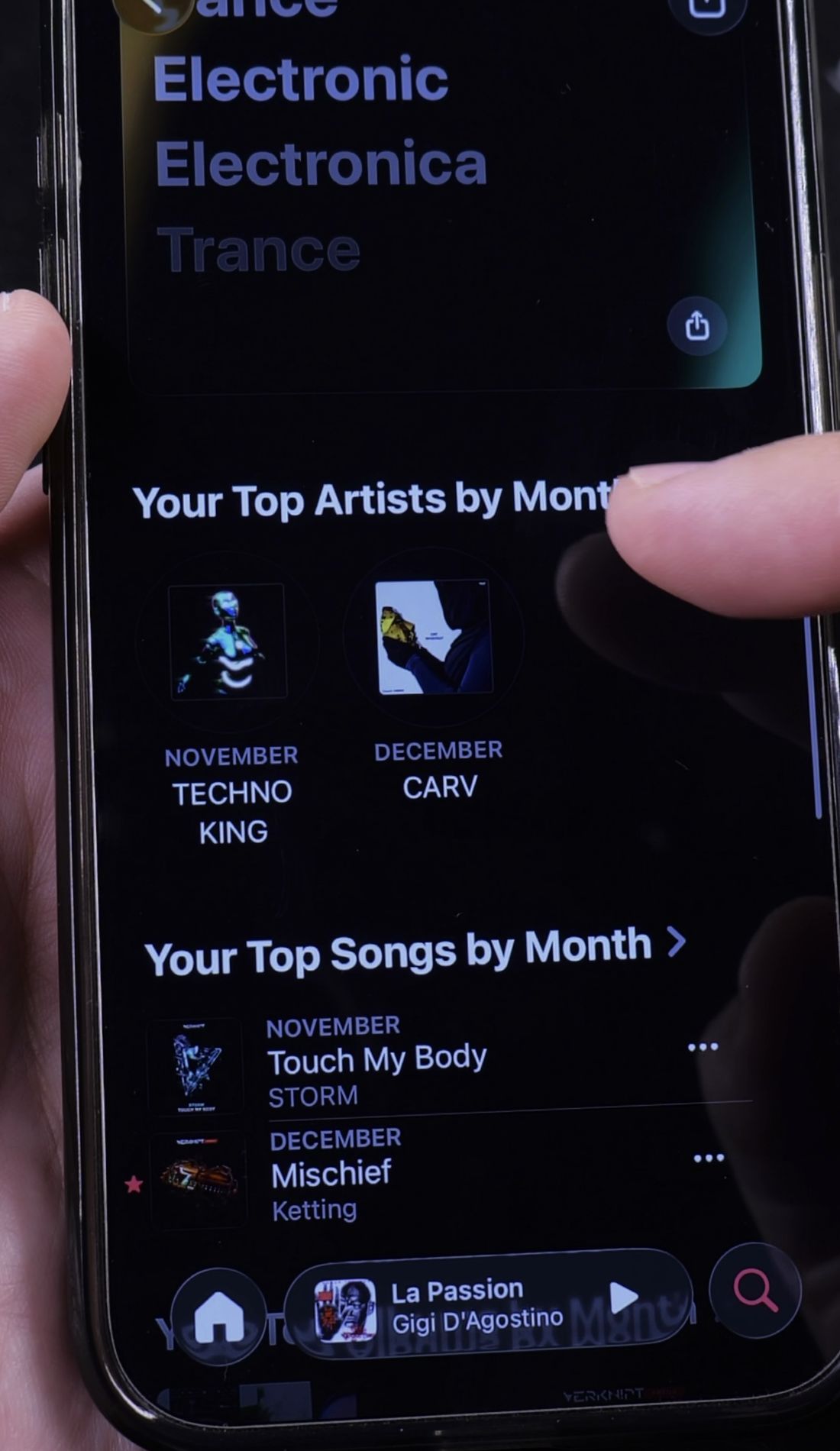
Swipe or scroll down past the story animations to view your full statistics page.
Here you can see your top songs ranked in order, your most played artists, and monthly listening milestones.
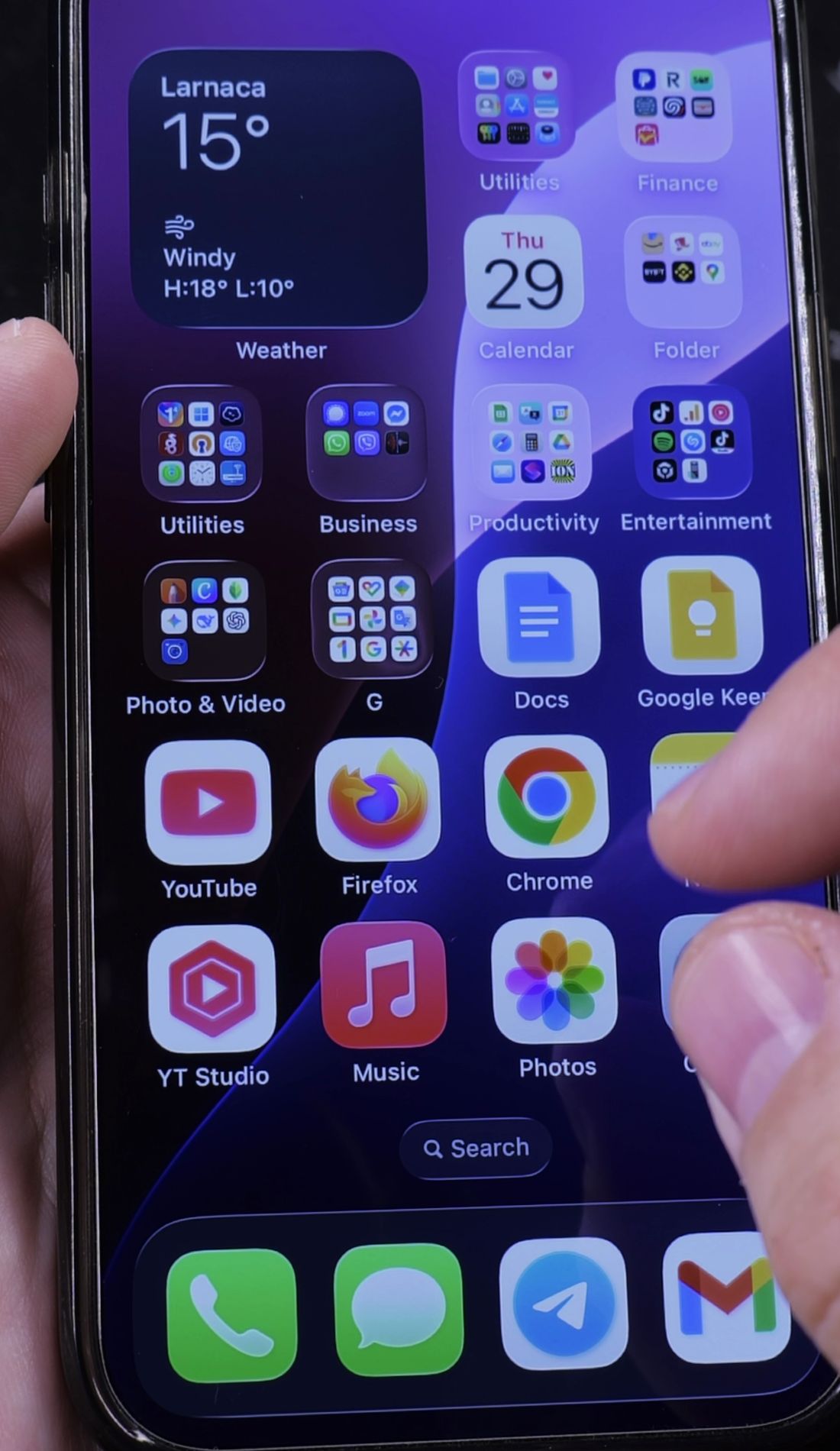
4. Share or Save Your Replay Reel
If you want to keep your top songs as a video clip or share them with friends, tap the Share button at the top.
Choose Save Video to store the highlight reel in your iPhone Photos app.
Helpful Tips
To see the exact numerical play count for every song in your library, open Apple Music on a Mac or Windows PC. Go to Songs view, right-click the column headers, and check Plays to display the exact number of times each track has played.
If you listen to your favorite tracks before sleeping, check our guide on how to set a sleep timer for Apple Music so playback stops automatically. You can also learn how to repeat a playlist in Apple Music, or explore our full collection of Apple Music guides.


Leave a Reply