
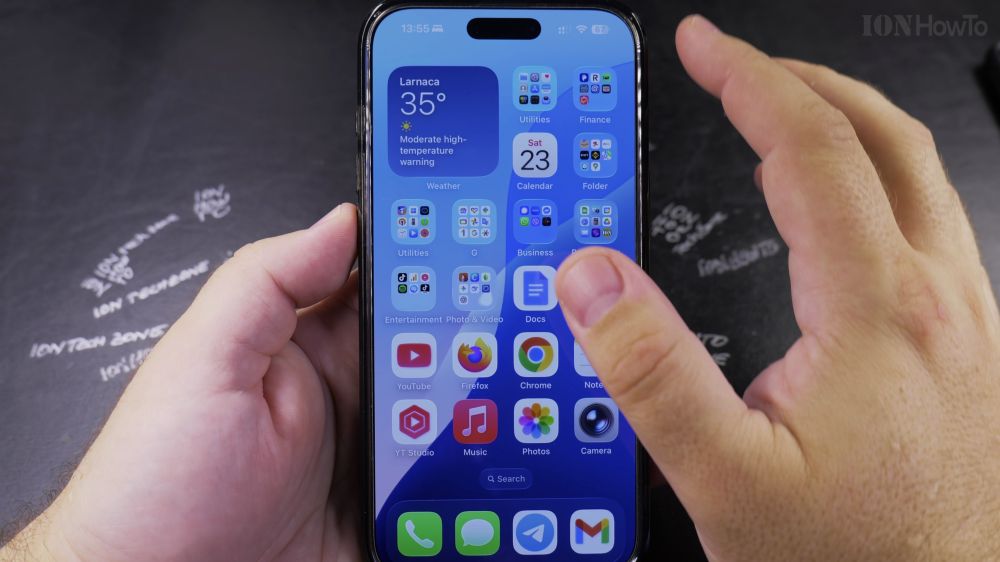
If your iPhone screen flips sideways when you lie down in bed or tilt your phone, Portrait Orientation Lock stops it immediately. I’ll show you how to lock or unlock screen rotation in a single swipe.
1. Open Control Center
Swipe down from the top-right corner of your screen (where the battery icon is). On older iPhones with a Home button, swipe up from the bottom edge.
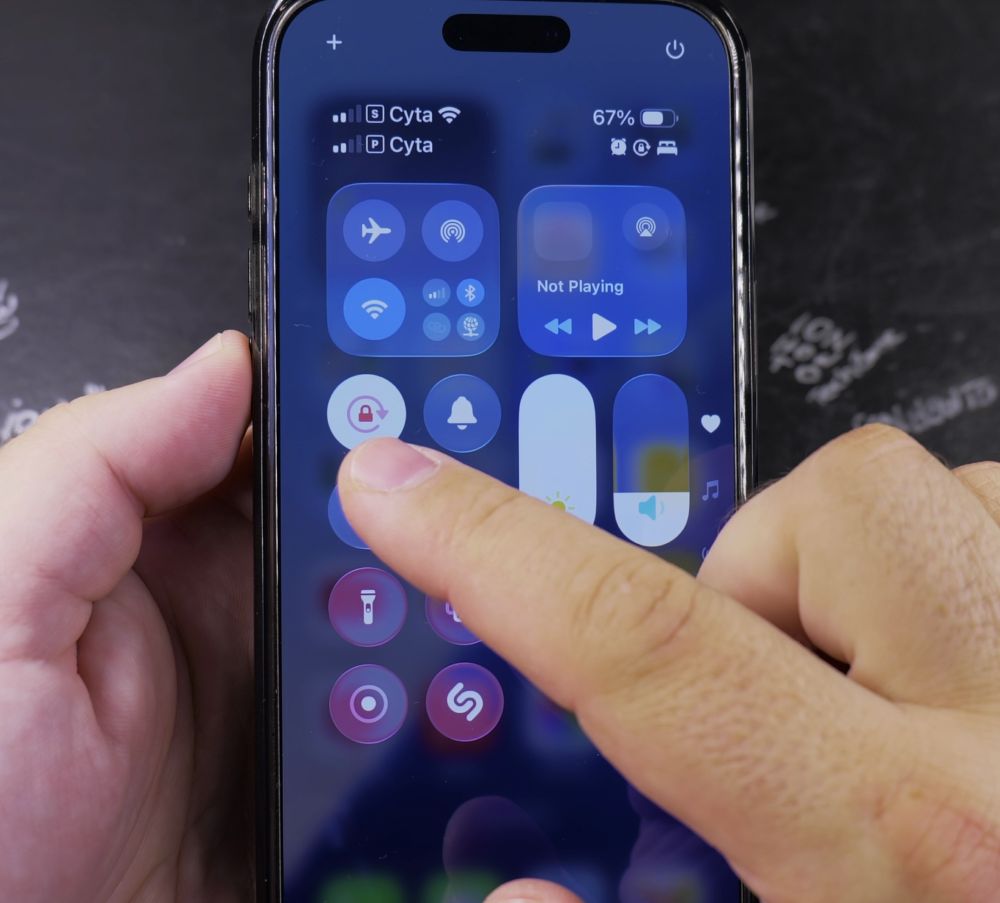
2. Locate Orientation Lock
Find the button showing a **padlock surrounded by a circular arrow**.
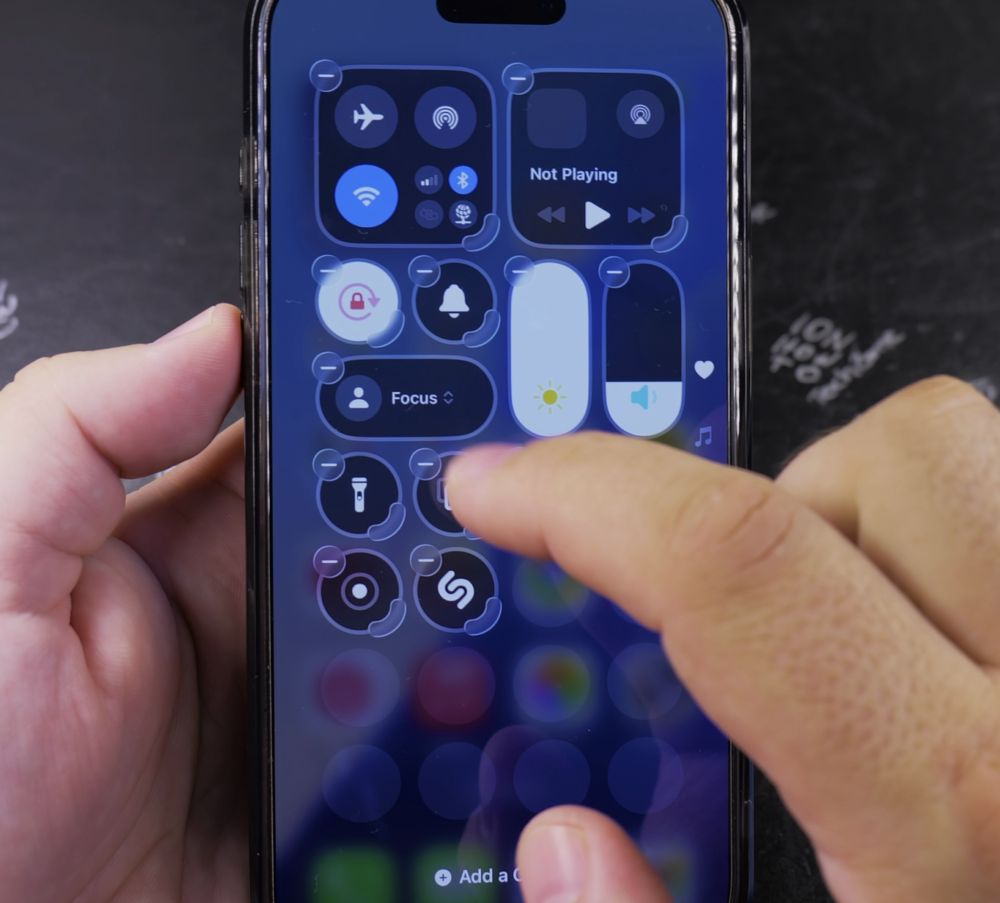
3. Lock the Screen Upright
Tap the lock icon. When the icon turns white with a red lock, **Portrait Orientation Lock: On** appears, preventing your screen from rotating sideways.
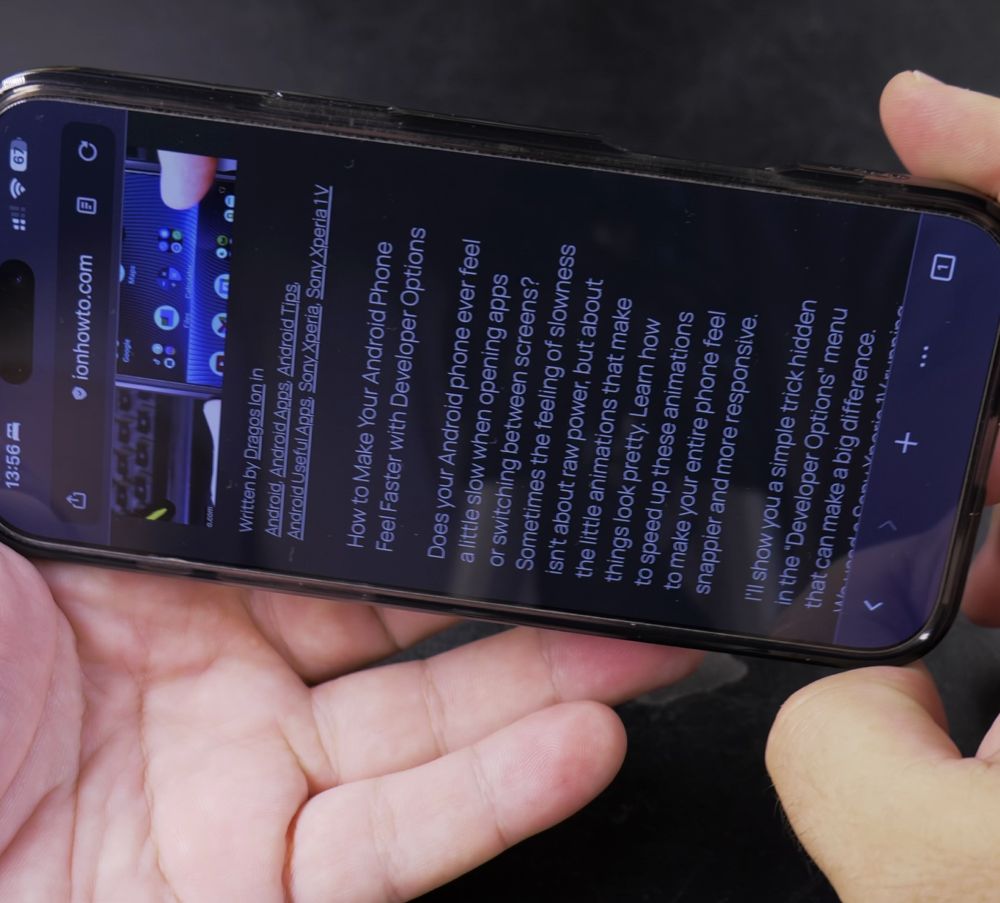
4. Enable Auto-Rotation Again
To allow photos and videos to rotate into landscape view again, open Control Center and tap the icon so it turns gray (Off).
Helpful Tips
Even when Portrait Orientation Lock is enabled, full-screen video players in apps like YouTube and Netflix can still expand into widescreen landscape mode using their in-app full screen button. For more display tips, visit our iPhone Guides collection.


Leave a Reply