
Need a fast reference for getting DaVinci Resolve Studio 21 installed and activated on your new MacBook Air M5? Here is the streamlined walkthrough for downloading the official Studio installer from Blackmagic Design and activating your Speed Editor license key on macOS 26.5.
Download DaVinci Resolve Studio 21 from Blackmagic Design
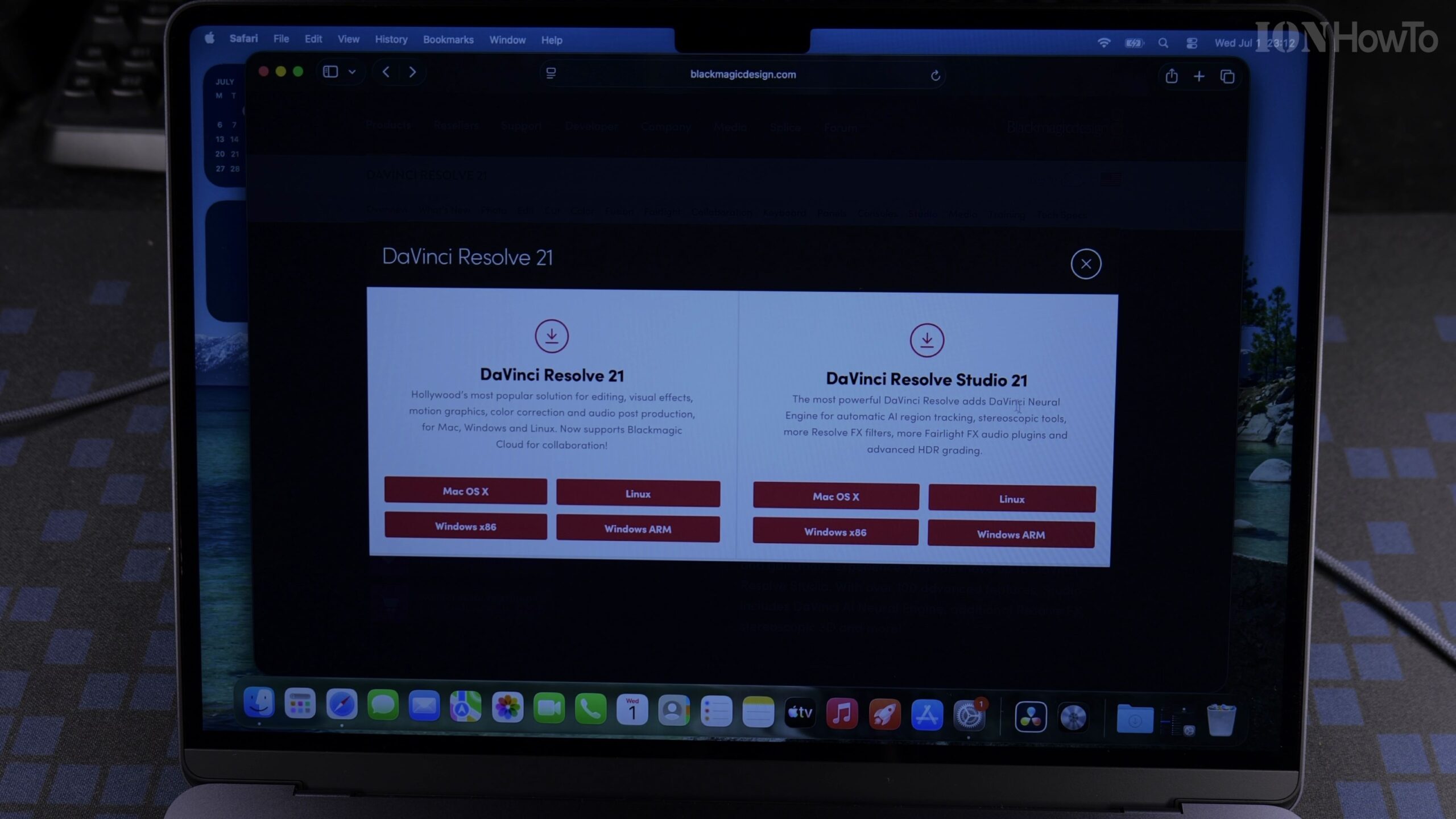
Navigate to the Blackmagic Design Support center in Safari and choose the Mac download for DaVinci Resolve Studio 21. Be careful not to pick the standard free version, as only the Studio installer accepts a license key.
Mount the Installer Image and Run the Package File
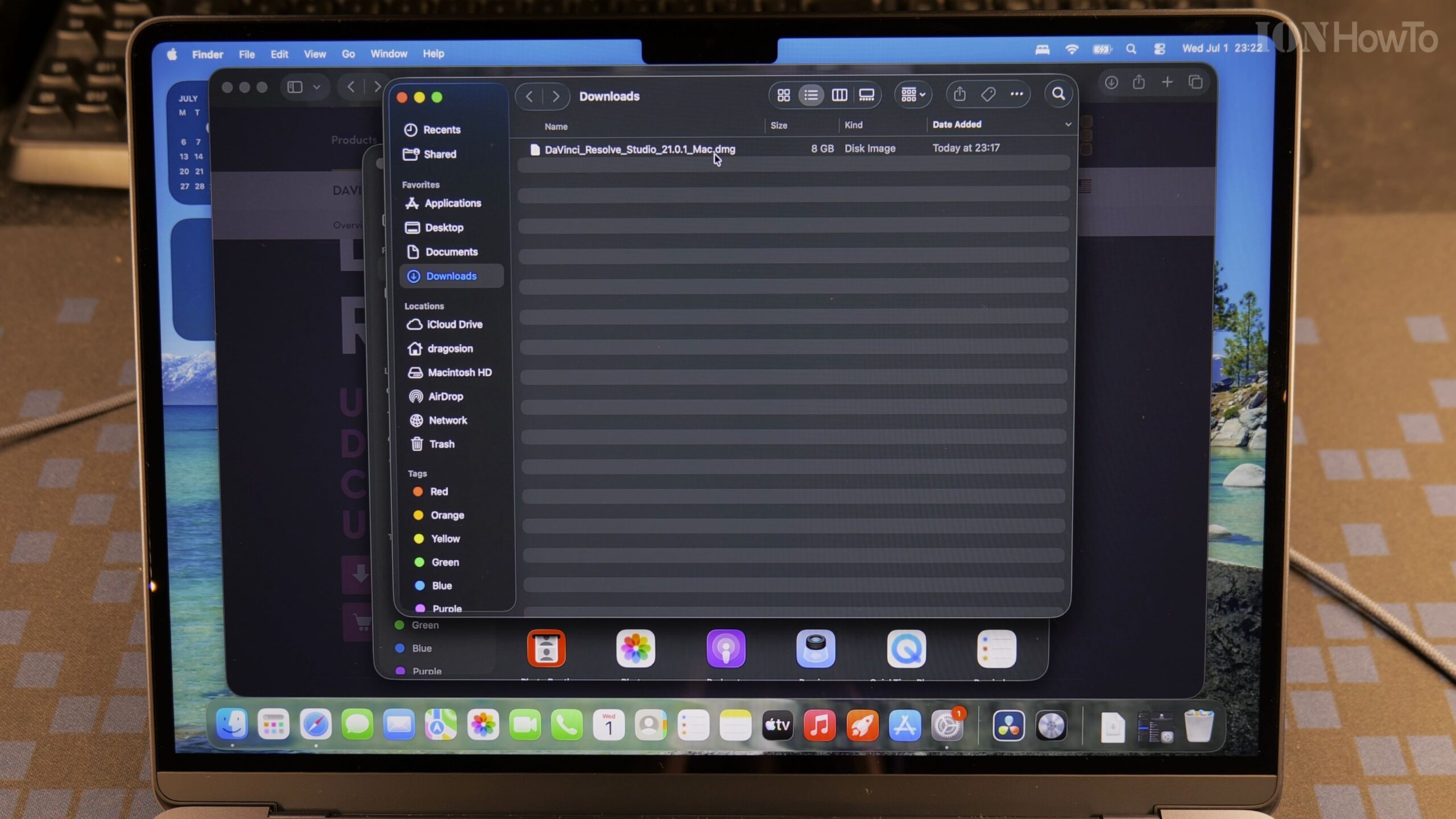
Open the downloaded file in your Downloads folder to mount the DaVinci Resolve Studio disk image, then double-click the Install Resolve package icon.
Complete the macOS 26.5 Installation Wizard
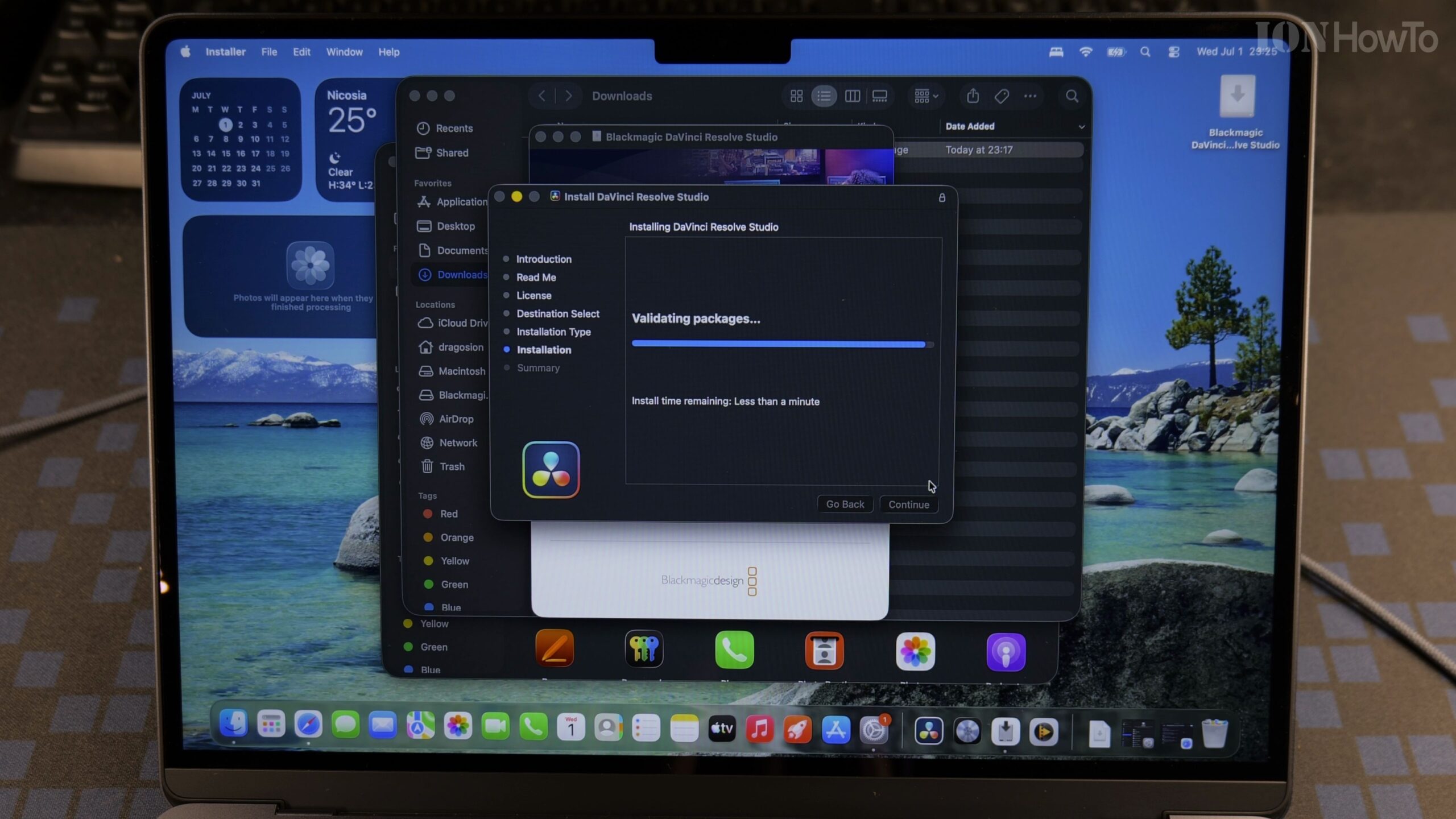
Click Continue and Agree to the software license terms, then authenticate with Touch ID or your Mac password on the MacBook Air M5 so the application installs to your 512GB SSD.
Open DaVinci Resolve Studio and Locate the License Prompt
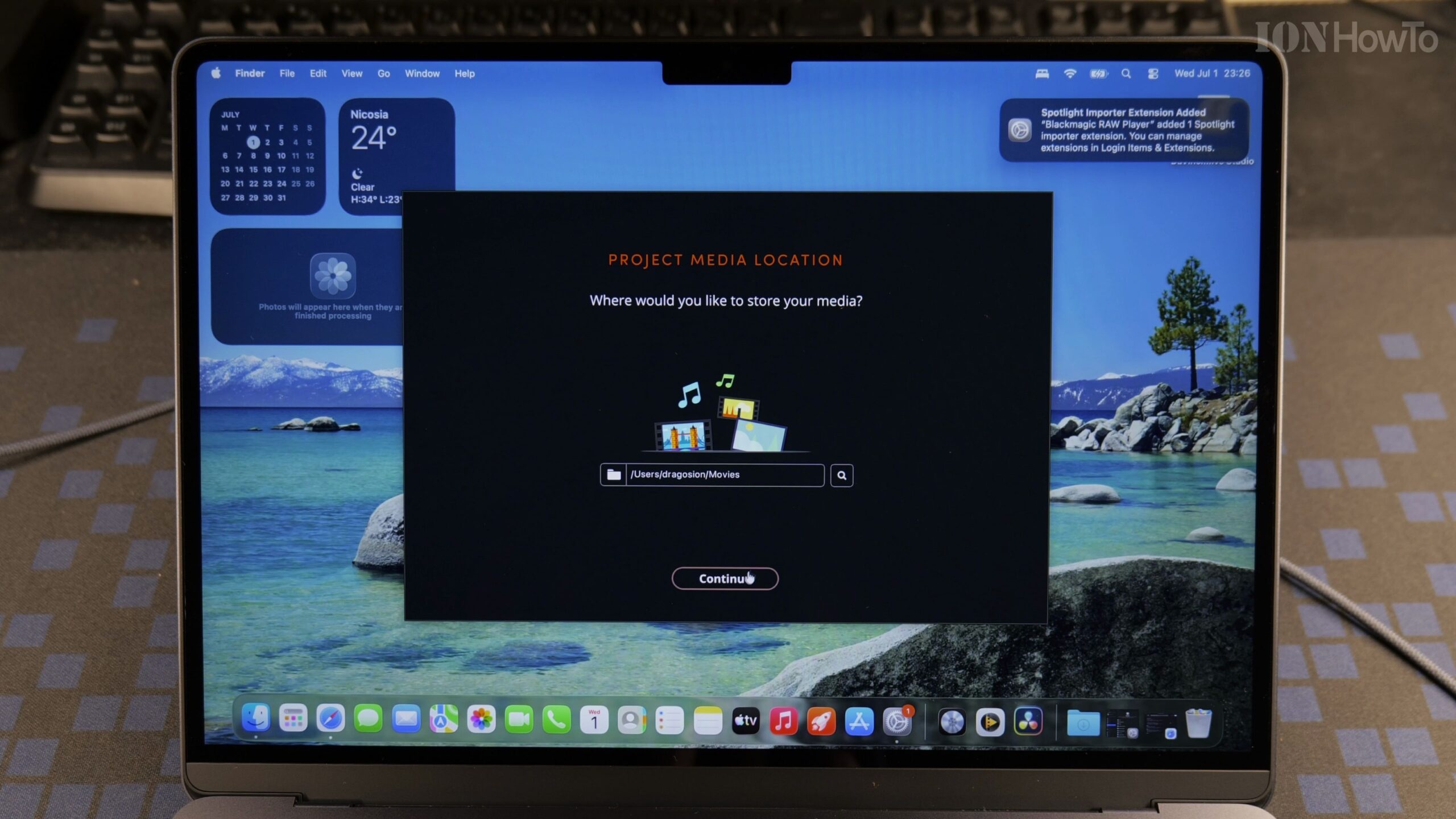
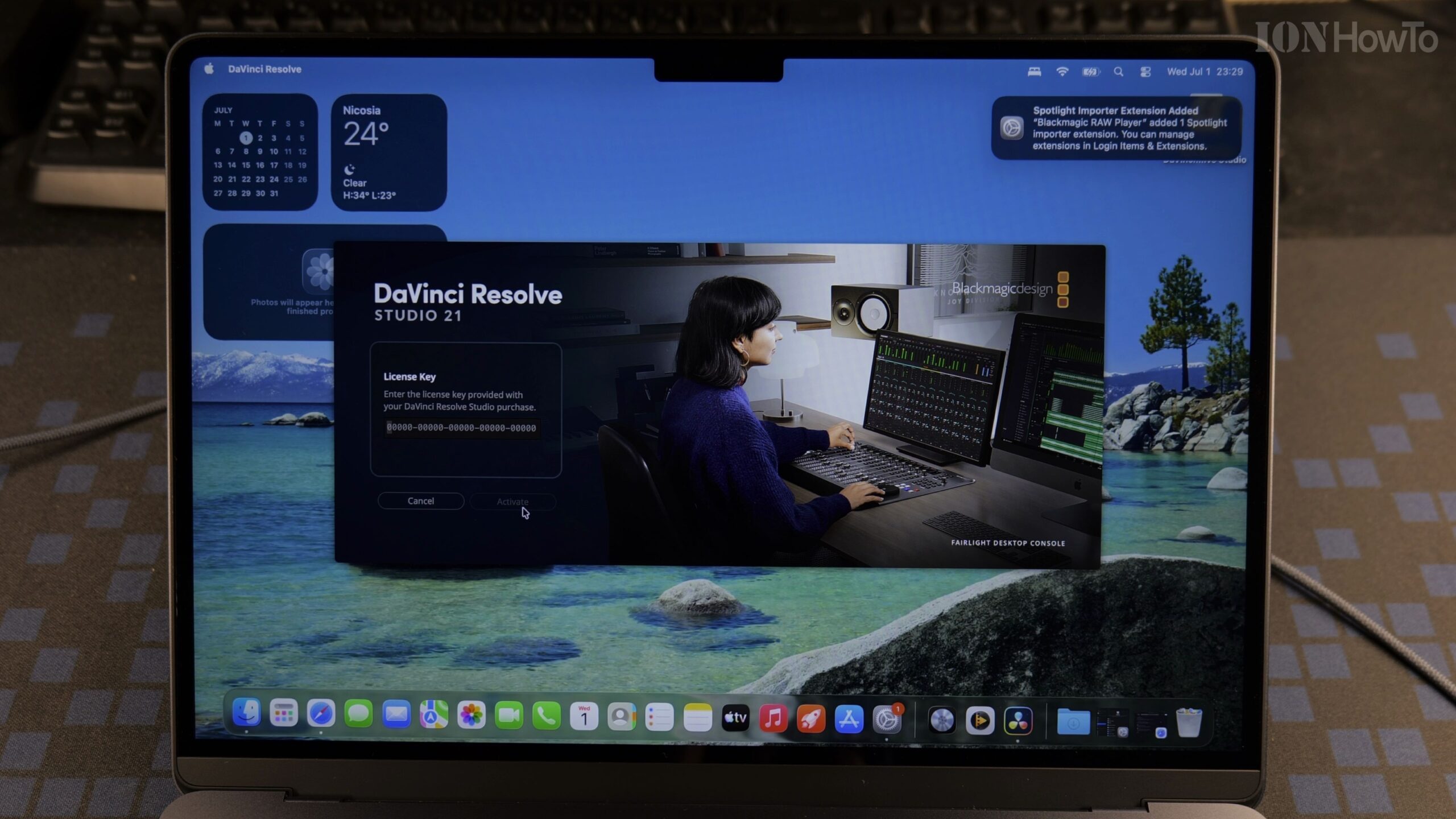
Launch DaVinci Resolve Studio from your Applications folder. When the license verification window appears on screen, select the option to enter your activation key.
Type the Speed Editor Serial Key and Click Activate
Enter the alphanumeric activation code printed on the card included with your Blackmagic Speed Editor controller and click Activate. DaVinci Resolve Studio 21 will immediately open to the Project Manager ready for editing.
Helpful Tips and Related Guides
Once activated, you can also connect your Speed Editor keyboard via Bluetooth or USB-C to edit timelines rapidly on your MacBook Air M5. Read more in our DaVinci Resolve Speed Editor category, check our DaVinci Resolve archive, or see our MacBook Air M5 4K Video Editing Performance Guide.


Leave a Reply