
When you open a brand-new 13-inch MacBook Air M5 for the first time, macOS 26.5 lets you either configure the laptop manually or use a nearby iPhone to transfer your Apple Account, Wi-Fi passwords, and iCloud preferences automatically. Here is the complete step-by-step first setup guide for the MacBook Air M5 (16GB RAM, 512GB SSD).
Open the MacBook Air M5 Lid and Select Language and Country
Lift the lid on your 13-inch MacBook Air M5; the laptop powers on automatically and greets you with the macOS setup assistant. Select your preferred language, country or region, and keyboard dictation settings.
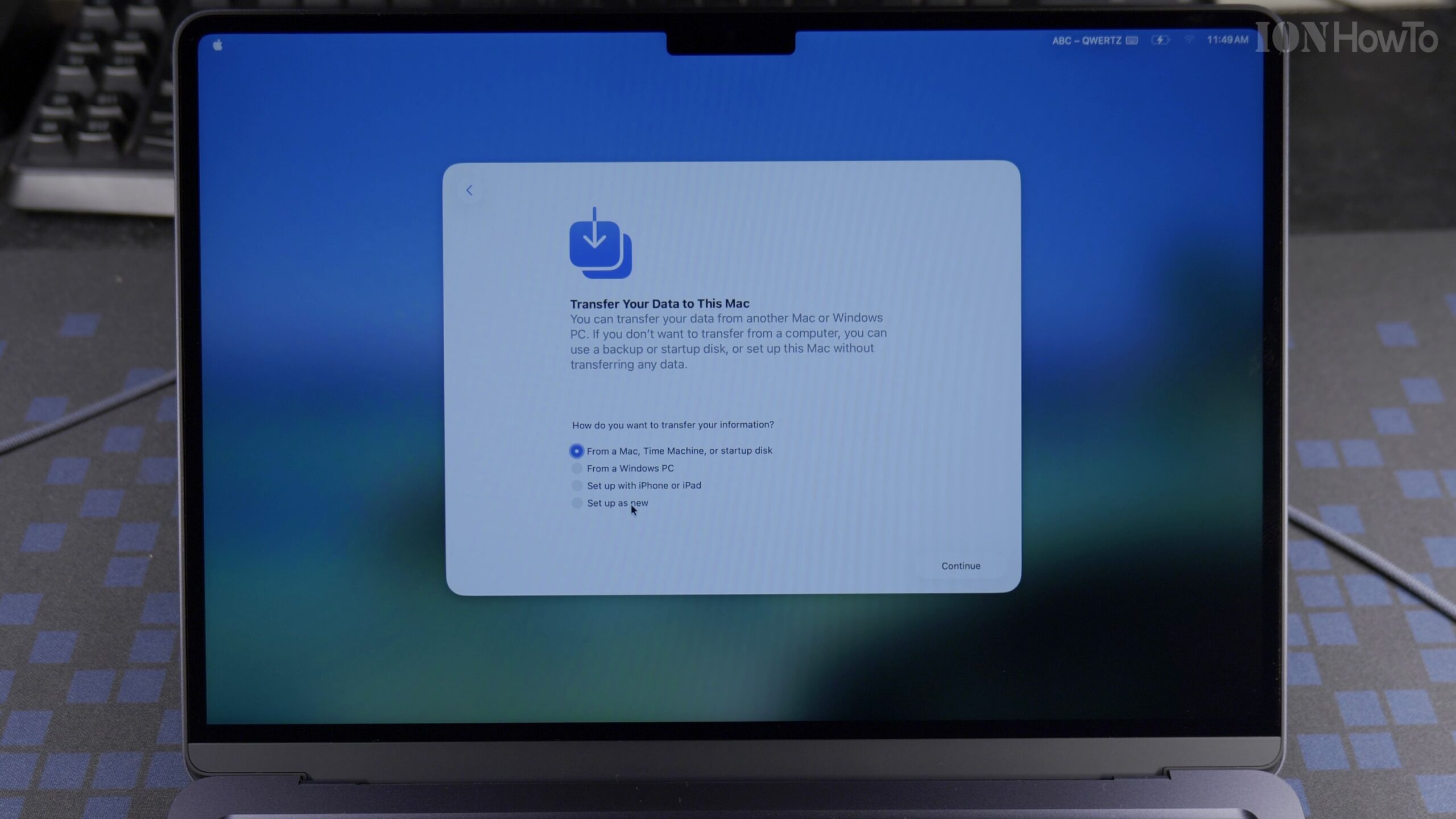
Use Your iPhone to Speed Up Setup or Configure Manually
When the Transfer Data to This Mac screen appears, choose Set Up with iPhone or iPad and bring your unlocked iPhone close to the MacBook. Scan the visual particle cloud on the Mac screen with your iPhone camera to transfer your Wi-Fi network and Apple Account credentials automatically.
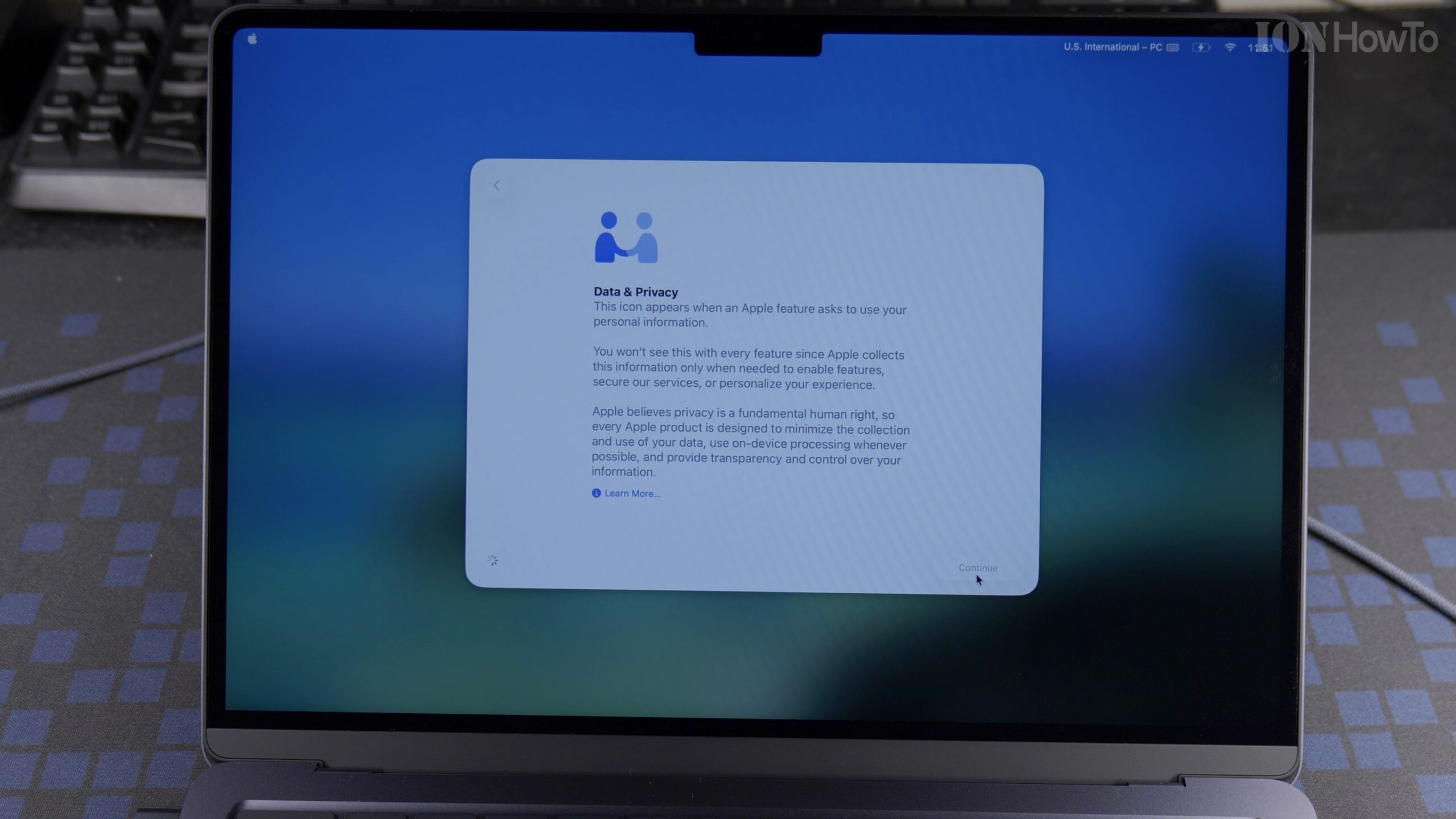
Create Your Computer Account Username and Password
Enter your full name and account username, then choose a strong local password for unlocking your MacBook Air M5 and approving system installations. Wait a moment while your Apple Account and iCloud Drive settings synchronize.
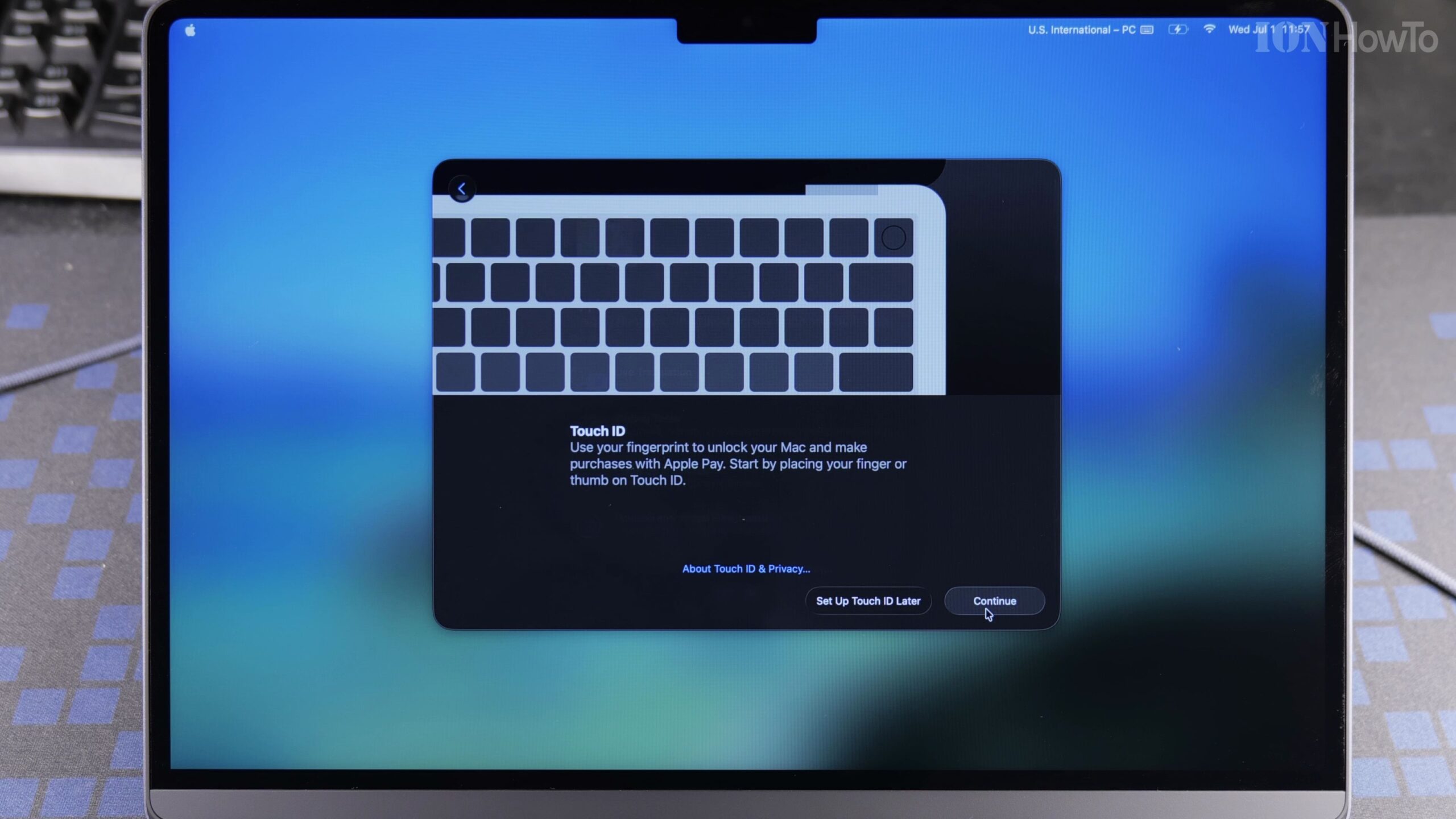
Enroll Your Fingerprint on the Touch ID Sensor
Place your index finger repeatedly on the circular Touch ID key at the top-right corner of the Magic Keyboard until all fingerprint ridges are captured. Touch ID lets you unlock your Mac and approve Apple Pay purchases without typing your password.
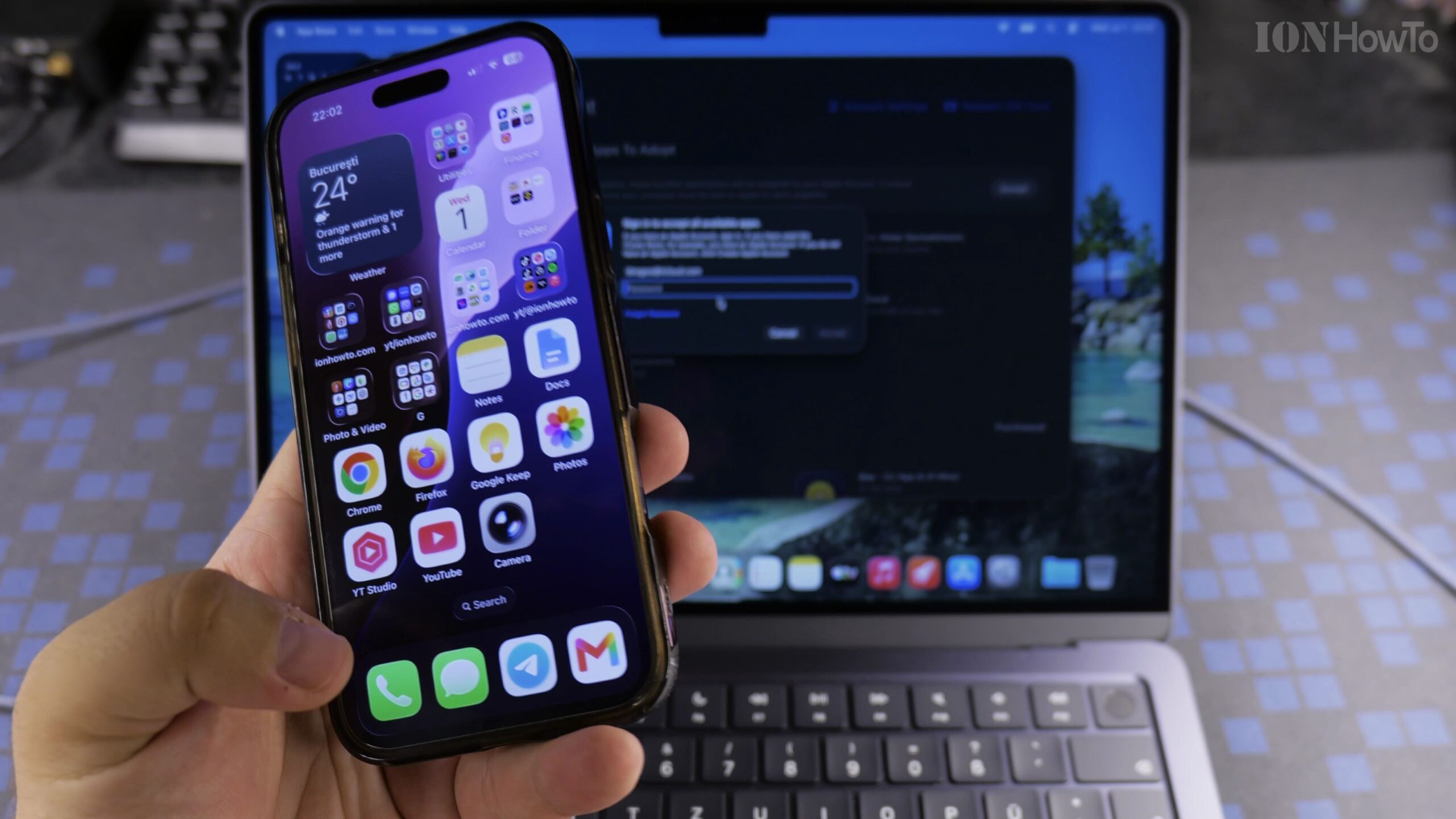
Choose Light or Dark Appearance, Check Storage, and Shut Down Properly
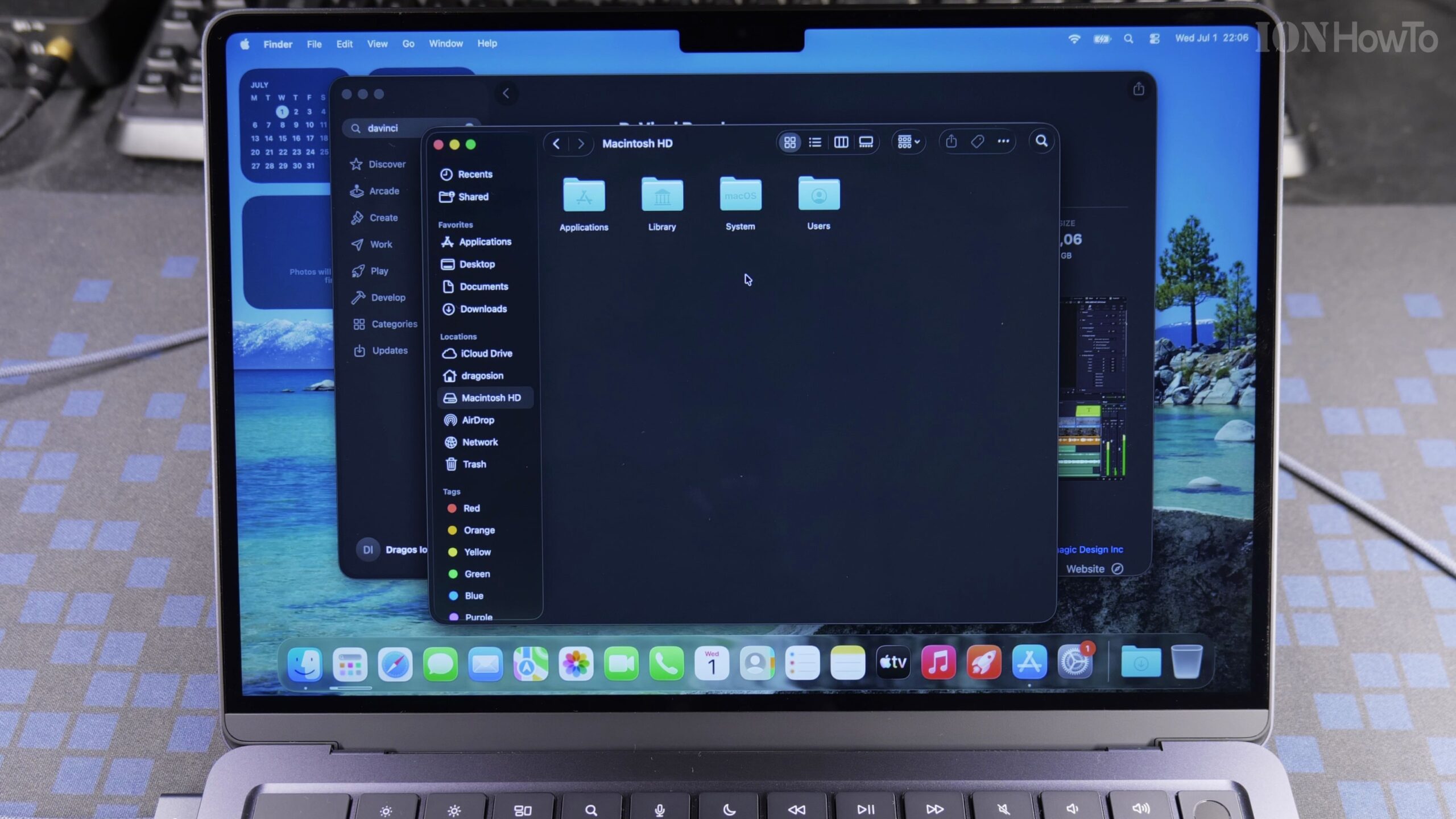
Select Light, Dark, or Auto appearance to enter the macOS 26.5 desktop. You can check your free storage space, iCloud folders, and battery level in System Settings, and use the Apple menu to Restart or Shut Down when not using the laptop for extended periods.
Helpful Tips and Related Guides
While keeping your MacBook Air M5 in sleep standby is convenient during the day, shutting it down completely when not in use preserves battery health over longer periods. Explore more in our MacBook Air M5 section, our Apple guides, and our Guide to Installing Chrome on MacBook Air M5.


Leave a Reply