
Keeping your phone address book updated makes sure you never dial an outdated number or send emails to an old address. In this step-by-step tutorial, I’ll show you how to quickly locate and edit any saved contact on an Android phone.
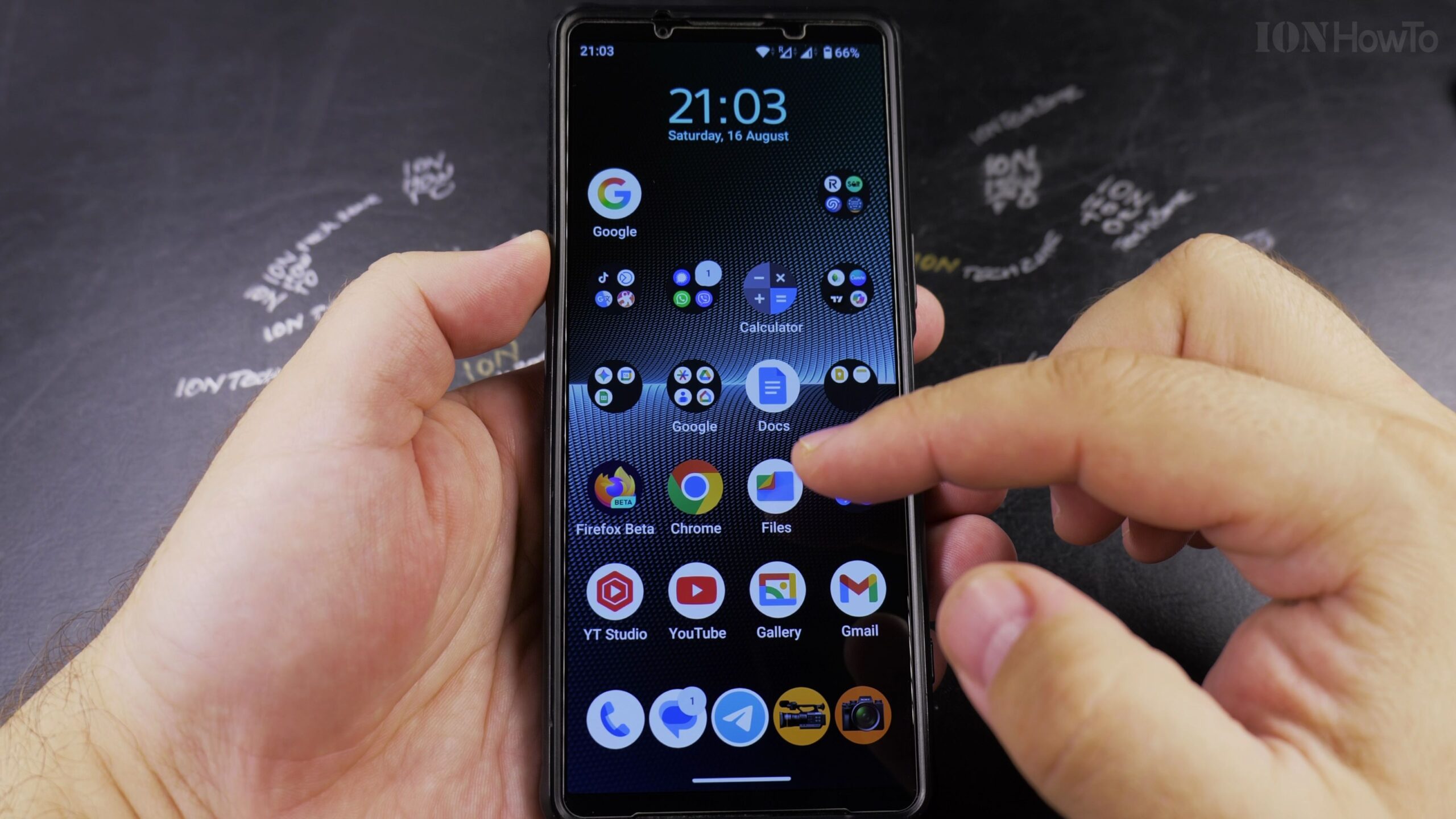
Open the Contacts App on Your Android Phone
Unlock your Android phone and open the Contacts app (or tap the Contacts tab inside your Phone dialer app).
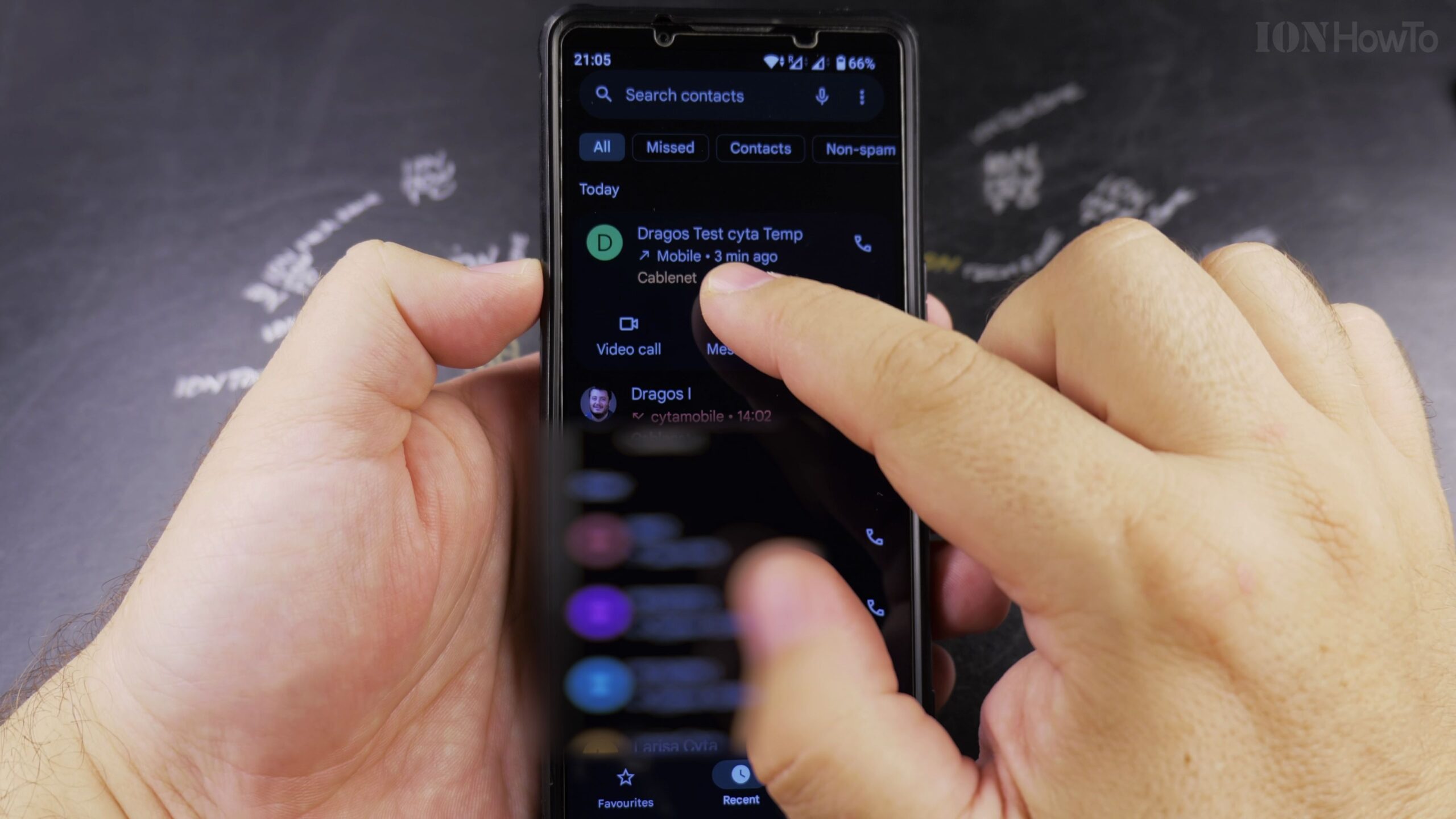
Search for and Select the Contact You Want to Modify
Scroll through your address book or tap the search bar at the top to type the person’s name, then tap on their contact card to open their details.
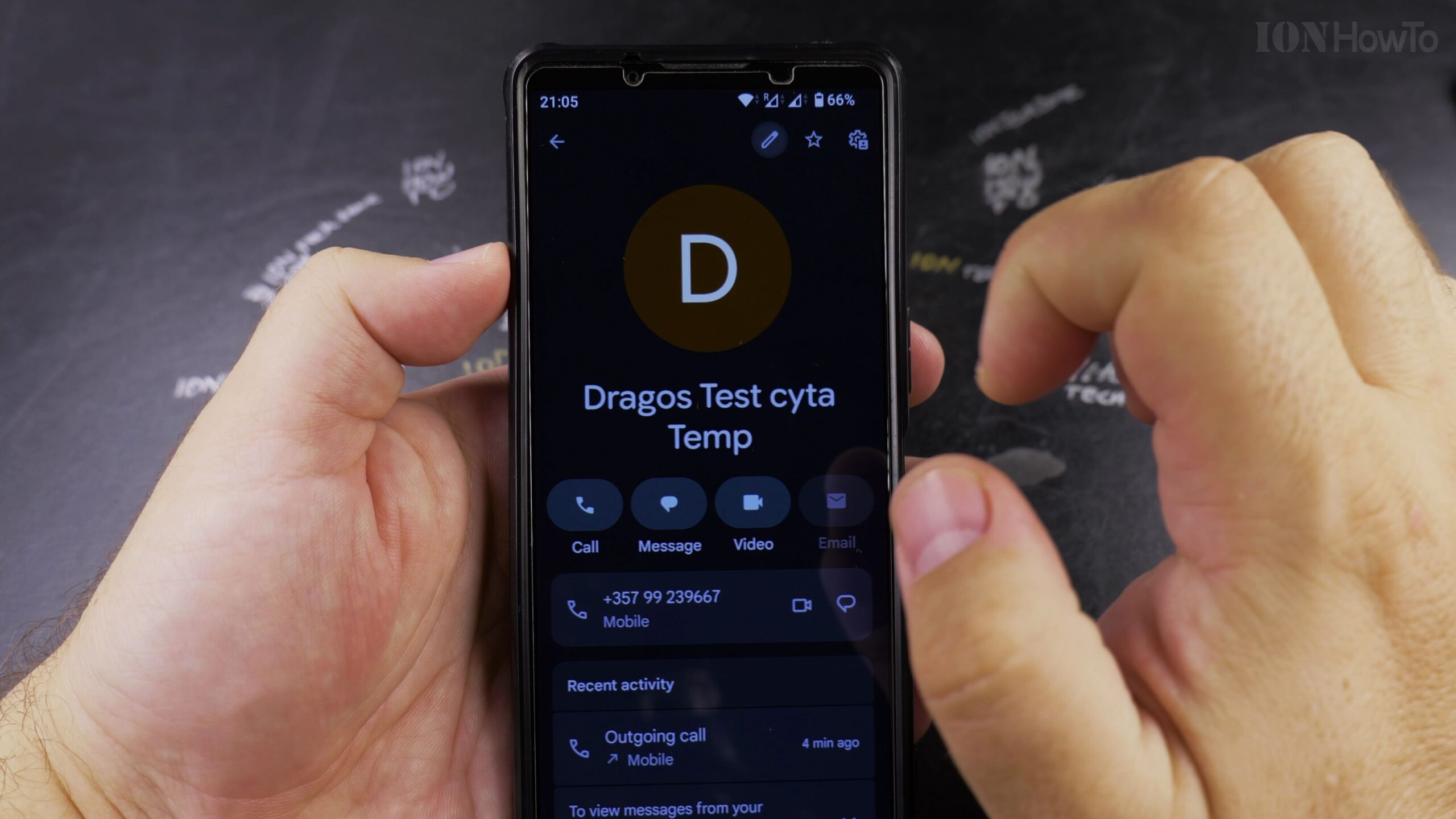
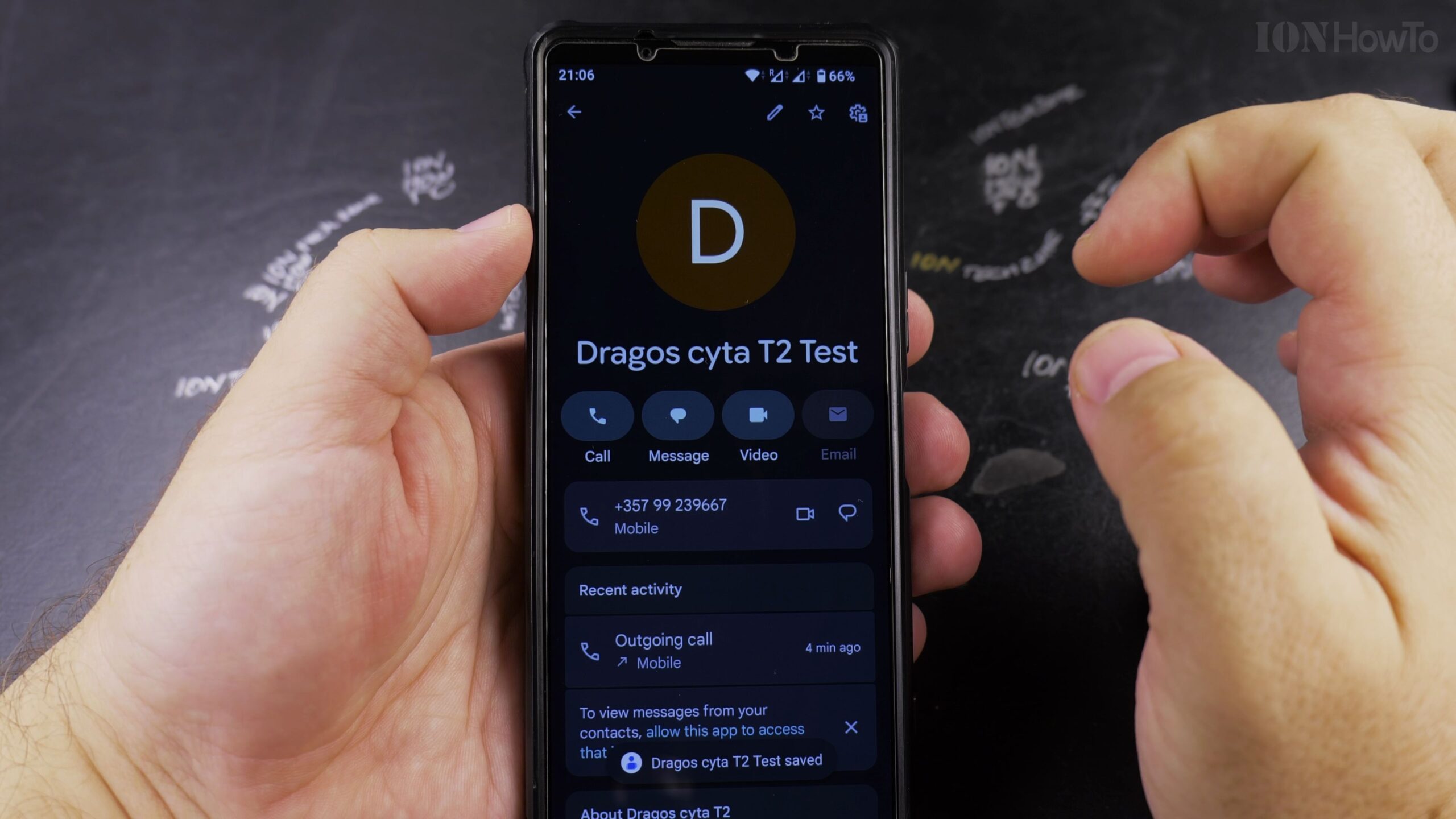
Tap the Pencil Edit Icon in the Corner
Tap the pencil icon (Edit contact) located at the bottom-right or top-right corner of the screen to enter editing mode.
Update the Name, Phone Number, Email, or Notes
Tap on any text field to update the contact’s name, mobile number, home email, or company details using your on-screen keyboard.
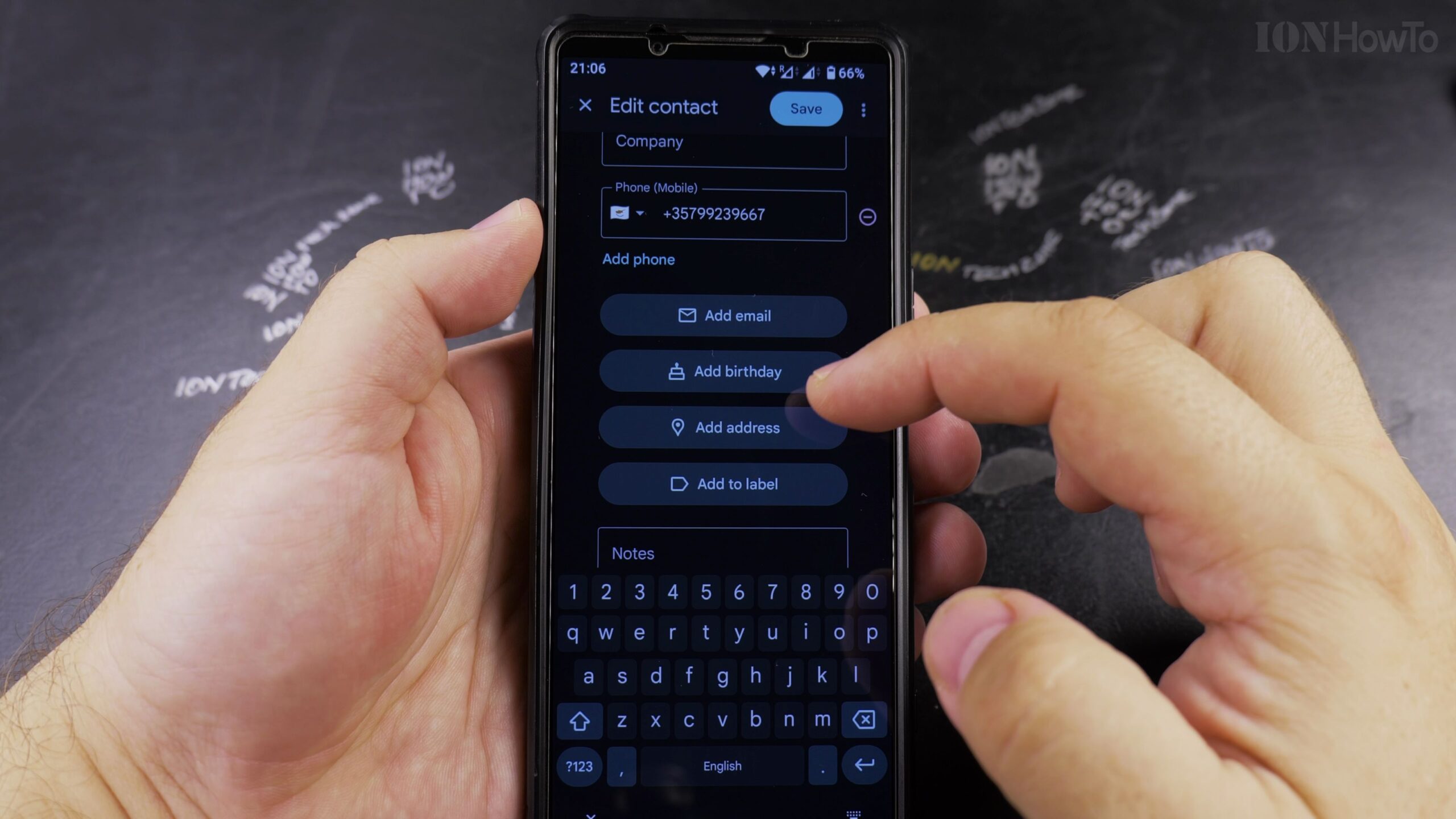
Tap Save to Store the Updated Information
Once you finish making corrections, tap Save in the top-right corner. The updated details will immediately synchronize across your phone and Google Account.
Helpful Tips and Related Guides
Saving contacts to your Google Account ensures all your edits automatically sync to any other Android phone or computer you use. Explore more helpful guides in our Android Tips section, check our Android Device Name Guide, or browse Android.


Leave a Reply