
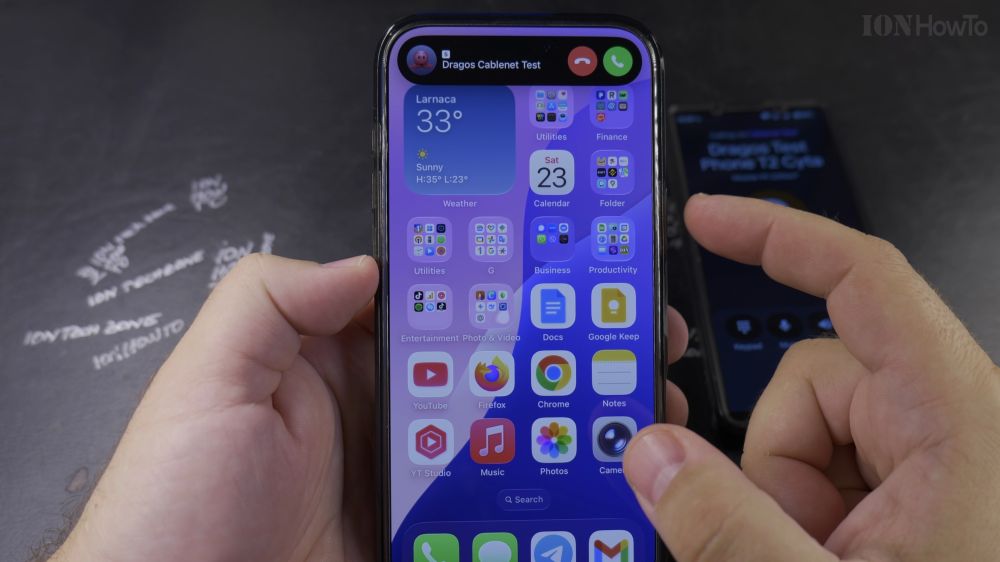
If you are new to iPhone, picking up incoming calls looks slightly different depending on If your phone is locked or unlocked. I’ll show you how to answer any call and switch to speakerphone in a few seconds.
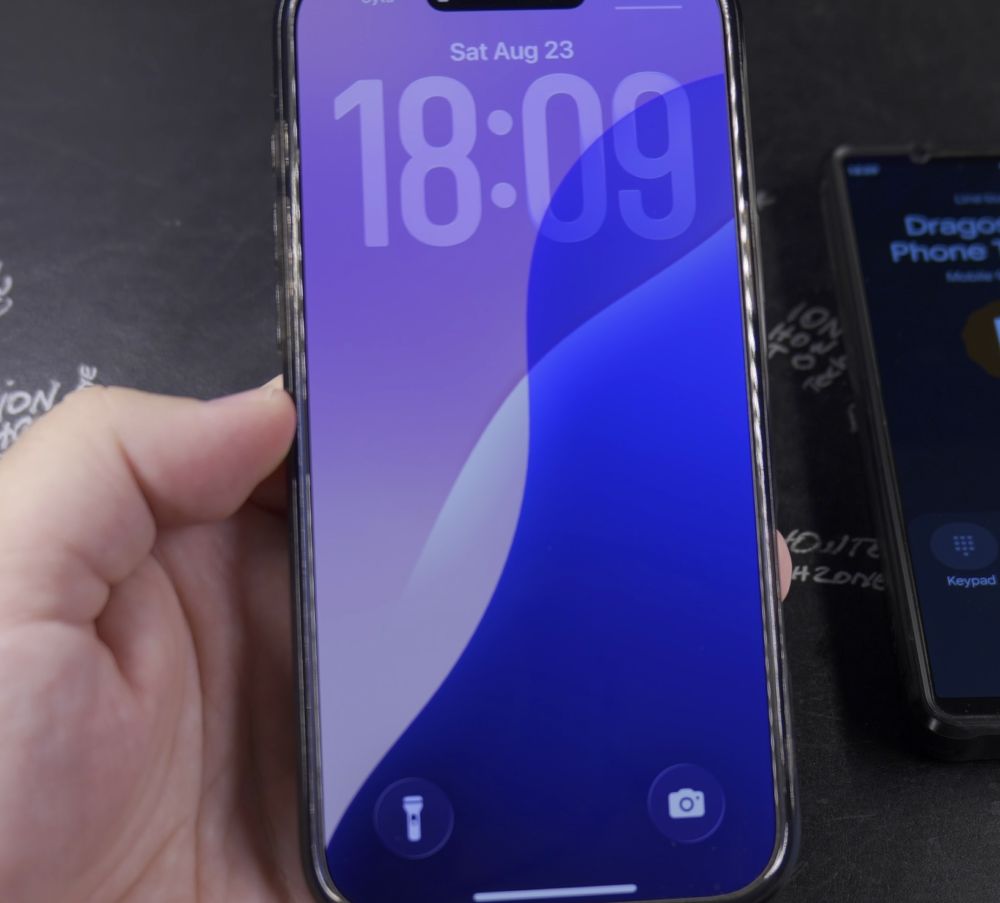
1. Answering on a Locked Screen
When your iPhone is locked and asleep, slide the white circular phone button in **slide to answer** all the way from left to right.
2. Answering While Using Your Phone
If you are already browsing or using an app, a compact banner drops down from the top. Tap the green **Accept** button.
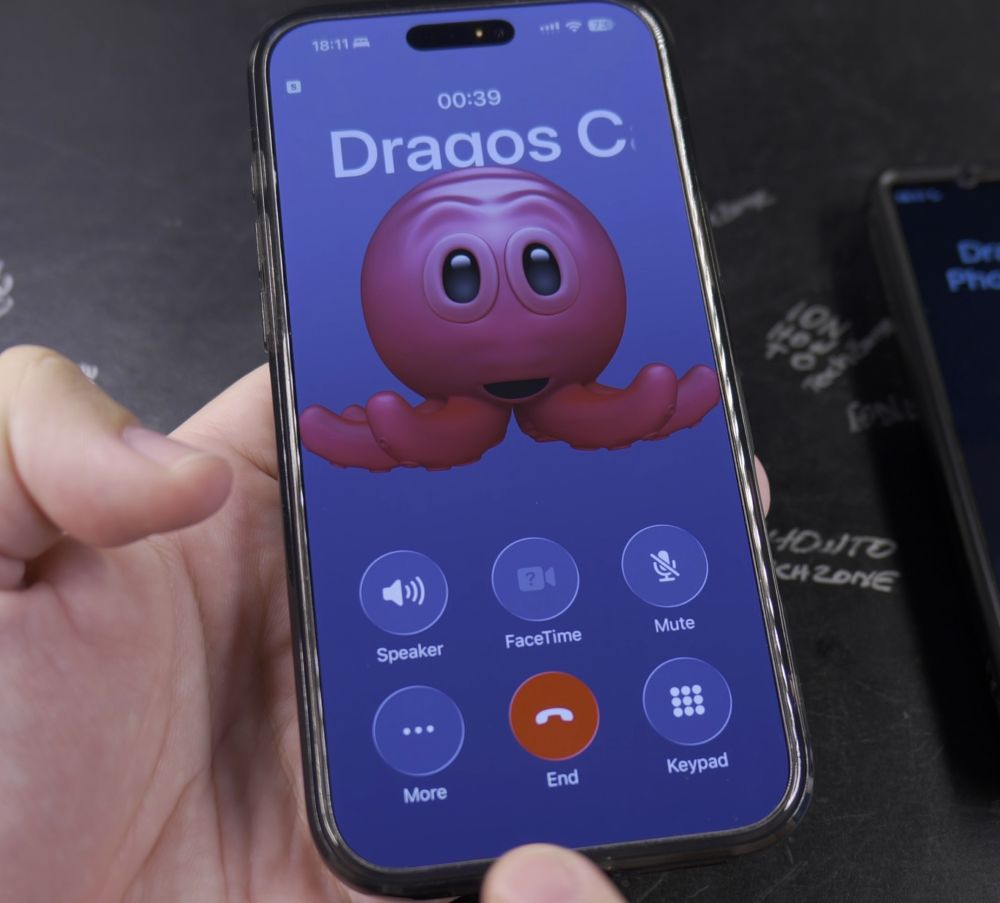
3. Putting the Call on Speaker
Once connected, tap the **Speaker** icon on the call screen so you can hear clearly without holding the phone to your ear.
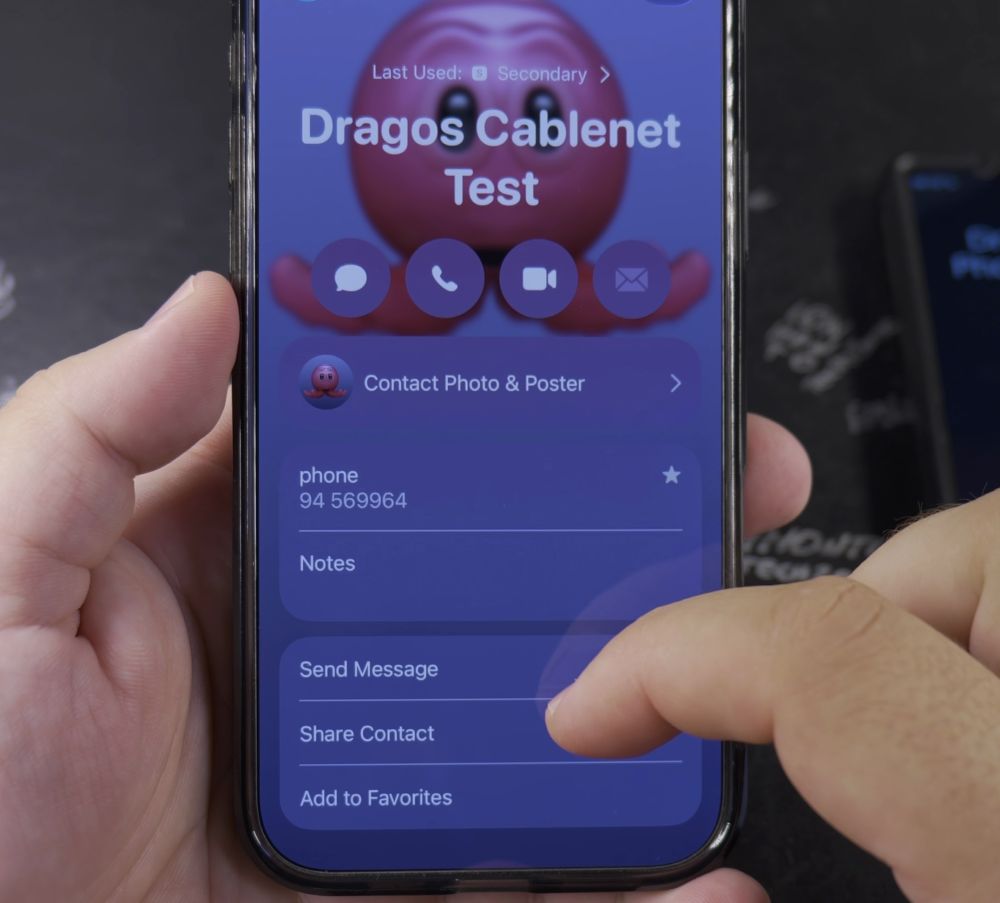
4. Muting Your Microphone
If you need to cough or speak privately to someone in the room, tap the **Mute** button with the crossed-out microphone.
5. Ending the Call
When your conversation is finished, tap the bright red circular **End Call** button at the bottom.
Helpful Tips
If your phone rings at an inconvenient moment, press the **Side button** once to silence the ringer instantly without hanging up. For more essential phone tips, check out our iPhone Guides collection.


Leave a Reply