
Installing Roblox on an Apple Silicon MacBook takes just a couple of minutes once you download the official installer directly from the Roblox website. In this step-by-step guide, we demonstrate how to download, install, and launch Roblox on the 13-inch MacBook Air M5 (Model A3449, 16GB RAM, 512GB SSD) running macOS 26.5.
Open Safari and Visit the Official Roblox Website
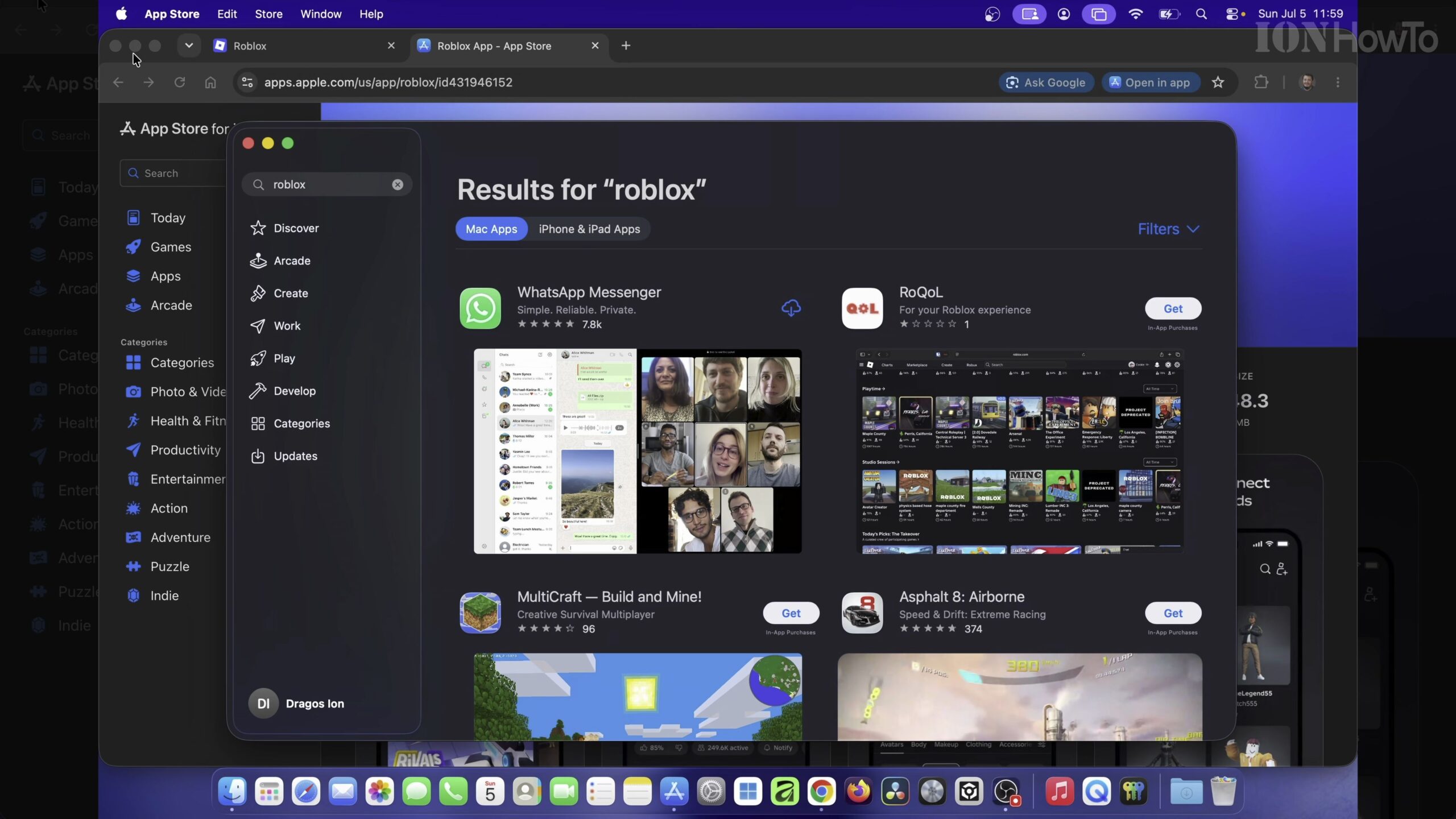
Launch Safari or your preferred browser on your MacBook Air M5 and navigate to the official Roblox website. Sign in to your existing Roblox account or select a game experience page to trigger the download prompt.
Download the Roblox.dmg Installer for Mac
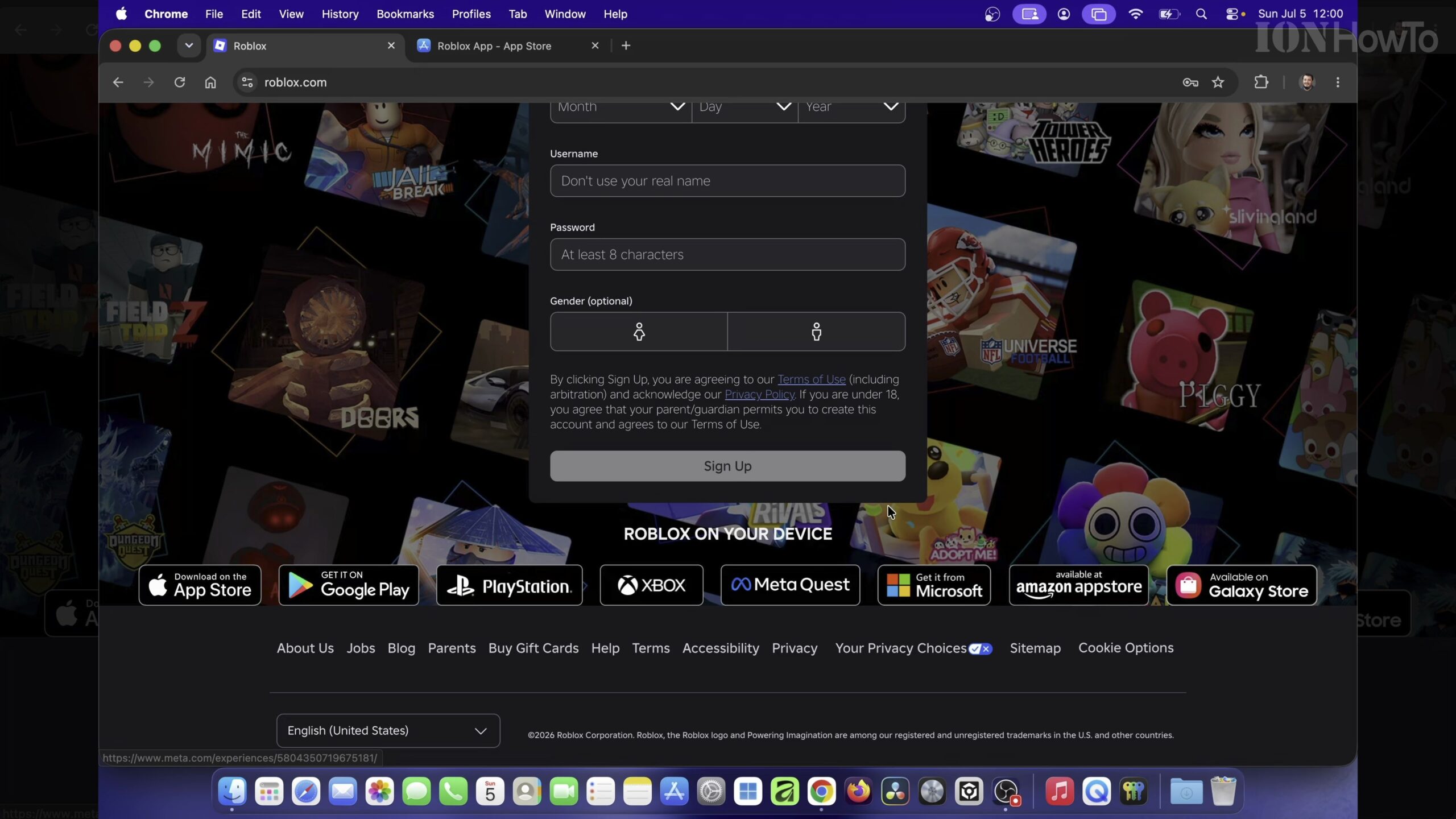
Click the green Play button on any game page, then click the Download and Install Roblox button when the pop-up window appears. Allow Safari to save the Roblox.dmg installer file into your Downloads folder.
Open the Downloaded DMG File and Run the Roblox Installer
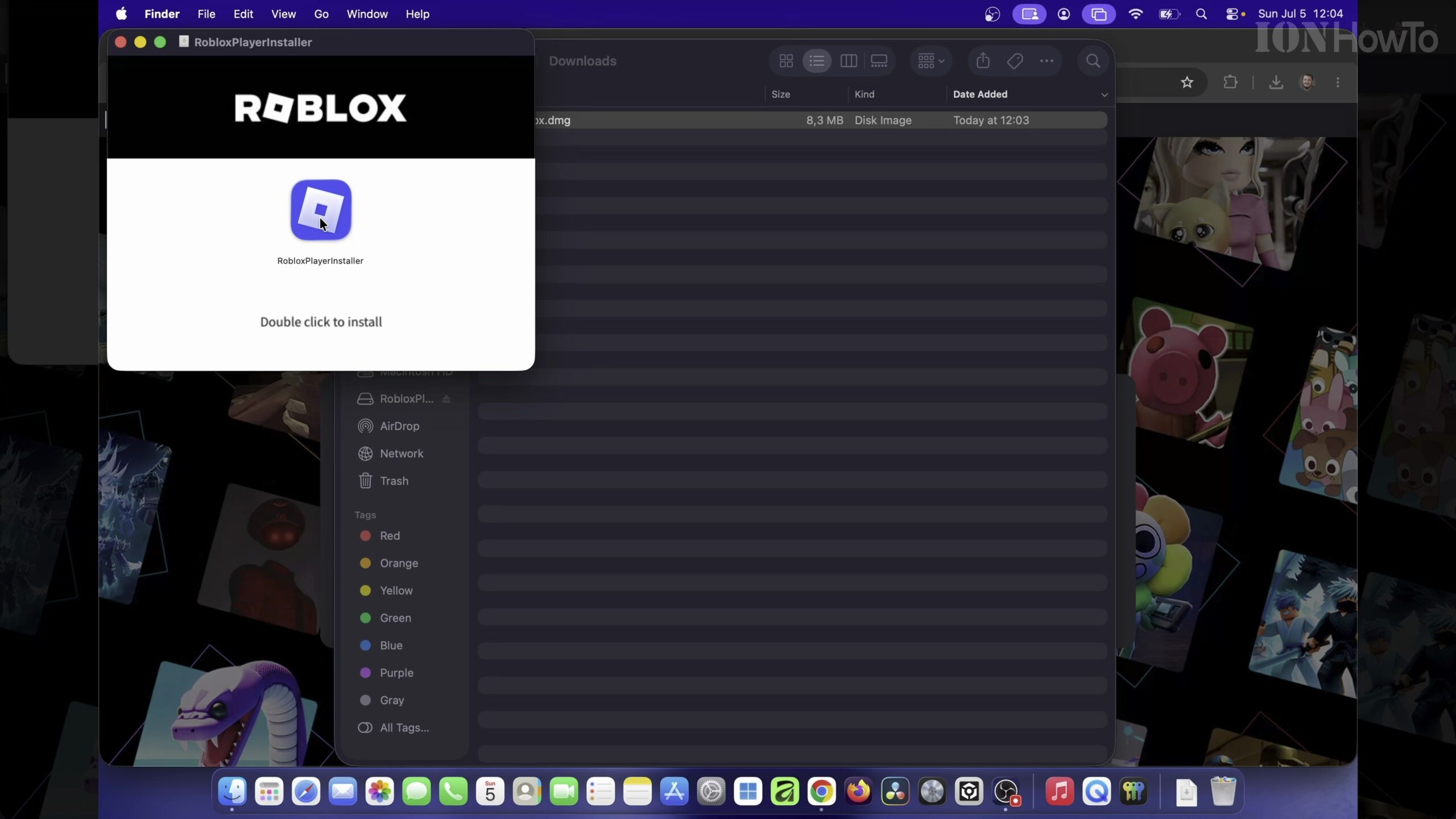
Click the Downloads icon on your macOS 26.5 Dock and double-click the Roblox.dmg disk image. When the installer window opens, double-click the Roblox Installer icon and confirm the security prompt to begin installation.
Wait for Roblox to Install into Your Applications Folder
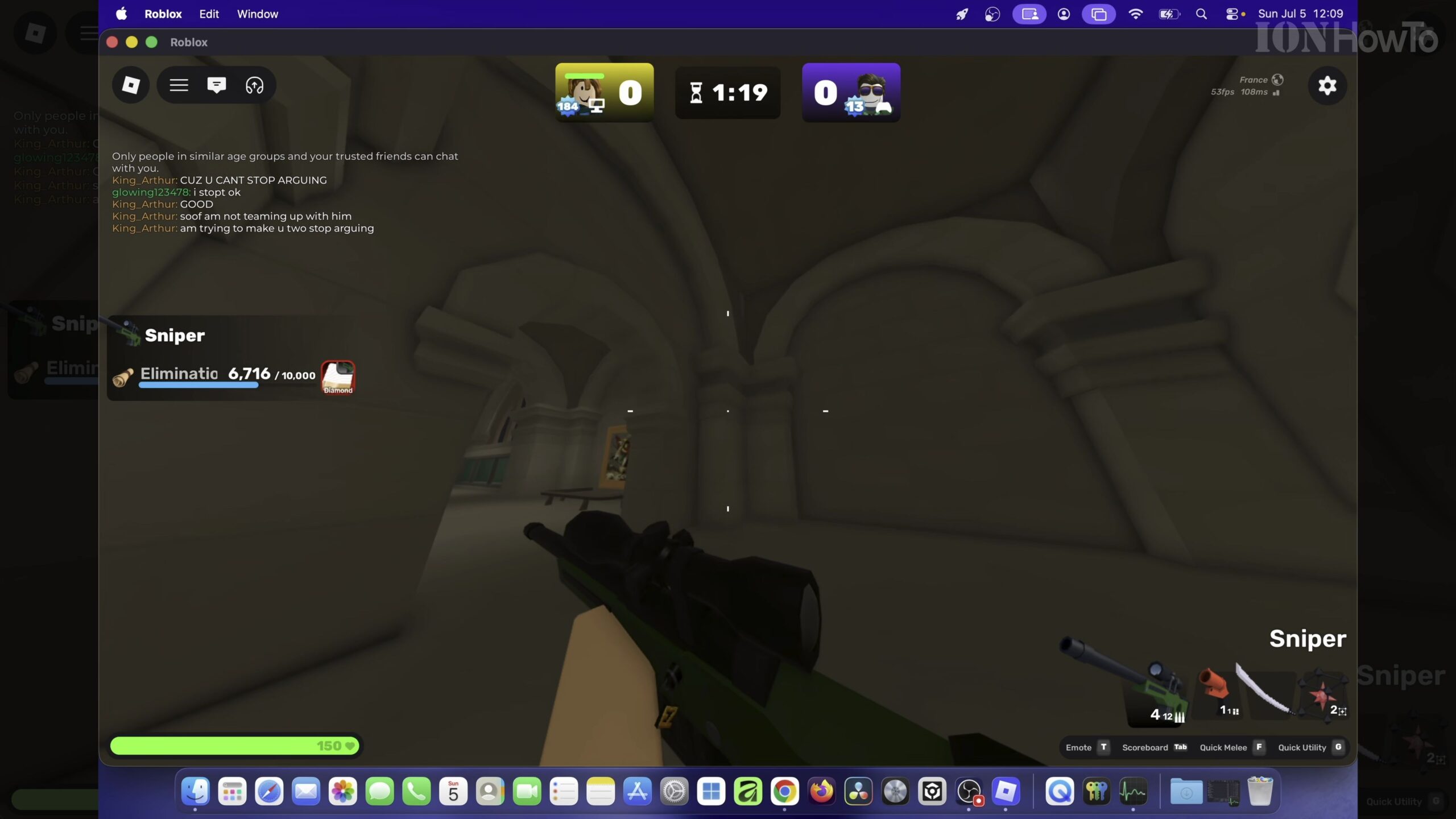
The progress bar will download and configure the native Apple Silicon version of the Roblox Player. Once finished, the installer automatically places the Roblox app inside your Mac Applications folder and launches the client.
Sign In to the Roblox Mac App and Eject the Installer Disk
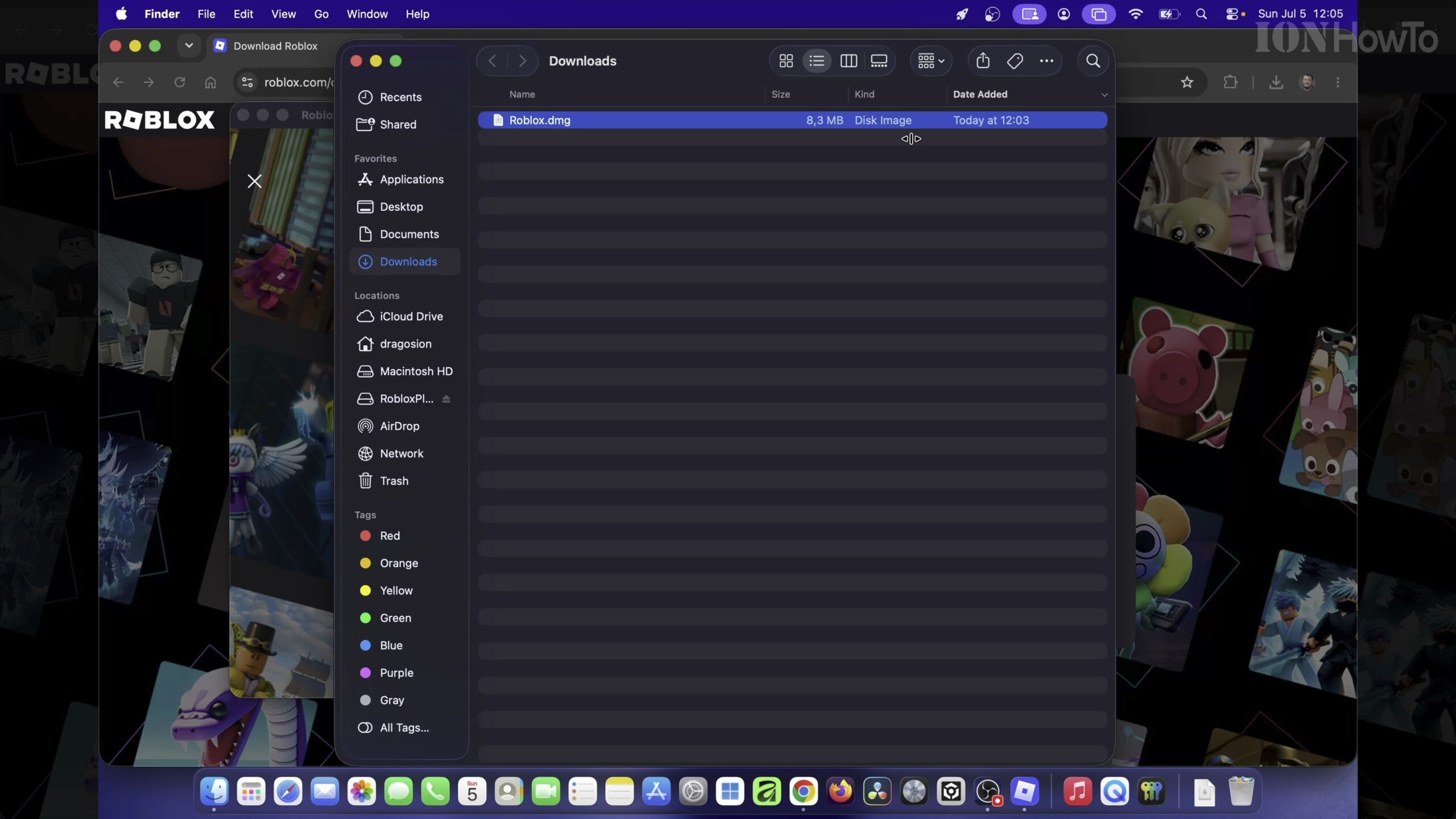
Verify that the Roblox desktop application opens cleanly on your 13.6-inch Liquid Retina display. Right-click the mounted Roblox installer volume on your desktop or in Finder and choose Eject so your system stays tidy.
Helpful Tips and Related Guides
Always download Roblox directly from the official website rather than third-party download portals to keep your Mac secure. For more gaming and Mac tutorials, check out our MacBook Air M5 guides, browse our Roblox How-To Guides, or see our MacBook Air M5 13-Inch Overview.


Leave a Reply