
Amazon links
As an Amazon Associate I earn from qualifying purchases:
- iPhone Accessories
- iPhone Charger
- iPhone Cases
- iPhone Screen protector
- iPhone Magsafe
- iPhone Wallet
- iPhone Usb c cable
Need some peace and quiet from constant notifications? Putting your iPhone in silent mode is easy. If you’re in a meeting, at the movies, or just need some quiet time, here’s how to quickly silence your device.
This guide works on all iPhone models including the iPhone 16 Pro Max (iOS 18.4.1), iPhone 15, and older versions.
How to Enable Silent Mode on iPhone.
Quick Steps and Scenarios Overview
| What You Need to Do | Quick Jump |
|---|---|
| Method 1: Use the Action Button as a Silent Switch | Jump to Step 1 |
| Method 2: Use the Silent Switch (Physical Button) | Jump to Step 2 |
| Method 3: Use Control Center | Jump to Step 3 |
| How to Check If Your iPhone Is in Silent Mode | Jump to Step 4 |
| If Your iPhone Is Still Silent | Jump to Step 5 |
Method 1: Use the Action Button as a Silent Switch
Newer iPhone have an Action Button on the left side above the volume buttons.
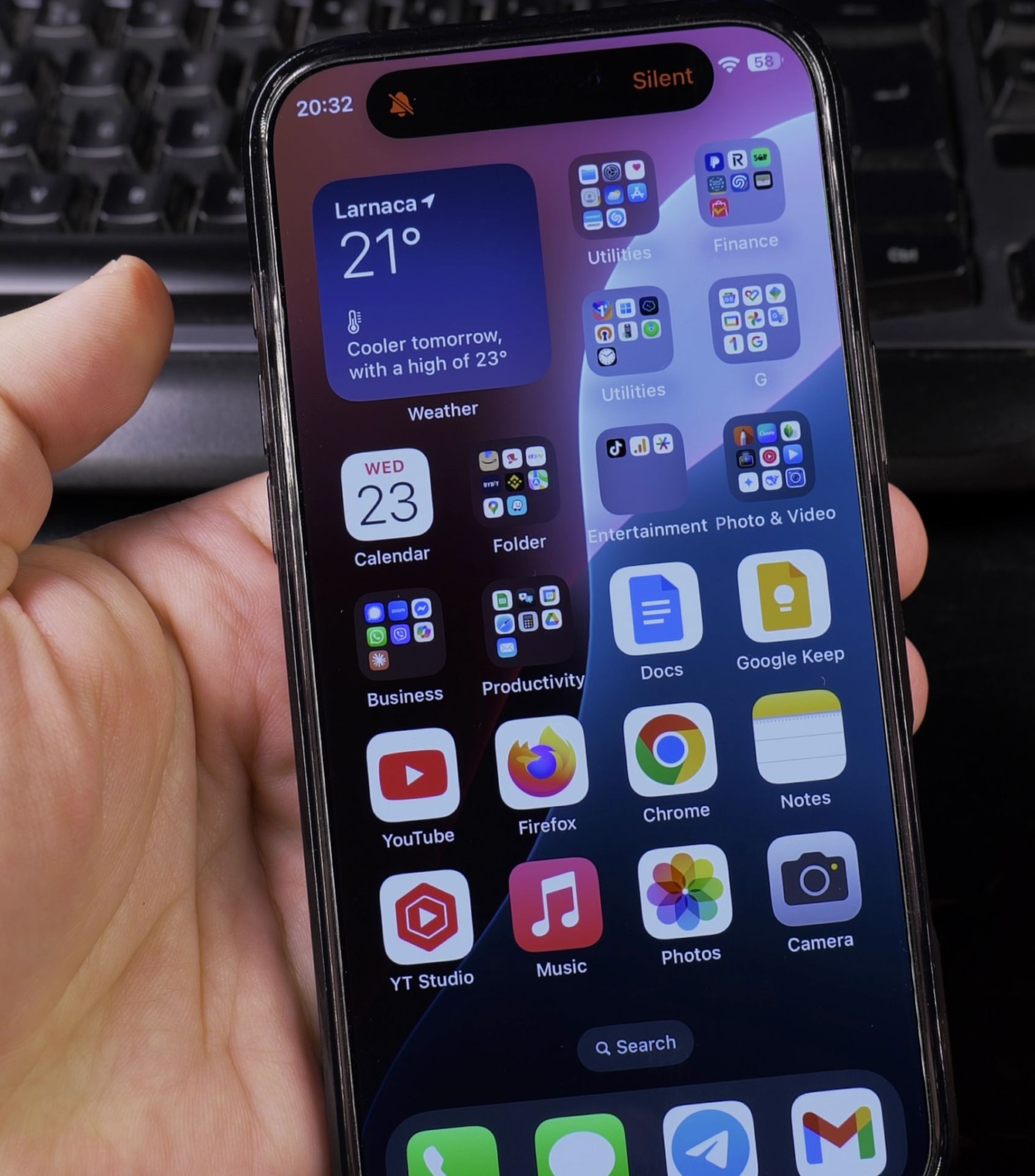
The default configuration for the action button is Silent mode toggle on or off.
- Long press the Action button to enable silent mode.
- Long press the action button again to disable silent mode.
Method 2: Use the Silent Switch (Physical Button)
Most iPhones have a physical switch to toggle silent mode:
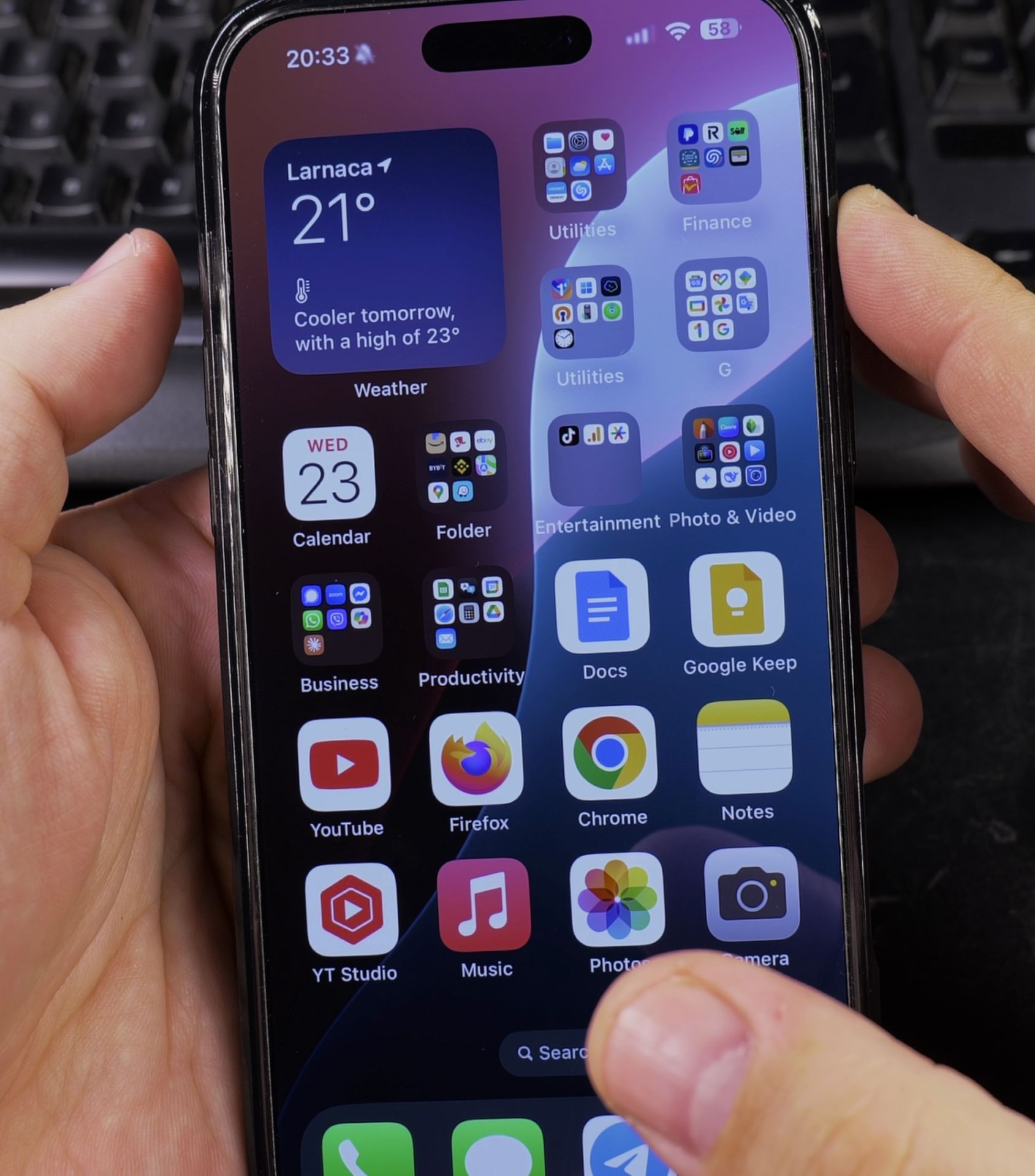
- Find the silent switch on the left side of your iPhone (above the volume buttons)
- Push the switch toward the back of your iPhone (you’ll see orange appear)
- Your iPhone is now in silent mode – you’ll feel a slight vibration when flipping the switch
To turn sound back on:
- Push the switch toward the front of your iPhone (orange will disappear)
- Your iPhone will now play sounds normally
Method 3: Use Control Center
If your iPhone doesn’t have a physical switch (or it’s not working):
- Swipe down from the top-right corner to open Control Center
- Tap the bell icon to toggle silent mode on/off
- The icon will be highlighted when silent mode is active
How to Check If Your iPhone Is in Silent Mode
Look for these indicators:
- Physical switch: Orange means silent mode is on
- Control Center: Bell icon highlighted means silent mode is on
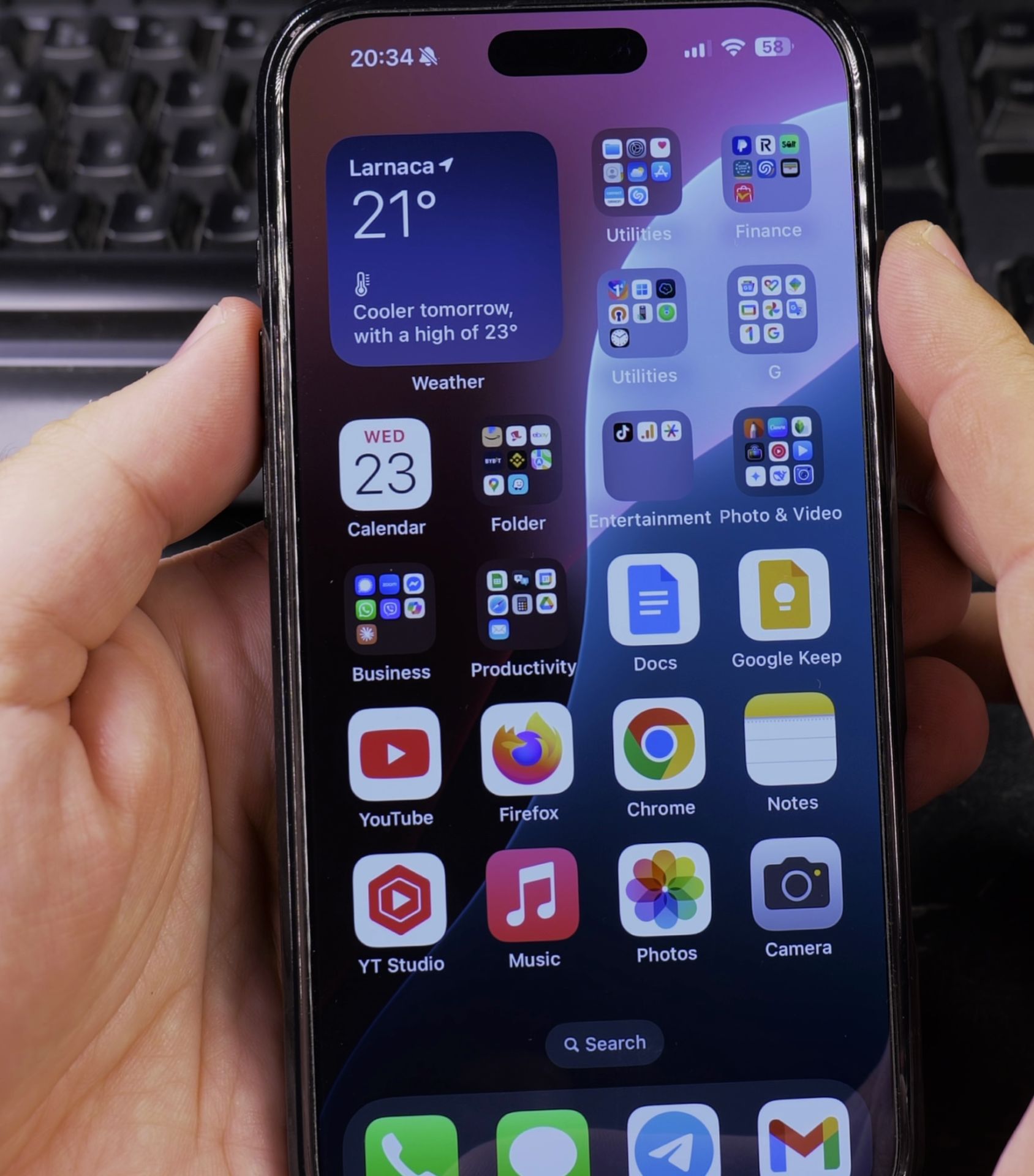
- Status bar: Some iPhones show a small bell icon with a slash when silent
If Your iPhone Is Still Silent
Try these fixes:
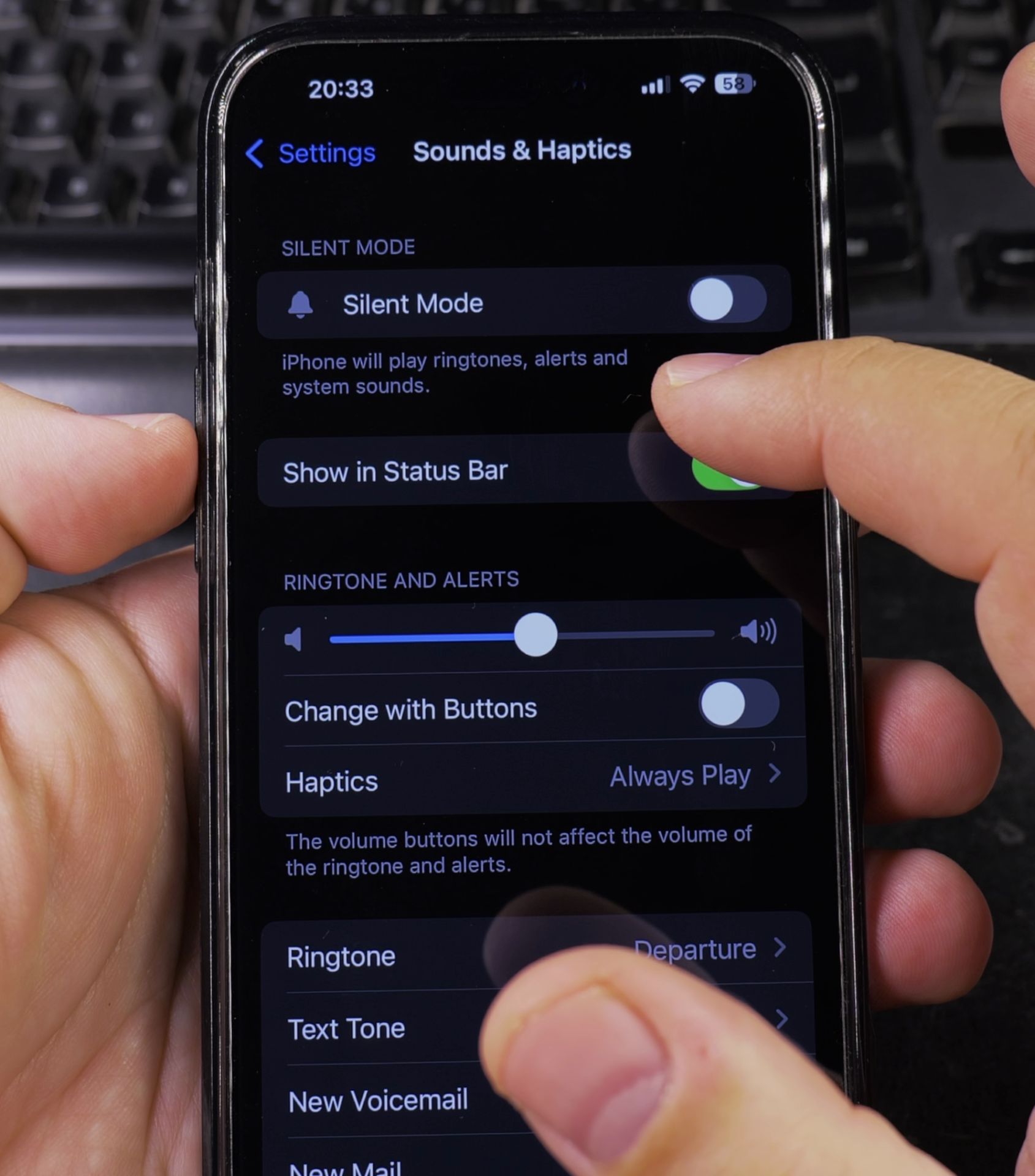
- Check your ringer volume in Settings > Sounds & Haptics
- Make sure Do Not Disturb isn’t enabled (moon icon in Control Center)
- Restart your iPhone if the silent switch isn’t working
Final Thoughts
Now you know how to quickly silence your iPhone when needed. The physical switch is the fastest method, but Control Center works great too. Remember that silent mode only affects notification sounds – alarms and media playback will still make noise.
Having trouble with your silent mode? Try checking both the physical switch and software settings to make sure everything is configured properly.
Did this help you control your iPhone’s sounds? Let us know in the comments!
Helpful Tips
Take your time and check the screen carefully after each tap so you can confirm the setting changed as expected. If an option appears in a slightly different spot on your device, watch the embedded video above for a closer look.
Related Guides
- Enable Do Not Disturb Focus Mode Silent on iPhone – How to Enable Do Not Disturb Focus Mode and Silent on iPhone.
- How to Prevent Airplane Mode from Being Turned On While Your iPhone Is Locked – When a thief steals an iPhone, their first instinct is to swipe down the Control Center and toggle on Airplane Mode so the…
- How to Turn Off Dark Mode on iPhone – If you prefer the classic light look or just want to switch back from dark mode, here's how to disable it across your iPhone…
- iPhone How-To Guides – Browse more tutorials and practical guides in this section.


Leave a Reply