

Tired of your phone updating apps when you don’t want it to? Learn how to take control of automatic updates on your Samsung Galaxy or other Android device.
Amazon links
As an Amazon Associate I earn from qualifying purchases:
- Phone Cases
- Mobile Tripods
- Usb-c charger
- Usb-c cable
- Docking stations
- Wireless car chargers
- Wireless charger stand
- SIM card removal tool
- SIM card holder
Quick Steps and Scenarios Overview
| What You Need to Do | Quick Jump |
|---|---|
| Why Turn Off Auto Updates? | Jump to Step 1 |
| How to Stop Apps from Auto-Updating | Jump to Step 2 |
| How to Stop Samsung System Updates | Jump to Step 3 |
| Open your Settings app | Jump to Step 1 |
| Scroll down and select Software update | Jump to Step 2 |
| Tap Download and install | Jump to Step 3 |
Tested on: Samsung Galaxy S23 Ultra (Android 14, OneUI 6.1)
Why Turn Off Auto Updates?
- Save mobile data when you’re not on WiFi
- Avoid unexpected changes to apps you like
- Prevent updates from draining your battery
- Choose when to install system updates
How to Stop Apps from Auto-Updating
Turn Off All App Updates
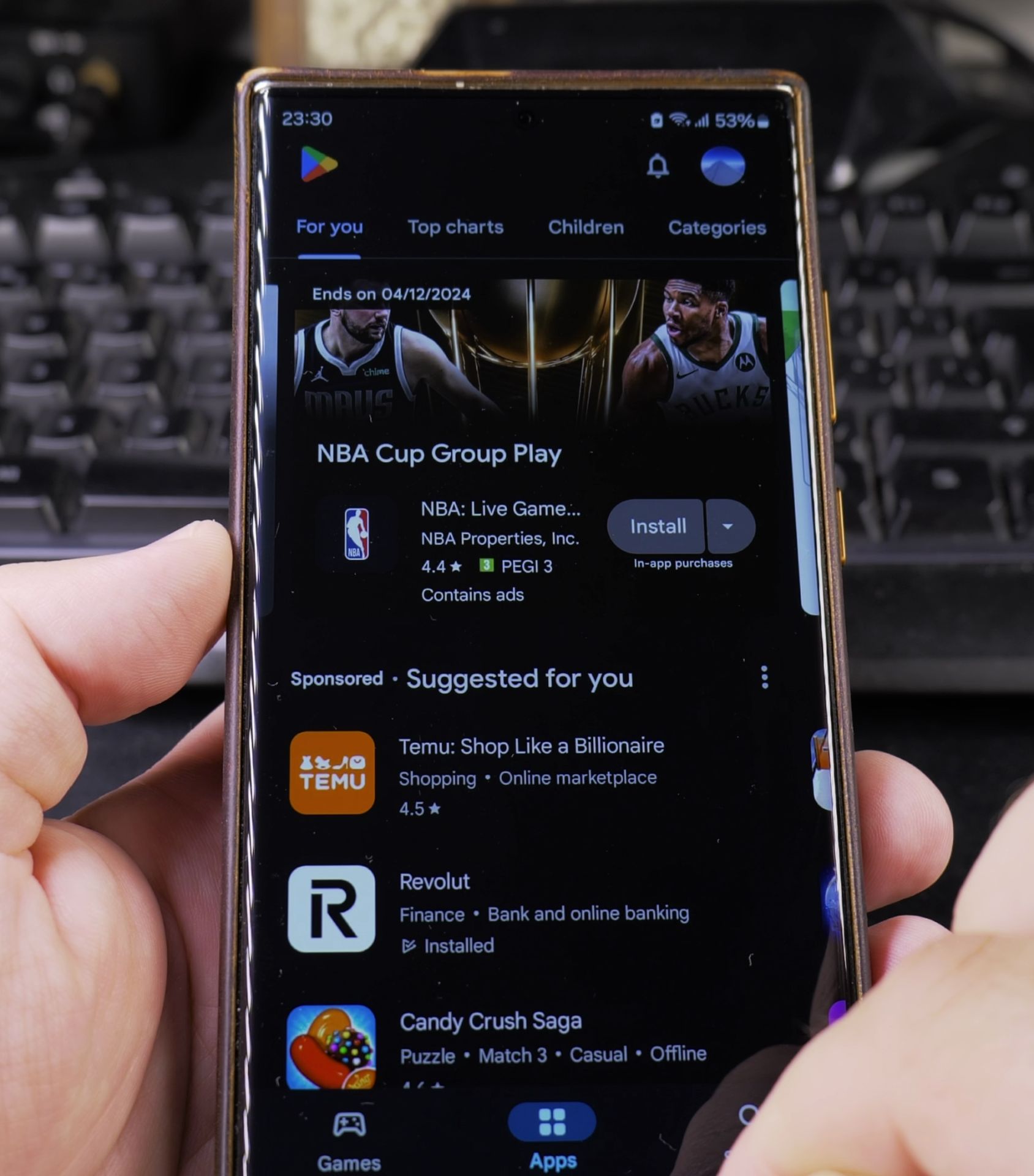
- Open the Google Play Store app
- Tap your profile picture in the top right corner
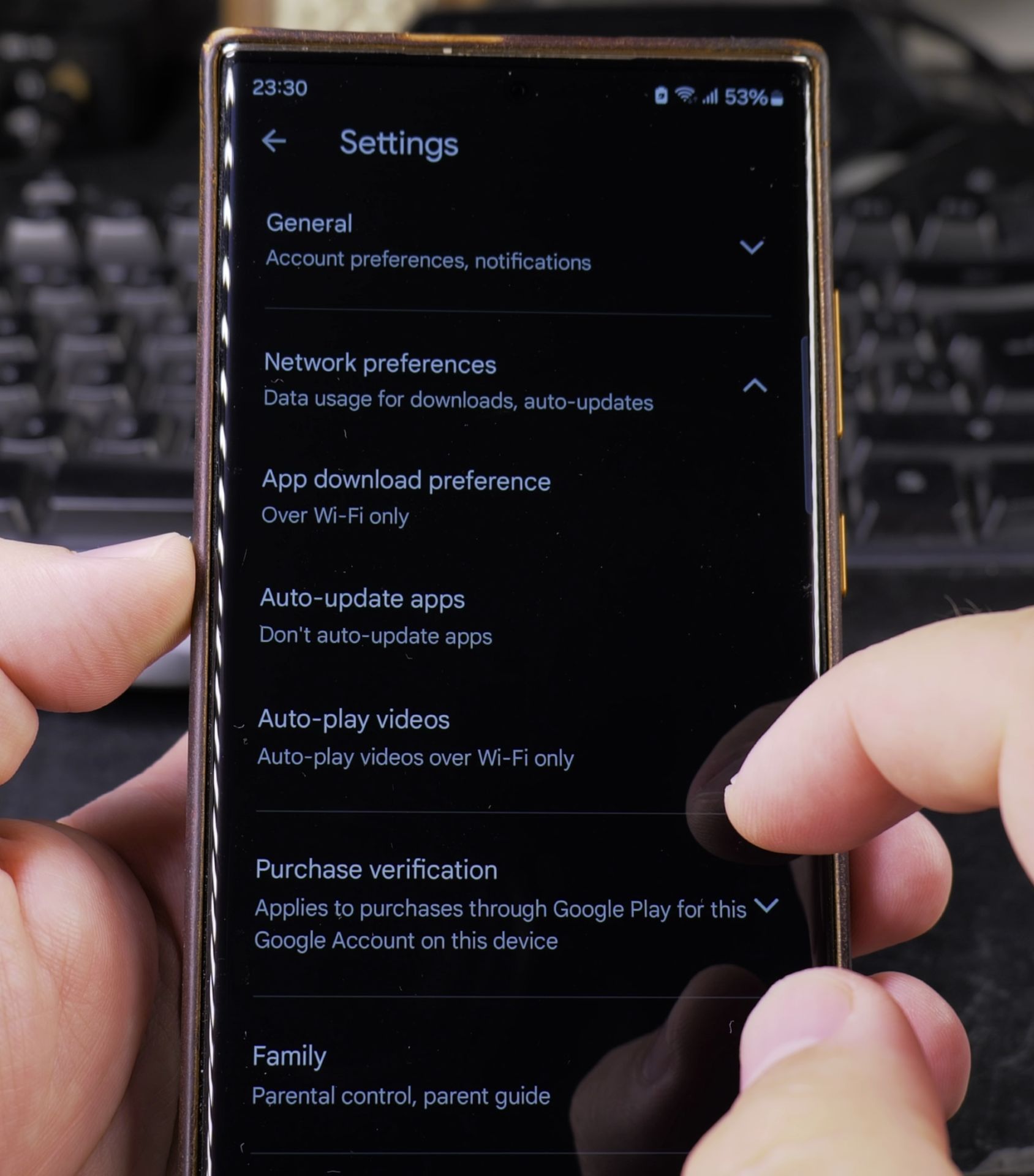
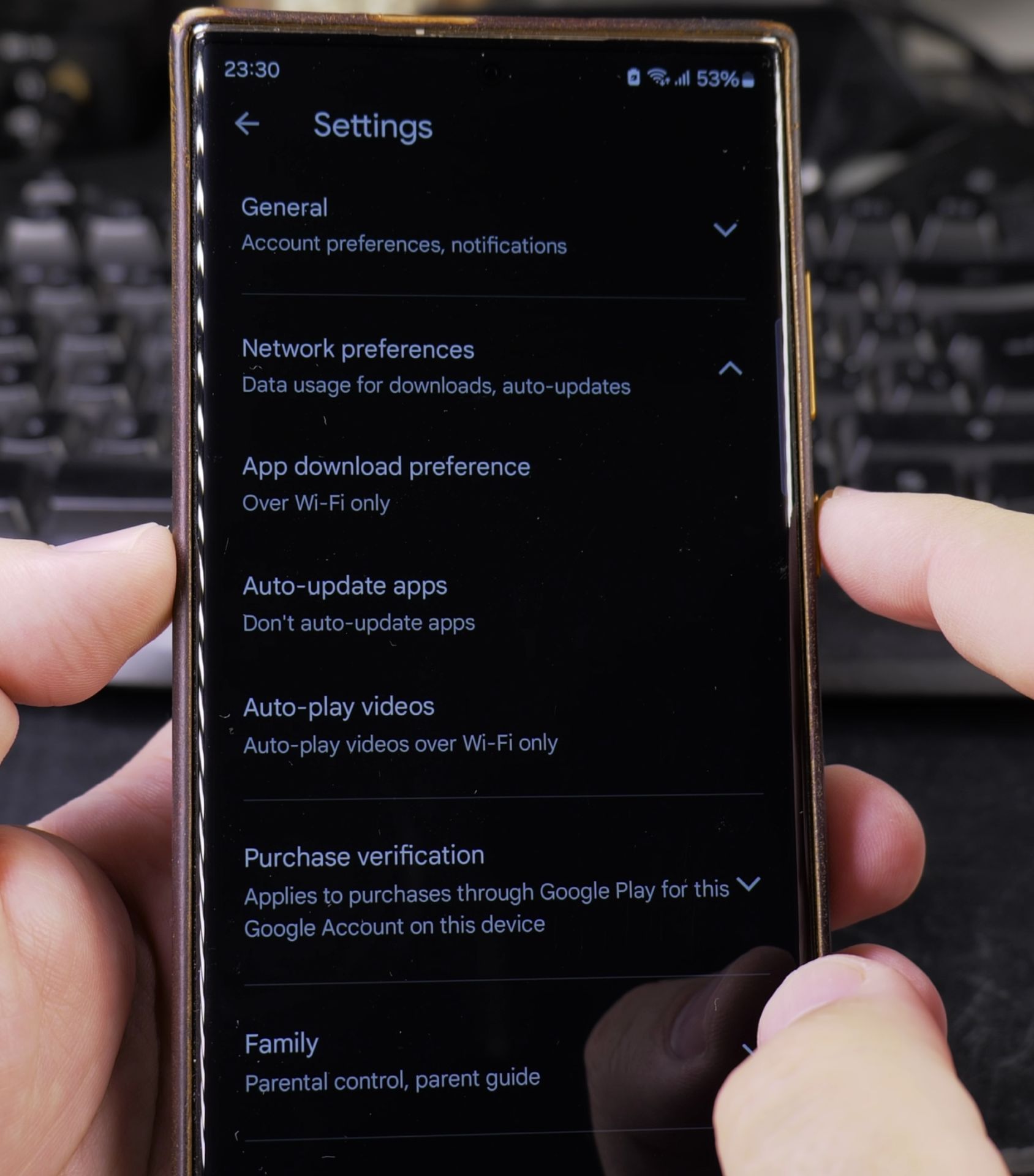
- Select Settings > Network preferences
- Tap Auto-update apps
- Choose Don’t auto-update apps
Disable Updates for Specific Apps
- Open the Play Store
- Find the app you want to control
- Tap the app to open its page
- Click the three-dot menu in the top right
- Uncheck Enable auto-update
How to Stop Samsung System Updates
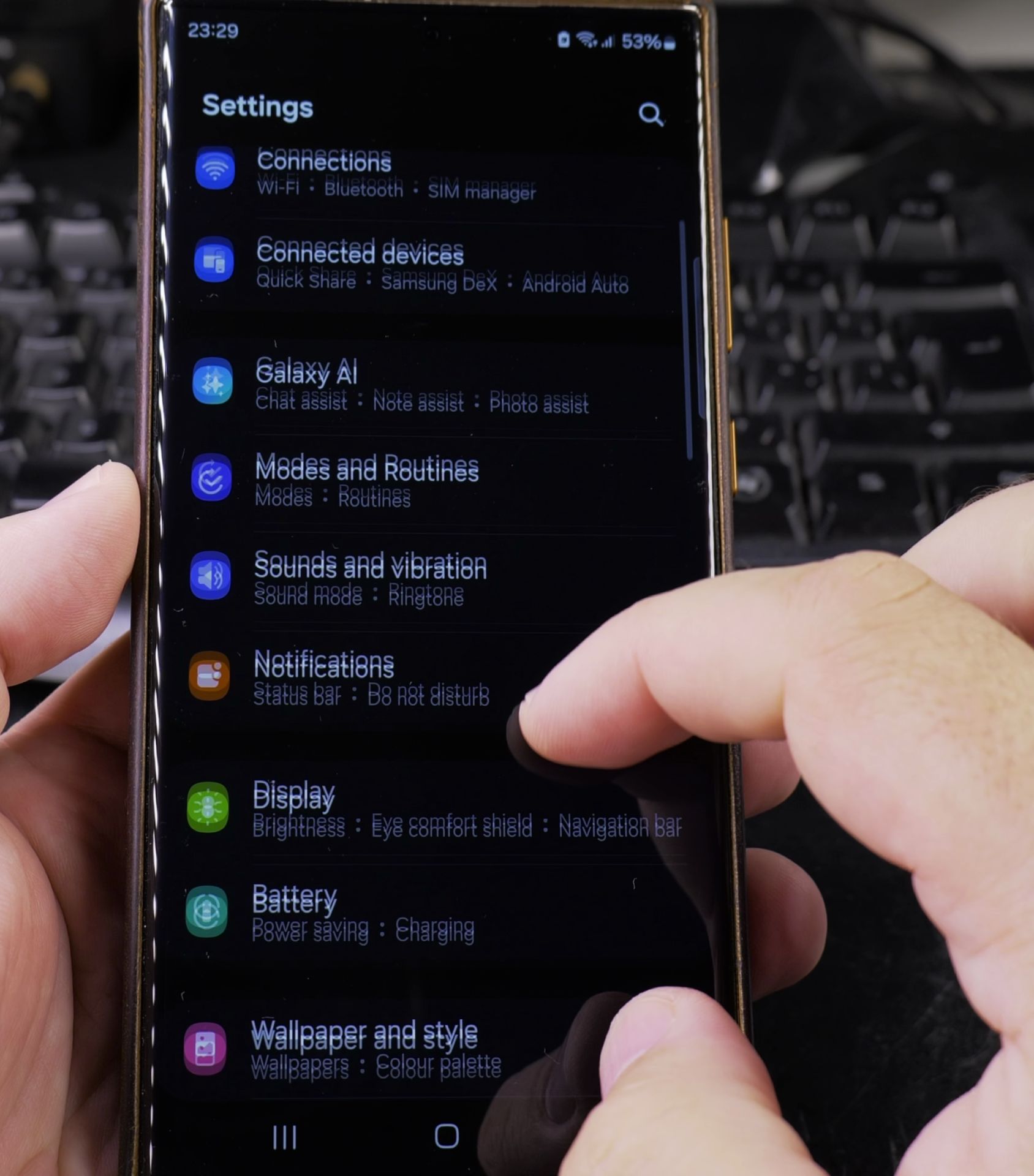
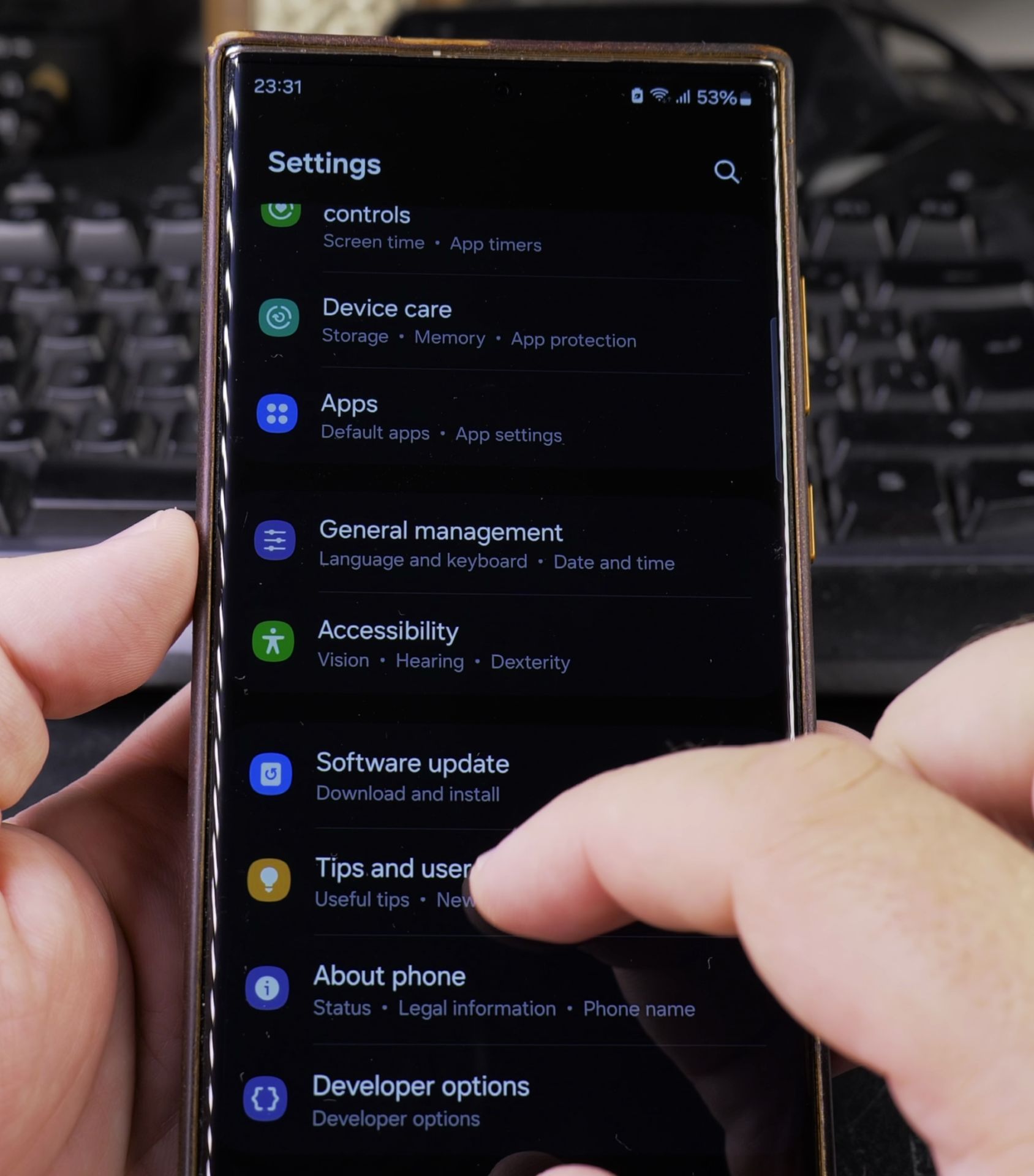
1. Open your Settings app
Open your Settings app.
2. Scroll down and select Software update
Scroll down and select Software update.
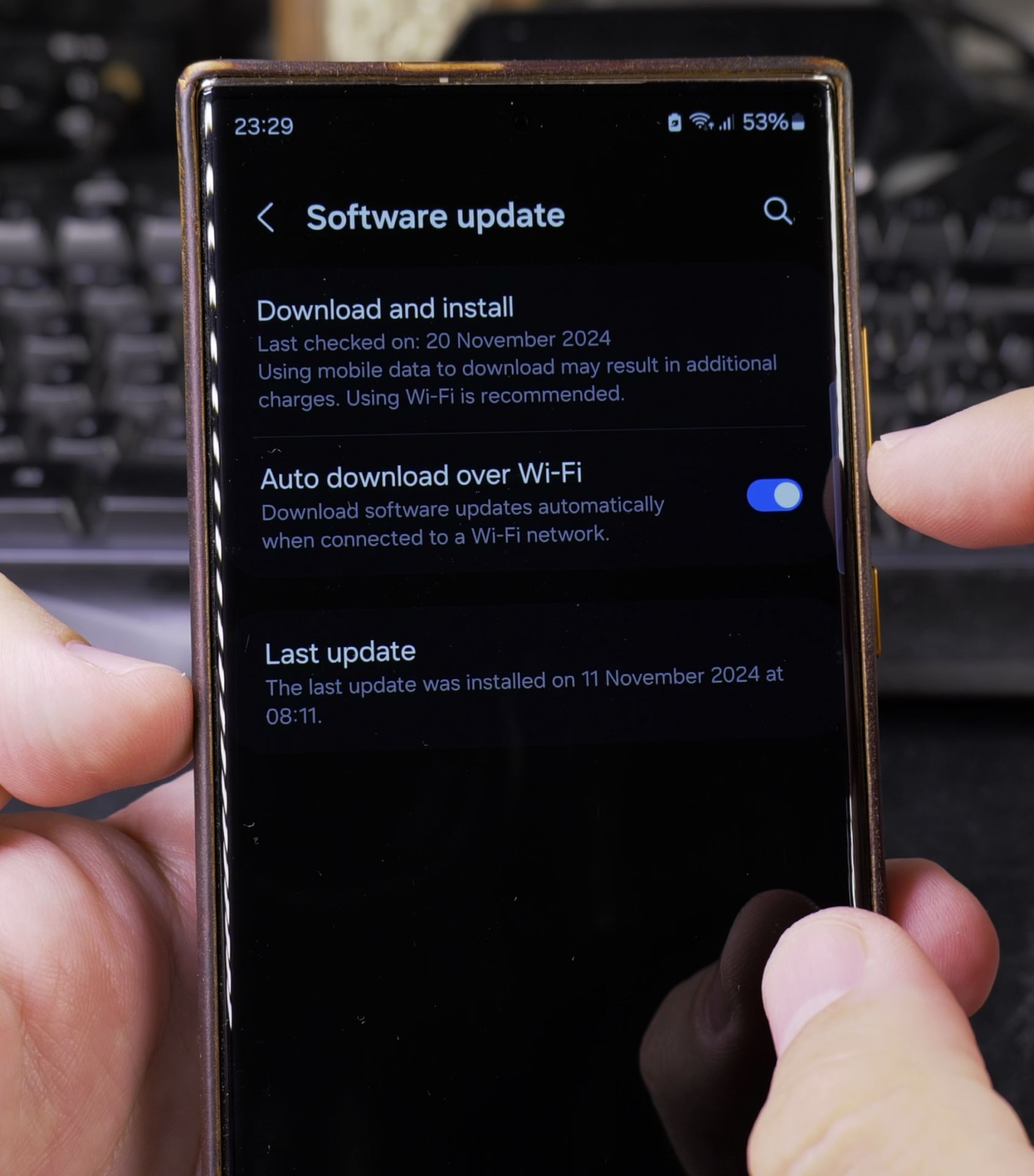
3. Tap Download and install
Tap Download and install.
4. Select the three-dot menu in the top
Select the three-dot menu in the top right.
5. Choose Auto download over Wi-Fi
Choose Auto download over Wi-Fi.
6. Turn it Off
Turn it Off.
Important Things to Know
- You should still manually check for important security updates
- Some critical updates may still come through
- These settings might look slightly different depending on your Android version
Now you’re in charge of when your phone updates! Just remember to check for updates occasionally to keep your device secure.
Tip: If you can’t find these exact options, try searching “auto-update” in your Settings app.
Helpful Tips
Take your time and check the screen carefully after each tap so you can confirm the setting changed as expected. If an option appears in a slightly different spot on your device, watch the embedded video above for a closer look.
Related Guides
- Android Disable Automatic Updates – How to Disable Automatic Updates on Android Phones and Devices.
- Show Battery Percentage on Samsung Galaxy Phone – How to Show Battery Percentage on Your Samsung Galaxy Phone.
- How to Change Google Gemini Voice on Samsung Galaxy Android – If you don't like the default voice of your Google Gemini assistant, you can choose from a range of friendly and natural…
- Samsung Android Guides – Browse more tutorials and practical guides in this section.


Leave a Reply