
Keeping your personal photos, emails, banking applications, and private messages secure is one of the most important steps when setting up any smartphone. If your phone is unlocked, anyone who picks it up can access your information. In this senior-friendly guide, I show you how to set up a secure screen lock PIN or password on your Android device and how to register your fingerprint for fast, effortless daily access.
Why Setting a Screen Lock Is Essential for Your Phone
A screen lock acts as the front gate to your smartphone. Whenever you turn on the screen, your device prompts you for a security code before granting access. Modern Android versions also use this PIN to encrypt your internal storage. Even if you regularly use biometric unlocking such as a fingerprint sensor or face recognition, your device still requires an underlying PIN or passcode as a primary recovery key.
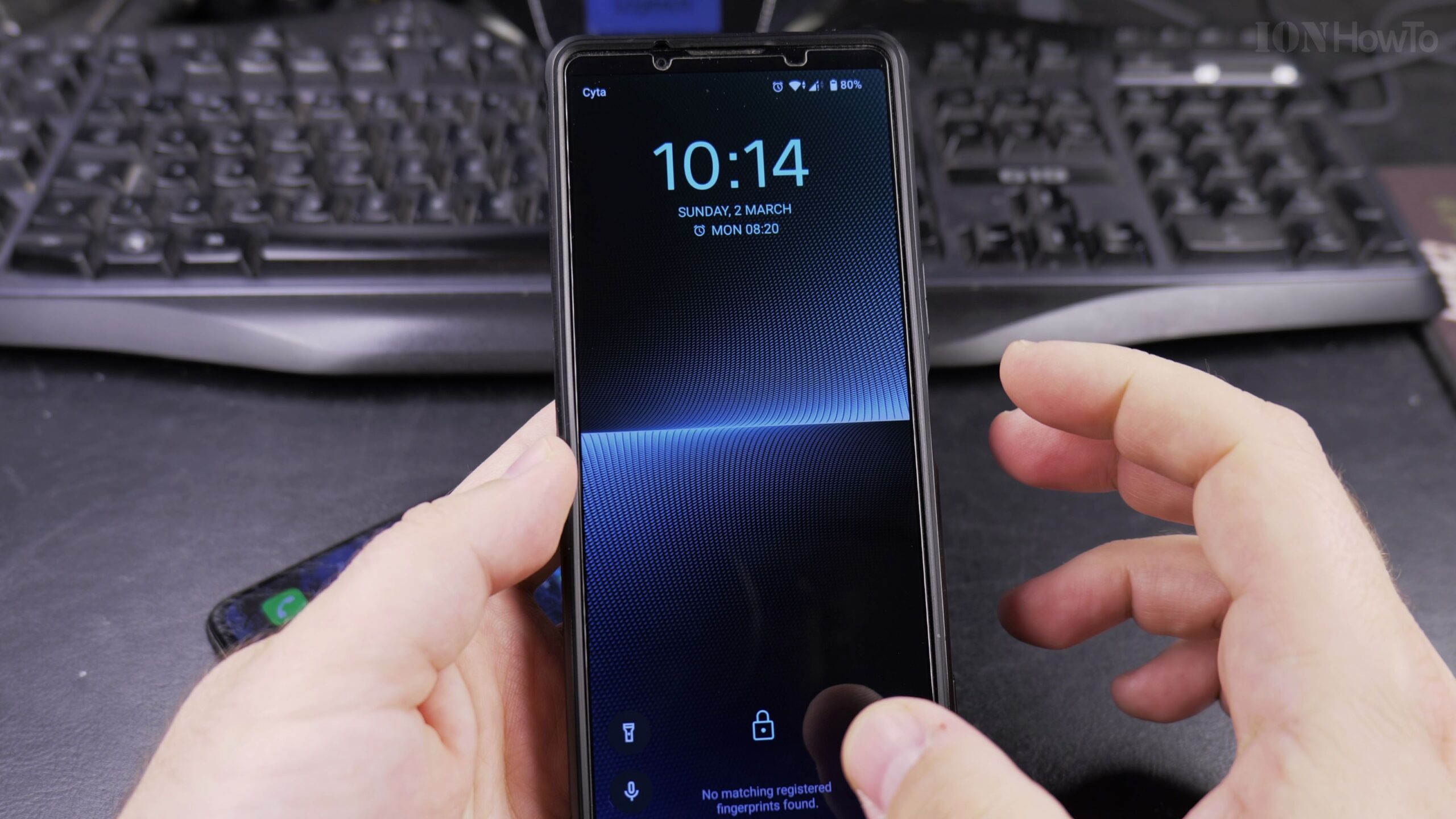
Step 1: Open Settings and Navigate to Passwords & Security
To begin, wake your phone and swipe up from the bottom of the screen or swipe down the notification shade to locate the gear-shaped Settings icon. Tap Settings, then scroll down until you locate the section labeled Passwords & Security, Security & Privacy, or simply Security depending on your phone manufacturer.
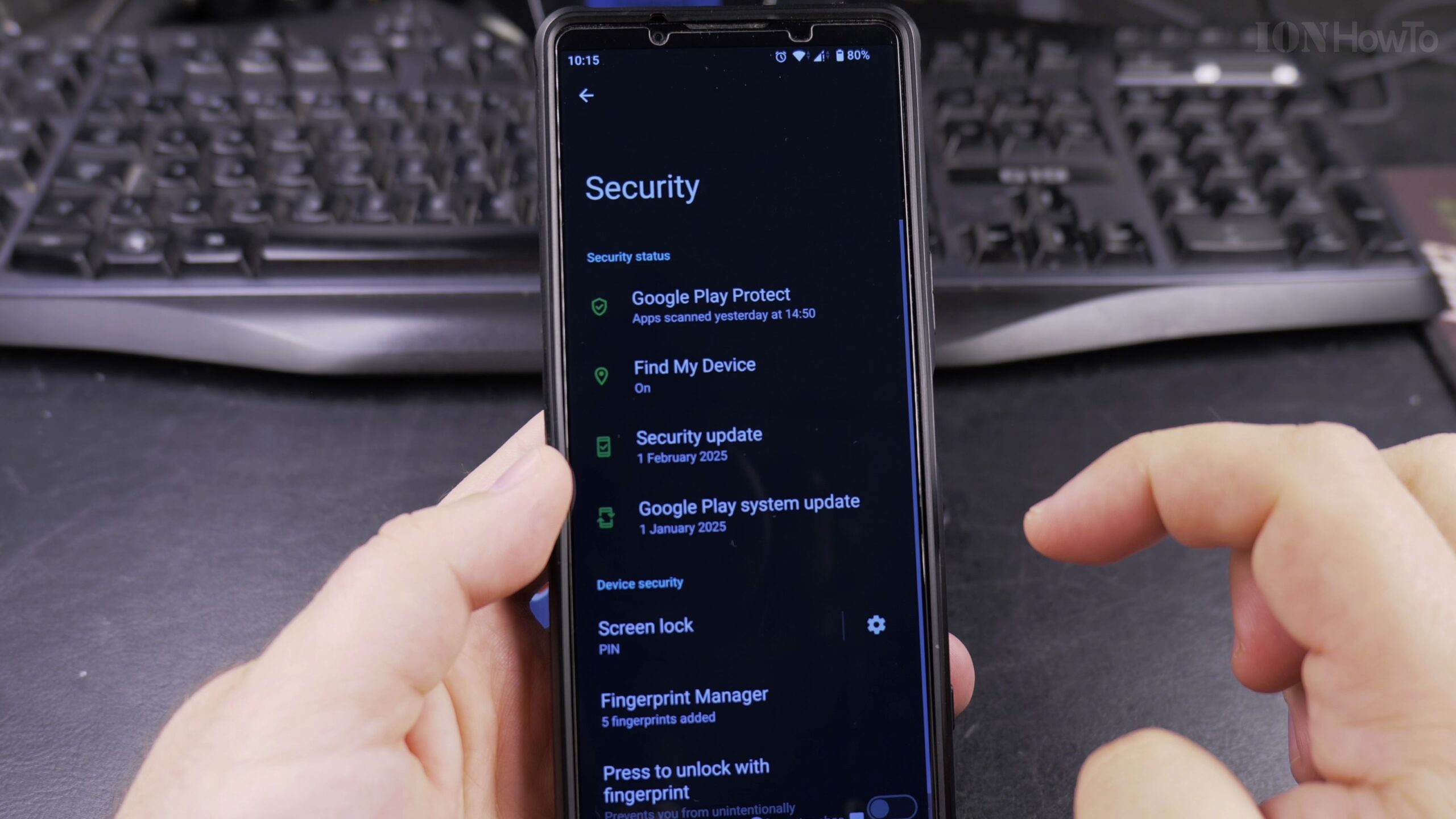
Step 2: Choose Between Pattern, PIN, and Password
Under the device security menu, tap on Screen Lock. If you do not currently have a lock set up, Android displays three main choices:
- Pattern: Allows you to draw an interconnected line between nine dots. While quick, patterns can leave visible smudge marks on the glass screen.
- PIN: A numeric code between 4 and 16 digits. A 4 to 6-digit PIN is the recommended choice because it is easy to type on the number pad and simple to remember.
- Password: An alphanumeric combination of letters, numbers, and symbols offering maximum protection.
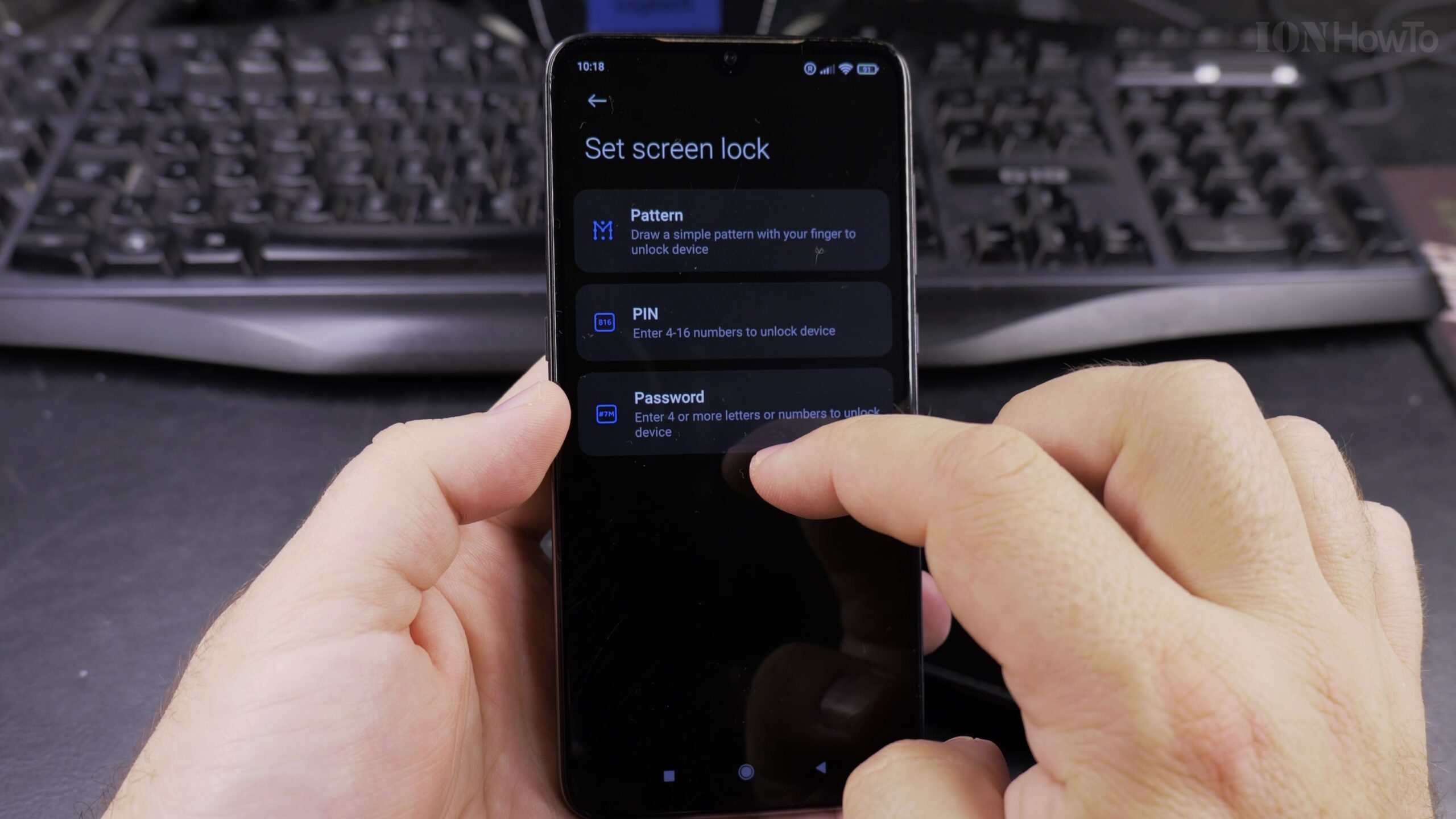
Step 3: Enter and Confirm Your New PIN Code
Select PIN from the list. Android will prompt you to enter a 4 to 16-digit numeric combination. Choose a number sequence that you can remember comfortably, but avoid obvious numbers such as 1234 or your birth year. Tap Continue, then enter the exact same PIN a second time to confirm. Once confirmed, tap OK or Done to save your screen lock.
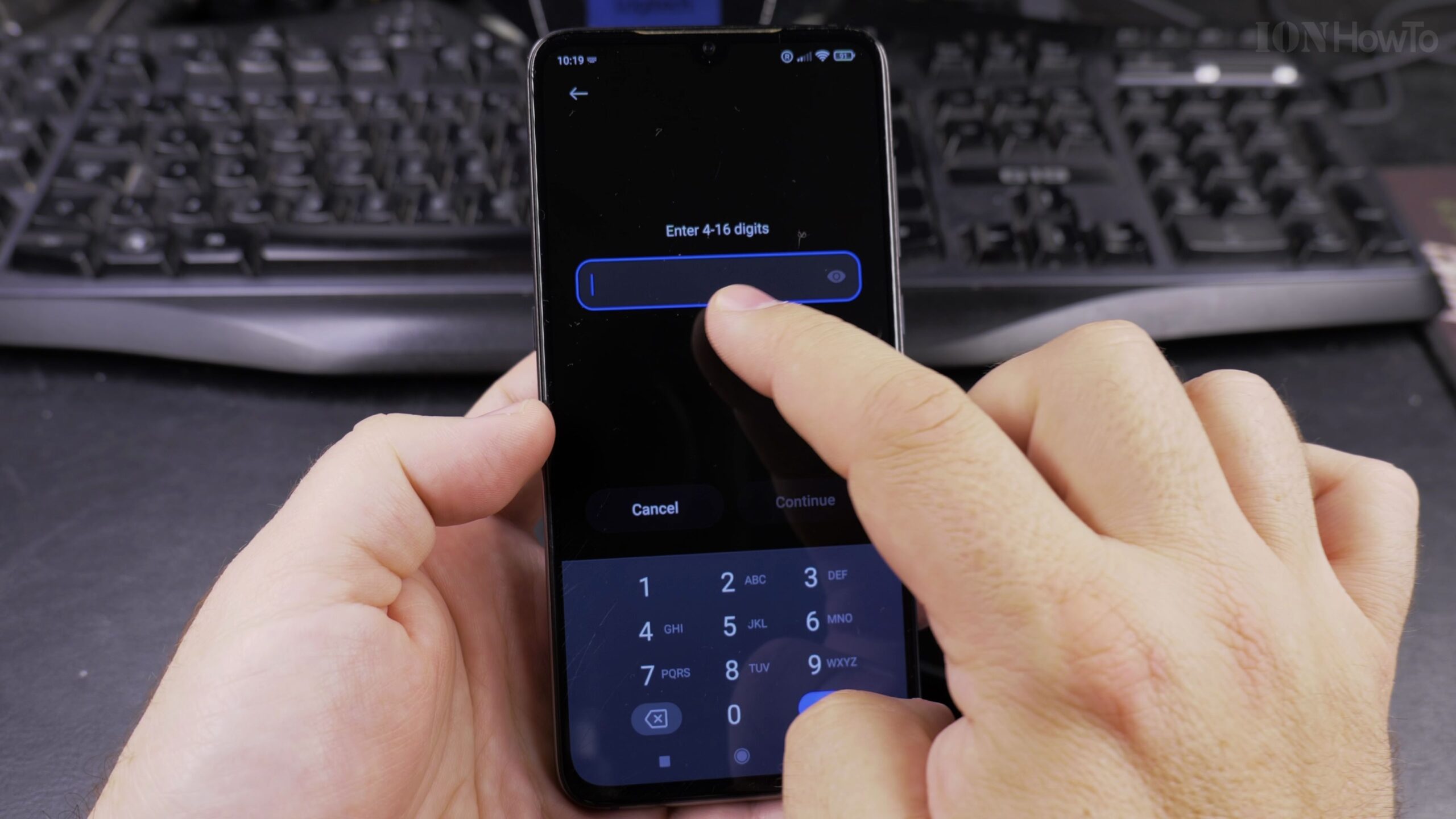
Step 4: Add Fingerprint Unlock for Daily Convenience
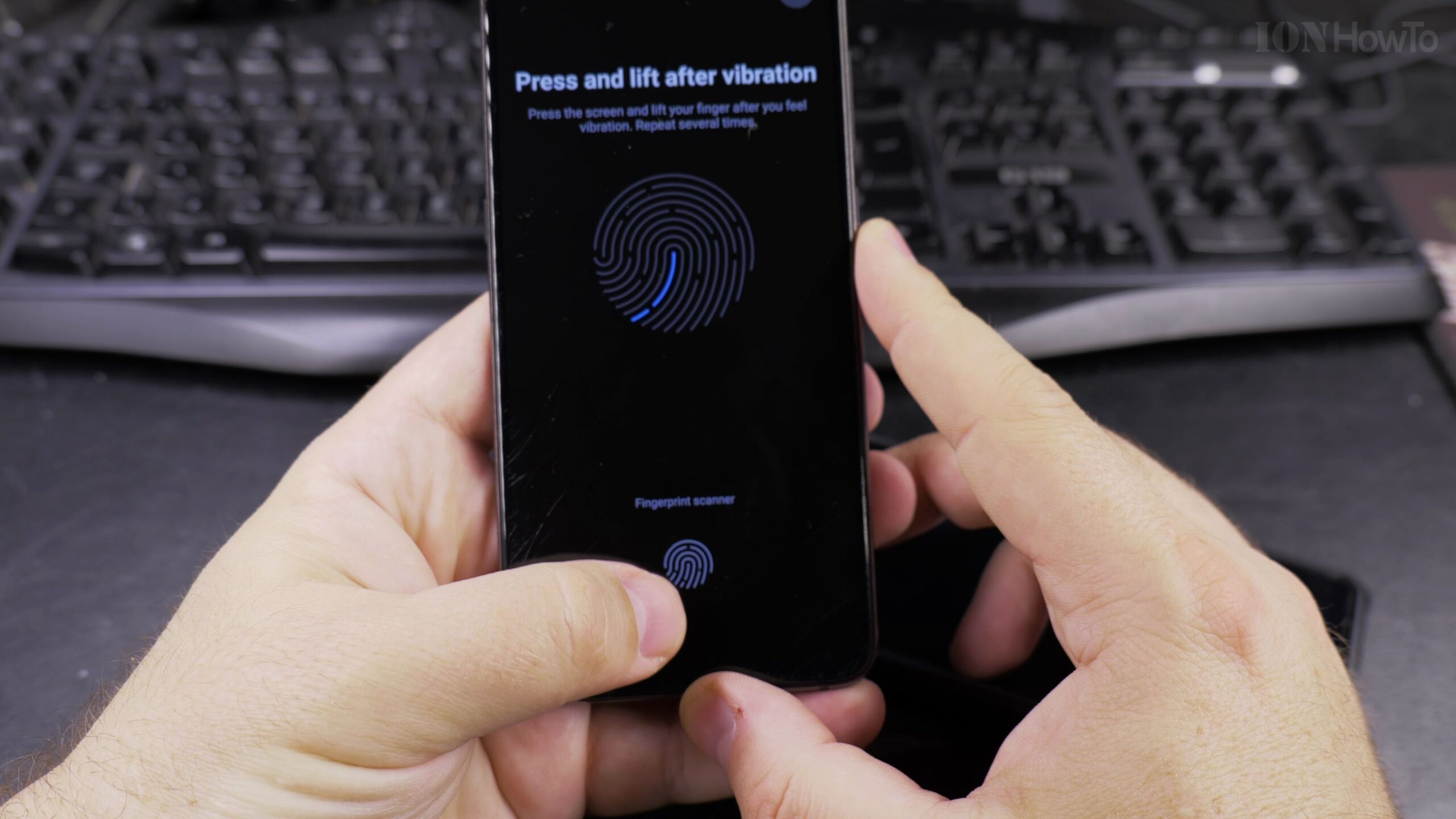
Once your PIN is established, your phone will invite you to register a fingerprint. Locate your phone fingerprint reader, which may be built directly beneath the glass screen, integrated into the side power button, or situated on the rear panel. Rest your finger repeatedly against the sensor, lifting and repositioning it slightly at different angles until the on-screen progress indicator reaches 100 percent.
Step 5: Test and Verify Your New Lock Screen Code
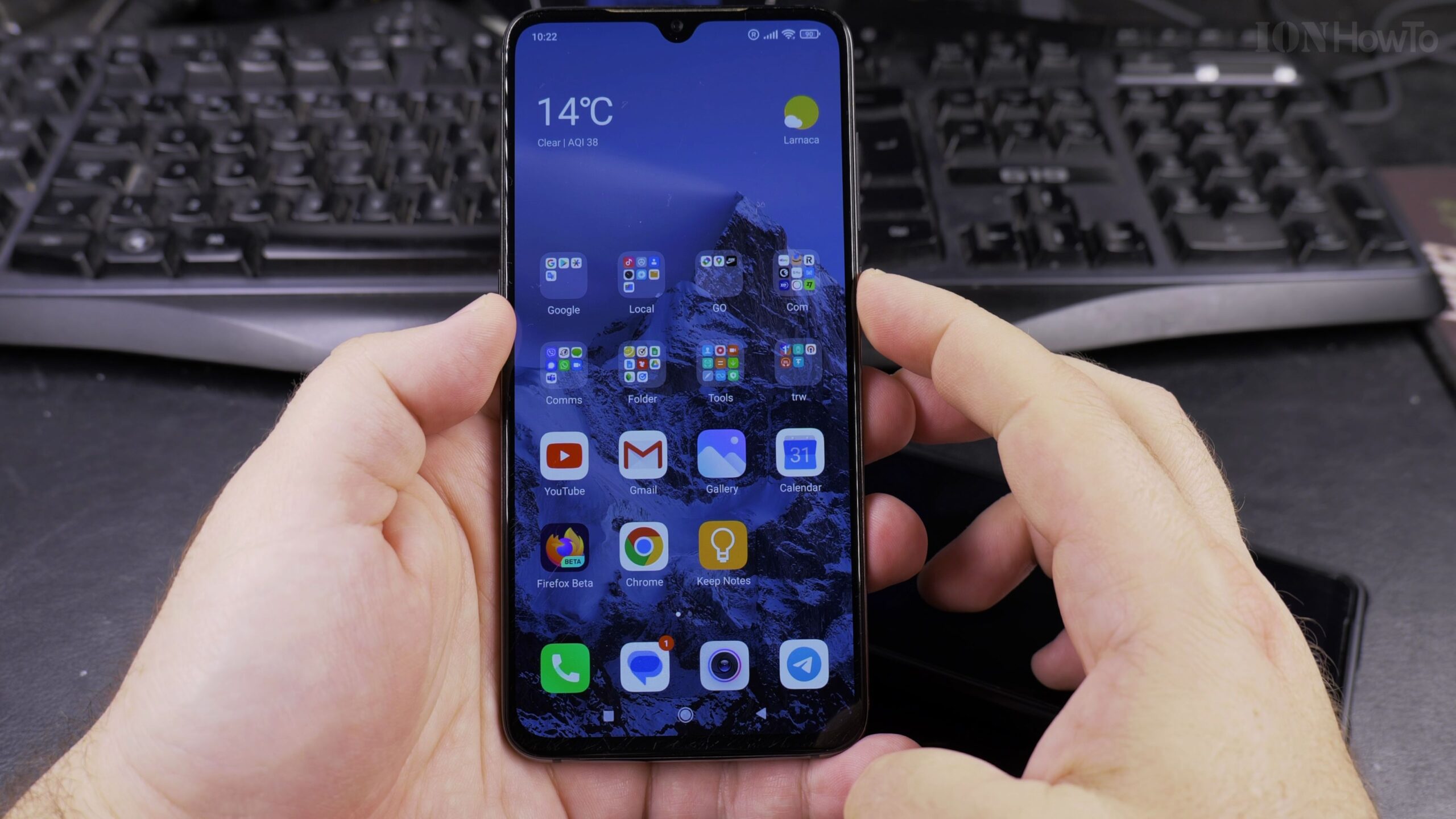
Before putting your phone away, verify that the lock works properly. Press the physical power button to lock the screen, wait two seconds, and wake the display. The phone should now prompt you for your new PIN or ask for your registered fingerprint. Type your code to confirm you can unlock the phone without difficulty.
Helpful Android Security Tips and Next Steps
Always make a note of your new PIN in a secure notebook at home so you do not risk getting locked out. If you ever need to change or remove your screen lock, simply return to Settings > Passwords & Security, enter your current PIN, and select a new option.
For more useful Android optimization guides, explore how to disable outdated 2G connectivity on Android to protect against rogue cellular interception, learn the easiest way to answer incoming phone calls on Android, or browse our complete collection of Android tips and tutorials.


Leave a Reply