
Connecting the AlphaTheta Pioneer DJ DDJ-FLX4 controller to a MacBook Air M5 unlocks Rekordbox 7 Performance Mode along with real-time Stems separation on your performance pads. In this complete step-by-step guide, we show how to wire the USB-C connections, register ownership, configure audio routing, and start mixing on macOS.
Connect USB-C Power and Data Cables to the DDJ-FLX4 Rear Panel
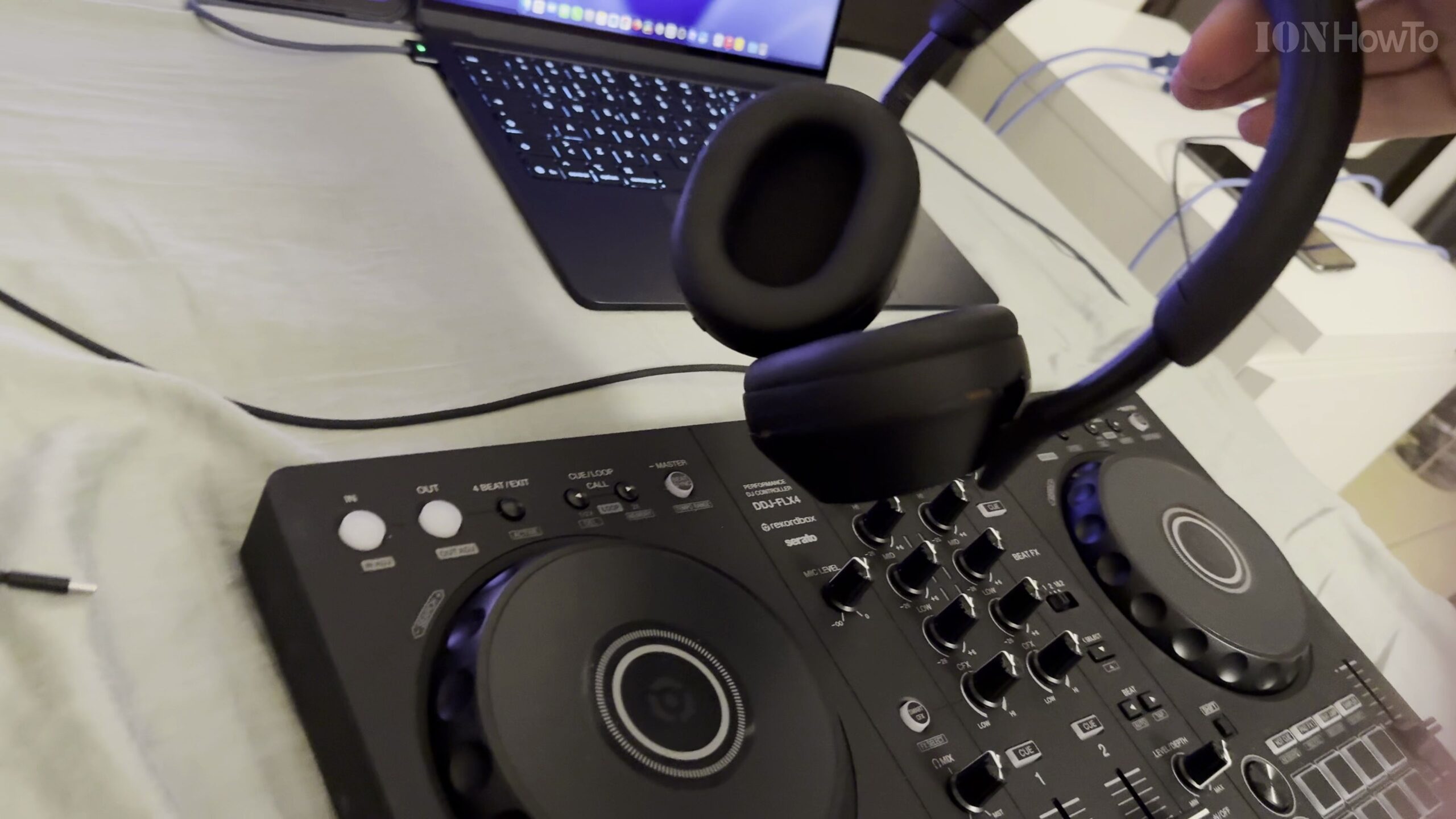
Look at the back panel of your Pioneer DJ DDJ-FLX4 where two USB-C ports are located. Plug a USB-C power cable from a wall adapter or power bank into the port marked with a power plug icon, and connect a second USB-C to USB-C data cable from the computer icon port directly to a Thunderbolt 4 port on your MacBook Air M5.
Launch Rekordbox 7 on MacBook Air M5 and Log In
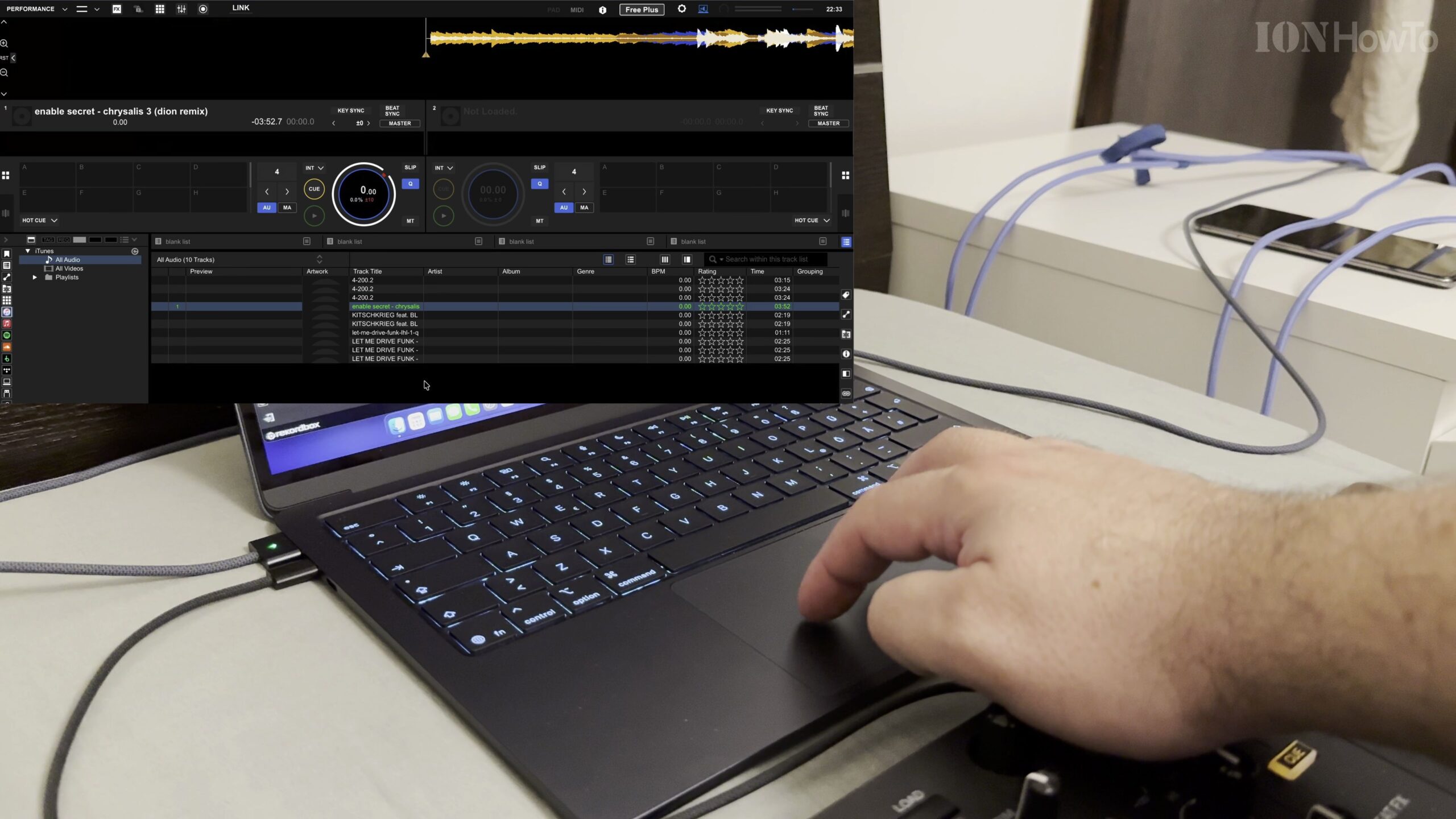
Open Rekordbox 7 on your MacBook Air M5 and sign in with your AlphaTheta / Pioneer DJ account. When you connect the DDJ-FLX4 for the first time, follow the on-screen prompt to confirm hardware ownership registration, which permanently links Hardware Unlock and Rekordbox Free Plus features to your controller.
Verify Hardware Unlock for Performance Mode and Update Firmware
Once connected, switch Rekordbox 7 from Export mode to Performance mode in the top-left corner. If Rekordbox detects a controller firmware update or an application update on macOS, allow the update utility to complete so all jog wheels and faders respond accurately.
Configure Audio Output for Headphones and Master Out
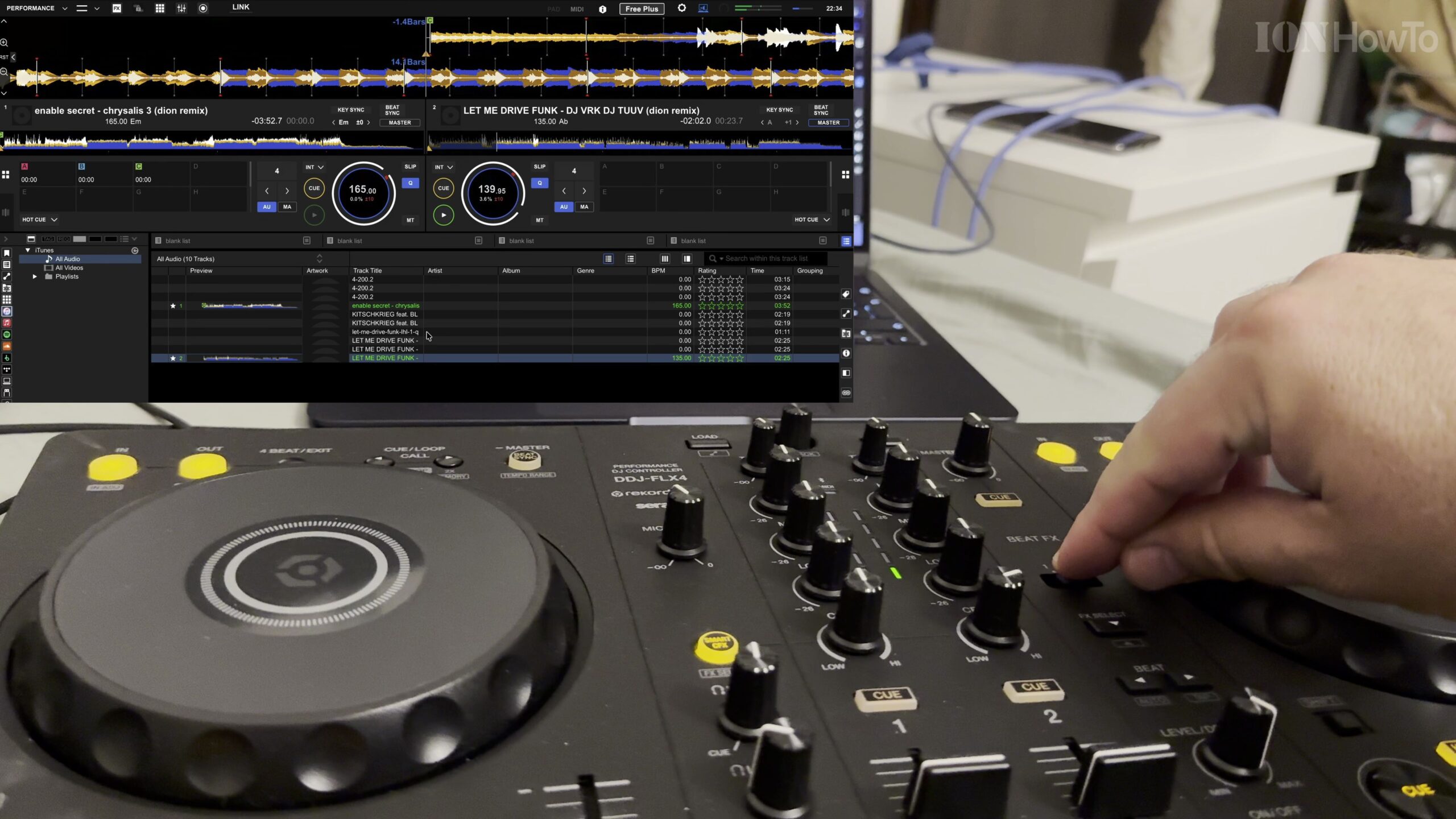
Open Rekordbox Preferences and click the Audio tab. Verify that DDJ-FLX4 is selected as the primary audio device so you can cue tracks through headphones plugged into the front 3.5mm jack of the controller, even if you are mixing without external speakers.
Enable Stems Function in Rekordbox 7 for Performance Pads
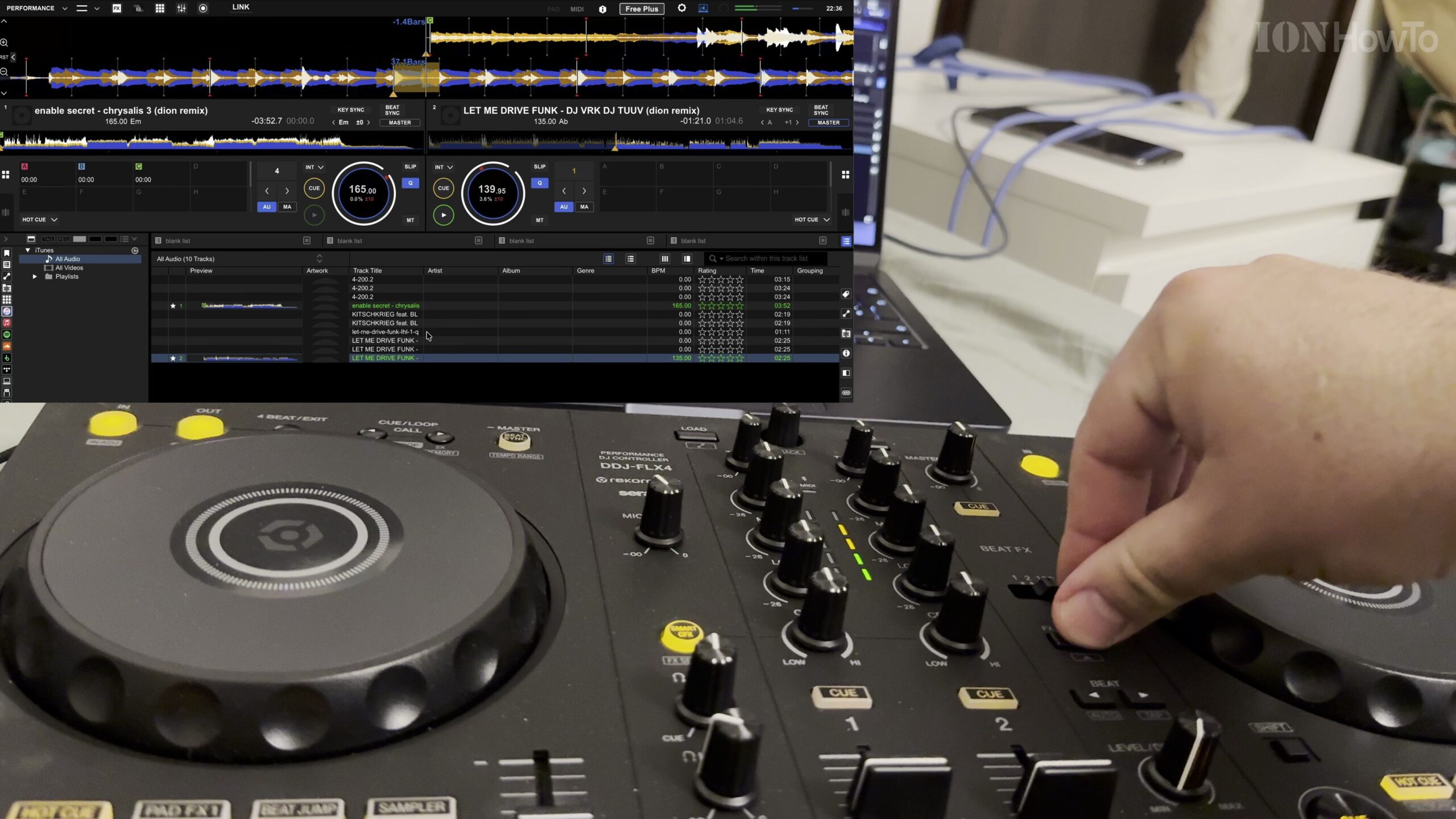
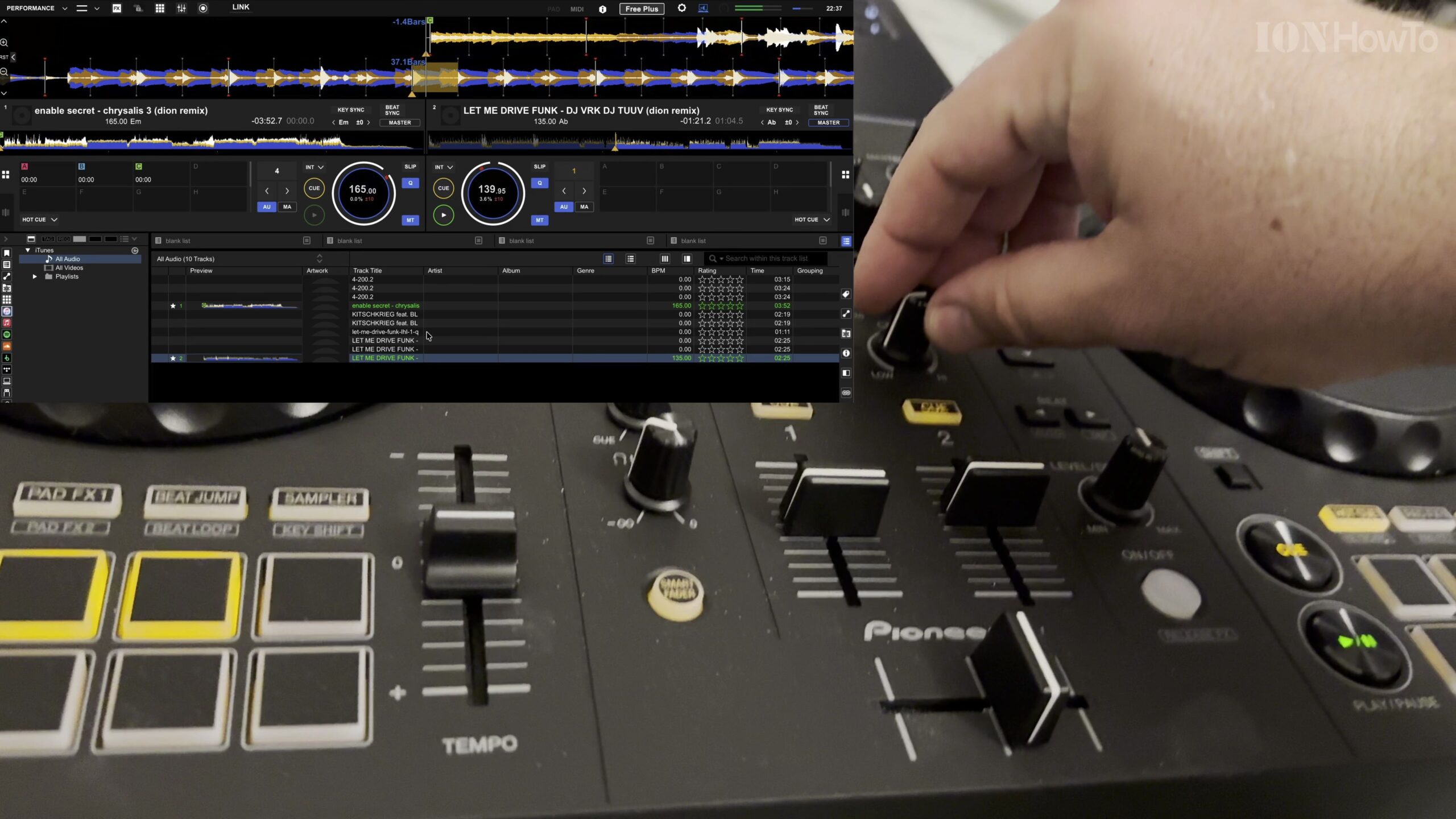
Navigate to the Extensions or Stems tab inside Rekordbox Preferences and check the box to enable the Stems function. You can now load tracks onto Deck 1 and Deck 2 and use the performance pads on your DDJ-FLX4 to isolate vocals, drums, and instruments in real time.
Helpful Tips and Related Guides
If you want to record your DJ mixes and screen simultaneously on your MacBook Air M5, OBS Studio for Mac works reliably alongside Rekordbox 7. Check out more tutorials in our Audio Gear category, visit our DJ Mixes section, or explore our MacBook Air M5 guides.


Leave a Reply