
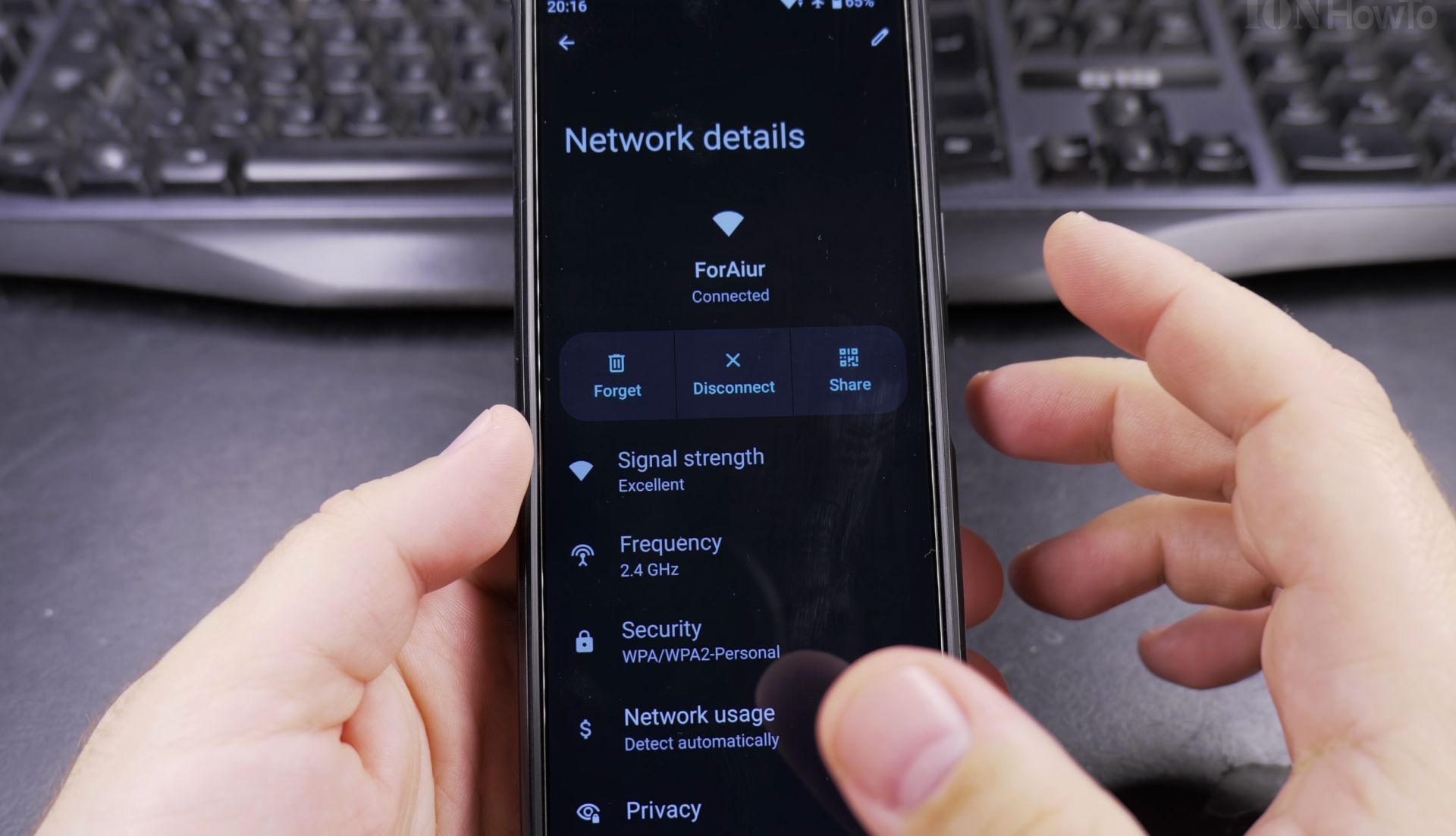
Need your Android phone or tablet to connect specifically to a 2.4GHz Wi-Fi network?
Amazon links
As an Amazon Associate I earn from qualifying purchases:
- iPhone Accessories
- iPhone Charger
- iPhone Cases
- iPhone Screen protector
- iPhone Magsafe
- iPhone Wallet
- iPhone Usb c cable
Maybe you’re setting up a smart home device that only works on 2.4GHz, or you need better range through walls. Whatever the reason, here’s how to make it happen.
How to Force Android to Connect to 2.4GHz Wi-Fi Instead of 5GHz.
Quick Steps and Scenarios Overview
| What You Need to Do | Quick Jump |
|---|---|
| Why Use 2.4GHz Wi-Fi? | Jump to Step 1 |
| Method 1: Split Your Wi-Fi Bands (Router Settings) | Jump to Step 2 |
| Method 2: Forget the 5GHz Network (Temporary Fix) | Jump to Step 3 |
| Method 3: Use a Wi-Fi Analyzer App | Jump to Step 4 |
(Tested on Sony Xperia 1 V Global – EU Model XQ-DQ54 running Android 15)
Why Use 2.4GHz Wi-Fi?
Before we jump into the steps, here’s why you might want 2.4GHz instead of 5GHz:
- Better Range – 2.4GHz travels farther and works better through walls.
- Compatibility – Many older smart home devices (like security cameras or smart plugs) only work on 2.4GHz.
- Less Interference (Sometimes) – In crowded Wi-Fi areas, 5GHz can get congested, while 2.4GHz may be more stable.
The problem? Most modern routers combine both bands under the same network name (band steering), making it hard to force a 2.4GHz connection. Here’s how to fix that.
Method 1: Split Your Wi-Fi Bands (Router Settings)
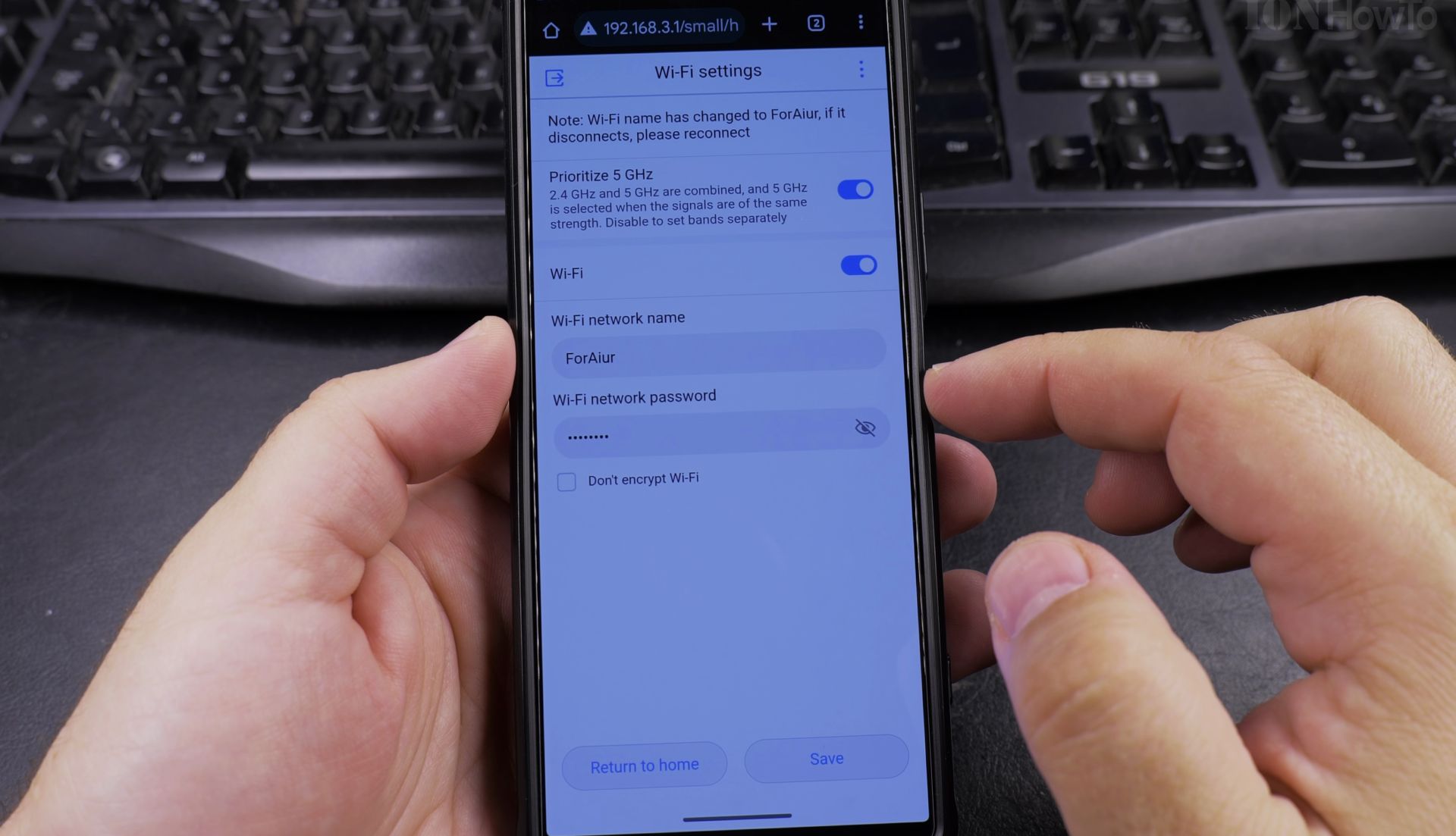
The most reliable way is to separate your 2.4GHz and 5GHz networks in your router settings. Here’s how:
- Log in to your router – Open a browser and type your router’s IP (usually
192.168.1.1or192.168.0.1). - Find Wi-Fi settings – Look for Wireless Settings or Dual Band Settings.
- Disable Band Steering – Some routers call this Smart Connect or Auto Network Switching. Turn it off.
- Create separate SSIDs – Give your 2.4GHz and 5GHz networks different names (e.g., HomeWiFi_2.4 and HomeWiFi_5).
- Save and reboot – Your router will restart, and you’ll now see two networks.
Now, just connect your Android device to the 2.4GHz network manually.
Method 2: Forget the 5GHz Network (Temporary Fix)
If you can’t change router settings, try this:
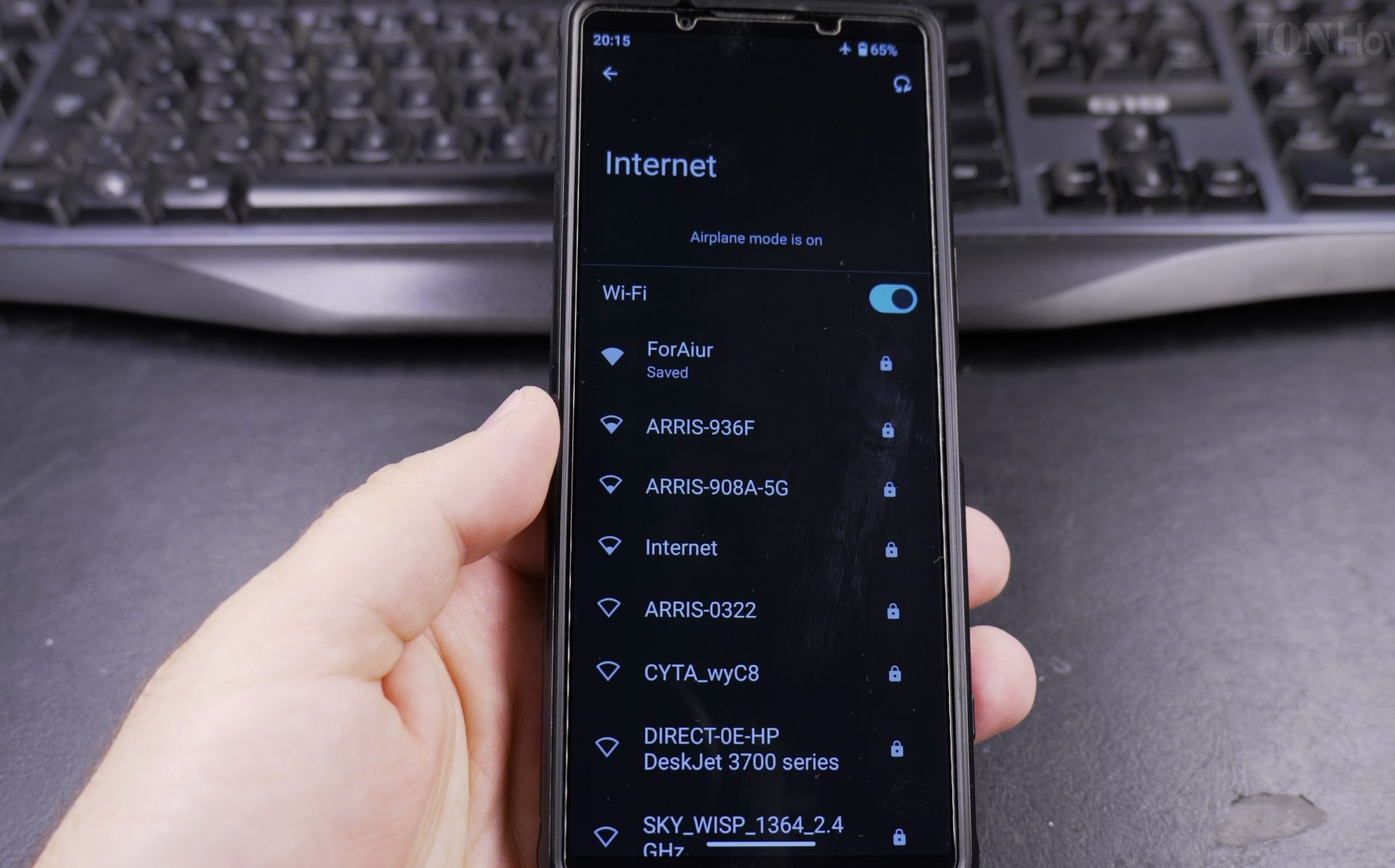
- Go to Wi-Fi settings on your Android phone.
- Find your current network and tap Forget.
- Reconnect to Wi-Fi – Your phone might temporarily prefer 2.4GHz if the signal is stronger.
Note: This isn’t foolproof – your phone may switch back to 5GHz later.
Method 3: Use a Wi-Fi Analyzer App
Some apps let you force a band preference:
- Download a Wi-Fi analyzer app (like WiFi Analyzer or NetSpot).
- Check which networks are 2.4GHz vs. 5GHz.
- Manually connect to the 2.4GHz one if it’s listed separately.
Final Thoughts
For the most consistent results, splitting your Wi-Fi bands in router settings is the best solution. This works on most Android phones, including Samsung Galaxy, Google Pixel, and OnePlus devices.
Need help? Drop a comment below if you’re stuck and I’ll try to help out!
Helpful Tips
Take your time and check the screen carefully after each tap so you can confirm the setting changed as expected. If an option appears in a slightly different spot on your device, watch the embedded video above for a closer look.
Related Guides
- Wi-Fi 5GHz vs 6GHz at Home – Wi-Fi 5GHz vs 6GHz: Comparison Guide
- How to Connect to Your Home Network with an Android Phone Securely Using VPN – How to Securely Connect to Your Home Network From Android Using VPN.
- Change Wi-Fi Settings from Static IP to DHCP on Android – How to Change Wi-Fi Settings from Static IP to DHCP on Android Devices.
- Android & Mobile Guides – Browse more tutorials and practical guides in this section.


Leave a Reply