
Amazon links
As an Amazon Associate I earn from qualifying purchases:
- iPhone Accessories
- iPhone Charger
- iPhone Cases
- iPhone Screen protector
- iPhone Magsafe
- iPhone Wallet
- iPhone Usb c cable
Need to wake up on time or remember important tasks? Your iPhone‘s Clock app makes setting alarms simple. Here’s how to set, customize, and manage alarms on your iPhone, including the latest iPhone 16 Pro Max.
How to Set Alarm on iPhone.
Quick Steps and Scenarios Overview
| What You Need to Do | Quick Jump |
|---|---|
| How to Set a Basic Alarm | Jump to Step 1 |
| Open the Clock app on your iPhone | Jump to Step 1 |
| Tap the Alarm tab at the bottom | Jump to Step 2 |
| Tap the + sign in the top-right | Jump to Step 3 |
| Set your wanted time using the scroll | Jump to Step 4 |
| Tap Save to activate the alarm | Jump to Step 5 |
How to Set a Basic Alarm
1. Open the Clock app on your iPhone
Open the Clock app on your iPhone.
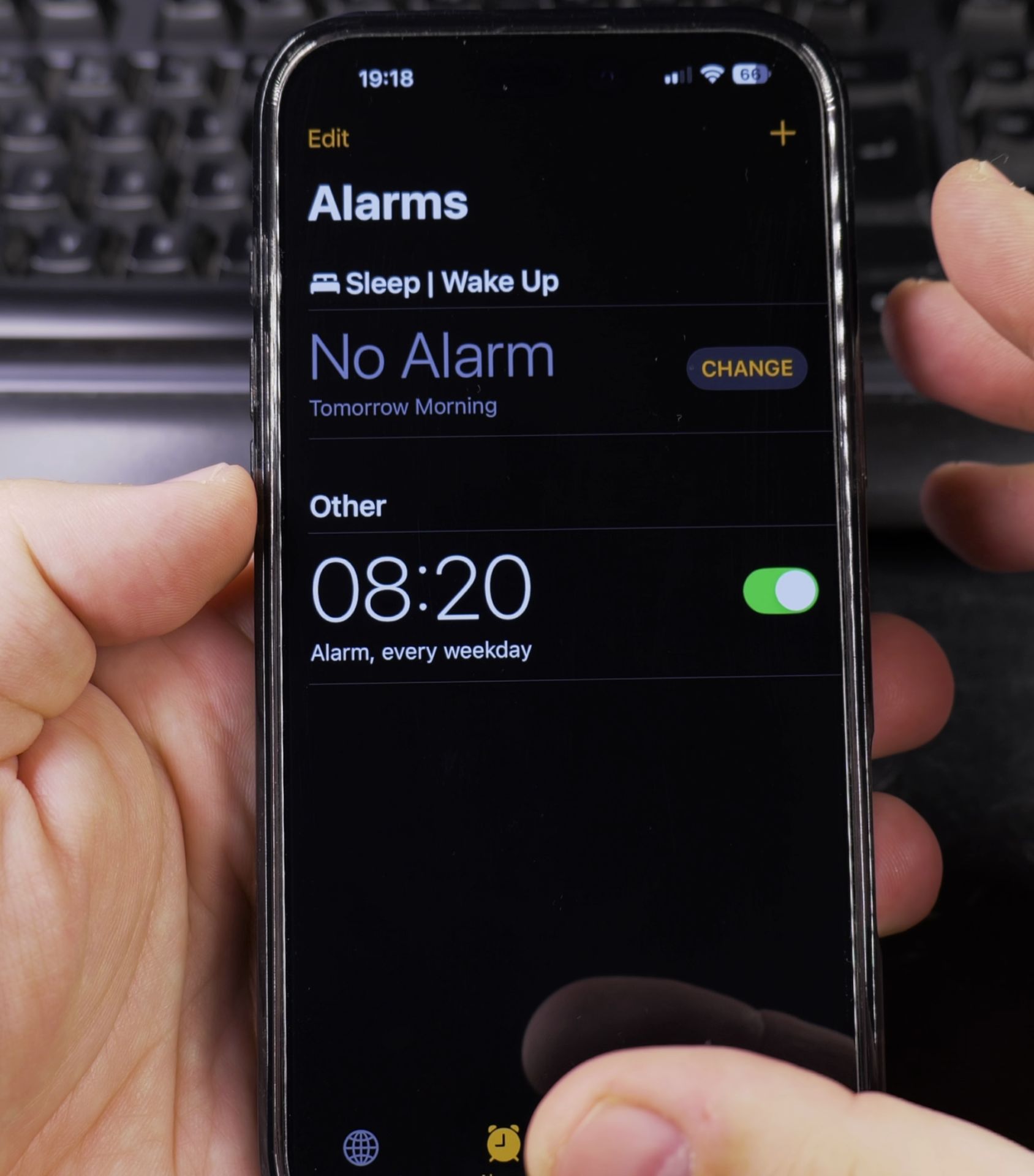
2. Tap the Alarm tab at the bottom
Tap the Alarm tab at the bottom.
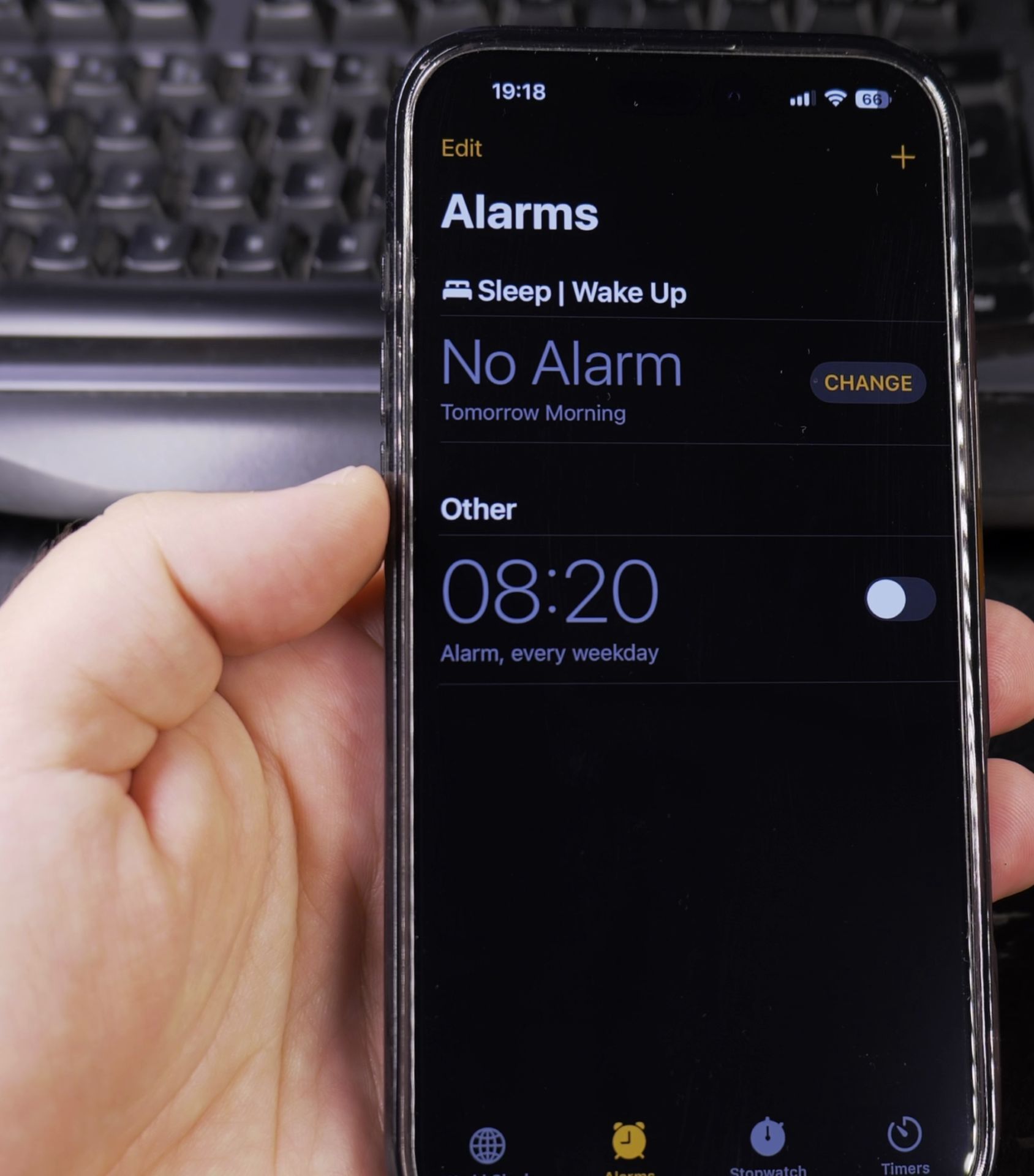
3. Tap the + sign in the top-right
Tap the + sign in the top-right corner.
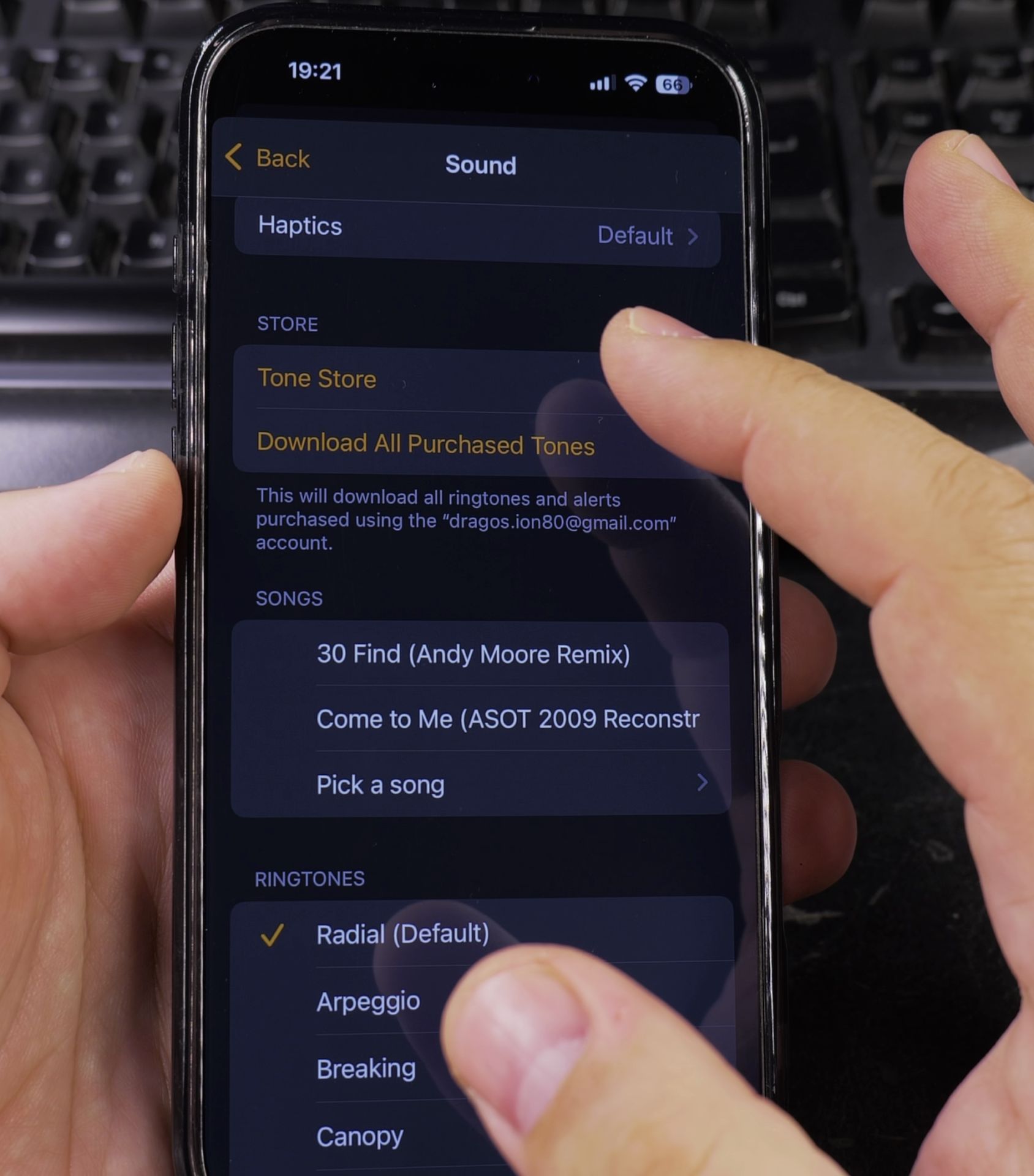
4. Set your wanted time using the scroll
Set your wanted time using the scroll wheel.
5. Tap Save to activate the alarm
Tap Save to activate the alarm.
Customizing Your Alarm
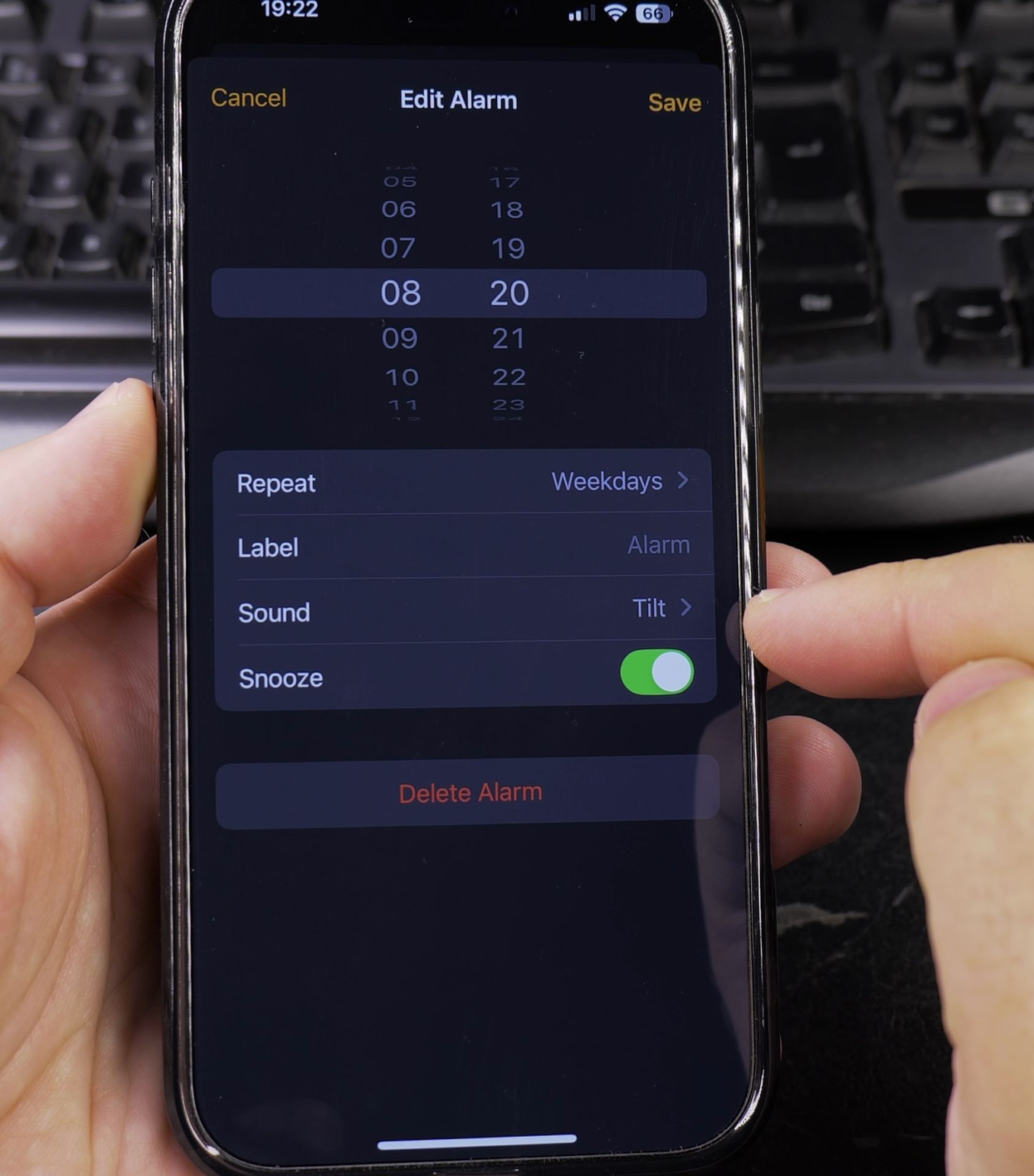
After setting the time, you can personalize your alarm:
Change the Label:
- Tap the label field to name your alarm (like “Morning Wake Up” or “Medication Reminder”)
Set Repeating Alarms:
- Tap “Repeat” to choose specific days (great for workday alarms)
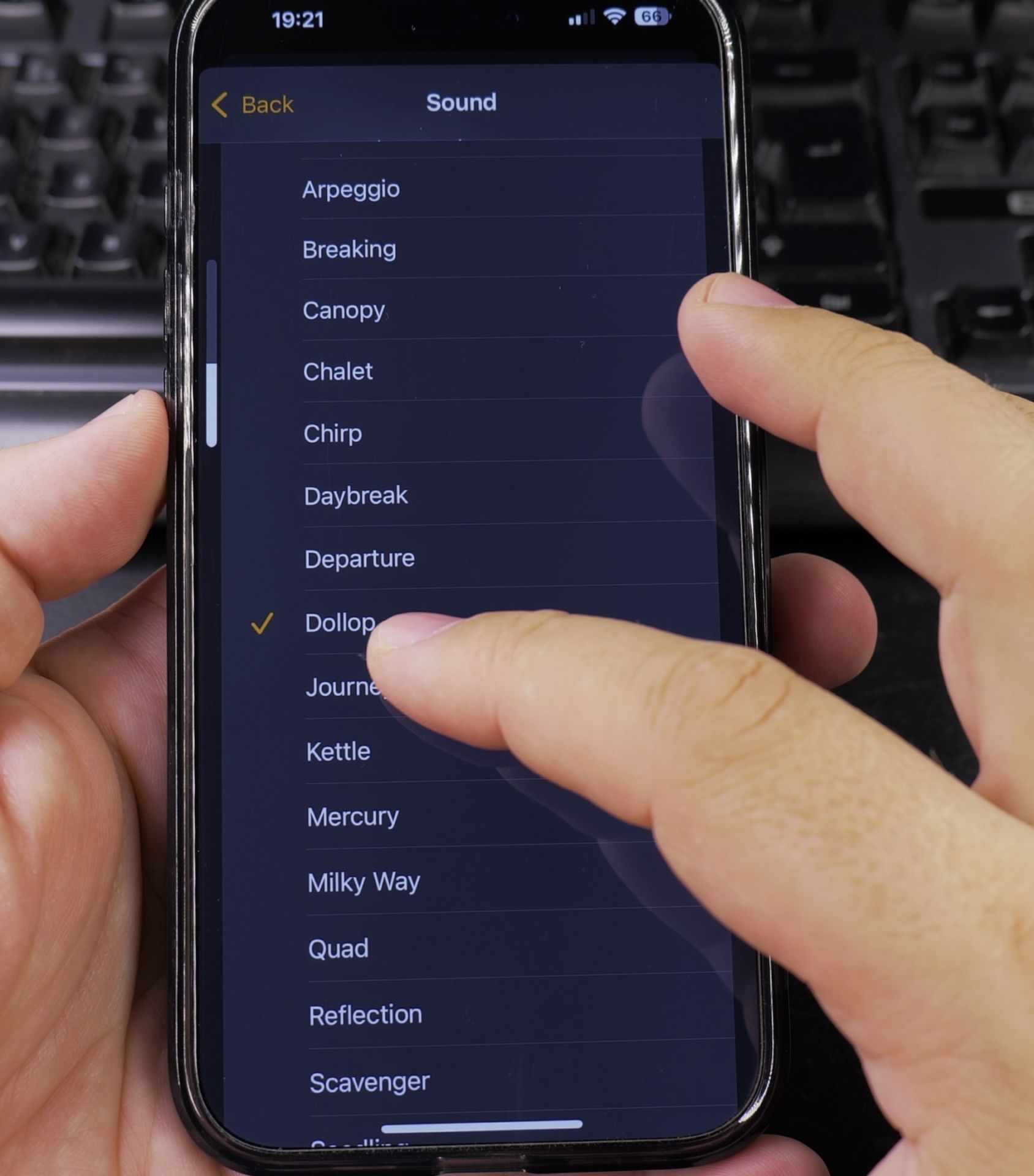
Change the Sound:
- Tap “Sound” to pick from built-in tones or songs from your library
- Preview sounds by tapping them
Adjust Vibration:
- Tap “Vibration” to select or create custom patterns
Snooze Options:
- Toggle “Snooze” on/off (default is on for 9-minute snoozes)
Managing Existing Alarms
To Edit an Alarm:
- Tap the alarm in your list
- Make your changes
- Tap “Save”
To Turn Alarms On/Off:
- Use the toggle switch next to each alarm
To Delete an Alarm:
- Swipe left on the alarm
- Tap “Delete”
Advanced Alarm Features
Separate Alarm Volume:
- Go to Settings > Sounds & Haptics
- Adjust the “Alarm” volume slider (independent of ringer volume)
Bedtime Schedule (Sleep Alarms):
- In the Clock app, go to the Sleep tab
- Set your wanted sleep and wake times
- Choose gentle alarm sounds that help you wake gradually
Troubleshooting Alarm Issues
If your alarm isn’t working:
- Check that your phone isn’t on silent (alarms still sound)
- Ensure the alarm is actually turned on (green toggle)
- Verify your volume is loud enough
- Make sure you didn’t accidentally tap “Stop” instead of “Snooze”
Tested on iPhone 16 Pro Max
This guide was verified on:
- iPhone 16 Pro Max (Model A3296)
- iOS 18.3.2
- Works the same on all iPhones running iOS 10 or later
Now you’re ready to set alarms for waking up, reminders, or anything else. The iPhone’s alarm system is reliable when set up correctly, so you’ll never oversleep again!
Tip: For important events, consider setting multiple alarms as backups. The Clock app lets you create as many alarms as you need.
Helpful Tips
Take your time and check the screen carefully after each tap so you can confirm the setting changed as expected. If an option appears in a slightly different spot on your device, watch the embedded video above for a closer look.
Related Guides
- Set Up Face ID on iPhone – How to Set Up Face ID on iPhone 16 Pro Max Step-by-Step Guide.
- How to Set Up an Apple AirTag with iPhone – How to Set Up an Apple AirTag with iPhone – First Time Setup Guide.
- How to Change Your Alarm Sound on iPhone – How to Change Your Alarm Sound on iPhone.
- iPhone How-To Guides – Browse more tutorials and practical guides in this section.


Leave a Reply