
Ever set a Contact Poster on your iPhone and then changed your mind? Maybe the photo doesn’t look right anymore, or you want something simpler. Learn how to remove or change a Contact Poster photo quickly. I’ll show you the steps to delete a poster you made for yourself or for someone in your contacts.
Amazon links
As an Amazon Associate I earn from qualifying purchases:
- iPhone Accessories
- iPhone Charger
- iPhone Cases
- iPhone Screen protector
- iPhone Magsafe
- iPhone Wallet
- iPhone Usb c cable
We’re looking at this on an iPhone 16 Pro Max running iOS 26, but the steps are very similar for any iPhone that has the Contact Posters feature.
How to Remove Your Own Contact Poster
If you want to change or get rid of the poster that shows up when you call other people, here is what to do.
Quick Steps and Scenarios Overview
| What You Need to Do | Quick Jump |
|---|---|
| How to Remove Your Own Contact Poster | Jump to Step 1 |
| Open Your Contact Card | Jump to Step 1 |
| Edit Your Contact Poster | Jump to Step 2 |
| Delete or Replace the Photo | Jump to Step 3 |
| How to Remove a Contact Poster for Someone Else | Jump to Step 2 |
| Find the Contact | Jump to Step 4 |
1. Open Your Contact Card
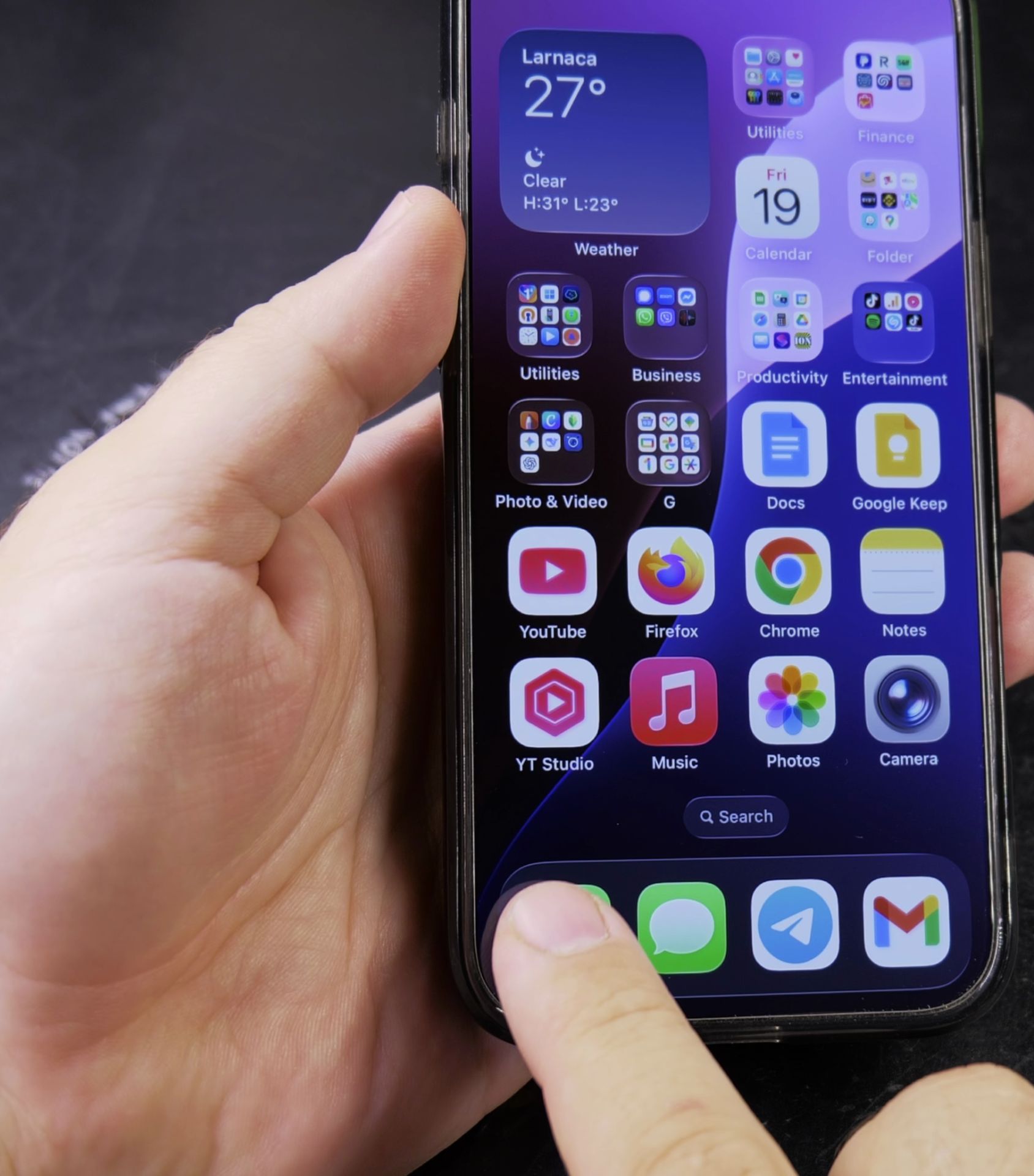
First, open the Contacts app. At the very top, you will see My Card. This is your own contact info. Tap on it to open your details.
2. Edit Your Contact Poster
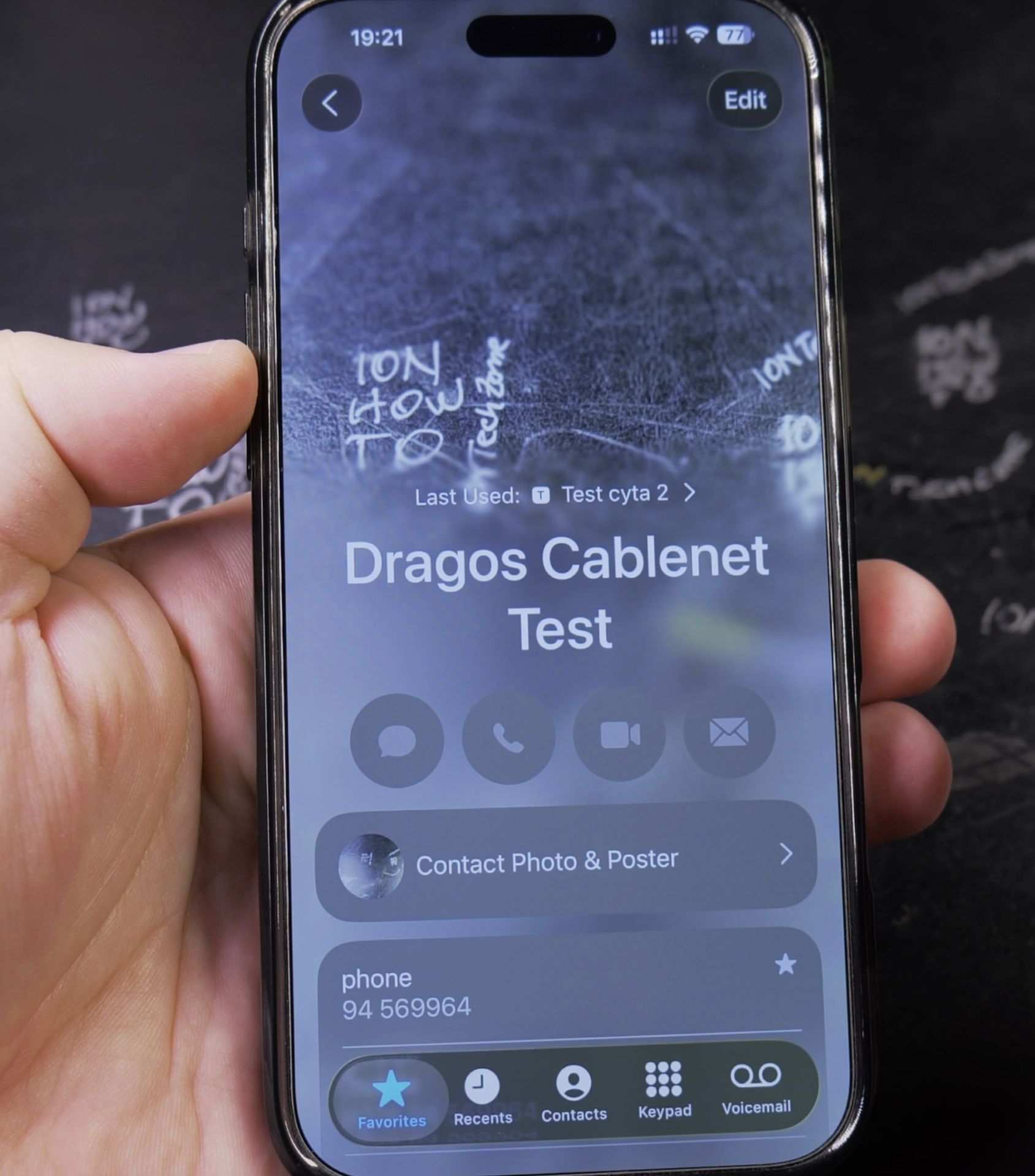
On your contact card, you will see your current Contact Poster at the top. Tap the Edit button in the top right corner. Then, tap on the poster image itself to change it.
3. Delete or Replace the Photo
You will now see options to change your poster. To remove a photo:
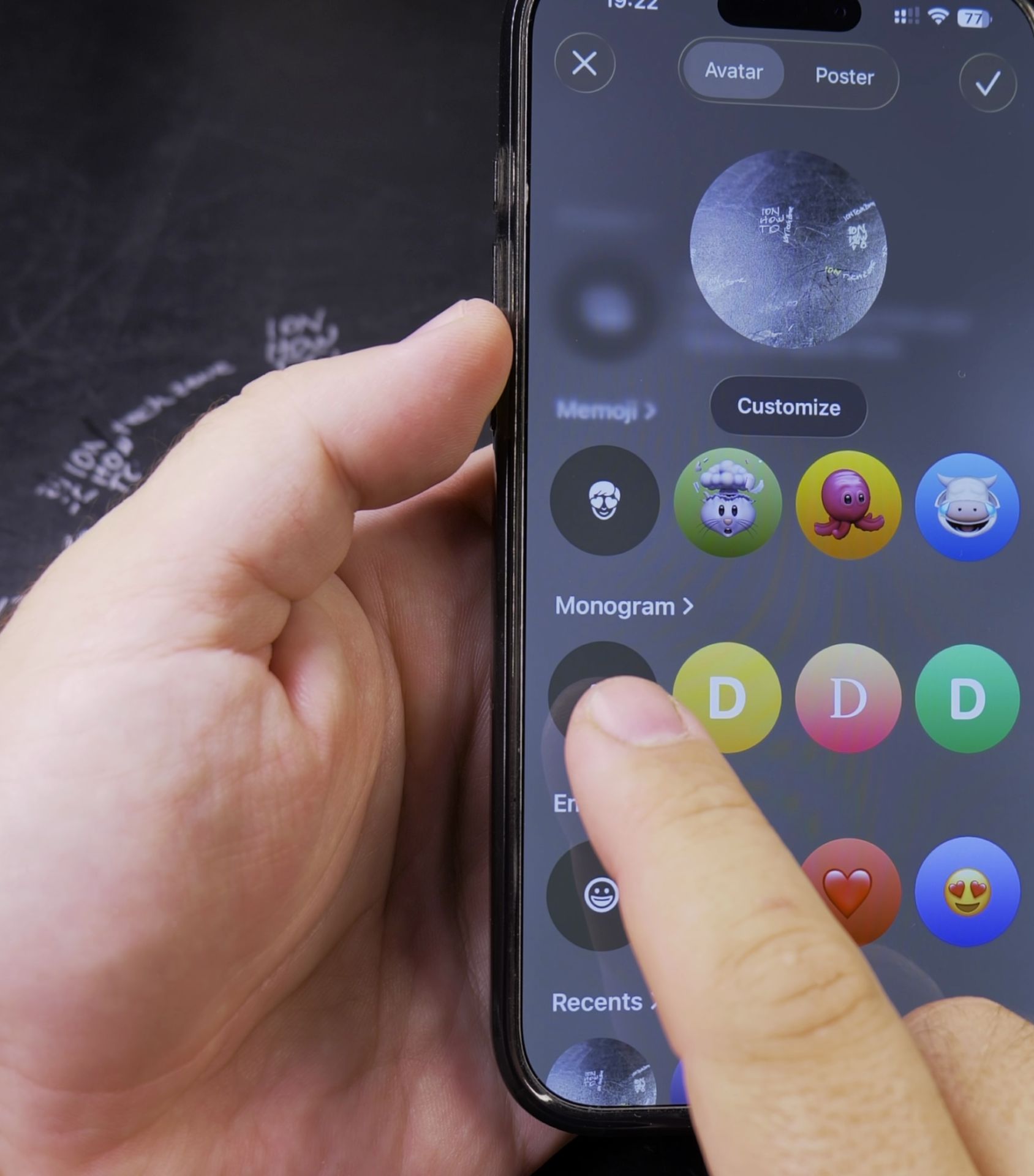
- Tap the photo icon again.
- You can choose Take Photo, Choose Photo, or Monogram.
- To delete the photo completely, select Monogram. This replaces the photo with a simple letter circle.
- You can also create a Memoji if you prefer.
- Once you pick a monogram or Memoji, tap Done in the top right, then tap Done again to save.
Your Contact Poster is now updated. The old photo is gone.
How to Remove a Contact Poster for Someone Else
If you set a poster for a friend or family member in your contacts and want to remove it, the process is just as easy.
4. Find the Contact
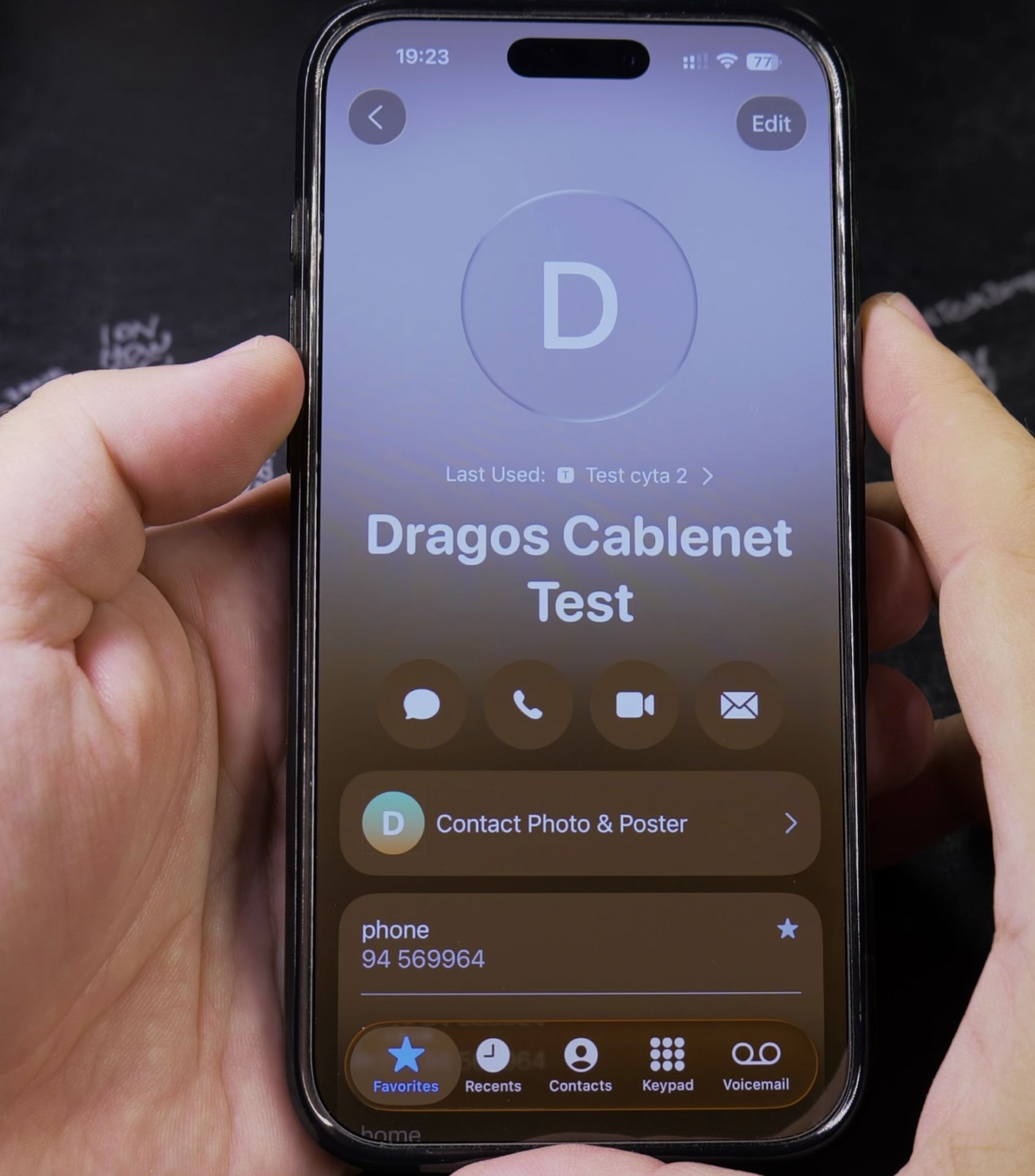
Open the Contacts app and find the person’s contact card. Tap to open it.
5. Edit Their Contact Poster
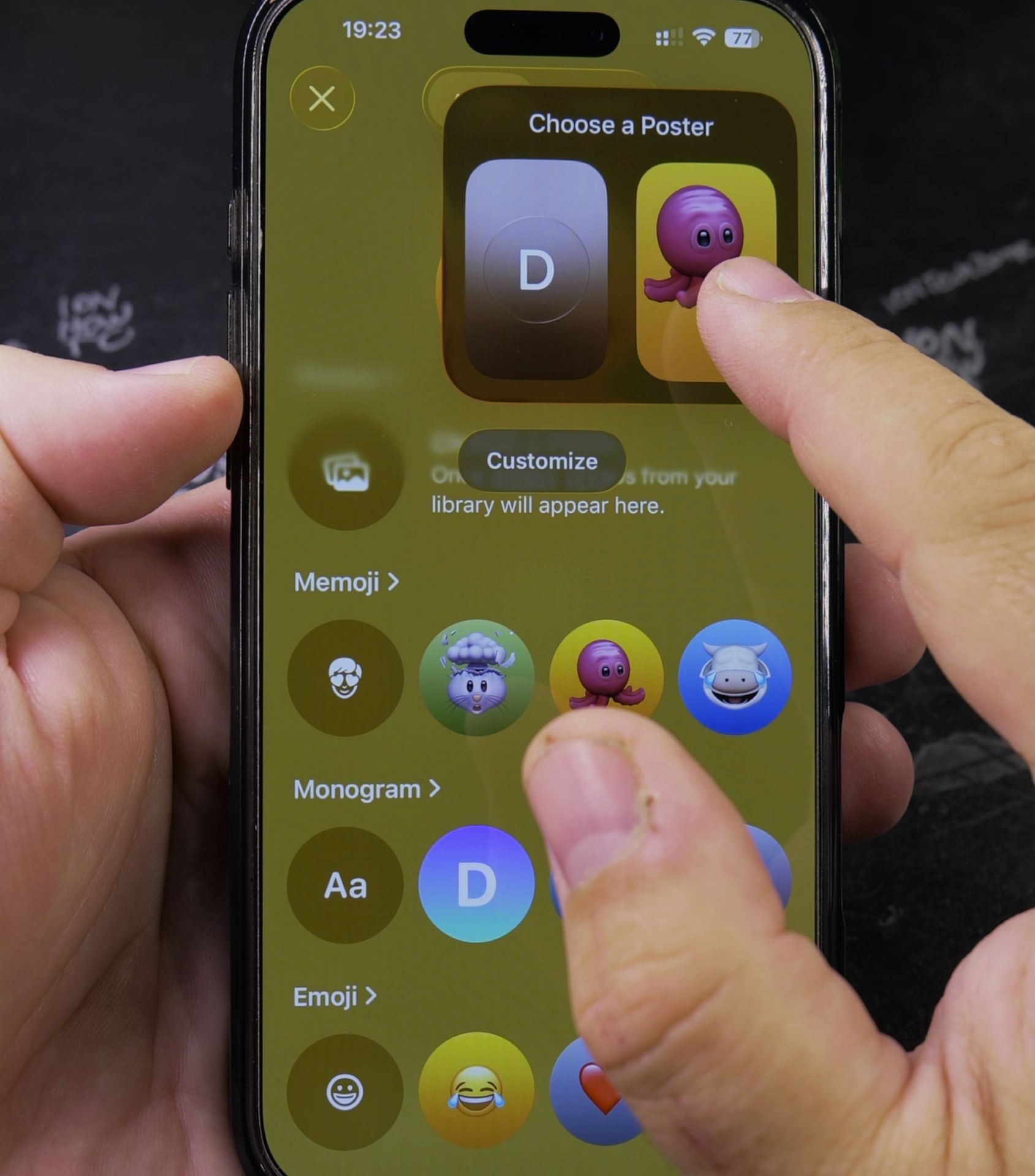
Tap Edit in the top right corner. Then, tap on the Contact Poster image at the top of their info.
6. Change Their Poster Settings
On the poster editing screen, you have the same choices.
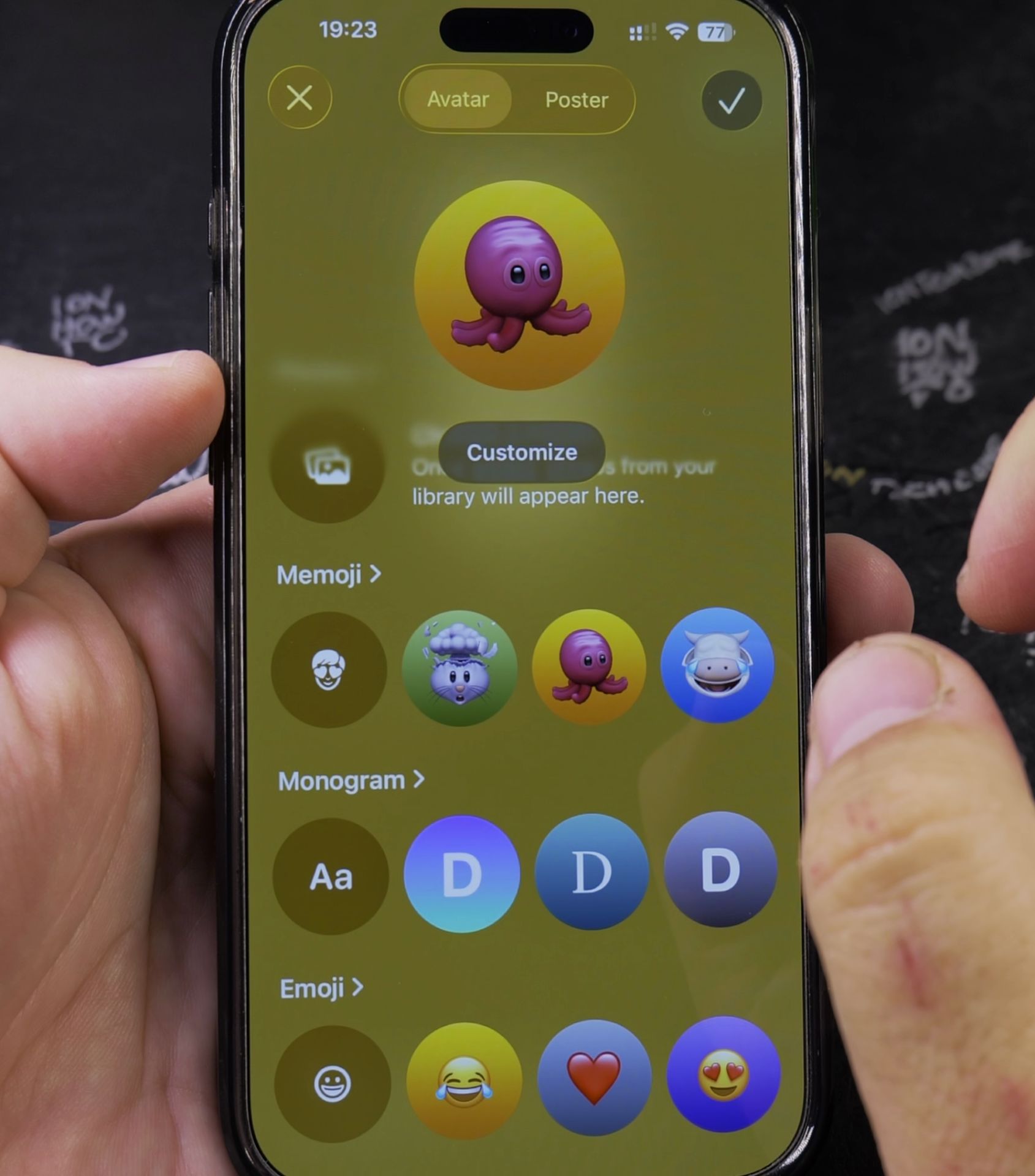
- Tap the current image.
- You can pick a new photo from their contact pictures, or choose Monogram.
- Selecting Monogram will remove the custom photo poster and replace it with their initials.
- Tap Done to save the change.
Now, when that person calls you, their poster will show the monogram instead of the old photo.
A Quick Note on iPhone Accessories
You mentioned some links for iPhone gear. For anyone looking to protect their new iPhone, it’s always a good idea to use a case and a screen protector. A MagSafe-compatible case can also make it easy to use cool accessories like wallets and chargers.
I hope this guide helped you clean up your Contact Posters! It’s a simple way to keep your call screen looking just the way you want.
Helpful Tips
Take your time and check the screen carefully after each tap so you can confirm the setting changed as expected. If an option appears in a slightly different spot on your device, watch the embedded video above for a closer look.
Related Guides
- iPhone Remove Photo from Contact – iPhone How to Remove Photo from Contact.
- How to Stop Your Other Devices Ringing When You Get a Call on iPhone – If your iPad, Mac, and Apple Watch all ring simultaneously every time someone calls your phone, you can silence them easily.
- How to Disable Siri Announce Calls on iPhone (Stop Caller Name Announcements) – Having Siri speak the name of an incoming caller out loud through your iPhone speaker or connected Bluetooth headphones can…
- iPhone How-To Guides – Browse more tutorials and practical guides in this section.


Leave a Reply