
Ever needed to find a Wi-Fi password that’s saved on your iPhone? Maybe you want to connect a new device or share the password with a friend.
Amazon links
As an Amazon Associate I earn from qualifying purchases:
- iPhone Accessories
- iPhone Charger
- iPhone Cases
- iPhone Screen protector
- iPhone Magsafe
- iPhone Wallet
- iPhone Usb c cable
Good news, your iPhone actually stores all your Wi-Fi passwords, and you can easily view them. Here’s how.
View Saved Wi-Fi Passwords on iPhone.
Quick Steps and Scenarios Overview
| What You Need to Do | Quick Jump |
|---|---|
| Method 1: Find Wi-Fi Passwords in Settings (iOS 16 or Later) | Jump to Step 1 |
| Method 2: Use the Passwords App (iOS 18 or Later) | Jump to Step 2 |
| Method 3: Share Wi-Fi Passwords Between Apple Devices | Jump to Step 3 |
(Tested on iOS 18.4.1 with iPhone 16 Pro Max Titanium Black 256GB – Global Model A3296 – MYWV3ZD/A)
Method 1: Find Wi-Fi Passwords in Settings (iOS 16 or Later)
If you’re running iOS 16 or newer, Apple lets you view saved Wi-Fi passwords right in your settings. Here’s how:
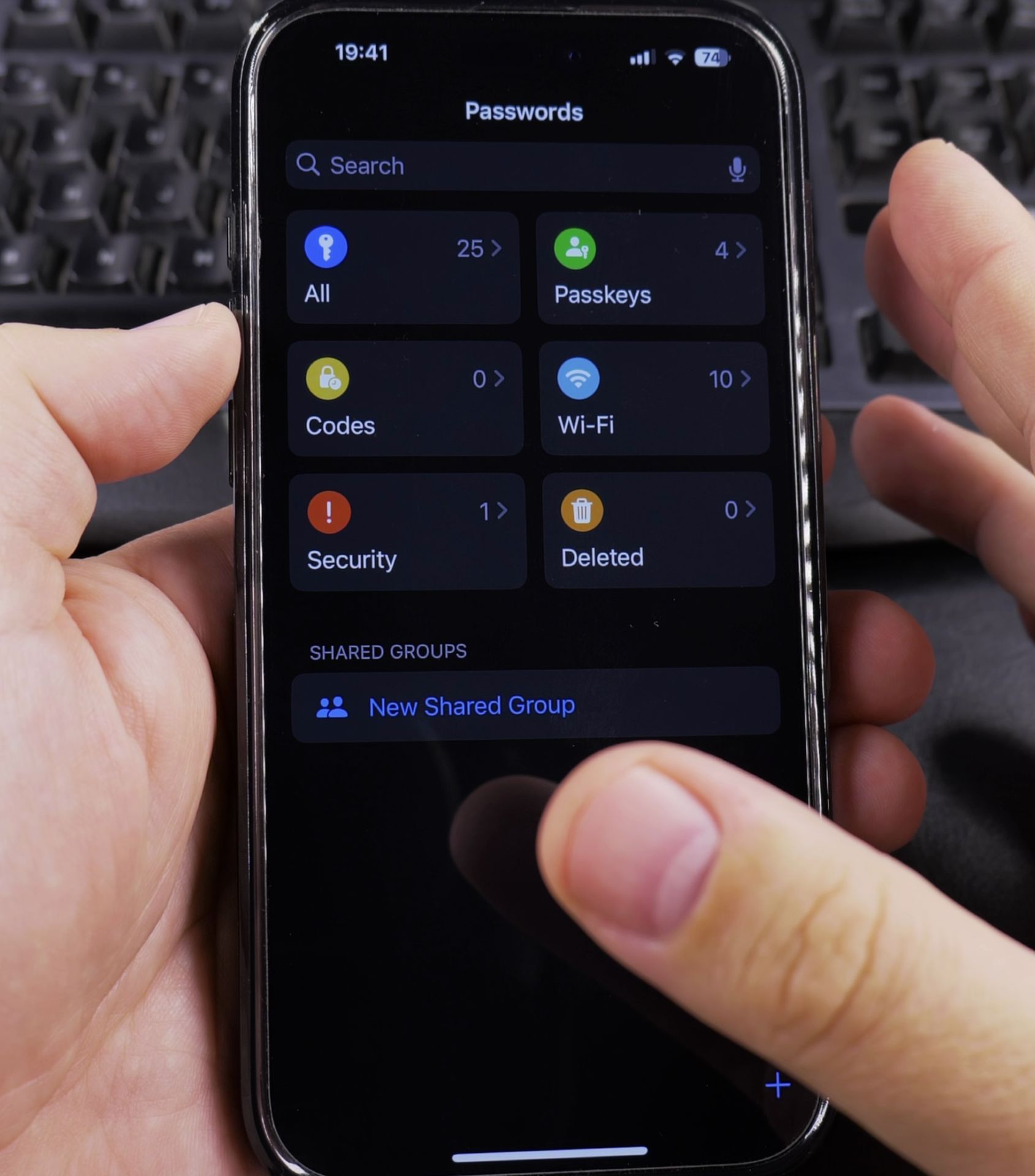
- Open Settings and tap Wi-Fi.
- Find the network you want the password for and tap the (i) icon next to it.
- Tap Password.
- Authenticate with Face ID, Touch ID, or your passcode.
- The password will appear, now you can copy it.
Note: This only works for networks your iPhone has connected to before.
Method 2: Use the Passwords App (iOS 18 or Later)
With iOS 18, Apple moved saved Wi-Fi passwords into the Passwords app. Here’s how to find them:
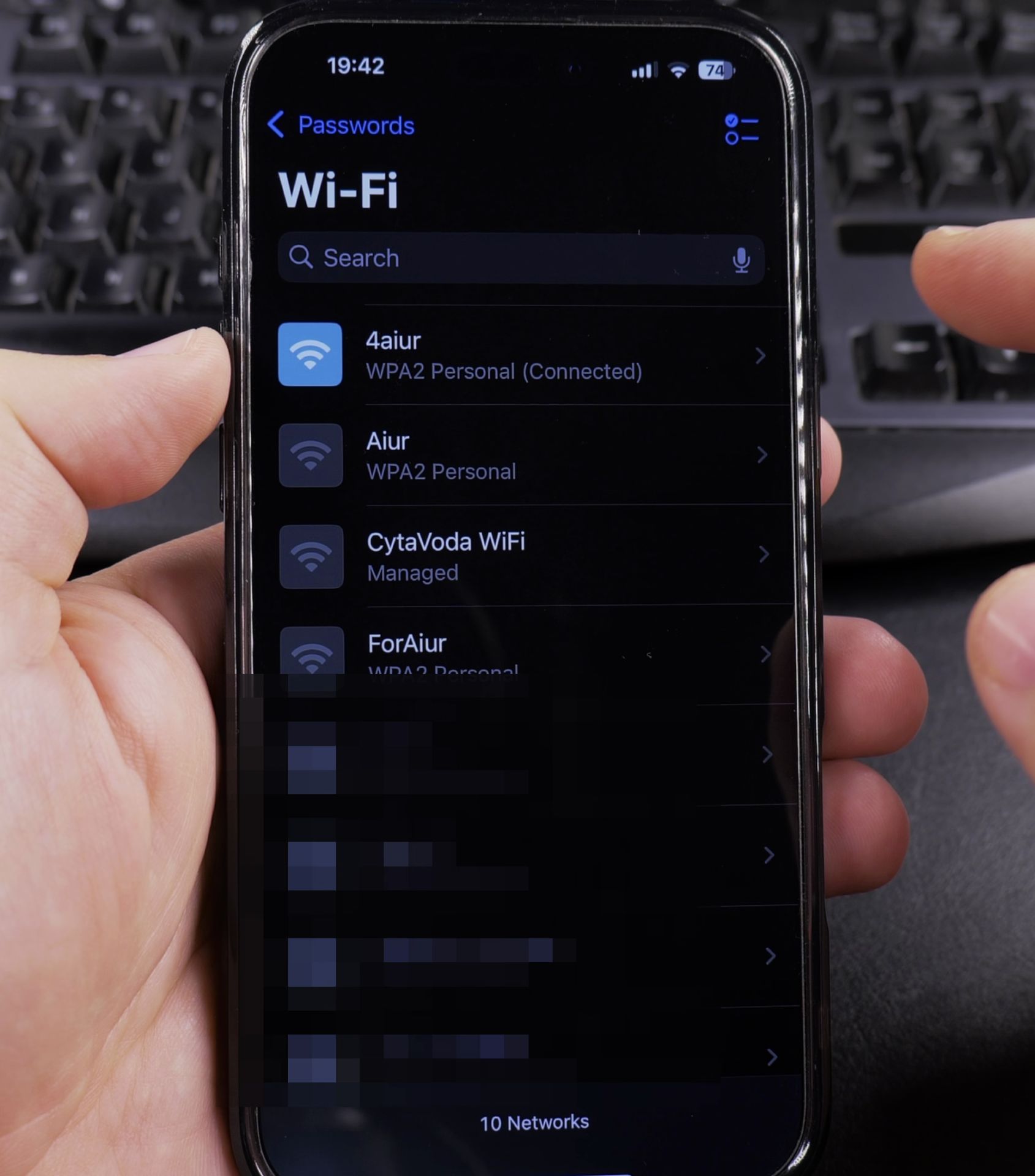
- Open the Passwords app (it has a key icon).
- Authenticate with Face ID or your passcode.
- Scroll or search for the Wi-Fi network name.
- Tap the network to view the password.
- You can copy, share as text, or generate a QR code for easy sharing.
Method 3: Share Wi-Fi Passwords Between Apple Devices
If you just need to share a Wi-Fi password with another iPhone or iPad (without seeing it), try this:
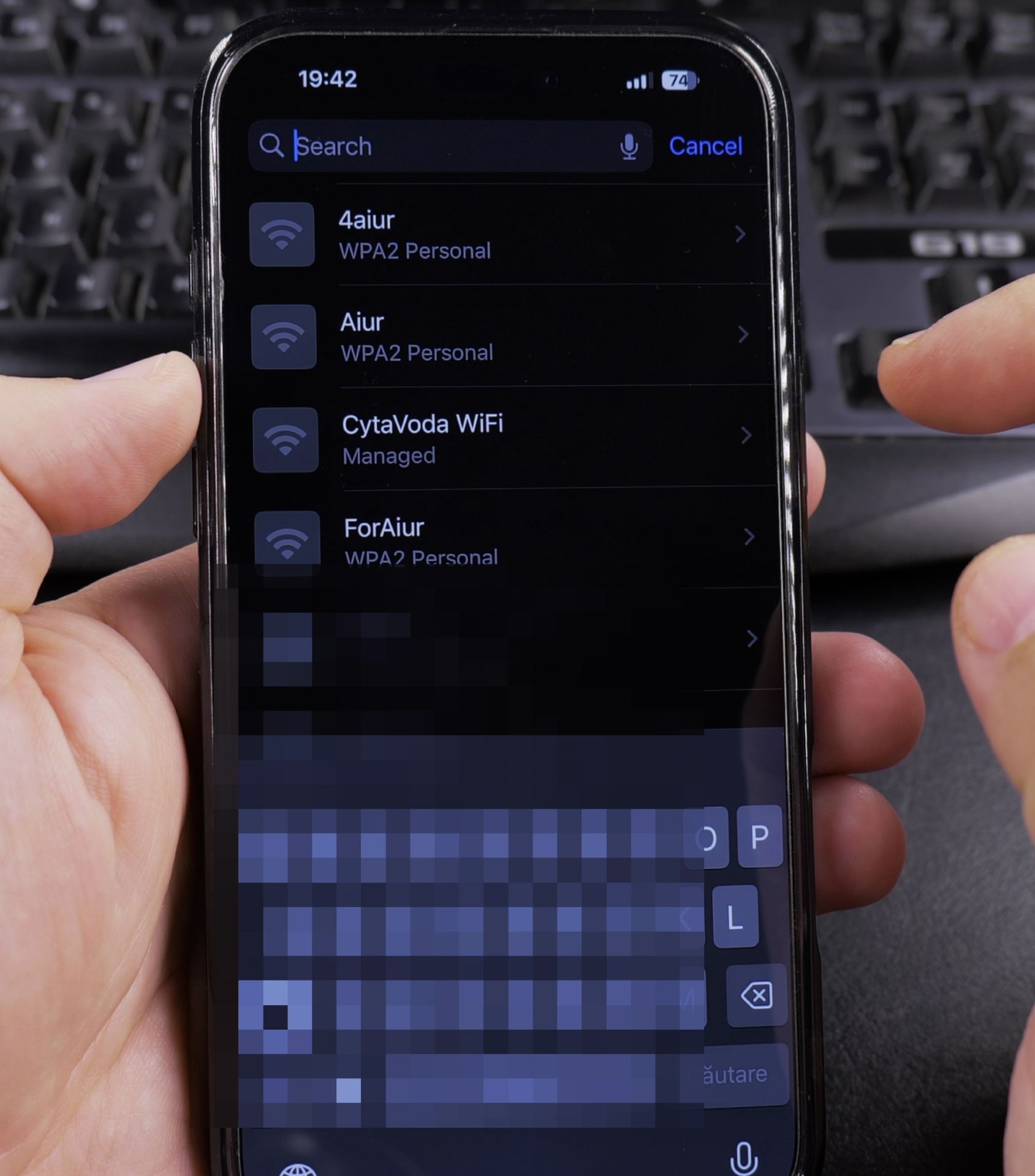
- Make sure both devices have Bluetooth and Wi-Fi turned on.
- Bring the devices close to each other.
- On the device that already knows the password, tap Share Password when prompted.
- The other device will connect automatically.
Note: Both devices must be signed in to iCloud with Apple IDs in each other’s contacts.
What If the Network Isn’t Listed?
If you need a password for a network your iPhone hasn’t connected to before, you’ll need to:
- Check your router (often printed on a sticker).
- Ask the network owner.
- Use a Mac (if you have one) to find saved passwords in Keychain Access.
Final Thoughts
Now you know how to find, view, and share saved Wi-Fi passwords on your iPhone. If you’re setting up a new device or helping a friend connect, these methods should cover what you need.
Still having trouble? Drop a question in the comments and I’ll do my best to help you.
Helpful Tips
Take your time and check the screen carefully after each tap so you can confirm the setting changed as expected. If an option appears in a slightly different spot on your device, watch the embedded video above for a closer look.
Related Guides
- How to See Wi-Fi Passwords on iPhone – How to See Saved Wi-Fi Passwords on iPhone.
- How to Remove a Saved Passkey from the iCloud Passwords App on iPhone – Learn how to remove a saved passkey from the iCloud Passwords app on your iPhone.
- Check Wi-Fi Calling on iPhone – How to Check if Wi-Fi Calling is Working on Your iPhone.
- iPhone How-To Guides – Browse more tutorials and practical guides in this section.


Leave a Reply