
If you get kicked out of Roblox Rivals or other Roblox games with ‘Error Code: 319 (Roblox was not able to verify the integrity of the game)’ or ‘Error Code: 317 (This game has enabled additional hardware security requirements)’, or if Google Wallet refuses to add payment cards for NFC tap-to-pay, your phone is failing Android device integrity checks. Here is how to install Android System and Google Play Security Updates to resolve the issue.
Understand Why Error 319, Error 317, and Google Wallet Integrity Checks Happen
Both Google Wallet NFC payment verification and anti-cheat systems in games like Roblox Rivals rely on Google Play Integrity checks to confirm that your Android operating system has not been modified and holds up-to-date security certificates.
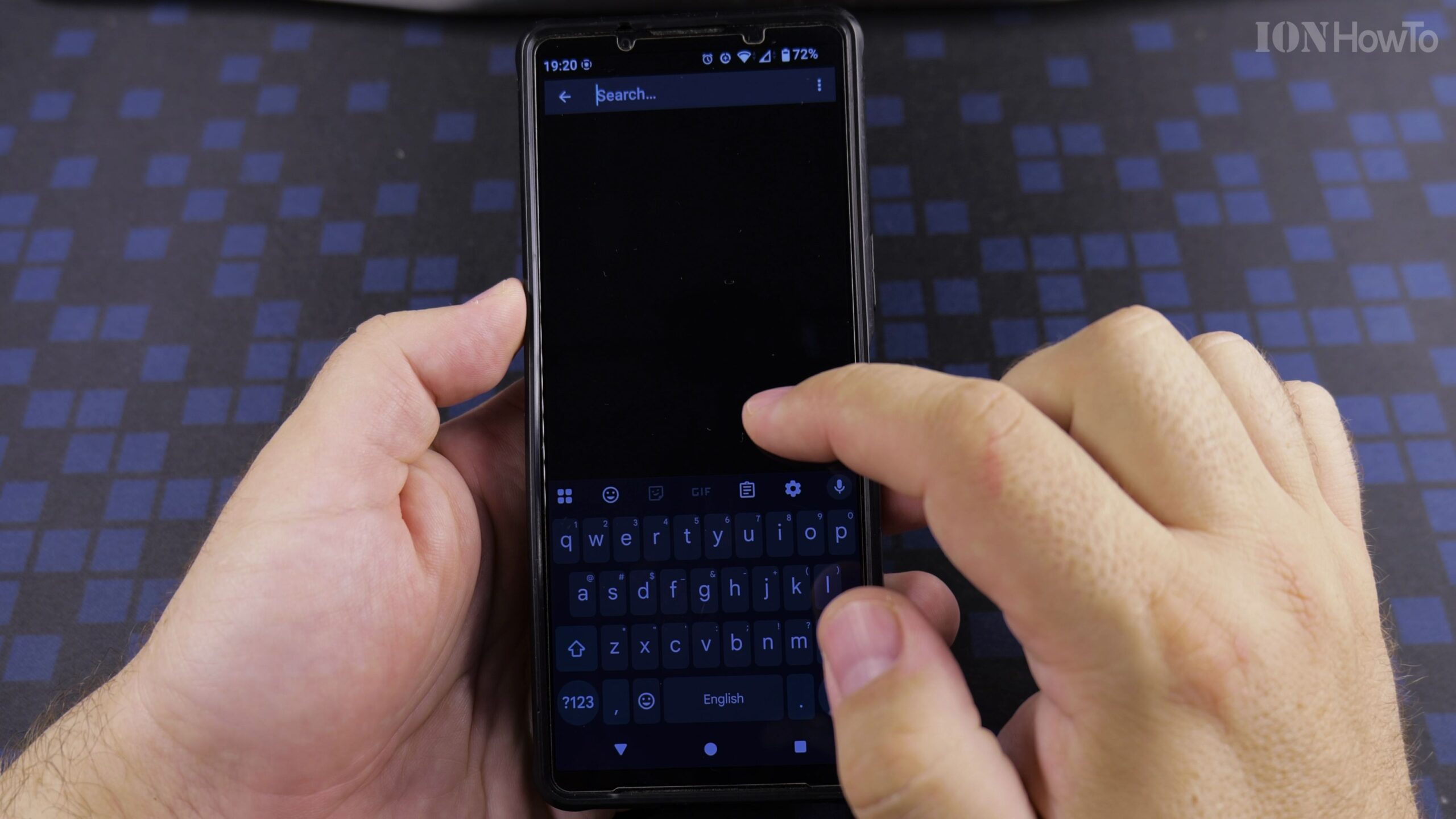
Open Android Settings and Navigate to Security and Privacy
Unlock your Android phone, open the main Settings app, and scroll down to tap Security and privacy (or Biometrics and security on older Samsung Galaxy devices). Look for the Updates section near the top of the screen.
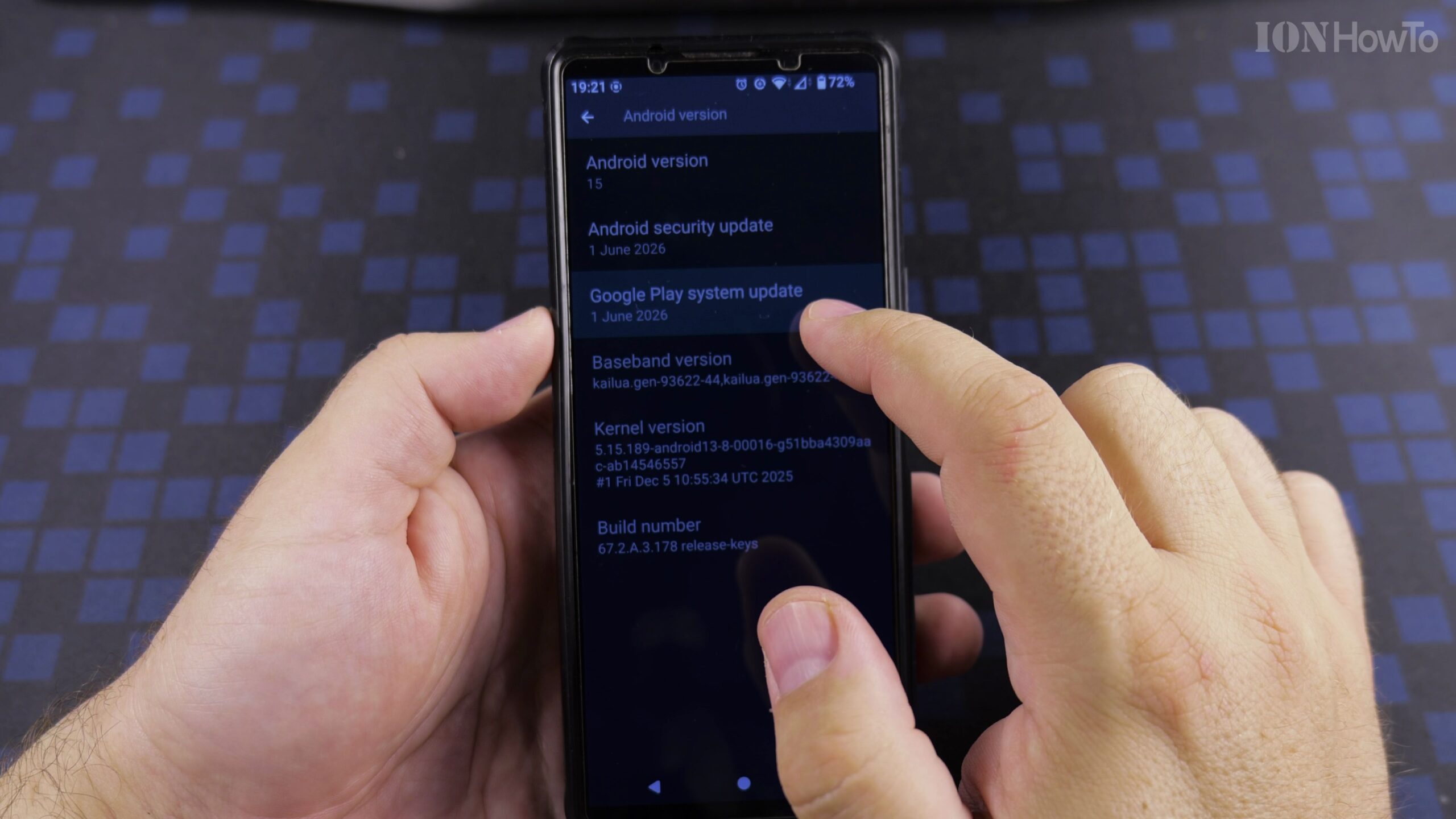
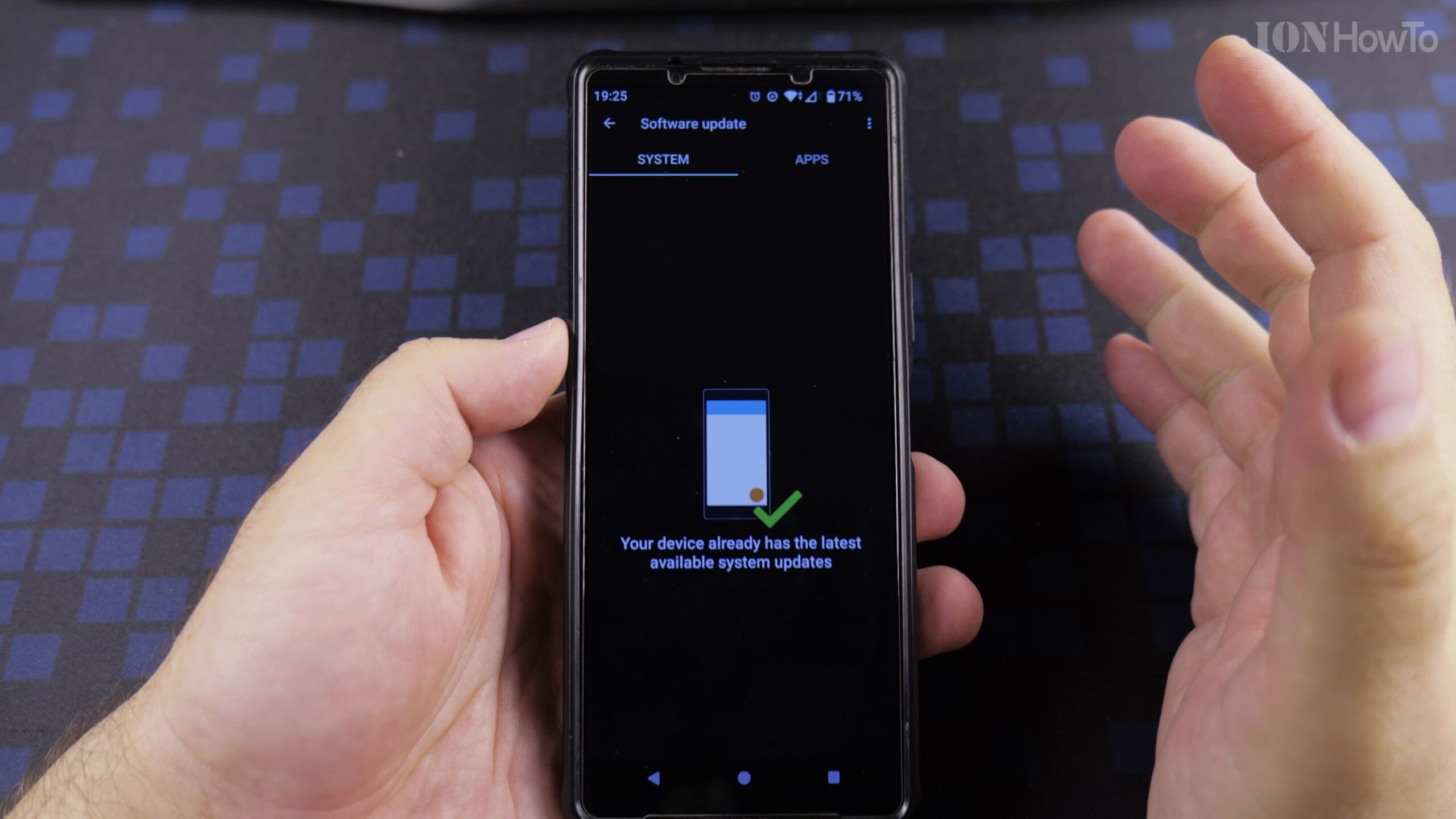
Check for and Install the Latest Android System Update
Tap Security Update or Software Update first to verify whether a main Android OS firmware patch is waiting. If an update is available, download and install it so your underlying kernel and security patch level are current.
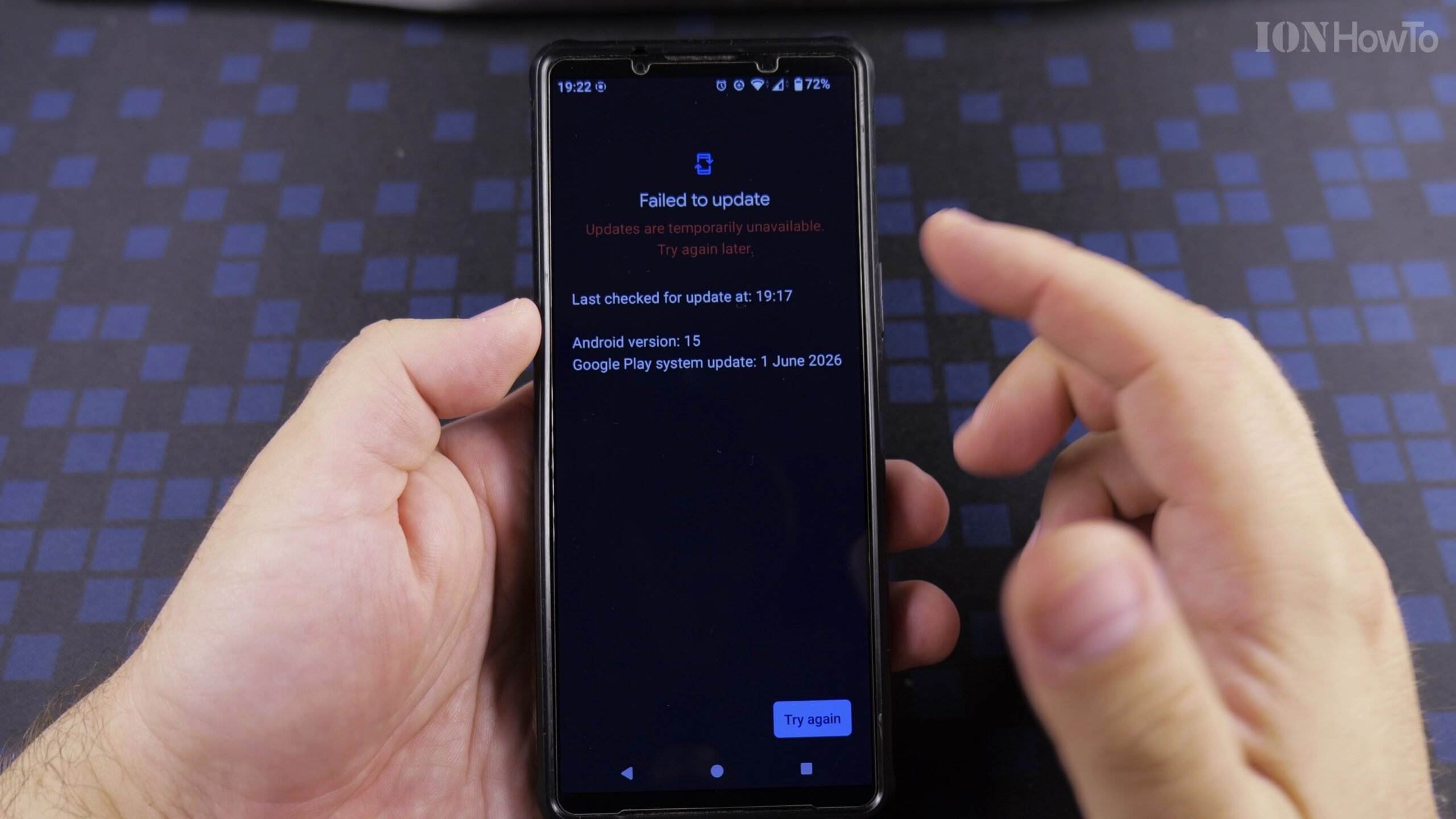
Tap Google Play System Update and Download the Latest Patch
Return to the Security and privacy menu and tap Google Play system update. Even when your main Android OS says it is up to date, Google Play system updates are delivered separately; tap Check for update and download any pending patch.
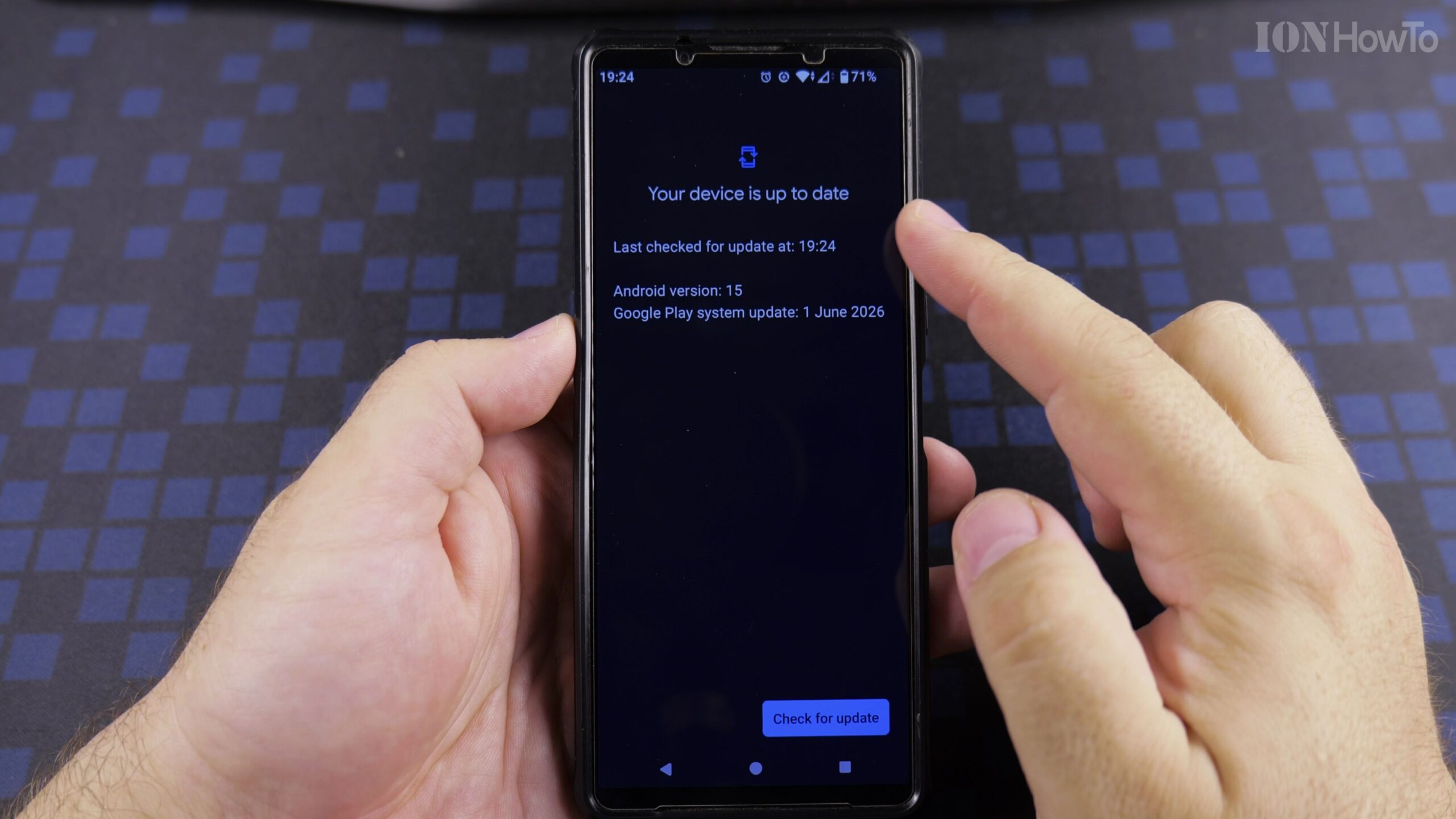
Restart Your Phone and Test Roblox Rivals and Google Wallet
Tap Restart now when prompted so the new security certificates take effect. Once your phone finishes rebooting, open Google Wallet to verify NFC card support and launch Roblox Rivals to confirm that Error 319 and Error 317 are resolved.
Helpful Tips and Related Guides
If your older Android phone no longer receives Google Play security updates from the manufacturer, hardware-enforced games like Roblox Rivals may no longer support that specific model. Read our related guide on Fixing Roblox Game Integrity Error 317 and Error 319, browse our Roblox How-To Guides, or check our Android Tips section.


Leave a Reply