
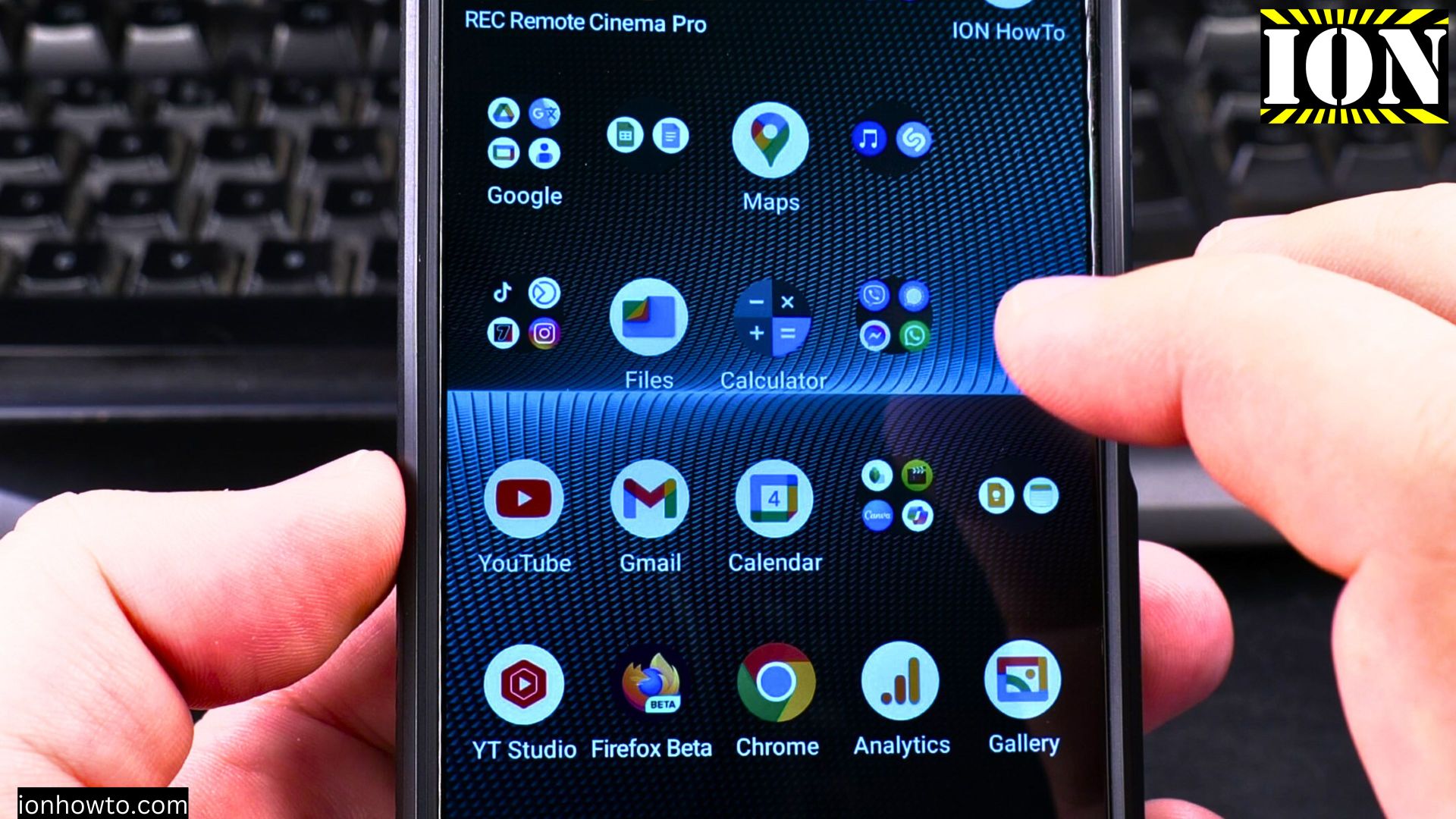
If you want to make your Android device more hands-free, this is for you. In this post, I’ll explain how to enable and use Hey Google on your Android device, how to set it up with Gemini AI, and even how to turn it off if you decide it’s not for you.
If you prefer the step-by-step video guide watch it on my YouTube channel.
On Android devices
Quick Steps and Scenarios Overview
| What You Need to Do | Quick Jump |
|---|---|
| What is Hey Google? | Jump to Step 1 |
| How to Enable Hey Google on Android | Jump to Step 2 |
| How to Use Hey Google with Gemini AI | Jump to Step 3 |
| Hands-Free Commands You Can Use with Hey Google | Jump to Step 4 |
| How to Disable Hey Google on Android | Jump to Step 5 |
Recommended Amazon Gear and Accessories
Disclosure: This article contains Amazon affiliate links. As an Amazon Associate, we earn from qualifying purchases at no extra cost to you.
- Phone Accessories
- Android Phone Case
- USB-C Charger
- USB-C Cable
- Wireless Charger Stand
- Wireless Car Charger
On Samsung phones
What is Hey Google?
Hey Google is a voice command feature that lets you interact with your Android device without touching it. You can ask it to do things like check the weather, set timers, search the web, or even control your smart home devices. It’s like having a personal assistant at your beck and call, just say the magic words, and it’s ready to help.
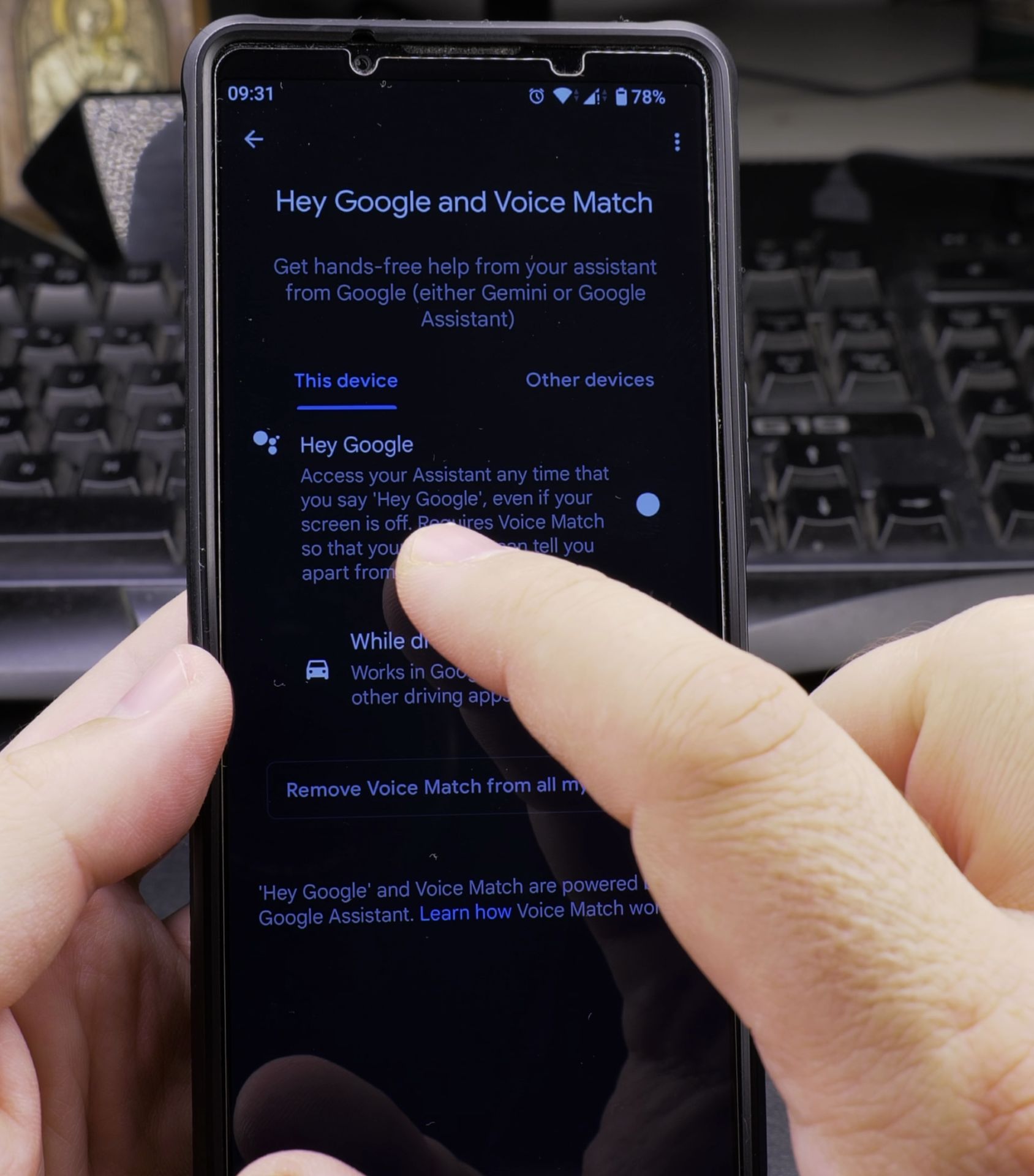
How to Enable Hey Google on Android
Enabling Hey Google is really simple. Follow these steps:
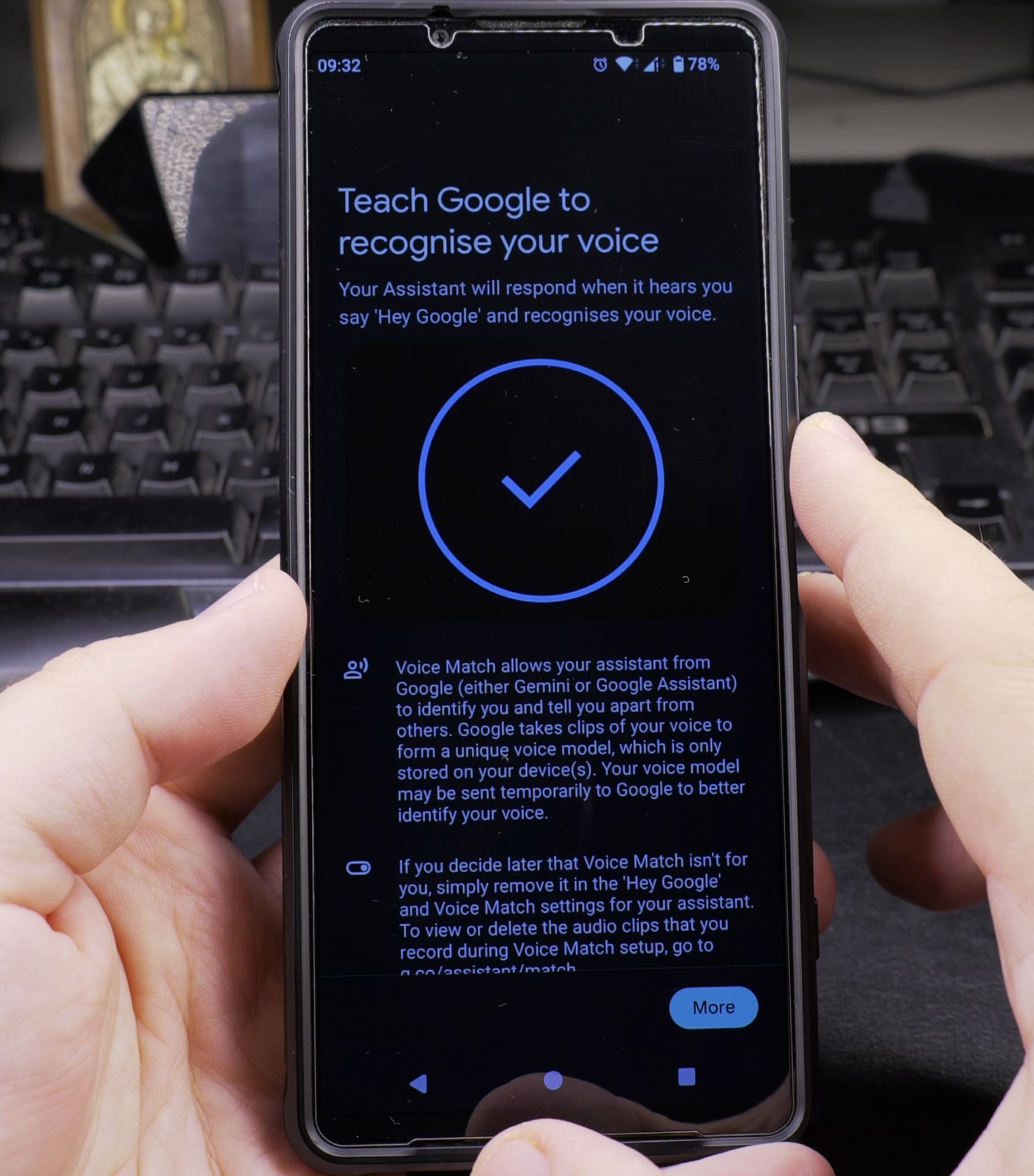
- Open the Google App: Tap on the Google app on your Android device. It’s usually the colorful “G” icon.
- Go to Settings: Tap on your profile picture in the top-right corner, then select Settings.
- Select Voice: Under the Settings menu, tap on Voice.
- Enable Voice Match: Tap on Voice Match and toggle on the option for Hey Google. You’ll be prompted to train your voice by saying “Hey Google” a few times so your device can recognize you.
- Allow Access: Make sure to allow access to your microphone and other permissions if prompted.
Now you can say Hey Google to activate your voice assistant.
How to Use Hey Google with Gemini AI
Gemini AI is a powerful tool that enhances your Hey Google experience by providing smarter, more contextual responses. Here’s how to use it:
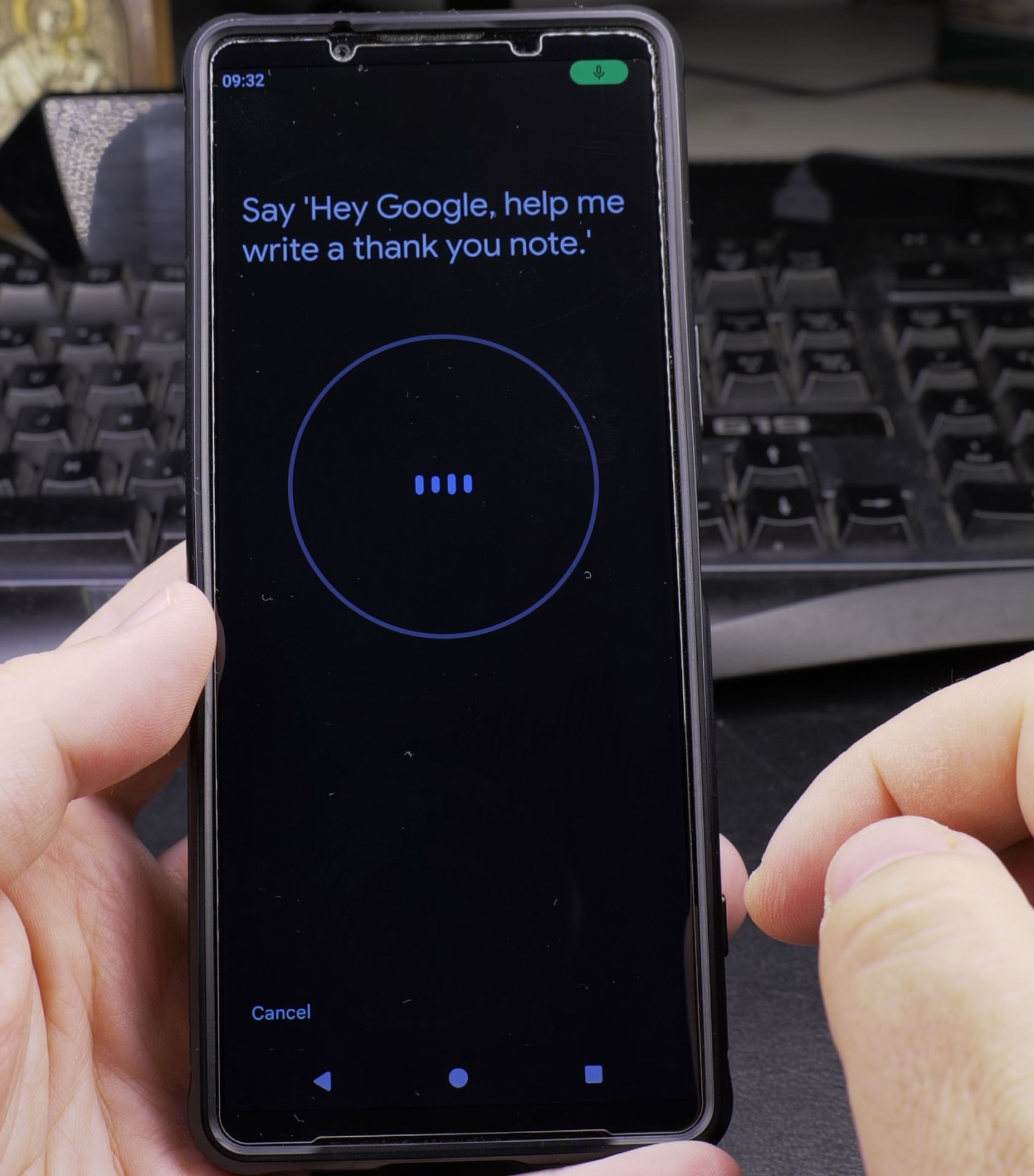
- Download Gemini AI: If you don’t already have it, download the Gemini AI app from the Google Play Store.
- Link Gemini AI to Google Assistant: Open the Gemini AI app and follow the prompts to link it with your Google Assistant.
- Start Using Commands: Once linked, you can use Hey Google to ask Gemini AI for help. For example, you can say, “Hey Google, ask Gemini to summarize this post” or “Hey Google, ask Gemini for good restaurants nearby.”
Gemini AI makes your voice commands more useful.
Hands-Free Commands You Can Use with Hey Google
Once Hey Google is enabled, you can start using it for all sorts of tasks. Here are some examples:
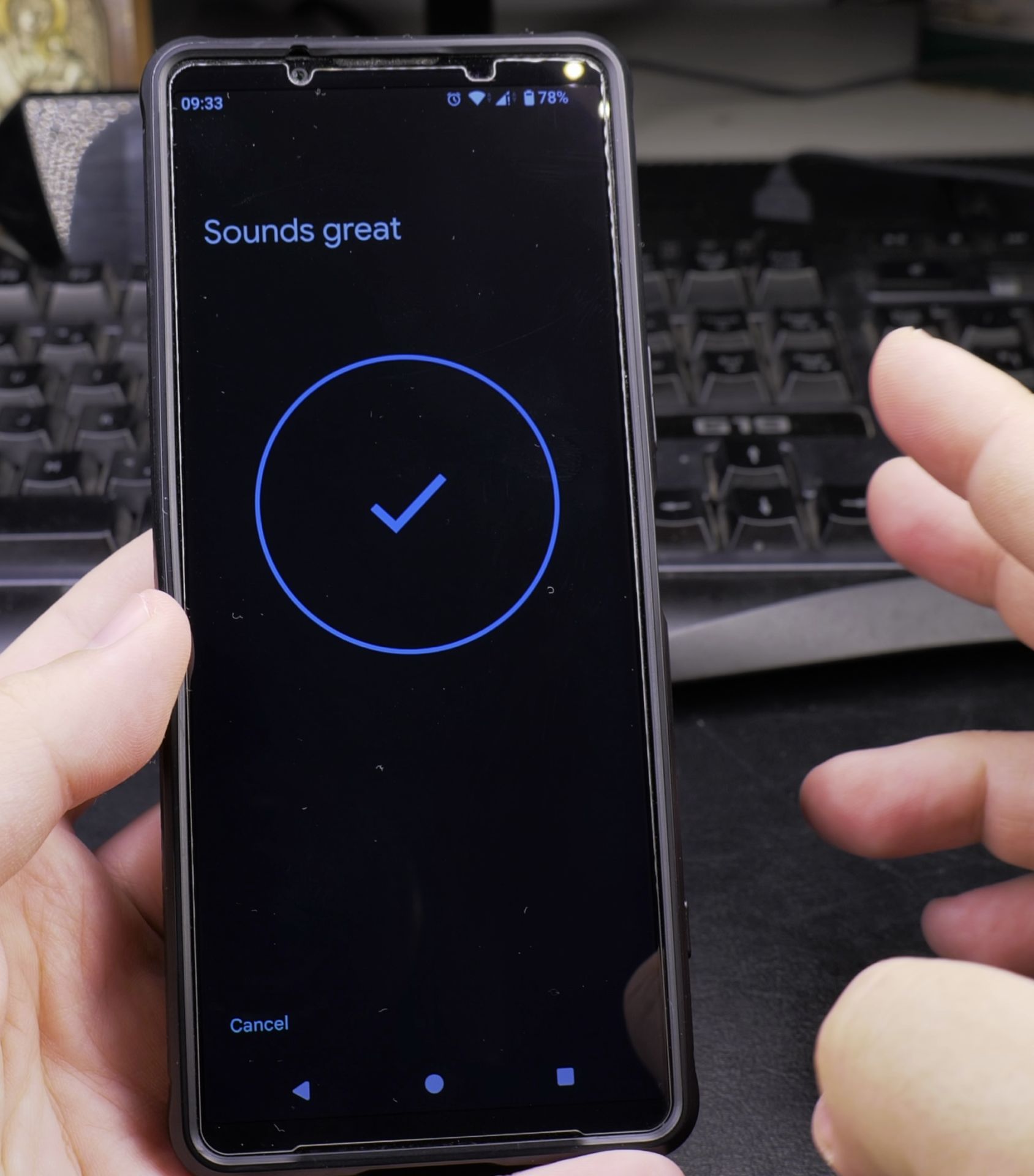
- Weather: “Hey Google, what’s the weather today in Larnaca?”
- Timers: “Hey Google, set a timer for 5 minutes.”
- Search: “Hey Google, find the best cafe near me.”
- Reminders: “Hey Google, remind me to call the school at 9 AM.”
- Navigation: “Hey Google, Go to the nearest mall food court.”
The possibilities are endless and hands-free!
How to Disable Hey Google on Android
If you want to turn off Hey Google, it’s easy:
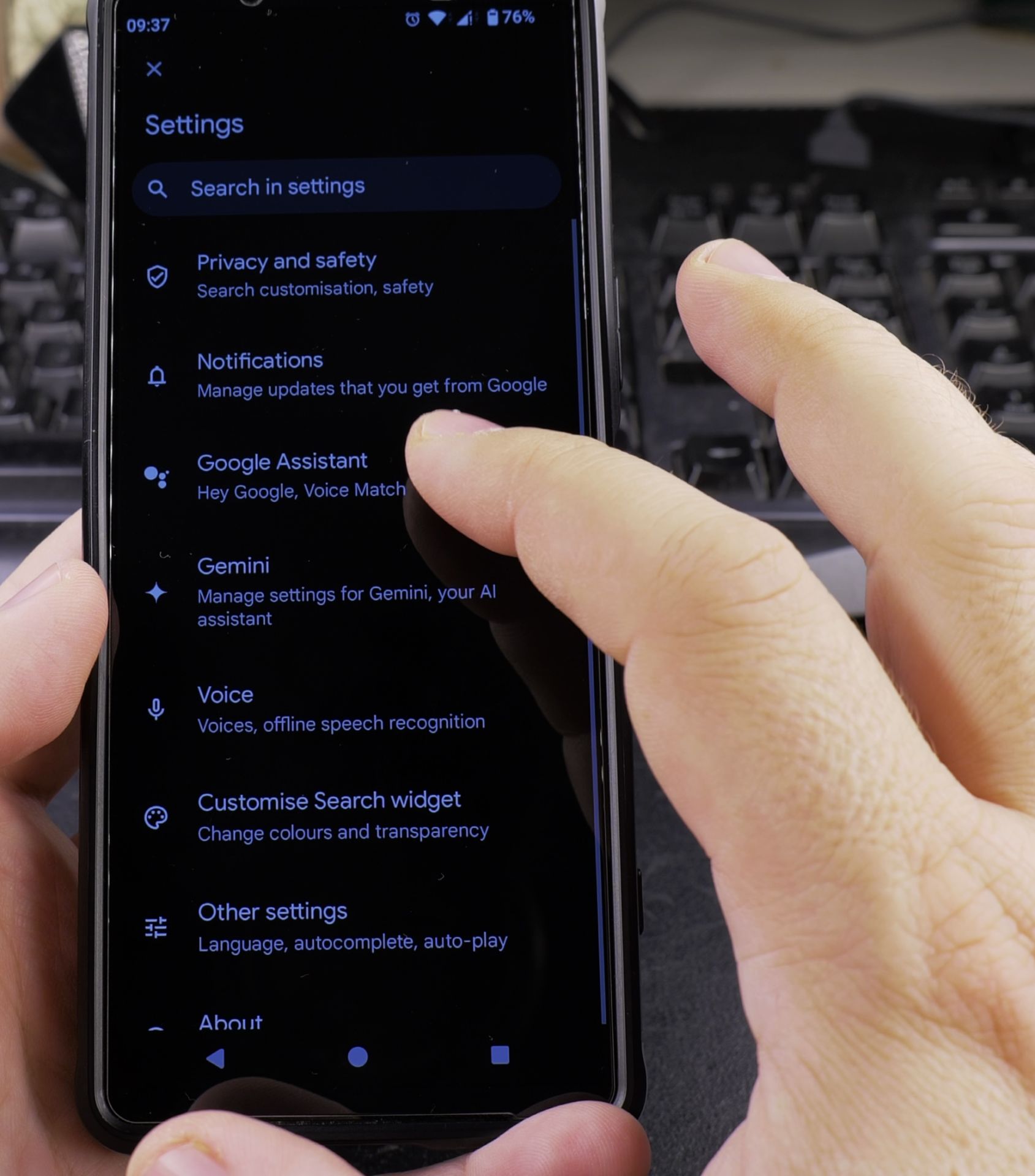
- Open the Google App: Tap on the Google app.
- Go to Settings: Tap on your profile picture, then select Settings.
- Select Voice: Under Settings, tap on Voice.
- Disable Voice Match: Tap on Voice Match and toggle off the option for Hey Google.
If you prefer to use the Google Assistant or Gemini AI Assistant without voice activation, you can still access them by long-pressing the circle home navigation button on your Android device.
Why You Might Want to Disable Hey Google
While Hey Google is useful, it can get activated by mistake, like when you’re talking about it or someone nearby says something similar. If you find this happening too often, you might want to disable it temporarily or permanently. You can always turn it back on whenever you want!
Conclusion
Using Hey Google on your Android device is great for hands-free convenience.
When checking the weather, setting reminders, or using Gemini AI to get smarter answers, it’s all just a voice command away.
Helpful Tips
Take your time and check the screen carefully after each tap so you can confirm the setting changed as expected. If an option appears in a slightly different spot on your device, watch the embedded video above for a closer look.
Related Guides
- Android Disable Google Assistant and Gemini AI Assistant – Samsung Galaxy Android Disable Samsung AI Features Google Assistant and Gemini AI Assistant.
- How to Change Google Gemini Voice on Samsung Galaxy Android – If you don't like the default voice of your Google Gemini assistant, you can choose from a range of friendly and natural…
- HiLight Notifications Gemini AI Assistant Light and Flashlight on Google Pixel 11 Pro XL – On the Google Pixel 11 Pro XL, notification indicators have evolved into HiLight – an intelligent lighting system surrounding…
- Samsung Android Guides – Browse more tutorials and practical guides in this section.


Leave a Reply