

Need to save a document as a PDF on your Samsung phone? I’ll show you two easy ways to do it – from any app using the print function, and directly from Google Docs.
Amazon links
As an Amazon Associate I earn from qualifying purchases:
- Phone Cases
- Mobile Tripods
- Usb-c charger
- Usb-c cable
- Docking stations
- Wireless car chargers
- Wireless charger stand
- SIM card removal tool
- SIM card holder
Quick Steps and Scenarios Overview
| What You Need to Do | Quick Jump |
|---|---|
| Method 1: Print to PDF from Any App | Jump to Step 1 |
| Method 2: Save Google Docs as PDF | Jump to Step 2 |
| Where to Find Your Saved PDFs | Jump to Step 3 |
| Why Save as PDF? | Jump to Step 4 |
Method 1: Print to PDF from Any App
This works for web pages, emails, notes and more:
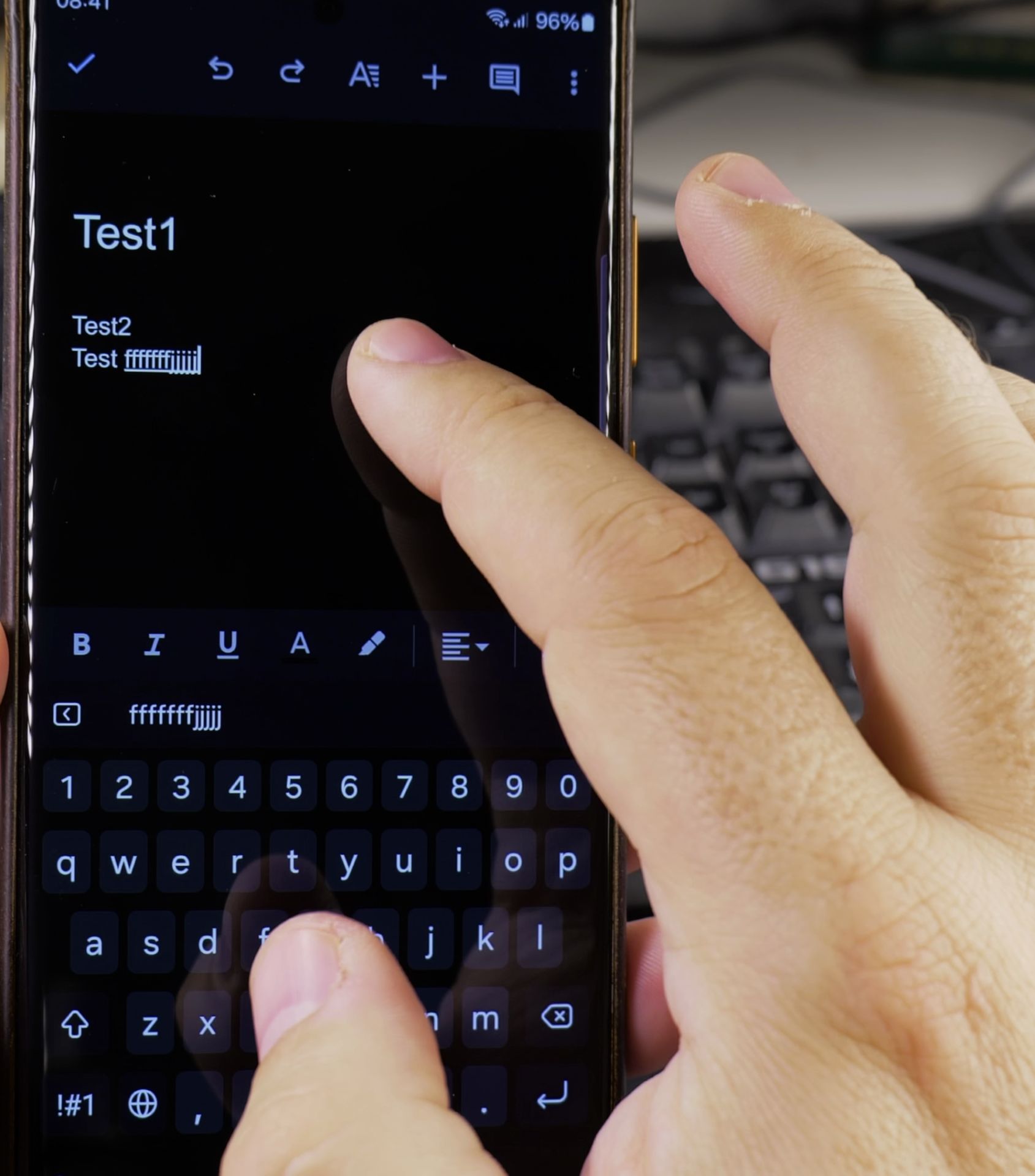
- Open the document you want to save
- Tap the share icon (usually looks like an arrow or three dots)
- Select “Print” from the menu
- Tap the printer dropdown and choose “Save as PDF”
- Adjust settings if needed (page size, orientation)
- Tap the blue PDF icon to save
- Choose a location and name your file
- Tap “Save”
Your PDF will be saved in your Files app under the location you selected.
Method 2: Save Google Docs as PDF
For documents in Google Docs:
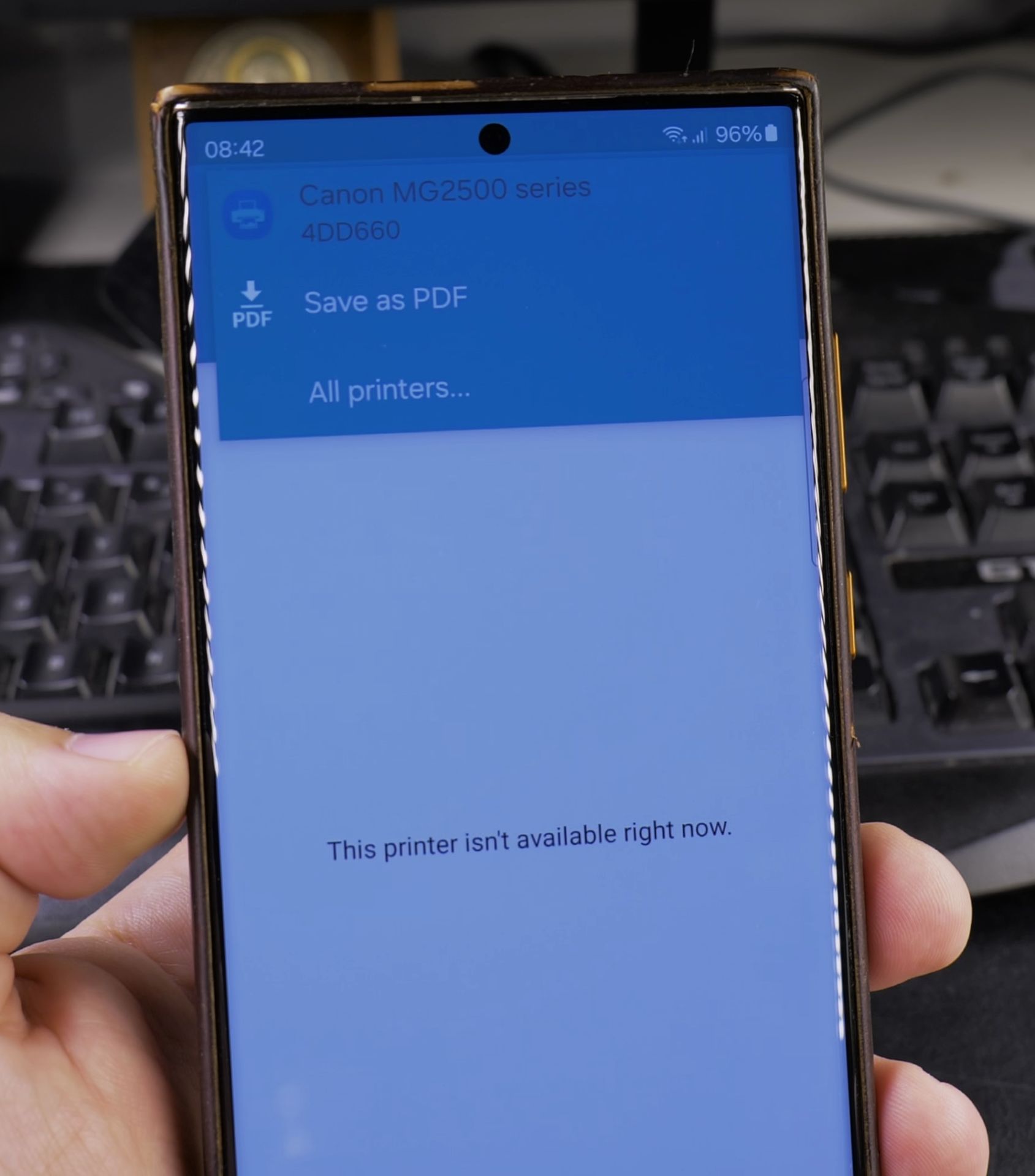
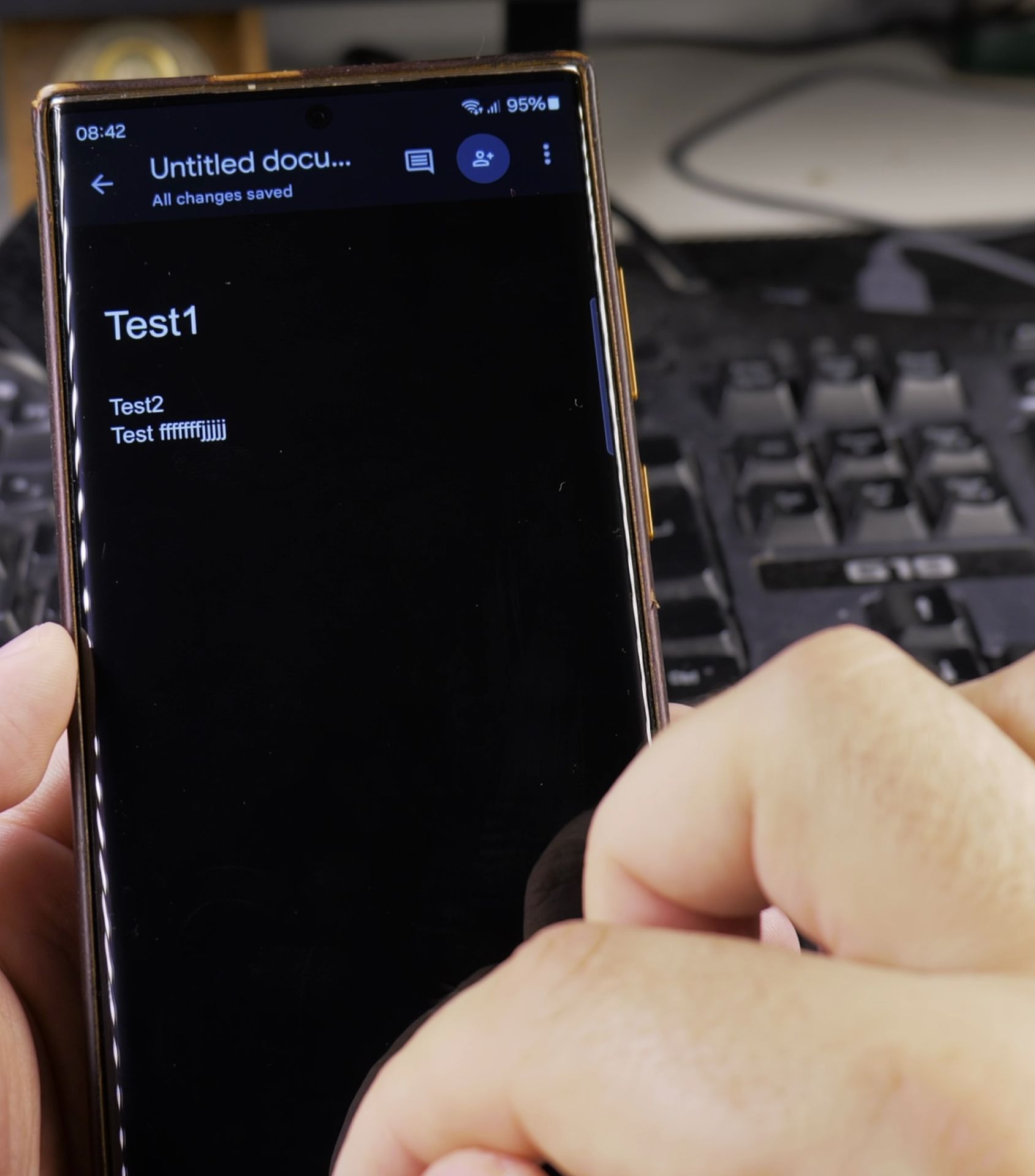
- Open your document in the Google Docs app
- Tap the three-dot menu in the top right
- Select “Share & export”
- Choose “Save as PDF”
- Pick a save location (like Downloads or Drive)
- Name your file
- Tap “Save”
Where to Find Your Saved PDFs
After saving:
- Open the Files app
- Look in:
- Downloads folder (for most PDFs)
- Google Drive (if you saved there)
- Internal storage/PDF (some devices create a PDF folder)
Why Save as PDF?
PDFs are great because:
- They keep the same formatting on all devices
- Easy to email or share
- Can’t be easily edited (good for resumes)
- Small file size
Now you can create PDFs anytime, anywhere from your Samsung Galaxy! Need to print it later? Just open the PDF and use the same print menu to send it to a real printer.
Helpful Tips
Take your time and check the screen carefully after each tap so you can confirm the setting changed as expected. If an option appears in a slightly different spot on your device, watch the embedded video above for a closer look.
Related Guides
- How to Access Network Share on Samsung Galaxy Android Phone – If you have movies, photos, or documents on your home computer or network drive, you can open them right from your phone.
- Turn Off Color Palettes on Samsung Galaxy Android – How to Turn Off Color Palettes for Home Screen and App Icons on Samsung Galaxy Android phones.
- How to Print to PDF on Android – How to Print to PDF on Android and Save Files as PDF.
- Samsung Android Guides – Browse more tutorials and practical guides in this section.


Leave a Reply