

Getting started with your Samsung Galaxy phone or tablet? I’ll show you the steps to turn it on properly.
Amazon links
As an Amazon Associate I earn from qualifying purchases:
- Phone Cases
- Mobile Tripods
- Usb-c charger
- Usb-c cable
- Docking stations
- Wireless car chargers
- Wireless charger stand
- SIM card removal tool
- SIM card holder
How to Turn On Your Samsung Galaxy Device
Quick Steps and Scenarios Overview
| What You Need to Do | Quick Jump |
|---|---|
| How to Turn On Your Samsung Galaxy Device | Jump to Step 1 |
| First-Time Setup (For New Devices) | Jump to Step 2 |
| Different Samsung Models | Jump to Step 3 |
| Why This Matters | Jump to Step 4 |
Follow these steps to power up your device:
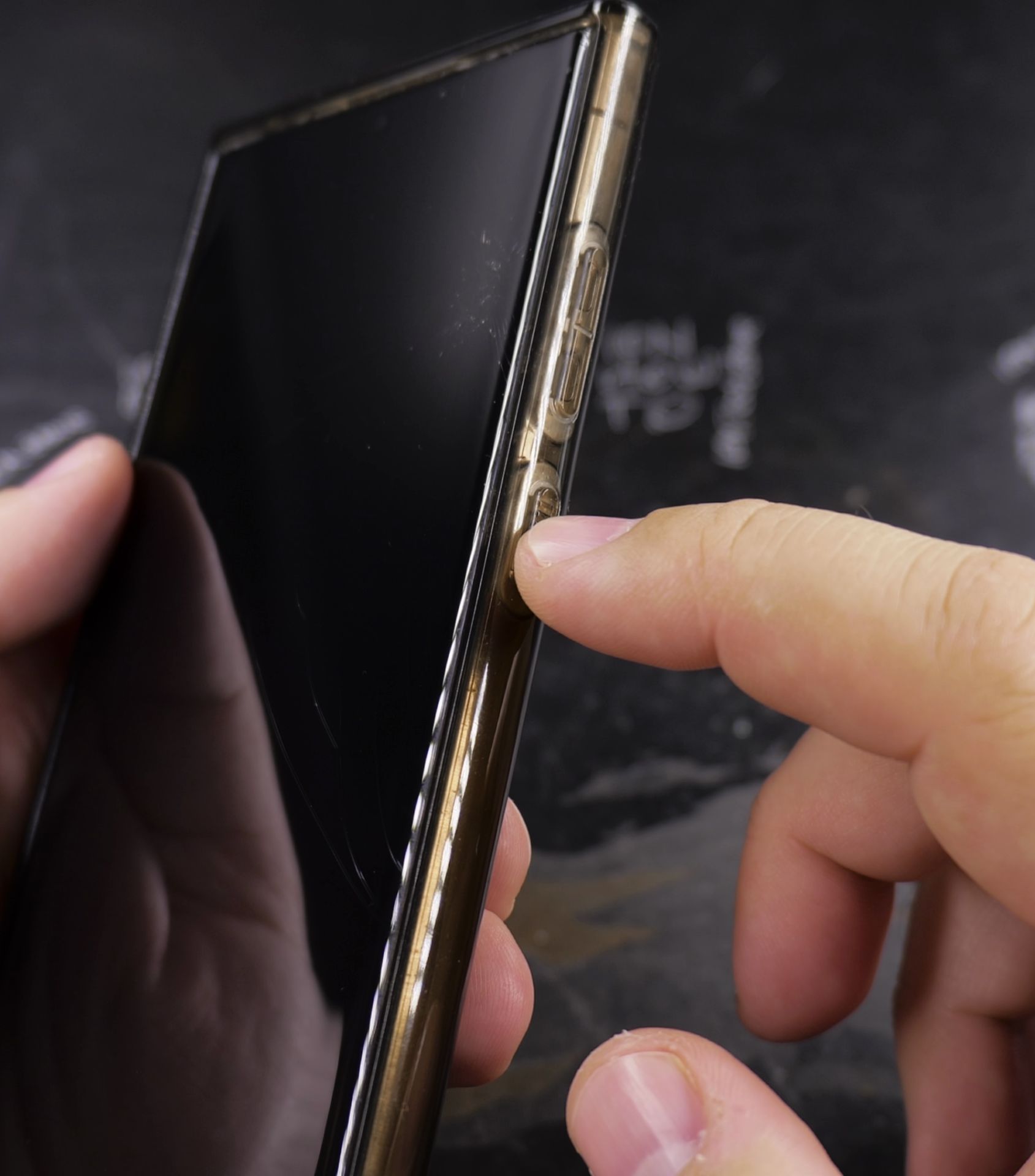
- Find the power button – On most Samsung Galaxy phones, this is on the right side
- Press and hold the button for about 2-3 seconds
- Wait for the Samsung logo to appear on screen
- Release the button once you see the logo
- Wait for startup – This usually takes 30-60 seconds
First-Time Setup (For New Devices)
If this is your first time turning on the device:
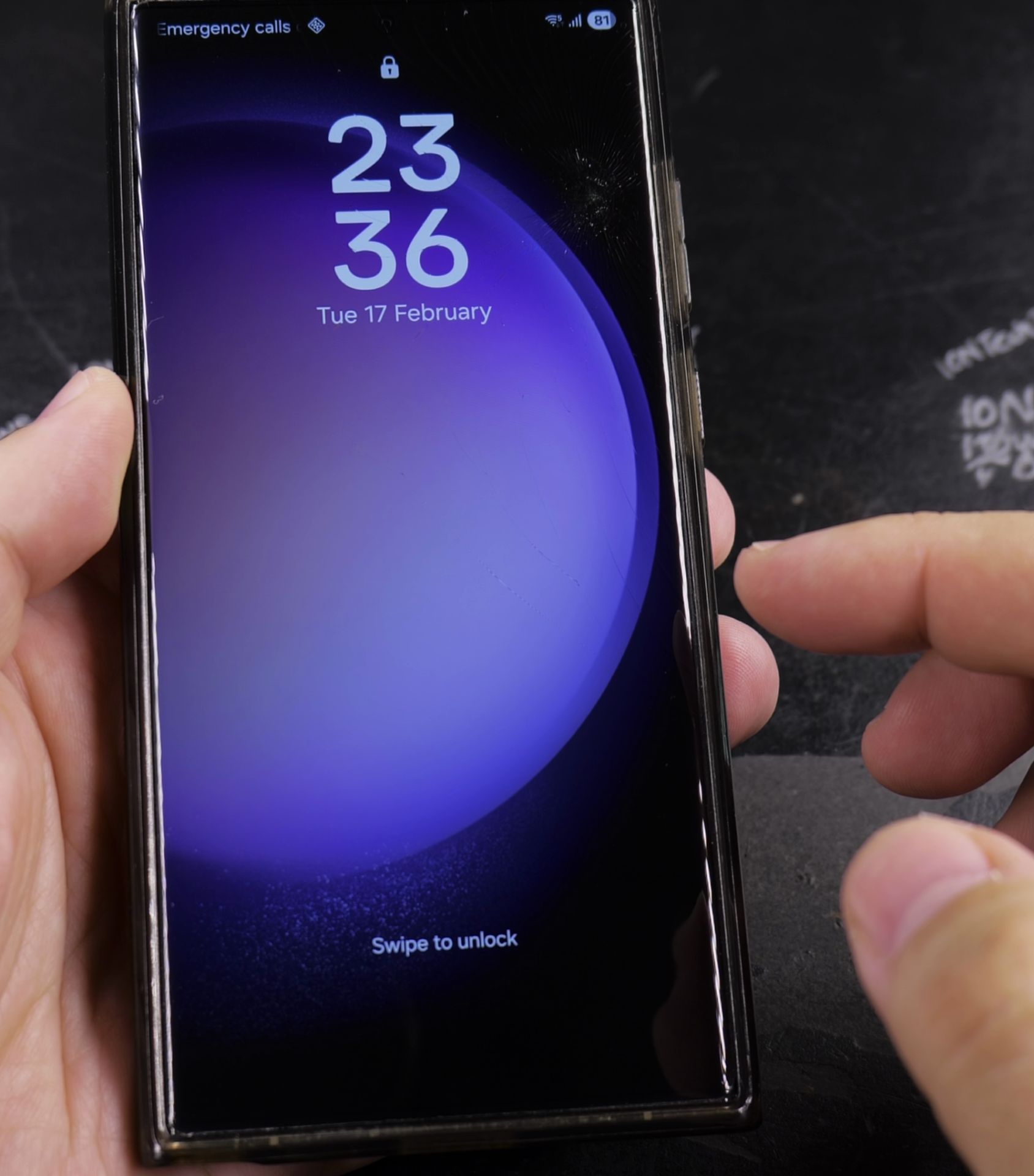
- Select your language from the list
- Connect to Wi-Fi when prompted
- Sign in with your Google account
- Set up security (PIN, pattern, or fingerprint)
- Choose backup options (if applicable)
- Complete any additional setup steps
Troubleshooting Tips
If your device won’t turn on:
- Charge your phone for at least 30 minutes first
- Try a different charger and cable if available
- Press and hold longer (up to 10 seconds)
- Check for physical damage to the power button
- Visit a Samsung service center if problems persist
Different Samsung Models
While most Samsung devices work the same way:
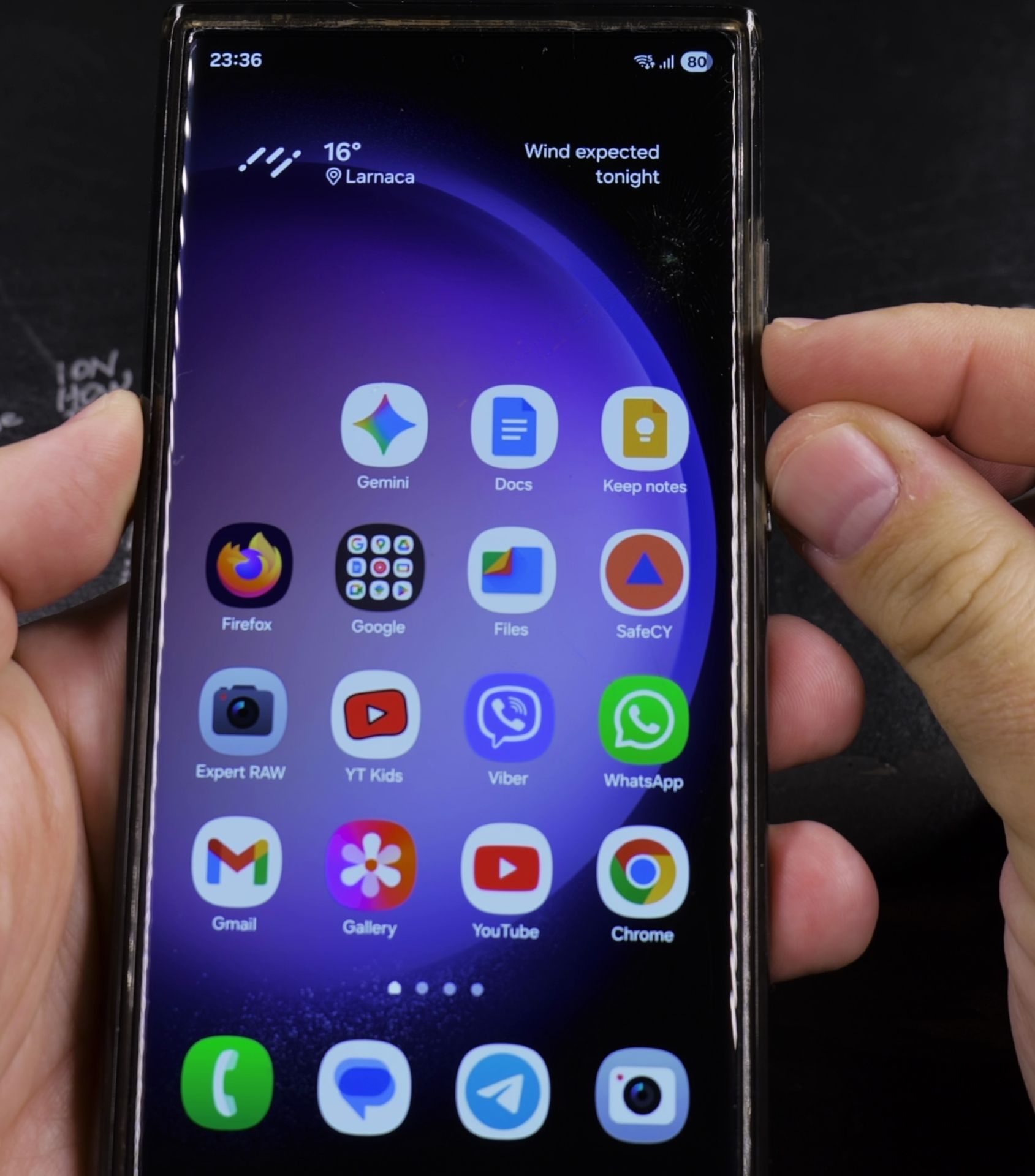
- Tablets often have the power button on the side or top
- Foldable phones (like the Z Fold) follow the same process
- Older models might require slightly longer button presses
Why This Matters
Proper startup helps:
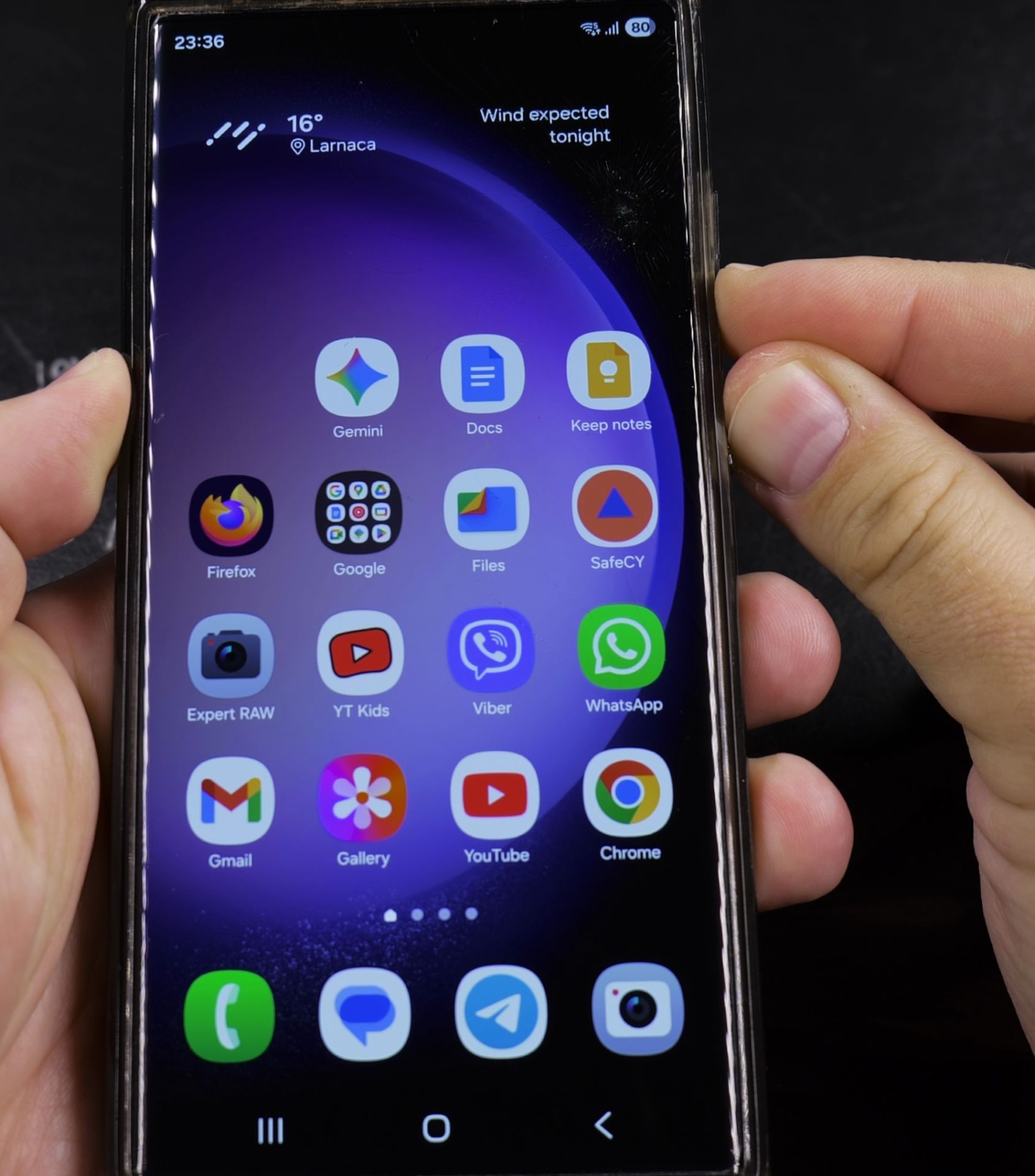
- Ensure all features load correctly
- Prevent software issues
- Give your device time to initialize properly
- Prepare for first-time setup on new devices
Now you’re ready to power up any Samsung Galaxy phone or tablet with confidence. Remember to charge your device fully before first use for the best experience.
Helpful Tips
Take your time and check the screen carefully after each tap so you can confirm the setting changed as expected. If an option appears in a slightly different spot on your device, watch the embedded video above for a closer look.
Related Guides
- Remove Apps from Samsung Android Home Screen – How to Remove Apps from Home Screen on Samsung Android.
- Add Apps to Samsung Android Home Screen – How to Add Apps to Home Screen on Samsung Android.
- Add Flashlight to Samsung Android Lock Screen – How to Add Flashlight to Lock Screen on Samsung Android Phones.
- Samsung Android Guides – Browse more tutorials and practical guides in this section.


Leave a Reply